Tag: powershell

  • Copilot Experiments: A little PowerShell help

    It’s been a little while since I’ve had time to relax a bit and try some AI help. This is another experiment I made.

    A user on SSC asked about PowerShell to copy files with a date appended.

    This is part of a series of experiments with the ChatGPT and other AI systems. Lots of Copilot lately.

    I added some code to a new file and typed a prompt:
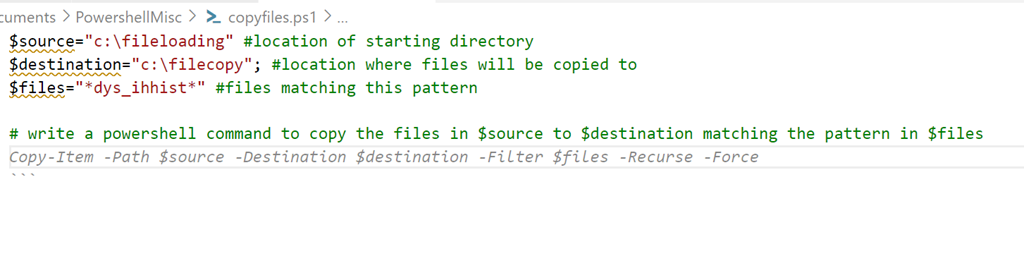
    2023-07-31 14_57_41-● copyfiles.ps1 - sqlsatwebsite - Visual Studio Code

    If I run this, it does work. Sort of.
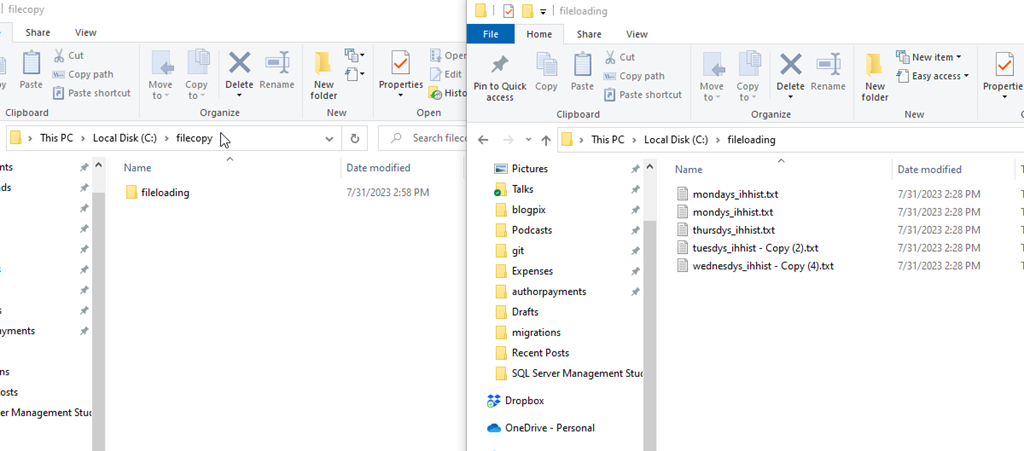
    2023-07-31 14_58_51-fileloading

    It made a folder copy, not a file copy. However, the filter worked.

    2023-07-31 14_58_58-fileloading

    Let’s try again. I’ll modify the prompt and get Copilot to explain what it’s doing in the code. I get this:
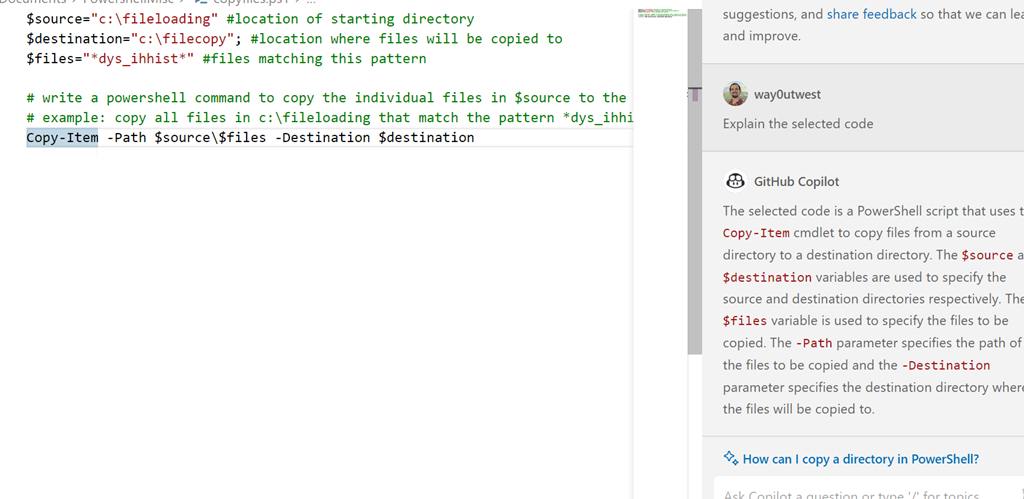
    2023-07-31 15_00_59-● copyfiles.ps1 - sqlsatwebsite - Visual Studio Code

    Which works:

    2023-07-31 15_01_04-fileloading

    Hmmm, can it do what I want.

    I tried a few prompts in the code window, but I kept getting things that wouldn’t work, like call copyfiles.bat, or something that didn’t work.

    Let’s move on.

    Copilot Chat

    I got access to the Copilot Chat as part of Redgate. There is a new chat extension to add to VS Code, which I did. I opened it and got this with my prompt:

    2023-07-31 15_05_17-● copyfiles.ps1 - sqlsatwebsite - Visual Studio Code

    Good, this code will copy the files, but does all of them.
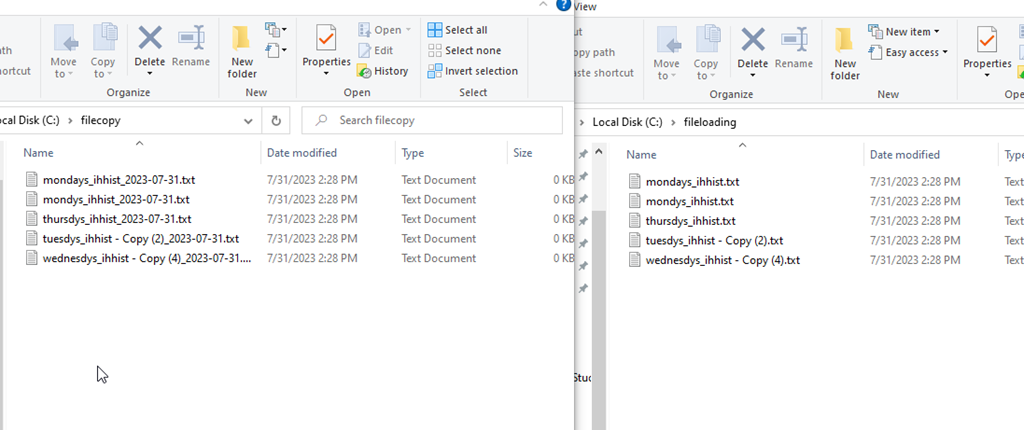
    2023-07-31 15_07_23-fileloading

    One advantage of AI bots is I don’t need to start over. I did this:
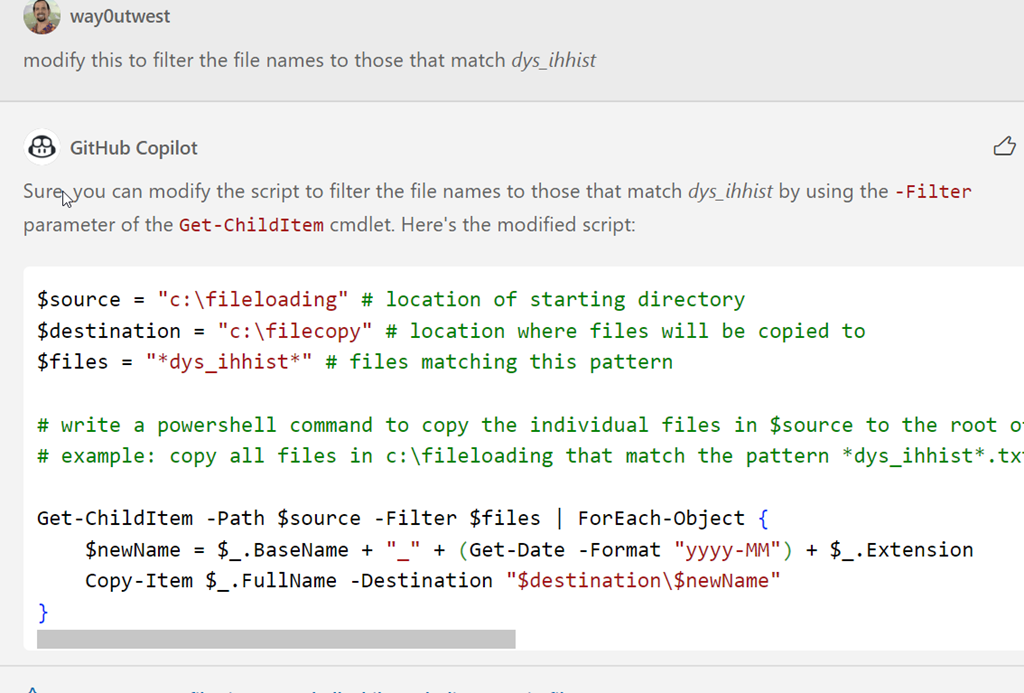
    2023-07-31 15_08_04-● copyfiles.ps1 - sqlsatwebsite - Visual Studio Code

    This worked correctly.

    2023-07-31 15_08_38-fileloading

    This was a simple example, but it produced about the same code as I did, albeit slightly cleaner. Mine was this:

    $source="c:\fileloading" #location of starting directory
    $destination="c:\filecopy"; #location where files will be copied to
    $files="*dys_ihhist*" #files matching this pattern

    # write a powershell command to get a list of files in $source matching the $files pattern
    $a = get-childitem $source -filter $files
    $a | foreach {write-host $($_.basename)-$(get-date -f yyyyMMdd)$($_.extension)}

    # write a powershell command to copy files from source to destination appending the date to the filename
    $a | foreach {copy-item $_.fullname $destination\$($_.basename)-$(get-date -f yyyyMMdd)$($_.extension)}

    I don’t know enough PoSh to know which is really better. And honestly, I don’t feel like testing at scale. Let me know if you have knowledge here.

    However, the chat window for copilot produced this quicker than I did, without me having to try and remember the PoSh parameters and structures of the functions. I had to dig around on SO to remember basename was what I needed and look up the parameter for get-date.

    The code window isn’t great, and partially I think because I don’t know how to get prompts to work in the comments, but I do like the chat window. I’ll keep playing.

  • Creating TAIL on Windows for Text Files

    UPDATE: Article changed based on the comment from Mr. Sewell.

    I wrote recently about making a HEAD utility to find the top few lines from a text file. I used Powershell and scripting to make this work from any Windows command line on my machine.

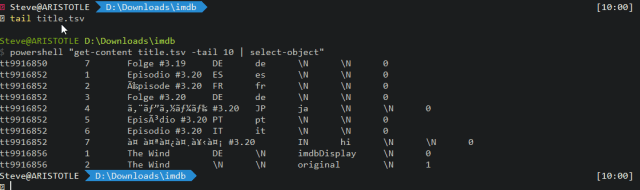
    Someone asked about TAIL, which is easy, so I did this as well and set up a tail utility.

    Get-Content in Powershell will do this, so I took my head.cmd and did a save as in VS Code.

    2022-08-15 15_02_49-Save As

    Then I changed the “first” in the code to “last”, as shown here.

    UPDATE: Based on a comment from Mr. Sewell, I updated the code.

    There is a tail parameter for Get-Content, so let’s use that.

    powershell "get-content %1 -tail 10 | select-object"

    This gets me the end of a file. As an example this is below. Here’s a text file I have with various values. As you can see below, the bottom values are zeros.

    2022-08-15 15_19_39-D__Downloads_Chart Export 08_15_2022 21_19.csv - Sublime Text (LICENSE UPGRADE R

    Here’s my tail utility working:

    2022-08-15 15_23_49-D__Downloads

    UPDATE: I left the original piece below in italics, but with the tail parameter, this takes a few seconds.

    If I run this on a larger, 1.5GB file, it takes a few seconds.

    tail parameter change and quick execution

    In case you’re wondering how this works on larger files, it can be slow. This took 3 minutes on my machine to get the last ten lines of a 1.5GB file.

    2022-08-15 15_28_58-D__Downloads_imdb

  • Creating a HEAD utility for Windows 10

    One of the things I did often in my first career job was create utilities that we could use as a network support team. I was an intern coming from university, where I used SunOS and Solaris all the time. I was used to a command line for a lot of work. While DOS worked well, there were things I missed, like whoami, head, tail, etc.

    I rebuilt a bunch of those as DOS batch files for myself, but I expanded this to more useful things. We supported over 1000 people, and finding their phone extensions was a pain, especially in the early 1990s with phones that had cords and pagers. We had a common file share that contained a text phone directory, so I built 411.bat, which took a parameter and searched that file for a matching name. Then returned the line of data. It was immensely helpful to us.

    The other day I had a large file that I wanted a glimpse of. I opened it in Notepad++ (this was GBs of data), but it took time. That made me think I’d really like HEAD on Windows. I tried it, but it’s not there.

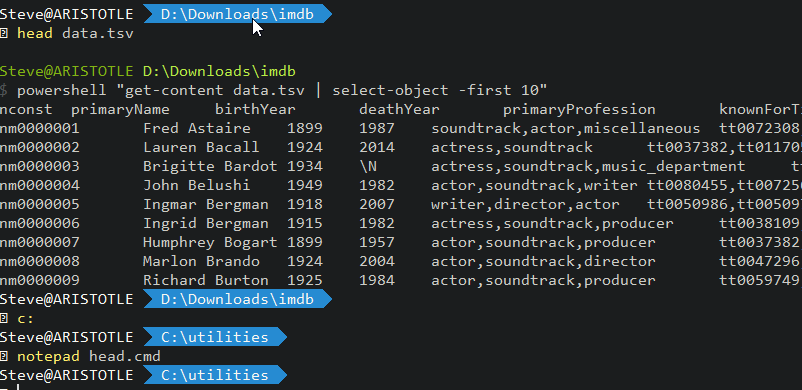
    So I built it. This is my command file:

    powershell “get-content %1 | select-object -first 10”

    I save this in a utilities folder in my path. Then in other folders, I can run it and get a glimpse of text files I’m importing or working with. Way, way faster than Excel or trying to open this in another program. I often have a cmd open, so this is useful to me. You can see it working below.

    2022-08-04 08_55_24-C__utilities

  • Using T-SQL over PoSh

    Why would you use SSMS/T-SQL over PowerShell (PoSh)? When is T-SQL directly a better option than PoSh? That’s a question I ask myself regularly as I see articles and blogs that discuss how to accomplish a particular task using one tool or the other. There is plenty of overlap in the capabilities for each language when it comes to working with SQL Server, so this is a decision I think about regularly. This is especially true if you use dbatools.

    There also appears to be a bias towards one tool or the other for each individual. Many people traditionally have used T-SQL to accomplish most database tasks, and they tend to always look for a solution with a script in SSMS. Others are excited by PoSh and I have seen plenty of questions on the SQL Server Central forums asking how to structure their code in that language. In both cases, there is no shortage of people that argue that you should use T-SQL instead of PoSh or vice versa.

    Personally, I think that there are lots of development items where I’d use T-SQL. For any sort of schema change, most data changes, and a lot of database administrative tasks, I would use T-SQL first. Trying to alter a table in PoSh vs. T-SQL doesn’t make sense to me. Now the deployment of these changes is something where I’d use PoSh to run the T-SQL, which is what we do in the Redgate Deploy tools.

    I was with a panel recently and all the individuals on the panel said they wouldn’t use PoSh over SSMS for much of anything. The exception is where a task involved working with files or folders in the file system. PoSh excels here, and for work that might delete old files or move files from one folder to another, PoSh is preferred.

    I think the defining line for me is whether I need to accomplish a task inside of SQL Server or outside of it. When I cross instances or work with the file system, then PoSh is my preferred method. I can use xp_cmdshell or a linked server as well as anyone, but I prefer not to. Anything inside SQL Server, usually has me reaching for SSMS instead of VS Code.

    Steve Jones

    Listen to the podcast at Libsyn, Stitcher, Spotify, or iTunes.