Tag: SQL Prompt

  • Quick Tips – SQL Prompt with SSF

    I love SQL Prompt, and think it’s a great productivity tool. Even before I worked at Red Gate, I love the tool and had a copy before Red Gate bought the technology from the original developer. Recently I’ve run into a few people that weren’t aware of some of the ways in which it can help you. This is a quick look at one of the ways I use SQL Prompt.

    SSF

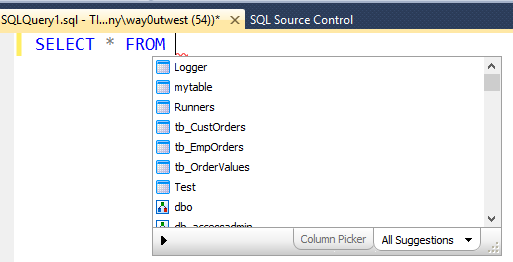
    I probably type SSF more than any other character combination in SMSS. With SQL Prompt installed, I usually quickly type “SSF” and hit “tab” and get this:
    ssf1


    SQL Prompt has expanded my “SSF” into “Select * From” and then popped up a list of tables in this database. I could down arrow to select one, or use the cursor, or start typing.

    This is a quick way to get data from a table back to your SSMS client without worrying about the columns or rows you need from a table. I use this constantly, though I’ve edited this command to return the top 10 rows only. Here’s how I do that:

    Snippet Manager

    There’s a dialog for managing these snippets of code, called the Snippet Manager. You can access that from the SQL Prompt menu

    ssf2

    Once you select this, you get a dialog that shows all the snippets installed on your system. I scrolled down to the “SSF” snippet that I often use.


    ssf3

    If I click the Edit button, then I get a small editor where I can paste in code or edit what’s there. In this case, I add the “TOP 10” keywords, and I also reformat the code slightly. I like my code formatted, so I ensure it’s formatted here.


    ssf4

    Once that’s done, I click “Save” and then “close” for the Snippet Manager. Then the next time I type “SSF” and tab, I get this:


    ssf5


    Note that there is an st100 snippet that does the same thing I edited with 100 rows, but I find ssf easier to type, so I just edit this snippet.

    I’d encourage you to play around with snippets, and also adopt this in your daily work. If you don’t have a copy of SQL Prompt, download the evaluation and I’m sure you’ll realize it’s worth the cost of the tool in time savings quickly.

  • From the Labs of SQL Prompt

    I love SQL Prompt as an add-in for SSMS. The intellisense is very handy for me and I’ve gotten used to certain shortcut combinations that make it easy for me to write T-SQL quickly and get information on parameters without opening Books Online. It’s works better than the native intellisense for me, though perhaps I’ve just gotten used to it. When it’s not installed on an instance in one of my VMs, writing code is a chore.

    When I was in Cambridge recently, I had the chance to sit down with one of the developers of SQL Prompt and he showed me a few things I had never seen.

    For the most part when I install SQL Prompt, I leave it with the defaults. There are a few snippets that I change quickly, like the ssf snippet. This normally produces a “SELECT * FROM” and I add a “TOP 10” to it in order to reduce the amount of data I bring back.

    However there are a few features in SQL Prompt that are “experimental” in nature. They are complete, but not deployed into the product by default. You can access them from the SQL Prompt menu in Management Studio.

    prompt3

    This brings up the Experimental Features tab in the options dialog, which you can see below. There aren’t a lot of features, but these are ideas that have been suggested, or are working, but they developers aren’t sure if they are completely spec’d out.

    prompt4

    You can enable a few of these to see if you really want to see how they work. For example, I’ve enabled “Automatic Refresh Suggestions”. Since I tend to work in one database at a time and create lots of objects, I want this to happen. I can ALT+S, Enter for this, but I’d like to tool to do it for me.

    These items change periodically, and some link to related tools (like SQL Tab Magic), and they give you a chance to test the way the feature works and provide feedback. If you are a SQL Prompt user, you might check out this tab.

    If you’d like to see what SQL Prompt can do for you, download a free trial and give it a try:

    14-day-free-trial

  • Clean Code is Easier to Read – SQL Prompt

    I saw a post recently that had query that looked like this:

    select a.*,name, b.*
     from sys.database_principals a, sys.database_permissions b
    
    where permission_name = 'INSERT'
    and
    b.grantee_principal_id = a.principal_id


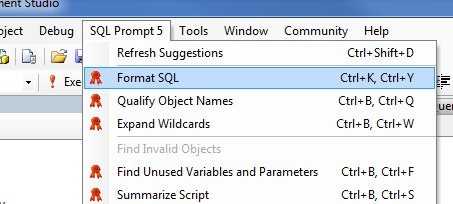
    Ugly to read, at least to me, and in a poorly written format. The table, table format isn’t ANSI compliant and isn’t recommended. So I did this:

    formatsql

    A little better, and easier to read, but not great.

    SELECT  a.* ,
            name ,
            b.*
    FROM    sys.database_principals a ,
            sys.database_permissions b
    WHERE   permission_name = 'INSERT'
            AND b.grantee_principal_id = a.principal_id

    However now I can make a few quick edits. Remove the comma between tables and add “INNER JOIN” and then move the AND clause up to an ON clause to give me this:

    SELECT  a.* ,
            name ,
            b.*
    FROM    sys.database_principals a
      INNER JOIN sys.database_permissions b
        ON b.grantee_principal_id = a.principal_id
    WHERE   permission_name = 'INSERT'

    Much better, and easier to read.