Tag: SQLNewBlogger

  • Basic SQLCMD–#SQLNewBlogger

    Another post for me that is simple and hopefully serves as an example for people trying to get blogging as #SQLNewBloggers.

    I had the need to connect from the command line recently, and decided to make a quick post on using SQLCMD, as I had an issue.

    SQLCMD is a command line utility that comes with SQL Server. I know many people don’t use command lines, but they are handy at times. I recently opened a command prompt.

    2016-04-06 12_47_33-Photos

    I then typed SQLCMD. After a delay, I got this:

    2016-04-06 12_51_23-Photos

    The issue here is that I don’t have a default instance on this machine. All of mine are named. I need to provide a –S parameter, with a server name (and possibly instance name).

    2016-04-06 13_01_33-Photos

    I do that and I’m connected. By default, SQLCMD (and osql) try to use Windows Auth. The 1> indicates that the utility is ready for T-SQL queries. You need to know your language here as there’s no help.

    I can enter code, and check my user name. I do this, and get a 2>. The end of a batch is indicated with “GO” and this will execute the batch. You can see how this works below:

    2016-04-06 13_01_47-Photos

    I can use this to make my code easier to read. I can format code as I would in an editor, though be aware you can’t go back and edit previous lines.

    2016-04-06 13_07_03-Photos

    If I enter go, I’ll get this:

    2016-04-06 13_07_15-Photos

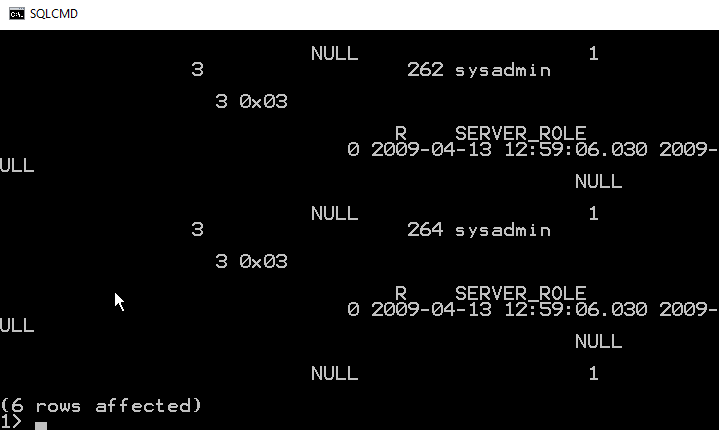
    Not so easy to read. I have to scroll up to even figure out what the display is:

    2016-04-06 13_07_26-Photos

    As you can see, using SELECT *, or retrieving too many columns make results hard to read. You would to wise to pick only those columns you need to return.

    To leave SQLCMD, you can type exit, which will return you to the command prompt.

    2016-04-06 14_00_07-Start

    This is a short look at SQLCMD. The older, osql, utility functions the same way, and both are good, lightweight ways to connect to your SQL Server instance.

  • Changing the sa Password with SSMS–#SQLNewBlogger

    Another post for me that is simple and hopefully serves as an example for people trying to get blogging as #SQLNewBloggers.

    I wanted to make a quick note on changing the sa password, as this is a sensitive account, and the password should be changed if you ever suspect it is compromised. I’d also recommend you change this if anyone that knows the password leaves your group.

    Changing sa with SSMS is really simple. Follow these steps:

    Connect to SSMS as a sysadmin. You can check this for your login. Then expand the Security folder and the Logins folder. Right click the “sa” account and choose properties.

    2016-04-06 12_40_31-Photos

    Once you do this, you’ll get the login properties dialog, and see the Password text field at the top in the General tab.

    2016-04-06 12_42_22-Photos

    You can type a new password in the Password box, and confirm this in the Confirm Password box. Password policies checks are up to you, though I’d recommend you use them.

    Click OK and the password is changed. You can then connect a new query window as “sa” and verify your password.

    SQLNewBlogger

    Make sure you know how to do this. It’s a basic skill, so learn it, blog about it, and use it where appropriate. Maybe write about why you’d do this in your own post.

  • #SQLNewBlogger–Adding Local Accounts


    What do you do if you need a process running under Local Service to connect to your SQL Server? Most of the advice out there is to change the login account. I actually agree with that, but there are times you can’t, or don’t want to.

    There are certainly times when I’ve seen some automated process use one of these accounts:

    • NT Authority\Network Service
    • NT Authority\Local Server

    Often this is because someone doesn’t want to bother to learn how to enable other accounts for their application, which isn’t a good excuse. In my case, I had a local VSTS agent service running as part of a demo, where I had very limited rights. I couldn’t affect a change, and I needed to get a new login for SQL Server.

    I searched a bit, but most advice said to just change the account, after all, if you had a process connecting from another machine, Local Service won’t work. However I found one item on Stack Overflow that helped.

    Here’s my Login list. As you can see, I have Network Service, but not Local Service.

    2016-03-25 12_50_57-Alarms & Clock

    I the run this code:

    CREATE LOGIN [NT AUTHORITY\LOCAL SERVICE] FROM WINDOWS;

    This gives me a new login.

    2016-03-25 12_52_48-Alarms & Clock

    In my situation, I then had to add this to the dbcreator role, but I could treat this like any other login and assign the minimum privileges needed.

    SQLNewBlogger

    I had to solve this and decided to write about it. The writing took 10 minutes, the research was 15-20 minutes to find a good reference and experiment a bit.

    A good learning exercise, and all of you should know how to do this. Prove it with your own blog.

  • The OUPUT Clause in an INSERT–#SQLNewBlogger

    Another post for me that is simple and hopefully serves as an example for people trying to get blogging as #SQLNewBloggers.

    I got asked a question about the OUTPUT clause recently and realized I didn’t remember the syntax. I’ve rarely used this, so I had to look it up and thought this would be a good basic post.

    The idea with OUTPUT is that the data from the inserted and deleted tables can be output from the INSERT statement, outside of your triggers. This is the same data, but you can access it in the insert.

    The format is

    INSERT xxx OUTPUT yyyy INTO @zzz VALUES (or SELECT) mmmm

    The xxx is your normal insert target, table or view. The yyyy from the OUTPUT clause is a list of items to output. These is a comma separated list of fields in the format of inserted.col1, inserted.col2.

    The @zzz is a table variable. No inserts into scalar variables. This has to work with the set based nature of T-SQL. This means you’ll need to declare this variable. The mmmm is your normal insert stuff.

    Example

    Here’s a quick, short example. Let’s say  I have this table:

    CREATE TABLE MyCustomers
    (
    MyID INT IDENTITY(1, 1)
    , MyCustomer VARCHAR(200)
    , Active TINYINT
    );
    GO
    INSERT dbo.MyCustomers
    VALUES (‘Acme’, 1), (‘Roadrunner’, 0), (‘Bugs’, 1)

    I want to insert data into the table, and capture the identity value of MyID  as well as the name, separately from the insert. Note, I might really have a TRY..CATCH in production to deal with issues.

    If I add a new row, the identity should be 4. I want to capture this. I’ll first declare my OUTPUT variable.

    DECLARE @customers( id int, customer varchar(200);

    I don’t have to make this match the entire table, I can use a subset.

    Next, let’s build the INSERT. I want to capture the two fields from the inserted table, so we’ll include those.

    INSERT dbo.MyCustomers
    OUTPUT Inserted.MyID
    , Inserted.MyCustomer
    INTO @customers
    VALUES
    (‘Wile E Corp’, 1);

    I also need to output my table variable

    SELECT
    *
    FROM
    @customers;

    If I run this, I’ll see this:

    2016-03-11 14_19_28-Settings

    Of course, I can do other processing with my table variable, using the output elsewhere in code.

    SQLNewBlogger

    This is a quick look at how you can use the OUPUT clause. This took me about 10 minutes to play with and remember the syntax, and 10 more minutes to write.

    I’d encourage you to play with this and write your own blogs. What can you discover about this construct?

    Reference

    OUTPUT – https://msdn.microsoft.com/en-us/library/ms177564.aspx