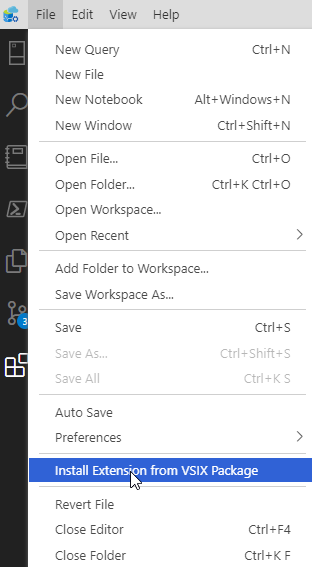
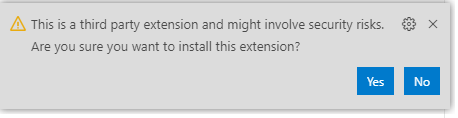
One of the most popular and widely used features of SQL Prompt is formatting code. The SQL Prompt extension is in public preview and you can get it here. I have another post that walks through the installation.
Once it’s installed, you will likely want to use it, and one of the things you can do is format code. This post looks at a few of the basics for formatting code.
Quick Format
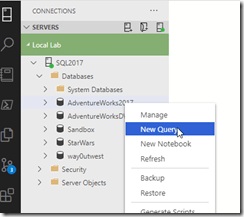
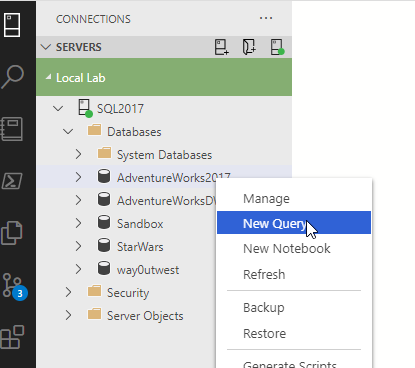
Let’s see how this works. First, we open ADS and choose a connection from the Server pane. I right click a database and choose “New Query”(shown here).
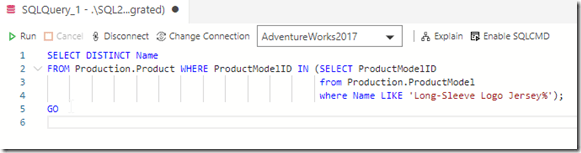
Next, I’ll enter the query here into the pane:
SELECT DISTINCT Name
FROM Production.Product WHERE ProductModelID IN (SELECT ProductModelID
                                                 from Production.ProductModel
                                                 where Name LIKE 'Long-Sleeve Logo Jersey%');
GO
Once I have this, you can see in the image that the subquery has some poor formatting. The subquery is quite wide and some keywords are cased differently.
Let’s CTRL+Shift+P to get the command palette. If I type format, I’ll see some options in the image below for formatting (or something similar).
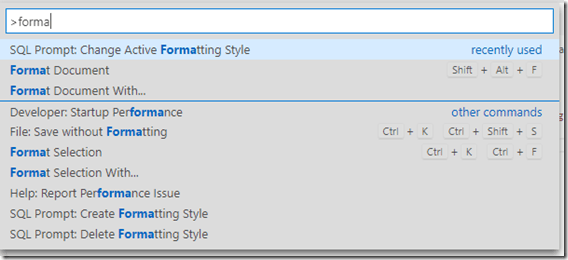
I’ve been testing, so the recently used commands show the format document commands, which you will often use. In this case, I’ll select Format Document with. When I do that, I’ll get a list of formatters for SQL code installed on my system. In my case, I have SQL Prompt, the default mssql formatter, and a PostgreSQL formatter.
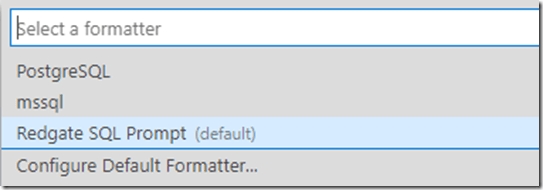
Once I select Prompt, formatting will begin. I see a note in the lower right corner of ADS.
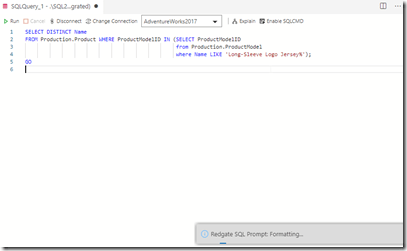
When this is done, I can see my query is formatted appropriately (according to my style). The keywords are proper cased and the spacing for the subquery has changed.

Setting a Default Formatter
I don’t want a two step process every time I need to format code. In fact, the Format Document shortcut is Shift+Alt+F, and I want to use that. In order to do that, I’ll need to configure a default format.
Note: If you haven’t and you click Shift+Alt+F, ADS will ask you to configure one.
The command palette (CTRL+Shift+P) is the way to configure ADS. Click that and type “format”. You will see a list of commands, and you want to choose the “Format Document with” option. This brings up the list of formatters, as we saw above, but below this is the “Configure” option.
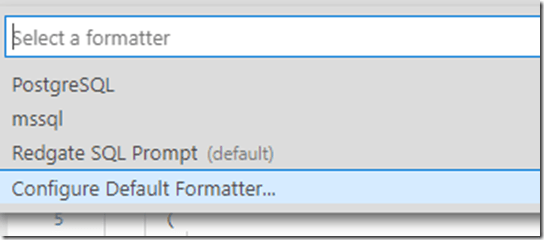
We choose this, and again see a list of formatters, but the text at the top has changed. In the image we can see this now says: “Select a default formatter for ‘SQL’ files”. We can pick SQL Prompt to set that.
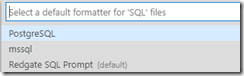
Once we’ve done this, Shift+ALT+F will format your query.
Changing Styles
One of the things many of us want to do is use a custom formatting style. While the built in styles are handy, many users want custom ones. That includes me. I have a few custom styles I use regularly in SSMS. If you run ADS on Windows, your styles are imported. If not, I’ll do another post for that.
I can change styles in the command palette. Type “SQL Prompt” in there and you see options:

The one I’ll use is the recently used one “Change active formatting style” at the top. If I pick that, I see this on my ADS install:
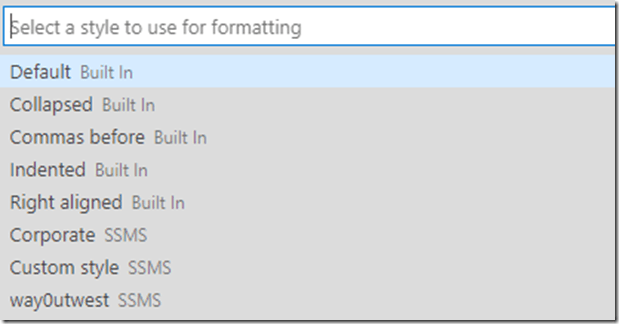
There are a number of Built In styles that come with Prompt, but we can see my three custom ones have been imported from SSMS. Each time ADS starts, it imports your styles, so if you change on in SSMS, which has a better style editor, you will see it here when ADS reloads.
I will set my “way0utwest” style as active and then reformat the query. I now see this:
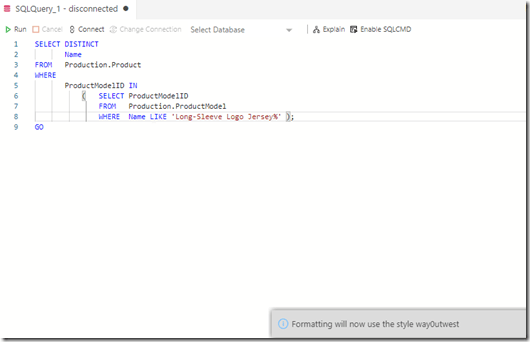
The parenthesis location has changed. I also see the notice in the lower right that appeared after selecting a new active style.
Summary
This is just a basic look at using the formatting and choosing a style. If you are on Windows, all of your styles are available. If not, you’ll have to use the built in ones or edit one for yourself. I’ll cover editing styles in another post.
I also have a video here of the process of formatting code: https://www.youtube.com/watch?v=EWCk7wUIL_s&feature=youtu.be





 Voice of the DBA