Tag: syndicated

  • Delete an Azure DevOps Project

    Not something you’ll do too often, but you might find yourself doing this if you are setting up PoCs and removing them. A reminder for me, since I stumbled around for 5 minutes before Googling and finding a note on the docs site.

    Project Settings

    This is the key, and there are a lot of useful things here, including deleting your project. To get to the settings, open your project from Azure DevOps. In the current view, you see a number of items along the left: the overview, repos, pipelines, etc..
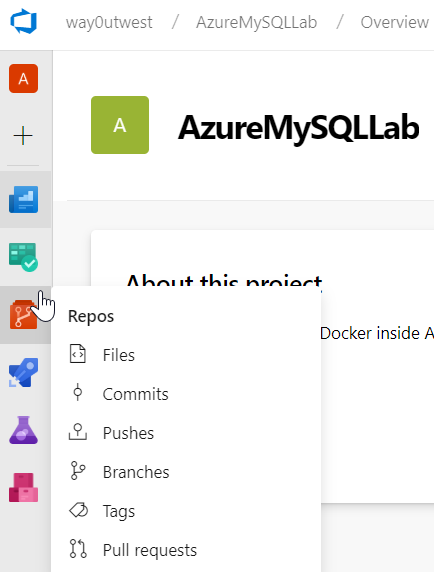
    2019-09-02 14_33_55-Summary - Overview

    Look below these items and you’ll see the gear icon. That will take you to the settings.
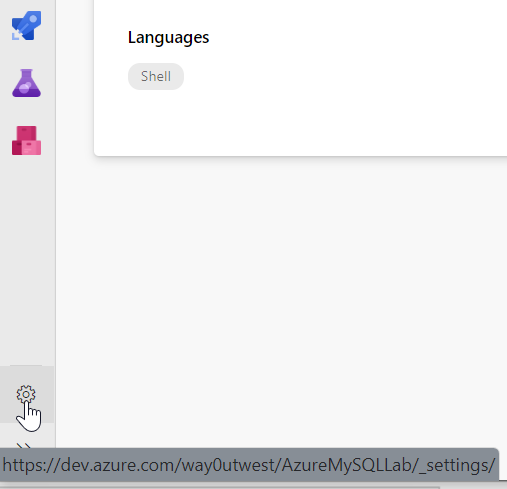
    2019-09-02 14_34_16-Summary - Overview

    The settings page as the name of the project, and a number of tabs on the left. You can change lots of the items, but for this post, stick with the Overview.
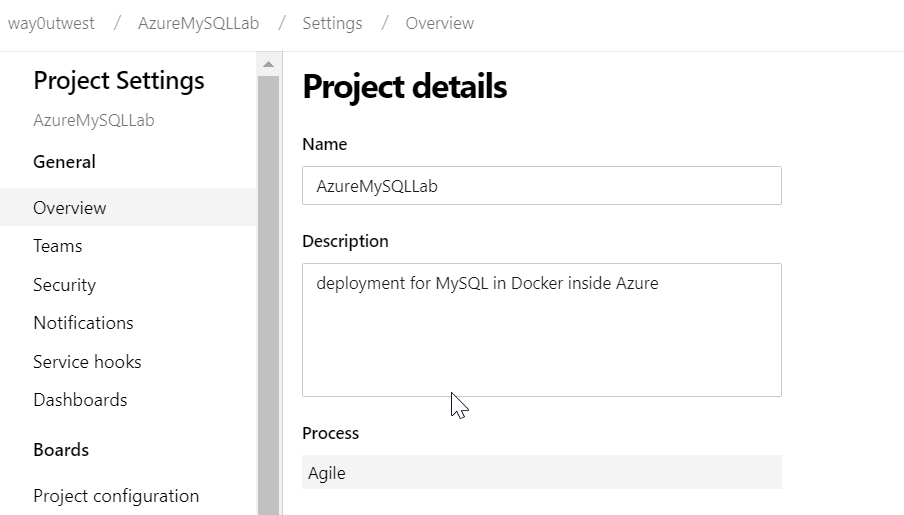
    2019-09-02 14_35_35-Settings · Overview (AzureMySQLLab) - Settings

    Below the Process, are the various sections of Azure DevOps listed, the Boards, repos, etc. If you scroll down the Overview page, you’ll see the Delete Project at the bottom.
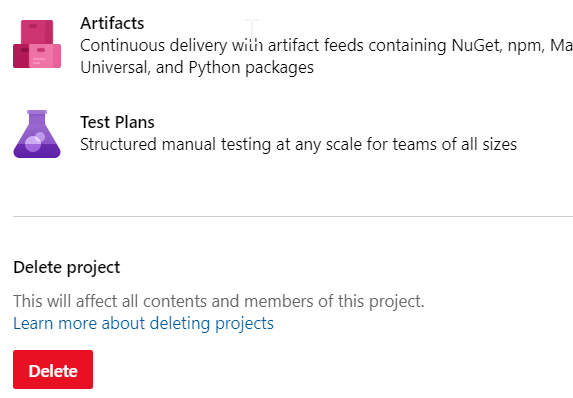
    2019-09-02 14_35_46-Settings · Overview (AzureMySQLLab) - Settings

    Click this, and you’ll get a confirmation dialog. You need to enter the correct name of the project to delete it.

    2019-09-02 14_35_52-Settings · Overview (AzureMySQLLab) - Settings

    Microsoft knows this is a big deal, so you have time to recover this if you make a mistake. That doesn’t mean you shouldn’t treat this seriously, but in case you make a mistake, you can recover things right away if you need to do so.

    Once you start to experiment and work with Azure DevOps, you can find the number of projects will grow. Some of those will be test projects or PoCs, which need cleaning up at some point. This is the process to remove those old projects.
  • SQL in the City Sydney in Two Weeks

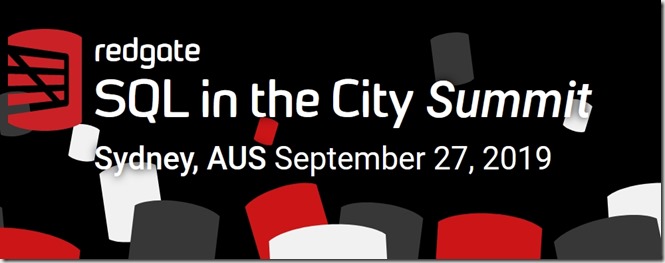
    It’s two weeks to our next SQL in the City Summit, this time in Sydney. I’m excited to be going back, though it’s a quick trip for me. Likely I’ll be fueled on lots of coffee for the two days I’m in Australia, so if I’m speaking a bit fast, remind me that the rest of you aren’t on a whirlwind, halfway around the world trip.

    2019-08-29 10_29_58-Redgate's SQL in the City Summit Sydney

    We had great reviews on our previous tour, and I was sad to miss Sydney, but we’re coming back on Sept 27. The schedule is slightly different, but we’re thrilled to have Damian Brady from Microsoft talking about their DevOps transformation.

    Anderson and myself will represent Redgate and deliver a few session on our tools, and we’ll have the amazing Hybrid DBA, Hamish Watson coming as well.

    Register today and come learn more about Compliant Database DevOps and Redgate solutions to help you write database code more efficiently.

  • Changing the SQL Data Masker Connection Target

    This post will explain how to change the connection in your masking set when using SQL Data Masker from Redgate.

    I’m writing this more for myself than anyone else. I find myself using Data Masker for different databases at times, and I keep forgetting this. I just spent more than the 2 minutes I’d expect on Google searching, so I’m adding a post in hopes that I’ll remember this.

    When you start creating a masking set, you’ll connect to a SQL Server and choose a database. Later, you might want to change this, or test the masking set elsewhere. Where is the connection string? I had thought it would be in the settings somewhere, but it’s not.

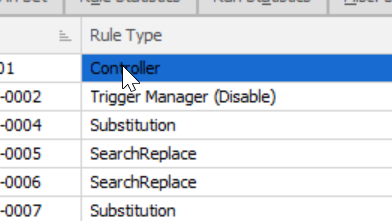
    It’s in the controller.

    The controller is usually at the top of the list, but there could be other ones. However, they are the most left displayed items.

    2019-09-02 14_28_27-SimpleTalk_Prod_Mask_ Data Masker for SQL Server

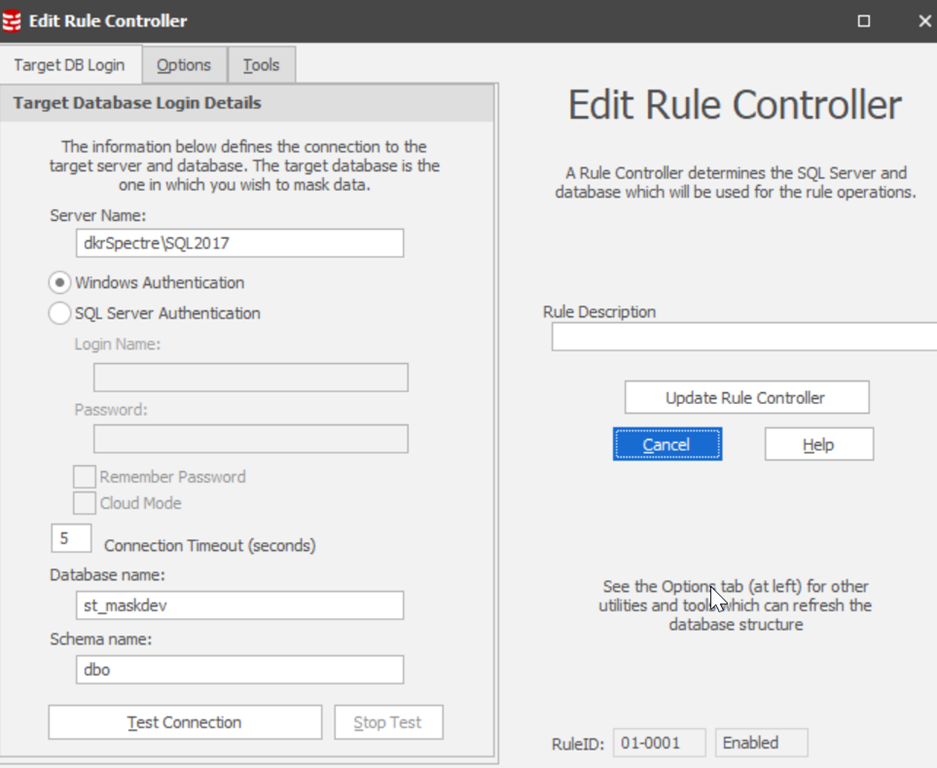
    Double click the controller, and you’ll see something like this.

    2019-09-02 14_29_14-Edit Rule Controller

    Here you can change the instance and database needed. To save the changes for your session ,click the “Update Rule Controller” on the right. To save the changes in the set, save the entire set.

    Hope this helps you, and hope it helps me remember how to do this.

  • Finding the Visual Designer in Azure DevOps Builds

    This post is really a reminder to me, since I don’t create pipelines all that often, and I’ve forgotten a few times how to do this.

    Plus, while YAML is nice when you want to scale things, it absolutely sucks for getting started. It’s a horrible default and, IMHO, is the worst decision of the Azure DevOps team since the VS 2010 Release Management days.

    When you create a new project, and then select Builds in Azure DevOps, you’ll see something like this. It might be slightly different as the product continues to evolve every few months.

    2019-08-26 21_00_07-Builds - Pipelines

    This looks inviting, a pipeline should be easy. When you click New Pipeline, you’ll get a choice. The intention here is that Azure DevOps wants to help you get started.

    2019-08-26 21_00_40-New pipeline - Pipelines

    Don’t be fooled. If you say your code is in GitHub, you’ll get a YAML pipeline and you can’t convert back? Why? Apparently the developers at Azure DevOps don’t want to write GUI interfaces that render YAML code.

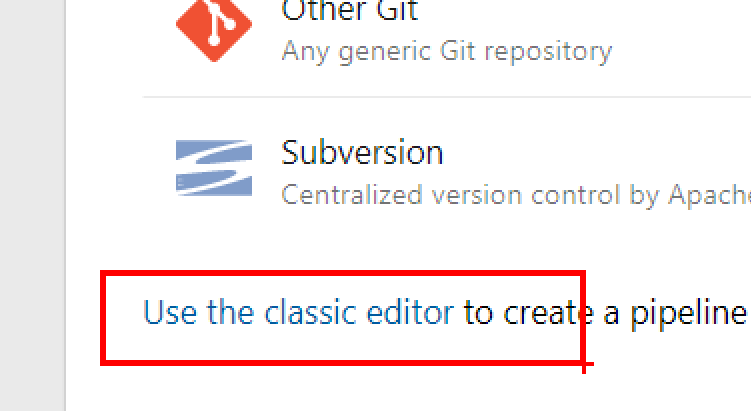
    Instead, at the bottom of this section, there’s a “use the classic editor” link. Click that.

    2019-08-26 21_03_29-Zoomit Zoom Window

    Once you do that, you still have all the choices for code repos, and it’s easier to get your build started.

    2019-08-26 21_04_18-Select a build pipeline template - Azure DevOps Services

    Hopefully I’ll remember that next time instead of fumbling around.