Tag: syndicated

  • Getting Started Blogging–#SQLNewBlogger

    It’s a new year, and the perfect time for you to start blogging about your SQL Server work. I think blogging is a great way to showcase your knowledge, and over time, this can become as important to your potential employers and clients as your resume or CV.

    This post won’t look at what to write, but rather, how to get started. I’ve divided this up for people that might have written some technical articles and those that haven’t. If you have, feel free to skip the next section.

    Starting From Scratch

    If you’ve never really written a blog or technical piece, I recommend do this:

    1. Create a folder on a shared drive
    2. Open Word (or another WYSIWYG) editor
    3. Begin Writing
    4. Save the post you’ve worked on as 1_SomeTopic.
    5. Repeat, incrementing the number so you get files such as 2_OtherTopic, 3_ReallyInteresting, etc.

    That’s it. Just begin writing. Don’t worry about publishing, don’t worry about anything else. Just get in the habit of putting some thoughts down on paper that talk about the work you do.

    When you get 10 posts, you are ready to move on.

    I would recommend you calculate the average time it takes for you to produce a post. This would be the rate at which I’d look to schedule my posts.

    Choosing a Platform

    The next step when you are comfortable with your writing is to choose a place to publish your work. There are lots of choices, and a good comparison of sites is listed in this article.

    I use WordPress and Blogger/Blogspot for different blogs. I chose two to have a comparison and after a few years, I think WordPress is better. You can certainly download the WordPress software and set up your own site on a VM somewhere, but I don’t think that’s a good place to start unless you want a project. If you want to write, wordpress.com is a nice start. It does enough for me, and it’s easy to let them update the software and just pick a theme.

    I also recommend OpenLiveWriter to write with. I can easily draft posts in a WYSIWYG way, keep the drafts private (and on a OneDrive folder) and then publish to my platform at will. I find this easier than trying to work online. The project looks slightly abandoned for now, but it is stable and useful on the Windows platform.

    Scheduling

    How often should you blog? I think this is a hard question, but I’d blog at the pace that works for me. If you are a new writer, you should have written 10 pieces and tracked the time to produce those. For most people, this is between 2 and 4 weeks for a piece. Some might do 1 a week, but whatever is possible in your busy life is the pace I’d stick with.

    My goal is to blog 3 times a week. Sometimes I can do more, but I don’t usually try to do more. It’s better to schedule out posts and ensure I can maintain some level of consistency than I get my posts out right away. Most of the time I have a couple of posts scheduled a few weeks out because I’m not producing news. I’m showcasing knowledge.

    My advice is to schedule less frequently than you think you should. It’s easier to add in most posts later than try to maintain some pace that causes you stress.

    This should be fun.

    Post Reviews

    No matter what topics you choose or the frequency of your posts, it is important that you do a good job in producing them. That doesn’t mean you need 3 peer reviews and a copy edit, but you should take the time to get some feedback from others on your work.

    If you aren’t an experienced writer, or you worry about the impression your writing makes, then ask a friend, spouse, co-worker, etc. to review a few posts and help you with your grammar, spelling, and the way you communicate the concepts.

    Communication is a skill, and you will get better if you work at it. However, the best way I have found to do this quickly is to get feedback from others.

    Take the Challenge

    Challenge yourself and start blogging today. Even as little as 15 minutes a week can really help you showcase your knowledge, and give you an edge for your next interview.
  • Easy Database Space with dbatools

    One of the things that I’ve seen DBAs query for is free space in a database. In fact, this is one of the most common questions posted on SQLServerCentral by newbies that are trying to manage their instances and ensure they don’t use too much space or run out of space.

    The most common way to do this is with sp_spaceused. This system stored procedure has been around for a long time and is commonly used. However, it’s cumbersome to me. I get two result sets, I get data formatted in both MB and KB, it’s hard to use for multiple databases, and incorporating it with some automated tracking gets annoying. Not hard, just annoying.

    Get-DbaDatabaseFreespace

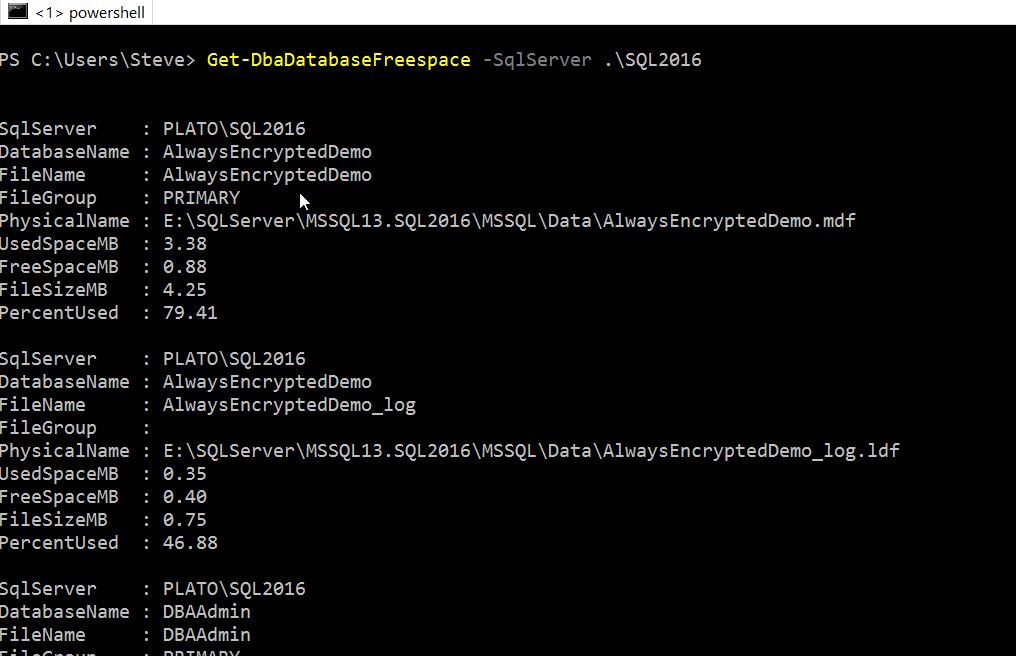
    Enter dbatools. One of the cmdlets included is Get-DbaDatabaseFreespace and this does exactly what you’d expect. This takes the name of an instance as a parameter, and when you run it, you get a bunch of information about your databases and their space usage.

    2016-12-29 09_17_01-powershell

    These are good numbers, but with PoSh, I can easily just get the data I want. For example, I can add a –Databases parameter and see specific databases.

    2016-12-29 09_31_21-powershell

    I can also limit reformat the data in a table and limit what’s returned:

    2016-12-29 09_32_29-powershell

    This flexibility to easily see data is one thing that I like about PosH. I could pipe this into a filter and look for those items that are of a certain size, or have a certain percentage value.

    Putting this into a report, or even an alert that might get sent to DBAs is a great way to keep an eye on space and ensure that you don’t run out of space. Of course, tracking this over time is easier with a tool like SQL Monitor, but for quick checks, this dbatool is very handy.

    If you haven’t played with these, I’d recommend you do this. This collection makes working with SQL Server and PoSh much easier.

  • Watch the Manual DBA v Automated Deployment Challenge

    At last year’s SQL in the City, I played the part of a manual DBA making changes and deploying those from development to test, staging, and production environments. Actually, I don’t think we went to production because I didn’t have time.

    My co-worker, Tom Austin, showcased the automated process using SQL Source Control and other Redgate tools. As much as I believe in using tools, and despite the fact I regularly use them,  even I was impressed by how much less work the automated process took.

    Watch our session below.

  • Quick Prompt Tips–Custom Procedure Templates

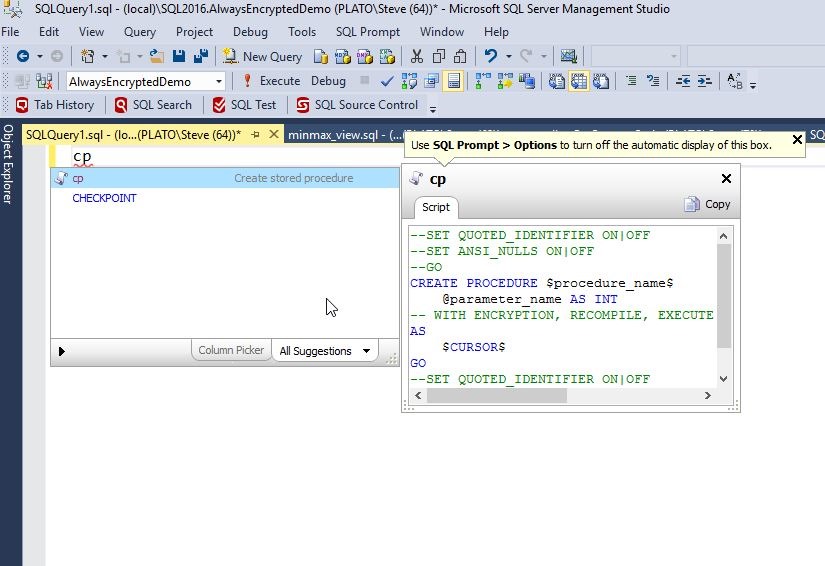
    One of the things that I often do is create stored procedures. The syntax for doing so is simple, but it has a number of items that need to be included. SQL Prompt makes this much quicker with the “cp” snippet. When I type “cp”, I get this:

    2016-09-13 13_01_43-SQLQuery1.sql - (local)_SQL2016.AlwaysEncryptedDemo (PLATO_Steve (64))_ - Micros

    I can hit Tab and I have a snippet, but it has a lot of things I don’t like in it. Plus, I want to save time coding, not have to remove some commented out items.

    2016-09-13 13_06_17-SQLQuery1.sql - (local)_SQL2016.AlwaysEncryptedDemo (PLATO_Steve (64))_ - Micros

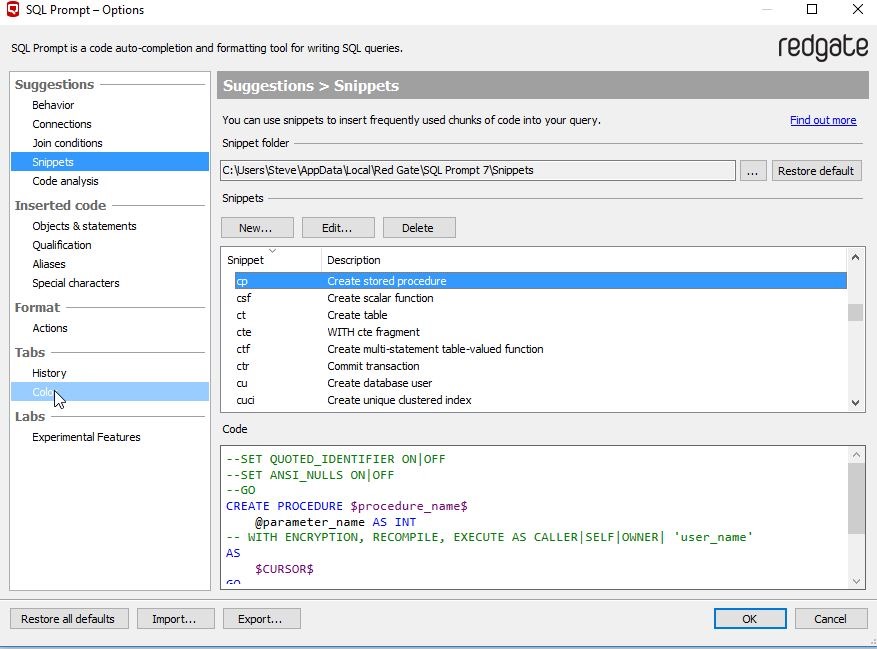
    Let’s make this more efficient. I can go to the Snippet Manager under the SQL Prompt menu and select it. When it opens, the snippets are highlighted, so I type “cp” to get to the Create Procedure snippet.

    2016-09-13 13_36_11-SQLQuery1.sql - (local)_SQL2016.EncryptionDemo (PLATO_Steve (64))_ - Microsoft S

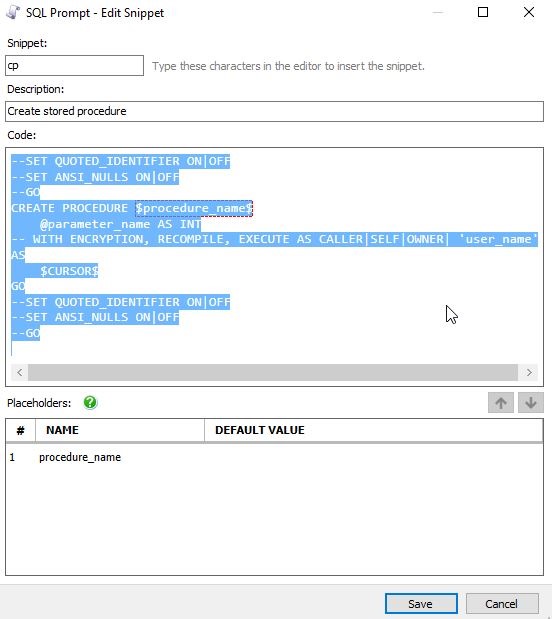
    I click edit and see the code, which I highlight before deleting this.

    2016-09-13 13_36_45-SQL Prompt - Edit Snippet

    Then I paste in the code that makes more sense to me. Notice that in my case, I have two placeholders, not one (as shown above).

    2016-09-13 13_37_03-SQL Prompt - Edit Snippet

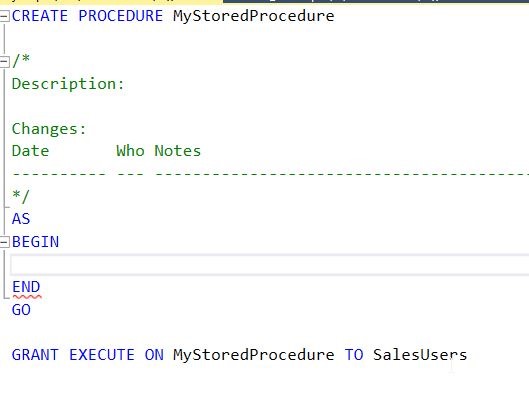
    The code I use has a header in the procedure, and the procedure name is used both for the definition and a GRANT EXECUTE. I include the begin..end structure for the procedure with the cursor starting in the spot where I’d put code. I also have a placeholder for a role name. It looks like this.

    CREATE PROCEDURE $procedure_name$

    /*
    Description:

    Changes:
    Date       Who Notes
    ———- — —————————————————
    */
    AS
    BEGIN
    $CURSOR$
    END
    GO

    GRANT EXECUTE ON $procedure_name$ TO $role_name$

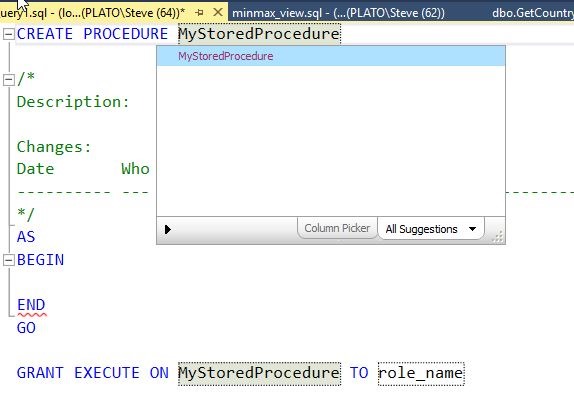
    In practice, when I type “cp” and hit Tab, I get the code with the procedure highlighted. I can enter a name here. Note what I typed is also placed in the GRANT statement at the bottom.

    2016-09-13 13_40_02-SQLQuery1.sql - (local)_SQL2016.EncryptionDemo (PLATO_Steve (64))_ - Microsoft S

    Once I am done and hit Tab, my cursor jumps to the next placeholder, in this case, the role name. Notice that SQL Prompt knows this is a role and gives me a list of roles and users to choose from.

    2016-09-13 13_40_44-SQLQuery1.sql - (local)_SQL2016.EncryptionDemo (PLATO_Steve (64))_ - Microsoft S

    When I finish and hit Tab again, the cursor jumps to the point between the BEGIN and End where I will enter my code. Now my job begins.

    2016-09-13 13_42_26-SQLQuery1.sql - (local)_SQL2016.EncryptionDemo (PLATO_Steve (64))_ - Microsoft S

    This little customization gives all my procedures some standard look as well as ensuring that I can quickly build procedures without a lot of mundane, tedious typing.

    Try out this quick SQL Prompt tip and see how much smoother your coding goes. And if you’re not a SQL Prompt user, download an evaluation today and see how much more efficient you can be when writing T-SQL code.

    You can see a complete list of SQL Prompt tips at Redgate.