Tag: syndicated

  • Changing File Associations in Windows 8

    A quick post, and a good reminder of something that can be a pain. I had to do a quick search for the solution, and wanted to write about it in the hopes it will help me remember the issue.

    Opening the wrong program

    I was working with some XML files. I had a list of them and double clicked one.

    associate_a

    When I did, I got this:

    associate_b\

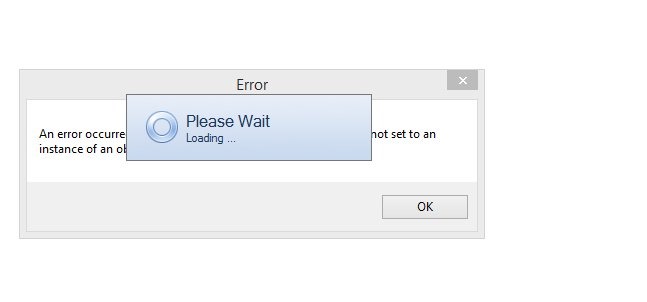
    Not a big deal, but slow, and what’s more, I then got to close this:

    associate_c

    I love Plan Explorer and it’s a great tool, but not for XML files containing data unrelated to execution plans. However, I do need to update my version, which will happen shortly.

    What I really want to have happen is the XML file to open in notepad. I could right click it, and I have been, but about one out of every three times I go back to look at a file, I double click it out of habit.

    The solution

    I need to change the file extension association. I ran a quick search and used the link referenced at the bottom. That led me to the Control Panel. I knew it was in there somewhere, but rather than hunt around, I googled.

    associate_d

    I’ve scrolled down to the spot under Programs | Default Programs | Set Associations. I picked .xml and then to the right I clicked "change program". I chose notepad, and the next time I double clicked the file, I got it open quickly and easily.

    associate_e


    Ref

    Windows 8 Tip: Change File Associations –http://winsupersite.com/article/windows8/windows-8-tip-change-file-associations-144102

  • Out of Space

    I’ve used placeholders to ensure I don’t run out of space on my machines. That’s worked well, and usually I can delete a placeholder when I have an emergency, and then clean up the drive.

    However I got a low warning today when trying to do an iOS upgrade.

    space_a

    I’d already removed placeholders, moved all my libraries and downloads to other drives, and installed most programs in other places. However my profiles are still here and they had grown large. I couldn’t really find anything else to delete here that might clean up space.

    I thought about moving profiles, but I saw this post that noted we shouldn’t move profiles. I’m a power user, but I don’t want to debug or rebuild things on this machine, and especially not now. I want it to work.

    That left me with one real choice: upgrade the hardware.

    I asked on Twitter what people liked in SSDs, and got a number of recommendations, but it seemed that Samsung got the most votes in my informal survey. I even got a link to Tech Bargains for drives, but a few of the links I checked went to EBay or similar discounters. I don’t think there’s necessarily anything wrong with EBay merchants, but in this case I want the drive to be new, working, warrantied, and shipped quickly.

    Amazon is my go-to place for lots of stuff, partially as a Prime member, and partially because they are so easy to work with. In this case, I saw the Samsung 240GB 840 series for about $135 and decided that was a good move. I don’t expect to put much more on this C: drive, but it might grow a bit. I ordered this, and it should arrive by Friday.

    I also decided since I was upgrading things, and my wife’s birthday is coming, I grabbed an SSD for her laptop along with a 4 -> 8GB memory upgrade. Hopefully that will be a nice surprise for her.

  • Downloading SQL Saturday data

    I wanted to find out how many SQL Saturday’s I’d spoken at and how I ranked with others. I got a spreadsheet from Kendal Van Dyke at one point, but it was quickly out of date. However Kendal mentioned that there was an XML document on the site, and I looked. Sure enough, there is, but it’s separate for each event.

    That makes sense, and it’s fine. I can get the data and put it together. That’s a nice project and I decided to tackle it with Powershell. Certainly SSIS would work, and I may do that as well, or leave it to you to do. There are others that have done this and Kendal has an XLS he’s updated with this data, but this is something I wanted to just try.

    In any case, here was my plan:

    • Download the XML file for each event.
    • Save the XML locally.
    • Parse out the event node, capturing the title and speaker.
    • Load data into a SQL Server database on Azure.
    • Report on speakers and events.

    That’s it, and it’s not a big project, but it does take a little work to get the pieces to work well. I have potential load issues, duplicate data, etc.

    This post will look at just the first and second items, downloading the XML data for each event and saving it.

    Downloading XML – Technique #1

    This is the first way I found to do this, which was interesting. I hadn’t expected this, thinking I’d need to load the XML document and then save it. However the Invoke-WebRequest doesn’t need that. It has this format:

    Invoke-WebRequest $sourceURL -OutFile $DestinationFile

    I can give a source file location (URL) and a destination, and it works. I used this code, and it downloaded an XML file to my local machine.

    # get SQL Saturday data from the site

    $debug = 1;
    # counter for events
    $i = 1
    $baseURL = “
    http://www.sqlsaturday.com/eventxml.aspx?sat=”

    $DestinationFile = “E:\SQLSatData\SQLSat” + $i + “.xml”
    $sourceURL = $baseURL + $i

    # debug information
    if ($debug -eq 1) {
    write-host $DestinationFile
    }

    if ($debug -eq 2) {
    Write-Host $sourceURL
    }

    # Get file from web server
    Invoke-WebRequest $sourceURL -OutFile $DestinationFile

    Now if I add a counter to increment the $i variable, I’ll get all the files.

    Downloading – Technique #2

    The other way of doing this is to load an XML document from a path. In this case, instead of the Invoke-WebRequest, I’ll use this code:

    $doc = New-Object System.Xml.XmlDocument
    $doc.Load($sourceURL)
    $doc.Save($DestinationFile)

    I create an XML document, load it, and then save it to the path.

    Looping

    In both of these cases, I add a looping item, looking for an error. For me, I decided to use 9999 as the loop terminator. That’s an easy one, since I’m not sure we’ll get to 9999 events any time soon.

    I added this code to the top:

    While ($i -lt 9999) {

    I then covered the load call with a TRY..CATCH.

    try {

      $doc.Load($sourceURL)

      # save file
    $doc.Save($DestinationFile)
    }
    Catch
    {
    # if we can’t load the file, assume we’re done for now.
    $i = 9999
    }

    $i = $i + 1
    # end loop
    }

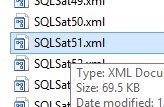
    This worked OK, as you can see, but it failed early on.sqlsatloop_a

    Event 39 doesn’t have an XML file. In fact, the site for SQL Saturday #39 – New York City, fails with an ASP.NET error.

    This isn’t a good design, but it was a good start and allowed me to get moving on the data. From here, I can start working on the parsing and import procedures.

    A better development process might be to encapsulate the download into a separate process and pass in the path, as I can use this same technique to read my local XML files. I should also separate out the save, and the parsing.

    Of course, I need a better way to error handle and loop through files. I don’t want to download all the files every time, so I think I should have some parsing of my file system, finding which files I’m missing, and then ignoring those in my loop. I should also be limiting my downloads based on some number, which I’m not sure about how to calculate now, but I’ll think about it. I guess I could increment based on some list, but I’d have to get one from the SQL Saturday people. Or I could take a high guess, like 500, and just try to load all those files.

    References
  • Upgraded SSD

    I was going to call this an upgraded HDD, but that’s not right. Technically it’s a drive update, but really it’s an SSD upgrade.

    My new Portege Z30 came with a 128GB drive. I could have had Toshiba upgrade it, but it was more expensive than the deal I got before Christmas. Instead of Toshiba’s $400 for a 512GB upgrade, I paid $220 for a 512GB mSATA drive, and I also will have the 128GB one that came with the machine as a spare.

    I decided to upgrade the drives this weekend and was surprised how easy this actually was. I probably need to wipe the existing OS and reinstall a cleaner version of Win8.1, but for now I wanted to duplicate things.

    After powering on the machine and getting things setup (Which was easy, having my old settings of my Lenovo T430 pulled from OneDrive during setup), I needed to clone the drive. There are ways of doing this, but I settled on using the Macrium Reflect method from this MaxiumumPC article.

    I downloaded Macrium Reflect and installed it. It’s a simple GUI and connecting my new MSata drive in the external enclosure, I set things duplicating while I went off to watch my daughter’s volleyball tournament.

    The next day, I fell in love with YouTube and the community again. I found this teardown video that shows how easy it is to open up the Toshiba and get at the memory and drive. This is a slightly older model, and I didn’t need to the TORX screwdriver, but it was good to see someone show me without fumbling around or digging through poorly written documentation.

    This morning I started making coffee. I have a BUNN maker that brews a pot in about 5 minutes from start to finish, and it’s hot. I turned that on and then broke out a screwdriver. I didn’t take pictures, but it took me about the same amount of time as the coffeemaker to get done.

    I removed all the screws. I had one false start when the bottom didn’t lift up. I had missed two screws under the rear rubber feet, so I had to pry those off and remove the screws. I also needed a set of pliers to help turn one of the screws holding the drive in. This includes swapping the drives in my external case.

    I screwed things together and booted up the machine and it looked exactly like it had with the 500GB drive as it had with the 128GB one.

    Now to clean the OS and build things the way I want them.