Tag: syndicated

  • Filetable–Nesting folders and files

    In previous posts I showed how to create a folder in a Filetable and also how to the create (and move) files into the subfolder. However I didn’t repeat that and wanted to test the ability to actually nest things further. With that in mind, I’m going to take this to the next step.

    The Scenario

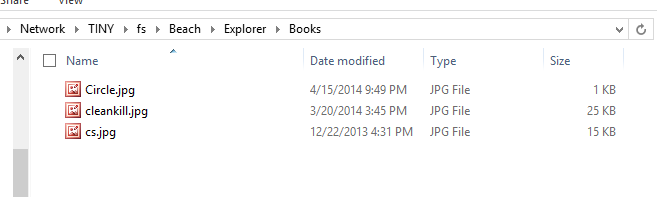
    What I’ve got is a subfolder in my Filetable called Books. This is the first level below the root of my Filetable share. This folder has three files in it.
    filetable_j

    One of these is the image of a circle, and the other two are images of book covers. I’d like to create a folder called “Covers” and then move the two jpgs into that folder together. Let’s see how this goes.

    The Solution

    The first set of code I want to run will create a folder, but it will have to be nested under the Books folder. As we can see from the table, the Books folder already exists and needs to be the parent_path_locator for my new folder.

    filetable_k

    The highlight shows that “Books” is in the root of my Filetable.

    Here’s the code, which calculates the new path_locator using the path_locator of “Books” as a base and then inserts a new folder.

    DECLARE @path HIERARCHYID
    DECLARE @new_path VARCHAR(675)
     
    SELECT  @path = path_locator
    FROM    dbo.Explorer
    WHERE   name = 'Books'
    
    SELECT  @new_path = @path.ToString()
            + CONVERT(VARCHAR(20), CONVERT(BIGINT, SUBSTRING(CONVERT(BINARY(16), NEWID()),
                                                             1, 6))) + '.'
            + CONVERT(VARCHAR(20), CONVERT(BIGINT, SUBSTRING(CONVERT(BINARY(16), NEWID()),
                                                             7, 6))) + '.'
            + CONVERT(VARCHAR(20), CONVERT(BIGINT, SUBSTRING(CONVERT(BINARY(16), NEWID()),
                                                             13, 4))) + '/'
    ;
    
    
    INSERT  INTO dbo.Explorer
            ( name, path_locator ,is_directory )
    VALUES  ( 'Covers', @new_path, 1 );

    .csharpcode, .csharpcode pre
    {
    font-size: small;
    color: black;
    font-family: consolas, “Courier New”, courier, monospace;
    background-color: #ffffff;
    /*white-space: pre;*/
    }
    .csharpcode pre { margin: 0em; }
    .csharpcode .rem { color: #008000; }
    .csharpcode .kwrd { color: #0000ff; }
    .csharpcode .str { color: #006080; }
    .csharpcode .op { color: #0000c0; }
    .csharpcode .preproc { color: #cc6633; }
    .csharpcode .asp { background-color: #ffff00; }
    .csharpcode .html { color: #800000; }
    .csharpcode .attr { color: #ff0000; }
    .csharpcode .alt
    {
    background-color: #f4f4f4;
    width: 100%;
    margin: 0em;
    }
    .csharpcode .lnum { color: #606060; }Once that’s run, I see this in the table:

    filetable_l

    The two highlights are the same values, with the parent of the Covers folder matching the path of the Books folder. In the Books folder we see:

    filetable_m

    Things look good so far. I can programmatically nest folders. Now I need to move the two jpgs into the proper folder. Let’s do that in one (hopefully) statement.

    We use the same code as we did to move a file, but this time instead of a variable for the new path, we embed this in the update statement. In this case I actually moved all three files.

    DECLARE @path HIERARCHYID
     
    SELECT  @path = path_locator
    FROM    dbo.Explorer
    WHERE   name = 'Covers'
    
    Update dbo.Explorer
          SET path_locator = @path.ToString()
            + CONVERT(VARCHAR(20), CONVERT(BIGINT, SUBSTRING(CONVERT(BINARY(16), NEWID()),
                                                             1, 6))) + '.'
            + CONVERT(VARCHAR(20), CONVERT(BIGINT, SUBSTRING(CONVERT(BINARY(16), NEWID()),
                                                             7, 6))) + '.'
            + CONVERT(VARCHAR(20), CONVERT(BIGINT, SUBSTRING(CONVERT(BINARY(16), NEWID()),
                                                             13, 4))) + '/'
    
          WHERE RIGHT(name, 3) = 'jpg'

    .csharpcode, .csharpcode pre
    {
    font-size: small;
    color: black;
    font-family: consolas, “Courier New”, courier, monospace;
    background-color: #ffffff;
    /*white-space: pre;*/
    }
    .csharpcode pre { margin: 0em; }
    .csharpcode .rem { color: #008000; }
    .csharpcode .kwrd { color: #0000ff; }
    .csharpcode .str { color: #006080; }
    .csharpcode .op { color: #0000c0; }
    .csharpcode .preproc { color: #cc6633; }
    .csharpcode .asp { background-color: #ffff00; }
    .csharpcode .html { color: #800000; }
    .csharpcode .attr { color: #ff0000; }
    .csharpcode .alt
    {
    background-color: #f4f4f4;
    width: 100%;
    margin: 0em;
    }
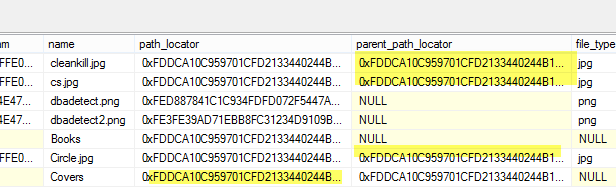
    .csharpcode .lnum { color: #606060; }The table now shows:
    filetable_n

    The shaded values, while very long now and truncated in the image, are in fact the same.

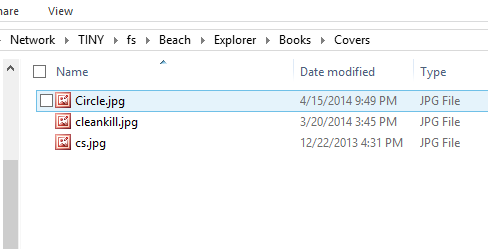
    The share shows:

    filetable_o

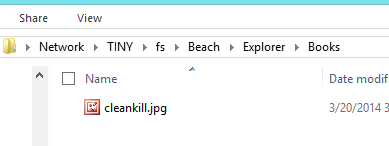
    and

    filetable_p

    I could certainly have accomplished this in other ways, but being able to do this in T-SQL is a nice way of managing your files in a simple way that might be easier than changing an application. It’s certainly a good way to fix incorrect data if the application can’t do it and this can be much faster than having a user move lots of files manually.

  • Getting Local Books Online

    One of the things that’s annoyed me in the last few versions is that Books Online isn’t smoothly installed for me. I often seem to forget to run through the process, and I’ll find myself on an airplane without being able to check documentation. It’s frustrating and while I’ve muddled through the process, I’ve never documented it.

    And I’m not going to. Aaron Bertrand did it for me for SQL Server 2014. I recently ran through this in a VM that didn’t have the docs installed and it worked great. Along with the 2014 documentation, I also added the 2012 documentation at the same time as I’ve been using this demo VM with 2012 for quite some time and I want to be able to check if behaviors I see are different between 2012 and 2014.

    It’s a simple process, though a touch time consuming. Don’t do this while you’re waiting for a plane. In fact, I’d recommend that you do this early in the morning, when you can let it run for awhile. In a VM, mine took over 30 minutes to get BOL 2014 and BOL 2012.

    When I finished, I could launch the help viewer from 2014 and see both versions of the docs. If I launched the 2012 documentation, I saw thing, this despite seeing both book as “up to date” in the help configuration. I suspect there’s something in the shortcut that would fix this, but ultimately I don’t care. I have BOL installed, and I can just move the 2014 shortcut to the taskbar, since I use it often.

  • Secure Coding

    I was looking recently for some sort of guideline that would help me ensure that code was securely written. I stumbled upon the CERT standards, of which there are few, but one that seemed interesting was this one on Oracle and Java. I thought this first standard was a great explanation of good and bad code that you could use for this particular problem.

    I looked for something similar from Microsoft. I found this, which seems more like a random collection of links that don’t teach, or lead, anyone through the ideas of how to write better code.

    In some ways, Microsoft has produced a microcosm of the Internet. A mish mosh of lots of information with no organization applied at all.

  • Filetable–Moving files programmatically

    I’ve been playing with Filetable and I was asked an interesting question. Can I move files to a folder programmatically?

    It’s trivial to do this in Explorer. Just drag and drop, and I’d expect that most people using Filetable from the client side would do this. I’d even expect that lots of programmers might use Powershell and the

    However suppose I loaded a bunch of documents into the Filetable folder and I needed to move or process them. I certainly could handle this easily from the client, but it’s actually simpler to do this from T-SQL.

    The Example

    Let’s say I have a few files in the root of my Filetable as shown in this image. My Filetable is the Explorer table inside this path.

    filetable_c

    If I check this from T-SQL, I see four rows I my table. Two jpgs and two pngs. The jpgs are books and I want to move them into a separate folder.

    filetable_a

    I decide to set up a folder inside of this structure. I can do that, using the technique from another post to create a folder from T-SQL. I create the “Books” folder and now If I look at how this appears in the table, it’s like this:

    filetable_b

    In the share it looks like this:

    filetable_d

    What I want is to now set the parent_path_locator of the jpgs to be that of the Books folder. However I can’t update that field as it’s a computed column. However I can update the path_locator of the two rows and compute a new HierarchyID value that includes the path_locator of the Books folder.

    The way to do this is similar to how I would add a file to a folder. I use this code to computer the new HierarchyID and update the existing rows.

    DECLARE @path HIERARCHYID
    DECLARE @new_path VARCHAR(675)
     
    SELECT  @path = path_locator
    FROM    dbo.Explorer
    WHERE   name = 'Books'
    
    SELECT  @new_path = @path.ToString()
            + CONVERT(VARCHAR(20), CONVERT(BIGINT, SUBSTRING(CONVERT(BINARY(16), NEWID()),
                                                             1, 6))) + '.'
            + CONVERT(VARCHAR(20), CONVERT(BIGINT, SUBSTRING(CONVERT(BINARY(16), NEWID()),
                                                             7, 6))) + '.'
            + CONVERT(VARCHAR(20), CONVERT(BIGINT, SUBSTRING(CONVERT(BINARY(16), NEWID()),
                                                             13, 4))) + '/'
     
    Update dbo.Explorer
          SET path_locator = @new_path
          WHERE name = 'Cleankill.jpg'

    Once this is done I see the share looking like this:

    filetable_f

    Here’s the root of the share, and you can see my file has been moved.

    filetable_e

    I repeat this for the other file, though I could potentially have wrapped this all up into one statement. This easily moves my files to the subdirectory in my Filetable.