 It’s the second Tuesday of the month and time for T-SQL Tuesday again. This is a monthly blog party, where the participants write on a particular theme. This month Jen McCown, of Midnight DBA fame, invites us to talk about files and filegroups in SQL Server.
If you’re like to participate, write a post and drop a comment (or pingback) on Jen’s blog. Watch the #tsql2sday hashtag on twitter for next month’s invitation.
Filestream and Filegroups
I have a couple talks that deal with Filestream related topics, so I decided on a quick introductory lesson on how this works.
Filestream was built into the AdventureWorks 2008 sample database. Requiring administrators to turn on Filestream caused some confusion and complaints, despite the fact that it’s easy to do.
What does Filestream have to do with filegroups? In a database that is enabled for Filestream data, you need to add a filegroup specifically for the Filestream data. This is actually a folder on your file system, which you can access through T-SQL, or through the Win32 API. If you are using SQL Server 2012 or later, you can also access this data with a Filetable, which is built on Filestream.
Let’s create a database, and add a filegroup for Filestream. We start with the “New Database” dialog in SSMS.

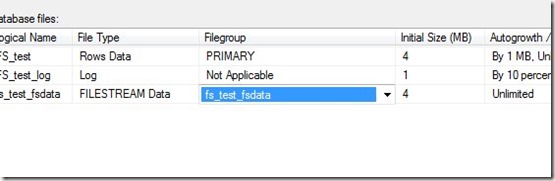
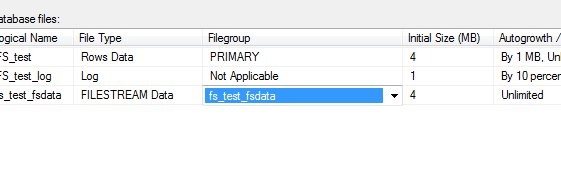
With the normal defaults, we see a data file (FS_Test) and a log file (FS_test_log). For Filestream data, we need a new place to store it. Let’s add a file:

Once I add the file, I mark it as storing Filestream data. The other options are rows (data files) or log files. However this presents a problem. When I scroll right, I see that there is no filegroup for Filestream data. I can’t put this in an existing filegroup.

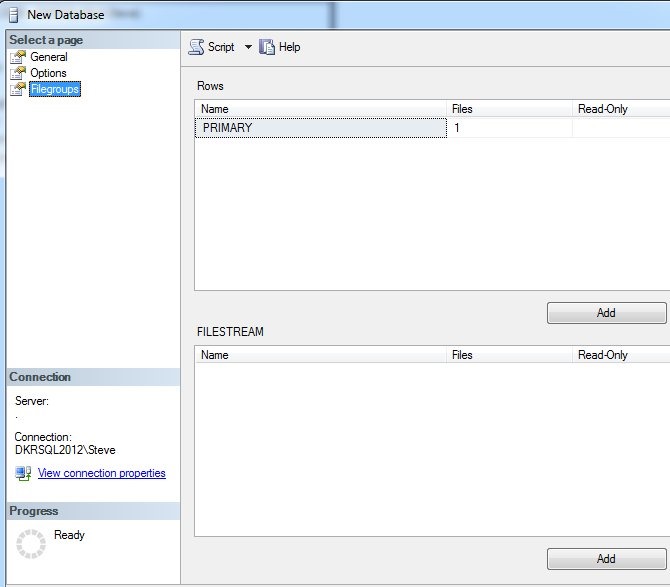
Let’s add one of those. Here’s the default filegroup dialog.
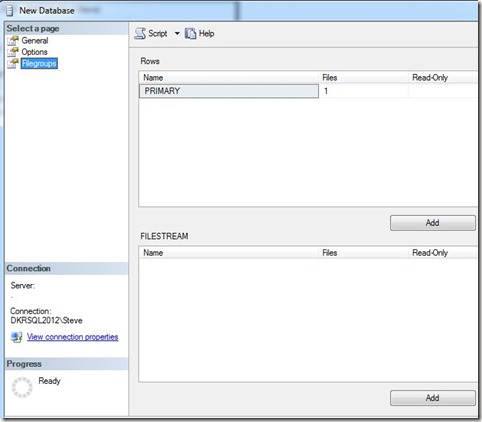
I can click add, and put in a filestream filegroup. The name doesn’t matter, it’s just for administrative purposes. Once I do that, I can go back to the files dialog, and if I select the dropdown, my new filegroup appears.
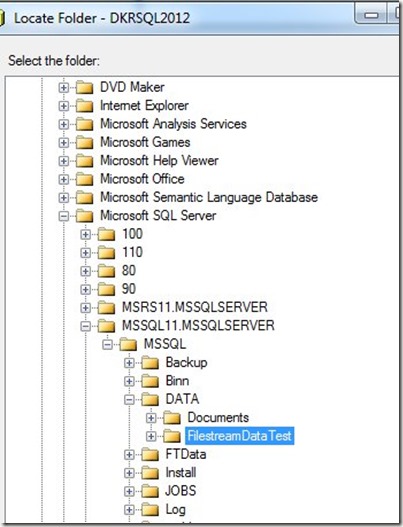
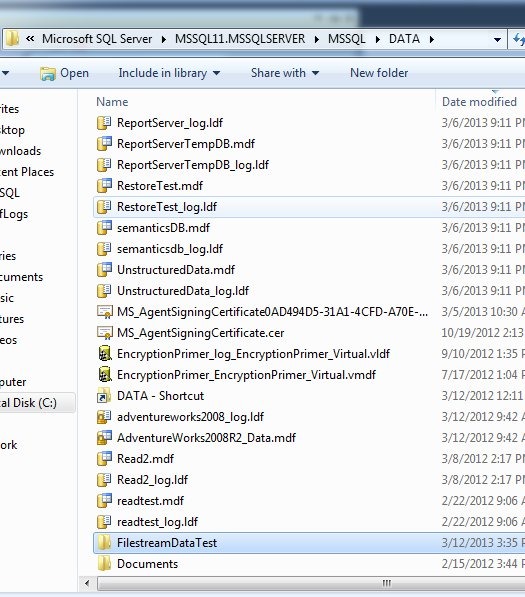
Now I need a location. Outside of SQL Server, I created a folder in my data directory. This can be anywhere, but I did it in the default location. It’s called FilestreamDataTest.

I then select this in the files dialog, using the ellipsis to the right of the Path column.

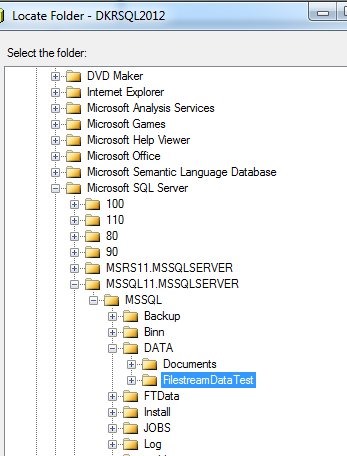
I see my folder in the file picker and choose it.
Once I’ve selected it, I don’t click OK. I click “Script” and get the script below:
CREATE DATABASE [FS_test]
 CONTAINMENT = NONE
 ON  PRIMARY
( NAME = N'FS_test', FILENAME = N'C:\Program Files\Microsoft SQL Server\MSSQL11.MSSQLSERVER\MSSQL\DATA\FS_test.mdf' , SIZE = 4096KB , MAXSIZE = UNLIMITED, FILEGROWTH = 1024KB ),
 FILEGROUP [fs_test_fsdata] CONTAINS FILESTREAM  DEFAULT
( NAME = N'fs_test_fsdata', FILENAME = N'C:\Program Files\Microsoft SQL Server\MSSQL11.MSSQLSERVER\MSSQL\DATA\FilestreamDataTest\fs_test_fsdata' , MAXSIZE = UNLIMITED)
 LOG ON
( NAME = N'FS_test_log', FILENAME = N'C:\Program Files\Microsoft SQL Server\MSSQL11.MSSQLSERVER\MSSQL\DATA\FS_test_log.ldf' , SIZE = 1024KB , MAXSIZE = 2048GB , FILEGROWTH = 10%)
GO
I can run this, and once I do, if I go into the folder that contains my Filestream file, I see this:

As I create tables that hold Filestream data, including FileTable data, I’ll see entries in here for each column (or Filetable) that holds this data. There is a folder that holds logging information for this data, which I do not manage.
Hopefully this is a quick, short piece that helps you understand Filegroups and Filestream.






 Voice of the DBA
