Author: way0utwest

  • Patching Problems

    I applied the Windows 8.1 update a few weeks ago and had some issues with my machine. Windows was fine, but I lost my SQL Server service. A few other users, including some of the SQLServerCentral community also had issues and sent me ideas, but their fixes didn’t work for me. That was OK because the problems gave me a chance to use PoSh to solve a real problem. I’ll be blogging about that in the next week.

    However the 8.1 update has caused lots of issues, and Microsoft is acknowledging these problems. That’s good, but the process gives me pause, and to a large extent, I think this makes more and more people suspect about all of Microsoft’s patching processes. I bet there are companies that feel even more justified in waiting for SP1 for SQL Server 2014 before upgrading, even though there is a chance that the patch itself will cause problems.

    This is one reason I’ve been hesitant to remain current with Cumulative Updates (CUs). Microsoft doesn’t stand behind them, with the text on each CU page that users should only apply the patch if they are experiencing specific problems. Otherwise users are told to wait for the next Service Pack, which seem to be coming less and less often.

    Any patch can cause issues, and I certainly don’t like the idea of automatic updates always being applied because if there are issues, they can become much more widespread than controlled updates. There is also the issue of vendor responsiveness. Microsoft has pushed out patches that caused issues, and while they’ve try to fix issues quickly, I don’t want to have all of my desktops, or all of my SQL Servers, down because of a bad patch.

    I don’t know how we patch in a more effective manner, but I do know that I want to have some control over updates as an end user, and I also want ways to remove patches. Moving to the app model of always applying patches over patches, and never rolling back seems to be a step in the wrong direction.

    PS – If you want better servicing for SQL Server, vote for final service packs for products still under support.

    Steve Jones

    The Voice of the DBA Podcast

    Listen to the MP3 Audio ( 2.8MB) podcast or subscribe to the feed at iTunes and LibSyn. feed

    The Voice of the DBA podcast features music by Everyday Jones. No relation, but I stumbled on to them and really like the music. Support this great duo at www.everydayjones.com.

  • Attaching All Databases with PowerShell–Checking All Databases

    I wrote a PowerShell script recently to actually accomplish a task I that I needed. What’s more, this was the first time I thought that Powershell might prove more useful than other methods. This series looks at my script, and this part examines the first part that I wrote.

    I wrote an overview of this process, and then a script to loop through files. The next step is to connect to a SQL Server and loop through databases. I’ll also compare these against the MDF file names.

    The first step is to connect to a database. First, I need to add a variable (eventually a parameter) that will hold the name of my instance.

    $instance = ‘Tiny’

    With this, I need to now open a SQL Server connection. I start with some assemblies I need. I saw a post that noted I need these assemblies. I’m not sure if I need them all, but this is where I started.

    [System.Reflection.Assembly]::LoadWithPartialName(“Microsoft.SqlServer.SMO”) | Out-Null
    [System.Reflection.Assembly]::LoadWithPartialName(“Microsoft.SqlServer.SmoExtended”) | Out-Null
    [System.Reflection.Assembly]::LoadWithPartialName(“Microsoft.SqlServer.ConnectionInfo”) | Out-Null
    [System.Reflection.Assembly]::LoadWithPartialName(“Microsoft.SqlServer.SmoEnum”) | Out-Null

    The next step is to create a server object and connect. Note that as I add this code, I’ll run F5 to be sure things still work.

    $server = New-Object (“Microsoft.SqlServer.Management.Smo.Server”) $instance

    That works fine, and now I need to see if I can get information from the server.

    if ($debug -eq 2
    {
    “Database List”
    “————-”
    foreach($sqlDatabase in $Server.databases)
    { write-host “DB:” $sqlDatabase.name
    }
    #end debug
    }

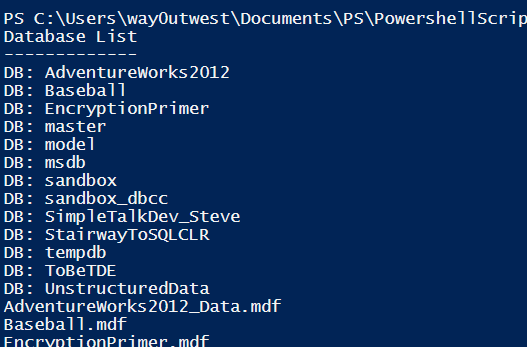
    I add this right after the connection so that I get a list of databases. I use a new debug value so that I don’t see all files. What I expect is a list of databases, and then a list of mdf files (from the previous article).

    This works by setting a variable to each of the items in the databases collection of the SQL Server instance. I then write out the name. When I do this, I see:

    attach_k

    Success!

    Now I want to alter this a bit more. I want to move this loop inside of the file loop. My plan is to take each file and use that to loop through each of the databases for a matching name.

    However I’m not sure that a name match here is enough. What I want to note is if any of these MDF files are being used by SQL Server. Meaning that the MDF file is being used by one of the databases. To do that, I need to find the file and path of each database mdf file.

    I do this by looping through each filegroup with this code. Note that I only worry about default filegroups. I’m torn on that, but it works for me.

    $sqlfg = $sqlDatabase.FileGroups
    foreach ($fg in $sqlfg| Where-Object {$_.ISDefault -eq $true})

    Once I have this, I sub-loop inside this to check each of the files.

    foreach ($dbfile in $fg.files | Where-Object {$_.ISPrimaryFile -eq $true} )

    In here, I go through the files, pipe those to the Where-Object command and look for a property of ISPrimaryFile set to true. The result of this is run through the foreach loop. This gives me this code:

    # loop through each  of the databases
    foreach($sqlDatabase in $Server.databases)
    {

        $sqlfg = $sqlDatabase.FileGroups
    foreach ($fg in $sqlfg | Where-Object {$_.ISDefault -eq $true})
    {
    foreach ($dbfile in $fg.files | Where-Object {$_.ISPrimaryFile -eq $true} )
    {

           if ($debug -eq 4)
    {
    write-host “DB MDF File: ”  $file.name
    #end debug
    }

          #end foreach db file
    }
    #end foreach filegroup
    }

       # end foreach
    }

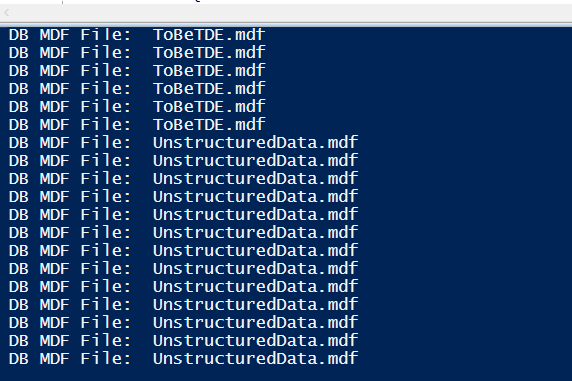
    and this result

    attach_l

    That seems funny until you think about it. In this case, I’m taking the file and checking against each database, which means that I’m getting a loop inside a loop. Not the most efficient, but when this runs, it will be attaching these databases ones, so this should be OK.

    What I want to do now is test if I get a match of the file. To do that, I need to get the full path. I’ll check to the FullName property to get the path and file. I then compare that to my mdf file with. Now I add an IF statement below my database loop.

    if ($file.FullName -eq $dbfile.FileName)
    {
    if ($debug -eq 5)
    {
    write-host “Match ” $file.FullName ” = ” $dbfile.FileName
    #end if
    }
    #end if
    }

    That gives me (with the proper debug value:

    attach_m

    I can see my files (the first value) matching the file for my database (second value).

    That concludes this post. At this point, I can tell what matches, The next step is to track those files that don’t match, and those will be the ones I attach. We’ll tackle that in the next post.

  • Laptop Dreams

    The Surface 3 was announced last week, and I was underwhelmed by the event, especially the presentation itself. The entire spectable didn’t seem to compare to some other companies’ announcements. I did, however, find myself thinking about replacing my laptop with a tablet that’s lighter and allows me to forgo a keyboard. As much as I use a keyboard and depend on a responsive set of keys to get work done, there are definitely times when I’d like to just have a screen, and certainly a lighter form factor.

    Today is Memorial Day in the US, and I’ll be outside in a variety of situations today. Every year my son recognizes and remembers our soldiers at a Memorial Day ceremony with his fellow Boy Scouts. I like to capture some photos and video of the occasion, as well as track which Scouts are supposed to be there and have actually shown up. I can do it on a phone, but a laptop is too cumbersome. A tablet is actually the best option. It seems funny to use a larger device, but being able to capture and playback video on a tablet for others is much nicer than using a small phone. 

    I’ll also be cooking outside in the afternoon, and while my memory is pretty good, I’d like to be able to pull up a recipe on a screen I can easily see with my aging eyes. My iPad works well for this, but for many tasks that require the creation of content, it’s not always a good choice, and the upgrade to the Surface is tempting.

    Then there’s work. I’ve been struggling with finding a powerful laptop to run the suite of products that I present on, especially when I have some of the server systems running. The best solution for a small, powerful device, might be this Gigabyte BRIX for me, but I’d still need some keyboard and display to access it. While an iPad w/ keyboard can work, I’m wondering if a Surface might be better. I’d love to not only be able to access the device, but do so while I’m walking around. If I can get that to work, maybe I’ll have found the perfect device for me.

    Have a great Memorial Day.

    Steve Jones

    The Voice of the DBA Podcast

    Listen to the MP3 Audio ( 2.4MB) podcast or subscribe to the feed at iTunes and LibSyn. feed

    The Voice of the DBA podcast features music by Everyday Jones. No relation, but I stumbled on to them and really like the music. Support this great duo at www.everydayjones.com.

  • Attaching All Databases with PowerShell–Finding My MDF Files

    I wrote a PowerShell script recently to actually accomplish a task I that I needed. What’s more, this was the first time I thought that Powershell might prove more useful than other methods. This series looks at my script, and this part examines the first part that I wrote.

    The overview contains information about my strategy and breakdown, and this post looks at the first item.

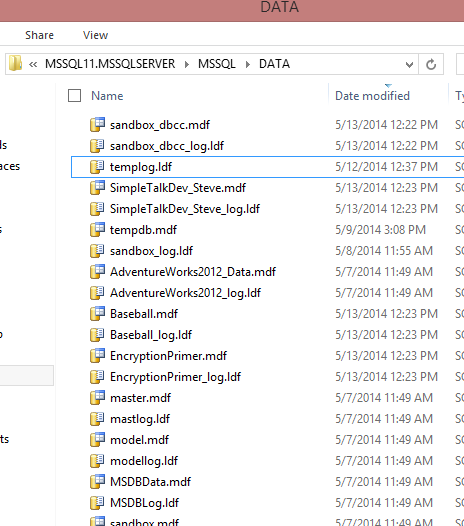
    When I decided I was going to use Powershell for this task, the first thing I decided to do was find all the MDF files in my folder. When I examined my folder, I saw lots of files.

    attach_c

    Actually, my instance had no files, but I copied over all my mdf/ldf files (apart from system databases) from my original install to the \Data folder for my new instance. I had created these databases for various tests and experiments, and as such, they tended to use the default naming from SQL Server. This meant:

    • The database name was used as the mdf file, i.e. the Baseball database has Baseball.mdf as the file.
    • The log file is the database name with _log.ldf. As in Baseball_log.ldf.

    To start the script, I began by noting I’d need some parameters for the script, as in the folder where the data was stored. I decided to start with a variable, which I can then turn into a parameter.

    $folder = ‘D:\mssqlserver\MSSQL11.MSSQLSERVER\MSSQL\DATA’
    $debug = 0

    I include a “debug” variable that I can use to print out information if needed.

    I started with the  Get-ChildItem command using the folder. I can use this in a foreach loop to run through all the child items.

    # loop through each  of the file
    foreach ($file in Get-ChildItem $folder)
    {

    # end for loop of files
    }

    Note that when I build these loops, I close the brackets first, and include a comment that helps me figure out where this item ends. Before I go further, I decided to start outputting information. I added a debug statement.

    # loop through each  of the file
    foreach ($file in Get-ChildItem $folder)
    {
    #Debug
    if ($debug -eq 1)
    {
    write-host $file.name
    #end debug
    }

    # end for loop of files
    }

    This will output all the files in the folder. I can change the debug value to 1 and then I’ll get this output:

    attach_g

    I see all my .mdf and .ldf files, along with my Filestream storage folders. Now I need to limit things to a specific type of file.

    There’s an Extension property for the items in a folder that I can use. I’ll add that.

    if ($file.Extension -eq ‘.mdf’)
    {
    if ($debug -eq 1)
    {
    write-host $file.name
    #end debug
    }

    # end if
    }

    When I run this, I get this output, and immediately see a problem.

    attach_h

    My output runs together. I need to differentiate which log output is being printed. I do that with a message before each file name.

    write-host “MDF Files: ” + $file.name

    With this added (and customized) for each debug message, I get this:

    attach_i

    That gets me the list of MDF files. If I turn off debugging, and add just a print, I see just my MDF files.

    attach_j

    That’s a good loop. I’m sure there are easier and shorter ways to do this, but this works well, and it gives me flexibility if I’d like to change to another extension.

    This is also the basis of moving forward, where I’ll need to connect to SQL Server and check this list of files against the databases on the server.