Category: Blog

  • Using SQL Data Compare from the Command Line with a Project

    SQL Data Compare (SDC) is a great way to sync data among tables. It’s a software utility analogous to SQL Compare, but working with data rather than schema. I had a customer ask recently about setting up a SDC project and then calling that from the command line rather than using the GUI and clicking.

    This post looks at how you can call a project from the command line. The project has a WHERE clause in it, so it uses the settings from the project.

    We have the data shown here, from two different databases. There is 1 row in the first table that is not in the second table (in the second database).
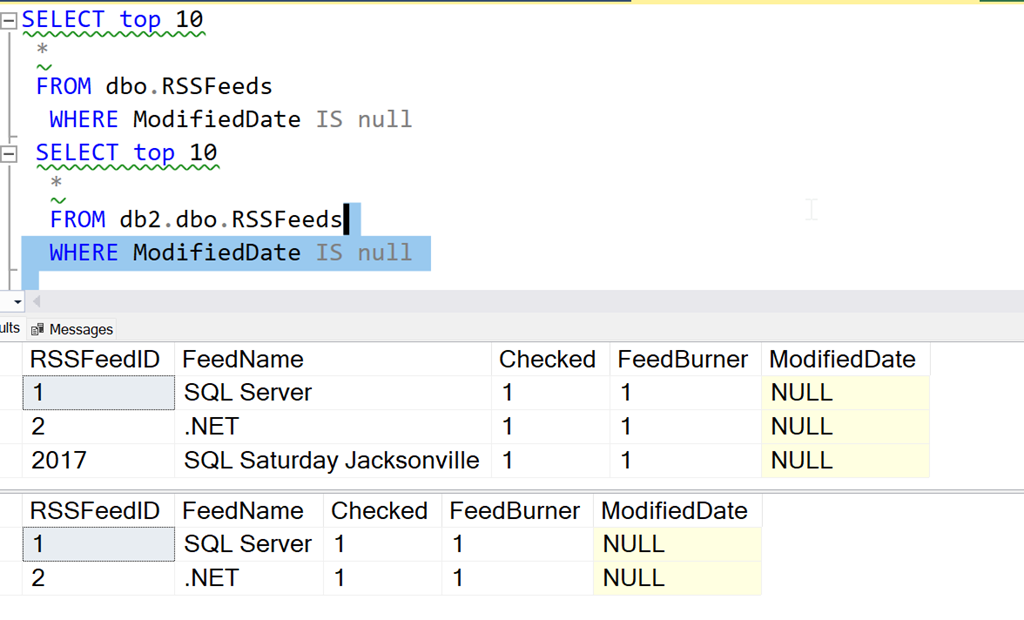
    2023-01-11 10_12_23-SQLQuery3.sql - localhost.db1 (WAY0UTWESTHP_way0u (59))_ - Microsoft SQL Server

    I’ll build a SQL Data Compare project. In this project, I point to these two databases and the tables.

    2023-01-11 10_12_34-SQL Data Compare - C__Users_way0u_OneDrive_Documents_SQL Data Compare_SharedProj

    If I edit the project, I can choose the tables and views tab. Here I see my tables, and I select the dbo.RSSFeeds table.

    2023-01-11 10_24_46-DLM_Demo_RSS.sdc

    When I select the row with dbo.RSSFeeds, I can then click the “Where clause” option and get a dialog where I can filter data. Here I can enter the where clause I used in the first query above. I also have the”use the same WHERE Clause” box checked.

    2023-01-11 10_12_50-DLM_Demo_RSS.sdc_

    Now I can save that project. I’ll then execute this from the command line. Note that I don’t have the SQL Data Compare install in my path, so I qualify both of these files, the executable and the project file. The call for me is:

    "C:\Program Files (x86)\Red Gate\SQL Data Compare 14"\sqldatacompare /project:"C:\Users\way0u\OneDrive\Documents\SQL Data Compare\SharedProjects"\DLM_Demo_RSS.sdc

    You can see this being run below:

    2023-01-11 10_13_13-cmdI can see there is a single row in the DB! that needs to move to DB2, which is the result I saw in the first queries above and in the SQL Data Compare gui.

    If I add the /synchronize option to this call, SQL Data Compare will deploy the changes. Once I do that, I can query the two tables and see the data is the same. At least the data matching the WHERE clause.

    2023-01-11 10_13_41-SQLQuery3.sql - localhost.db1 (WAY0UTWESTHP_way0u (59))_ - Microsoft SQL Server

    Some of this is documented, but not worked through in an example, so I wrote this post to help myself and anyone else looking to work with SQL Data Compare from the command line. This is a great way to sync data easily between systems, if you have a repeatable set of data that you need to move.

    SQL Data Compare is a very handy tool for checking and moving data between tables that needs to be synched. All sorts of lookup or reference data can be managed with SQL Data Compare. If you haven’t tried it, grab an evaluation and give it a try.

    Disclosure: I work as an advocate for Redgate Software.
  • Daily Coping 25 Jan 2023

    Today’s coping tip is to be gentle with yourself when you make mistakes.

    I forgot about a commitment. I had agreed to do a webinar and prepare some content. I got busy with life, almost forgot the webinar, and was scrambling to put together a couple of slides. I got something ready, but it didn’t look great, and I wasn’t happy with it.

    Fortunately, I never needed the slides in the webinar.

    I was upset with myself, and I spent a few minutes berating myself, as well as thinking “what could I do differently?” Should I set more reminders? Do I need a better to-do list? Should I let some personal things go to ensure I stay on task?

    Ultimately I stopped that. I had planned for the webinar, it was on my calendar, and I had done some prep the week before. I got hung up this week with a few personal issues, and that is something I need to accept will happen. Things worked out, so I need to forgive this mistake.

    I started to add a daily coping tip to the SQL Server Central newsletter and to the Community Circle, which is helping me deal with the issues in the world. I’m adding my responses for each day here. All my coping tips are under this tag.

  • Daily Coping 24 Jan 2023

    Today’s coping tip is to get outside and notice five beautiful things.

    I decided to do this on a snowy, stormy day in Denver. I was up early with my daughter running a couple errands, and I took a few minutes at different times to look around. Here’s what I noticed:

    1. My driveway markers stand out nicely and helped us get out of the driveway, which was covered under a blanket of snow.
    2. The snow is sticking nicely on the trees, making a wonderful winter wonderland.
    3. It was a bit of a blizzard, but walking between the car and a building, we were sheltered. Without wind, even in 25F weather, the air was brisk and refreshing.
    4. Snow is fun. Even without sticking together to make a snowball to throw at my kid, it’s a neat form of water.
    5. It was mostly cloudy, which made it hard to see, but a few times the sun started to shine through. Even mostly blocked by clouds, the bright ball made the entire landscape brighten up.

    I started to add a daily coping tip to the SQL Server Central newsletter and to the Community Circle, which is helping me deal with the issues in the world. I’m adding my responses for each day here. All my coping tips are under this tag.

  • Starting the Flyway PoC–Environment

    I’ve had a goal to redo my demo environments and get them set up to work for a variety of customers in different places. I decided to do this in a way that uses new Redgate technology, with the integration of Flyway with Flyway Desktop.

    This first article looks at the environment I’ve set up for my system.

    This is part of a series of working through Flyway and Flyway desktop to demo database changes.

    Overview

    I wanted to demonstrate DevOps, as I would recommend most customers set up to get started in their environment. It doesn’t matter if they’re SQL Server or another RDBMS, the approach at a high level is the same. Obviously the setup for each technology would be different in the details.

    I DO NOT recommend starting with a live database or project. This is a Proof of Concept (PoC), so use something that can fail.

    For this start, I’m working with SQL Server and PostgreSQL.

    SQL Server

    I work with SQL Server all the time. That’s the majority of my customers, so we’ll start with a new SQL Server instance. I’ll run this code, but this is to simulate multiple environments:

    CREATE DATABASE FWPoc_1_Dev
    CREATE DATABASE FWPoc_2_Integration
    CREATE DATABASE FWPoc_3_QA
    CREATE DATABASE FWPoc_4_Staging
    CREATE DATABASE FWPoc_5_Prod
    GO

    These environments are set up to be this model:

    • 1_Dev – the place I make code changes. This should be the only place I actually touch code.
    • 2_Integration – this is a place where we mix up code from multiple developers. all code ought to get pulled to each dev db at some point, but for many environments. I recommend getting some deployment here for devs to see all code.
    • 3_QA – standard test environment
    • 4_Staging – This is a DBA test environment, and this ought to get refreshed from production, either schema-only or full refresh, to validate the deployment
    • 5_Prod – live database.

    I’ll then run this code:

    USE FWPoc_1_Dev
    GO
    CREATE TABLE dbo.Demo (DemoID INT )
    GO

    The idea is we get that table to the other 4 DBs without actually connecting to them directly and running this code.

    PostgreSQL

    My setup for PostgreSQL will be similar, but smaller. I’m experimenting here, and one large 5 environment demo is enough. Here I’ll use 3:

    • fwpoc_1_dev – development environment
    • fwpoc_3_qa – test environment
    • fwpoc_5_prod – live environment

    Again, the goal is only write code in 1 and get it to 3 and 5. I’m keeping the numbering to try and keep everything simple and similar.

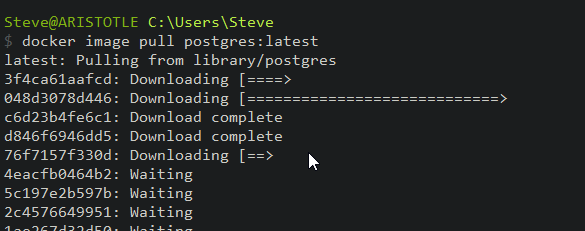
    I want to run PostgreSQL, but I want to use containers. I have enough server services running, so I’m starting with a container. First step, update the container:

    2022-12-26 13_16_43-cmd - docker image pull postgres_latest

    Next, I need to run the container. I’ll do that with this command. This names my container pgdev and gives me a password to connect for the “postgres” user. I also will use a volume on my local drive.

    docker run --name pgdev -e POSTGRES_PASSWORD=demo1234!@# -d -p 54320:5432 -v C:\Docker\postgresql-1-dev:/var/lib/postgresql/data postgres


    Before I run this, I’m create folders on my local C: drive for the docker data to safe. This is the folder I’ll map in my containers.

    2022-12-26 13_38_14-Documents

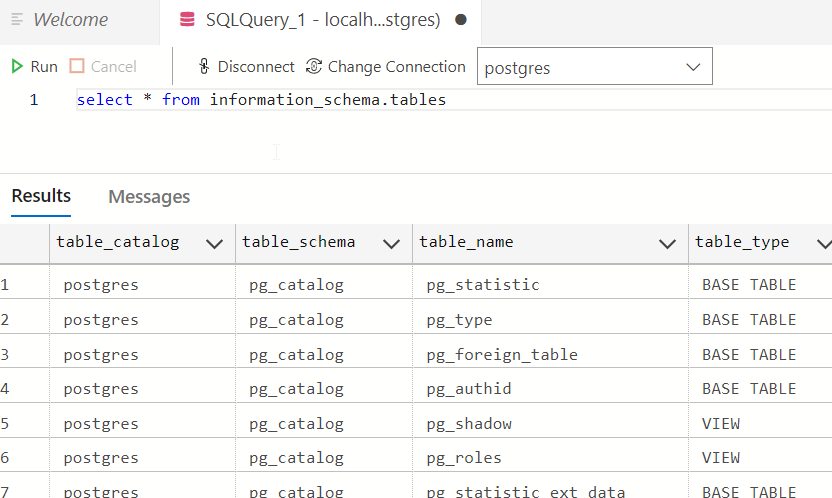
    I’ll connect with Azure Data Studio (ADS) as I have the PostgreSQL extension. Once connected, I’ll query the information schema tables.

    2022-12-26 16_14_55-● SQLQuery_1 - localhost.postgres (postgres) - DBAScripts - Azure Data Studio

    This works. Now, let’s set up a dev environment similar to SQL Server. First, we create a database with the CREATE DATABASE command.

    create database fwpoc_1_dev

    Once I run that, I’ll select it in the ADS connection drop down. Now I run this to create a schema and table.

    create schema poc;

    create table poc.Demo ( DemoID int);

    insert into poc.Demo (DemoID) values (1), (2)

    select * from poc.demo


    This works and gets me a development environment. I’ll start another container for qa and prod, but I won’t do that now. Instead, I’m just getting the base environments set up.

    Summary

    That’s it. This post was about getting an environment set up and ready for development on a PoC. This is the first step, and it’s already a lot.

    Future posts will look at the Flyway and Flyway Desktop settings, a repository, and a MySQL set of environments.

    Follow the entire series on my blog.