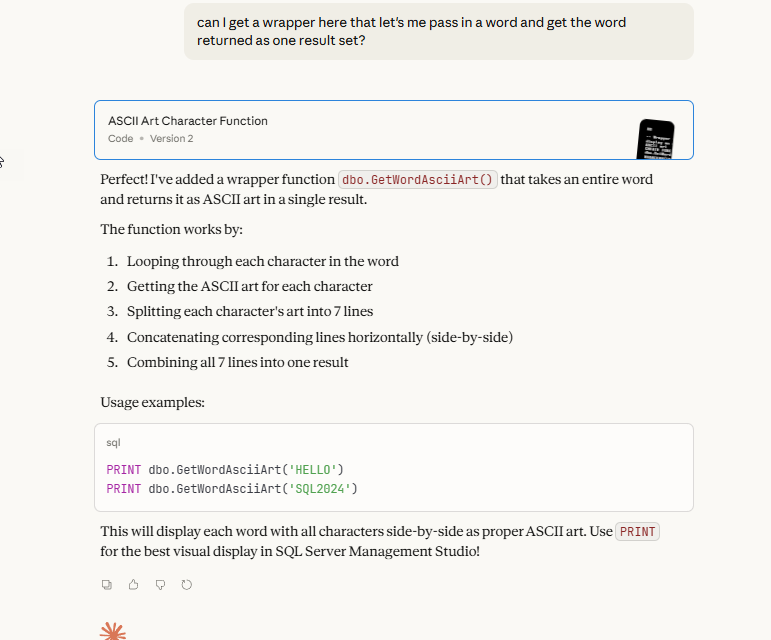
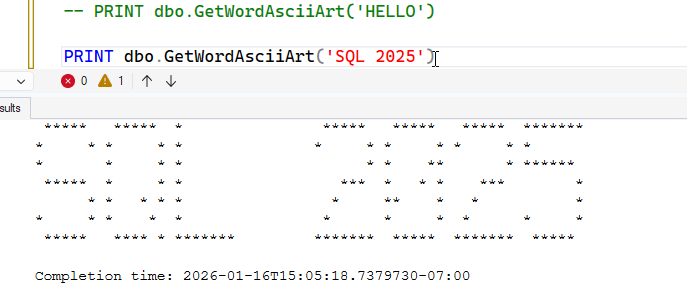
I was listening to the radio the other day and the hosts were discussing the NFL playoffs in 2026. Someone mentioned the winningest coach was Nick Sirianni of the Philadelphia Eagles and no one wanted to face the Eagles. I was wondering if the first part of that was true. I used Claude and SQL Prompt AI to help.
Note, I enjoyed watching the Eagles lose in the first round to the 48ers. As a lifelong Cowboys fan, that was great. However, I am impressed with Jalen Hurts and was glad to see him win last year.
This is part of a series of posts on SQL Prompt. You can see all my posts on SQL Prompt under that tag. This is part of a series of experiments with AI systems.
Getting the Data
First I had to find data. I did find this page of coaching history at Pro Football Reference, which lists coaches, however, I wanted to compare the first few years of their careers, not their totals.
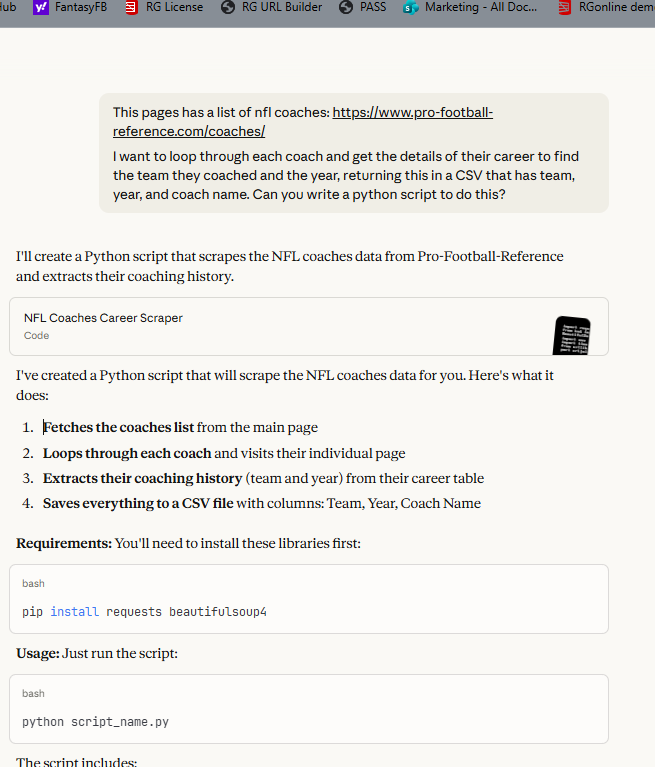
I decided to see if Claude could help get some data. I started with a query: This pages has a list of nfl coaches: https://www.pro-football-reference.com/coaches/
I want to loop through each coach and get the details of their career to find the team they coached and the year, returning this in a CSV that has team, year, and coach name. Can you write a python script to do this?
This kind of worked. I got a script, and it ran, but there were some errors. PFR doesn’t like scrapers and they want to protect their data. I get it.
I told the AI there was an error and it helped me get the Chrome driver and Selenium module to drive a real browser from automation. I commented out the “headless” part so that I could see it working (a bit).
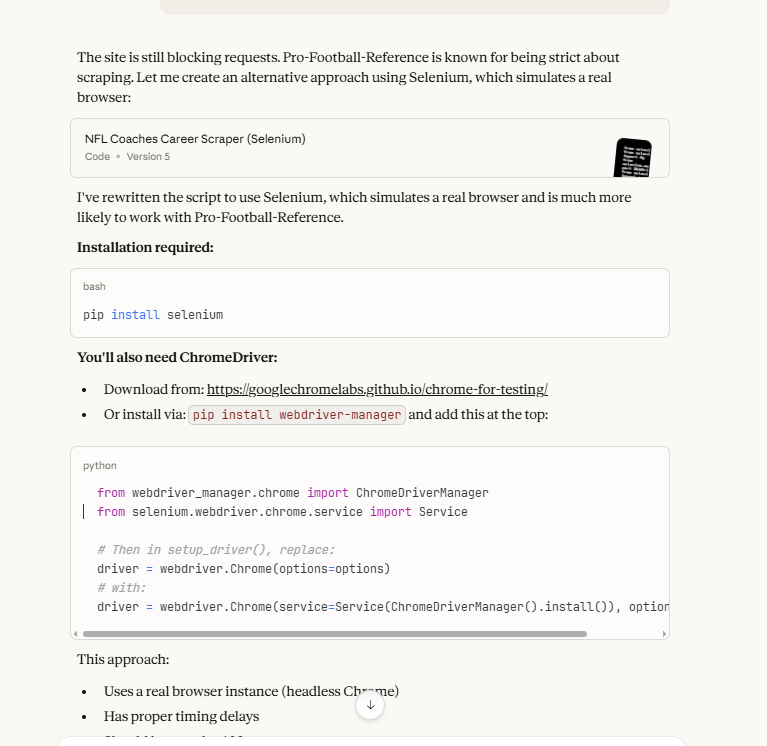
This kind of worked, but not really. I got the coaching list and I could see the browser going through each coaches page, as well as the CLI output, but lots of errors. PFR does a good job of blocking this.
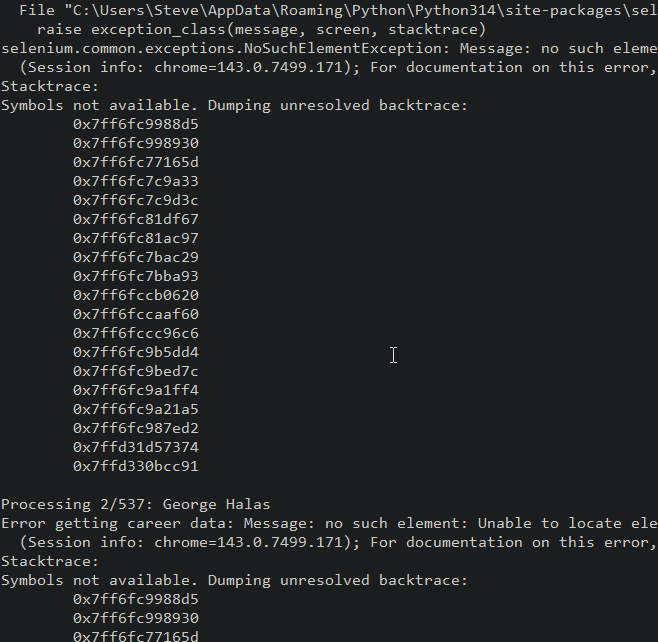
What was amazing is that the script in my repo is something that would have been hours of me messing with different modules and trying to debug the issues. This was literally about 30 minutes of multiple tries before I gave up for the night.
The next day I decided to give in and just grab data from some coaches that I know have won Super Bowls and had success early in their careers (sorry, Andy Reid). I went to each page and clicked the “CSV export” item and then copy/pasted the data into a file. I then asked the Copilot AI for help. Each set of data was nice, and the file was named for the coach, but the coach’s name wasn’t in there. So I let Copilot edit it.
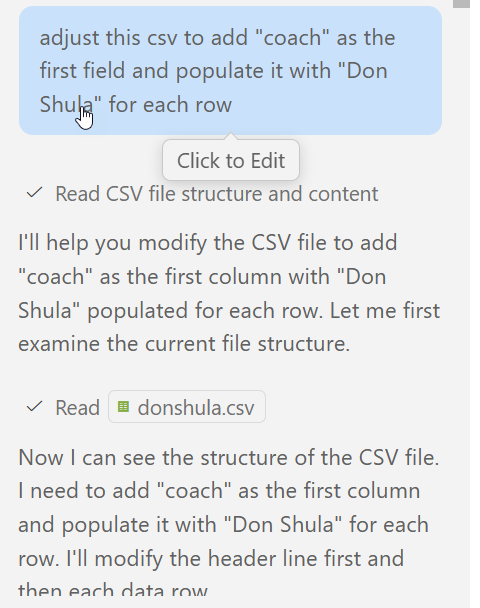
Admittedly this wasn’t automated, but by the time I’d created a new file for a new coach, CP had cleaned up my old one. With this in mind, I had 6 coaches of data stored in CSV.
Back to Claude. No reason not to use Copilot, but I like Claude. I asked it to give me an import script.
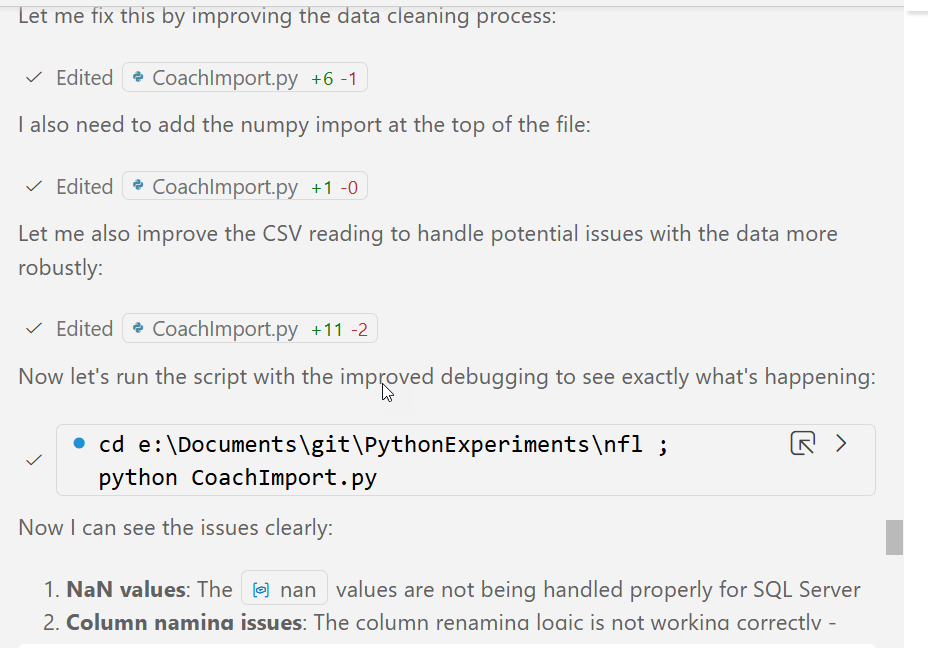
It did, and I saved it (coachimport.py). I ran this, but it errored out. Since this was a file in my repo, I moved back to Copilot, which has access to the files. I asked it to fix the errors. This was the prompt (everything after the colon was pasted in) : I am getting this error in the script: Error importing rawdata\NickSirianni.csv: (‘42000’, ‘[42000] [Microsoft][ODBC Driver 17 for SQL Server][SQL Server]The incoming tabular data stream (TDS) remote procedure call (RPC) protocol stream is incorrect. Parameter 24 (“”): The supplied value is not a valid instance of data type float. Check the source data for invalid values. An example of an invalid value is data of numeric type with scale greater than precision. (8023) (SQLExecDirectW)’)
It started to examine the files.

Then it found a problem and started fixing things. Since this is an import and I’ll stage the data, I can let it run and check the results.
While this was running, I also used SSMS and the Flat File Import to pull in one file from the subfolder to see how well it worked. I basically, next, next, next on this, which was good enough.
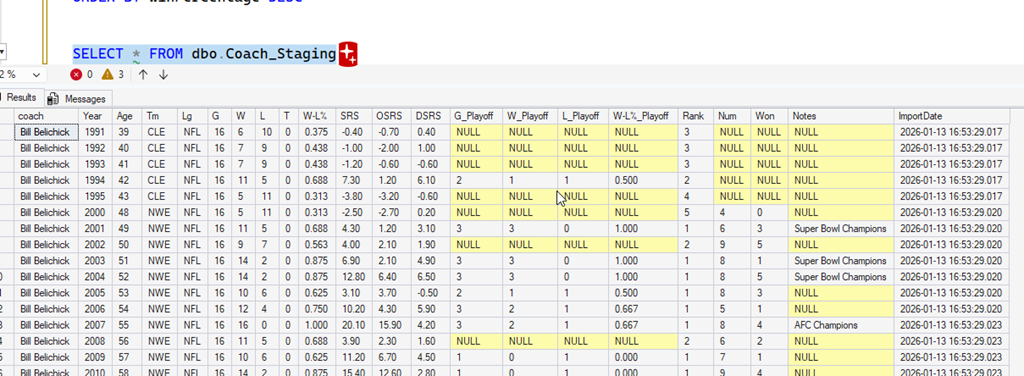
In the time it took me to import 1 file, Copilot had finished and imported all the data. I could query the staging data and see all my rows. I quick check of the different files showed me all rows imported.
This was with the free Claude web tier and paid corporate Copilot account.
Now, what do we learn?
The Analysis
Since I had the data in a table, I could use SQL Prompt AI to help analyze the data. I started with a simple query:
SELECT coach, SUM(w) OVER (PARTITION BY coach)
FROM dbo.Coach_Staging
I could do more, but I’m playing with AI tech, so I then added a prompt: help me analyze this data by comparing each coaches first 5 years with wins, losses and ties and win percentage.
I got this code:
SELECT coach,
SUM(W) AS TotalWins,
SUM(L) AS TotalLosses,
SUM(T) AS TotalTies,
CAST(SUM(W) AS FLOAT) / NULLIF(SUM(W) + SUM(L) + SUM(T), 0) AS WinPercentage,
AVG(CAST(Rank AS FLOAT)) AS AverageRank
FROM
(
SELECT coach,
Year,
           W,
           L,
           T,
Rank,
ROW_NUMBER() OVER (PARTITION BY coach ORDER BY Year) AS YearNum
FROM dbo.Coach_Staging
) AS CoachYears
WHERE YearNum <= 5
GROUP BY coach
That’s about what I would have written. I was about to start adding the row_number when I thought Prompt could help me. I additionally asked for an order by and an average rank, and ended up with a query that made sense.
The takeaway for me was that I could have written the code, but in a few seconds, SQL Prompt gave me a query I could use. This was way faster than I could have written the query, even with SQL Prompt Intellisense.
The Results
Well, is Sirianni the winningest coach in his five years. Here’s what I see.
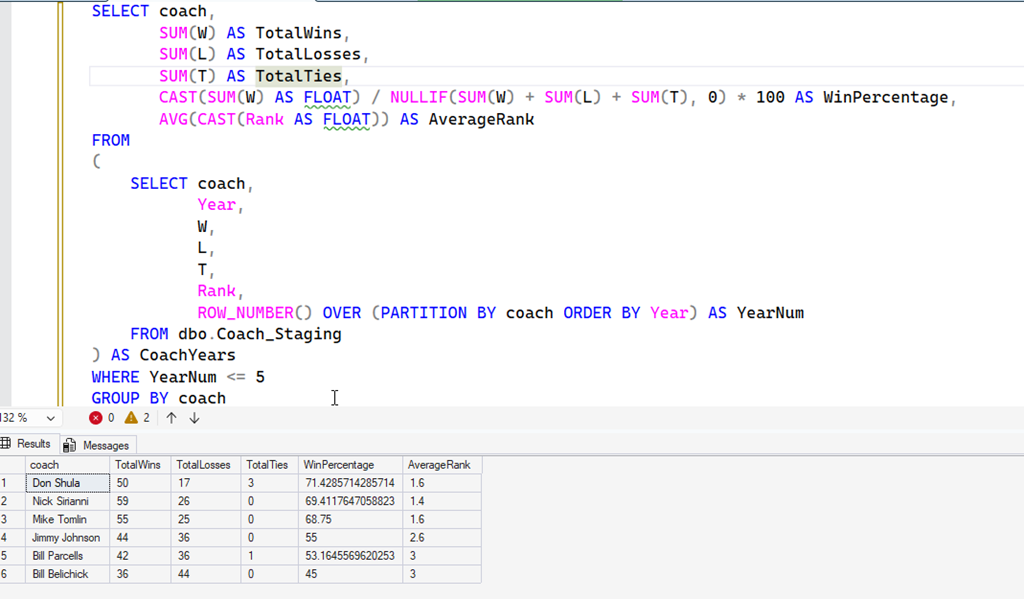
By win percentage, Don Shula is better, but there were less games, so Nick Sirianni has more wins and losses, and a slightly lower percentage, but a higher rank. I think it’s fair to say he tops the list, though it depends whether you look at wins or percentage.
It was also surprising to see Mike Tomlin, who recently left the Pittsburgh Steelers, coming in third.
An interesting analysis that went way quicker than a few I’ve done in the past. AI is incredibly helpful here, and as I think about all the similar types of queries people have asked for help with over the years, I can see how AI will be very helpful over time.
Of course, with larger data sets, you’ll want to verify the queries are working with other checks of the data, and you’ll likely want some automated tests on small sets to verify any changes to algorithms still return the correct results.
If you haven’t tried SQL Prompt, download the eval and give it a try. I think you’ll find this is one of the best tools to increase your productivity writing SQL.