I got my feedback the other day, and was a bit surprised by a comment. I wasn’t having a great day and posted a note on Twitter. Not the best idea, but I did get some validation back that others support me and appreciate (and enjoy) when I speak. That’s always good, so maybe not the worst idea either.
Minimize the Impact of Data Breaches in Dev and Test Databases
This was the last session on Friday, and I wasn’t sure how many people would be interested in the topic. I was hoping for a few, since I think too many of us do a poor job protecting sensitive data.
The ratings:
- Rate the value of the session content. – 4.33
- How useful and relevant is the session content to your job/career? – 4.33
- How well did the session’s track, audience, title, abstract, and level align with what was presented? – 4.00
- Rate the speaker’s knowledge of the subject matter. – 5.00
- Rate the overall presentation and delivery of the session content. – 4.67
- Rate the balance of educational content versus that of sales, marketing, and promotional subject matter. – 4.67
Glad to see that last one because although my company (Redgate Software) has products and solutions in this area, I want people to think generally about the problem and challenges. If we’re a good fit, fine but there are other solutions.
A couple interesting comments:
“Good content, its very abstract and everything depends on individual scenario. That said it was a great way to explain baby steps and things to get thinking about”
“Very motivational. I must go fix my systems now.”
That last one is meaningful to me. I inspired someone.
“A lot more about devops than I thought it would be considering only one mention of devops in the session description.”
One that struck me as strange. I don’t think I spent too much time on DevOps, but DevOps is a driver here as management puts pressure to get more done and companies build things quicker, including dev/test environments. The abstract was:
According to Gartner, more than 80% of companies use sensitive data for non-production in development and for more reliable testing. Hackers view non-production environments as a tempting target since they often have less rigorous security controls. In this session you’ll learn about securing your work in a compliant DevOps fashion with strategies for reducing your attack surface area, and why data masking, anonymization, and data minimization are fast becoming best practices for securing sensitive data in test and development environments.
I did spend a bit of time describing DevOps and what this means for people working in dev/test areas. I’m also not sure that the description means there will be little mention of a topic like DevOps, but I will think about this for future abstracts.
I’m also surprised I didn’t get a ding on data masking as I talked relatively little about this.
Branding Yourself for a Dream Job
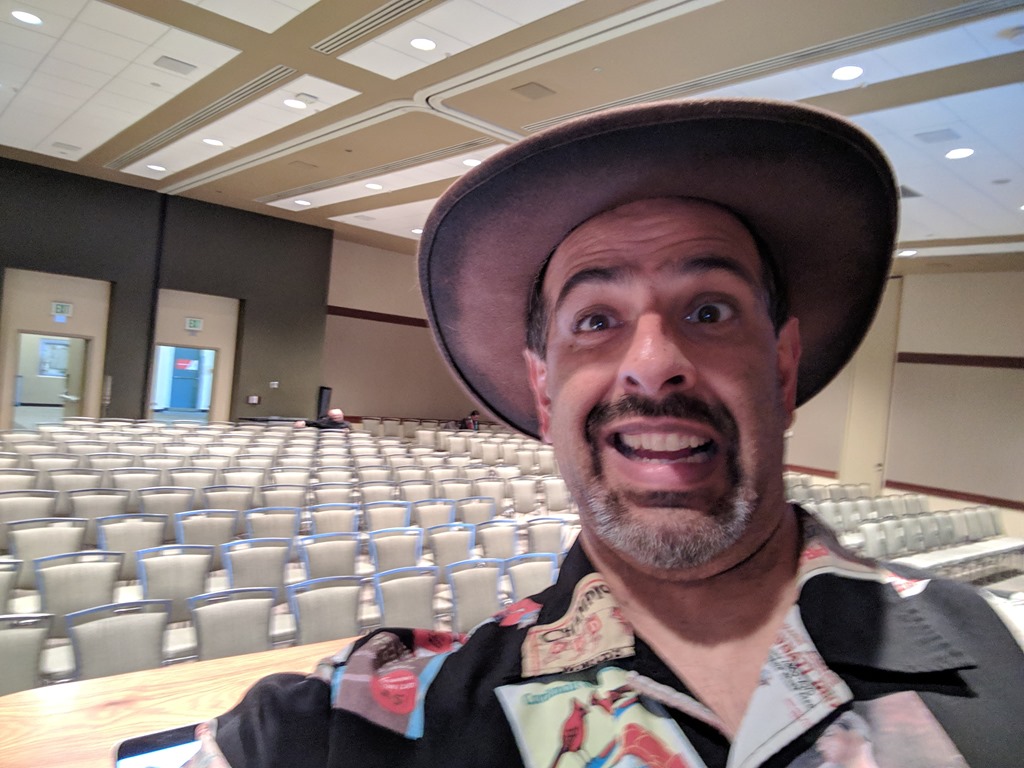
I’ve done this session in many places, including the Summit in the past. I was surprised this was picked this year, but it was. It was crazy that I tweeted this picture, and ended up with over 100 people.
Ratings:
- Rate the value of the session content. – 4.80
- How useful and relevant is the session content to your job/career? – 4.67
- How well did the session’s track, audience, title, abstract, and level align with what was presented? – 4.87
- Rate the speaker’s knowledge of the subject matter. – 4.80
- Rate the overall presentation and delivery of the session content. – 4.93
- Rate the balance of educational content versus that of sales, marketing, and promotional subject matter. – 4.93
The comments were mostly good. A few people mentioned they’d seen it before and still came. That’s very exciting as a speaker. This comment really made me smile:
“I chose this session as filler and, thus, it was the session I was least expectant about. Thus far, it’s been the most impactful session I’ve attended. Positively inspiring!”
This one makes me think.
“Your slides could be a little more jazzed up. I think what your saying is awesome and I got some great tips but it was hard to stay engaged with the slide deck.”
I do try to keep things interesting with pictures and used to have more. I got complaints that not enough info was on slides that would help later, so I may have tipped more to the other side. I’ll have to review this for next year.
Adopting a Compliant Database DevOps Process
This is another one I’ve done at the Summit. I actually did it last year to a huge crowd (250+), and wasn’t sure how well this would be attended this year. I was up against some other great speakers and sessions, so I was happy to have 100+ people.
Ratings:
- Rate the value of the session content. – 4.53
- How useful and relevant is the session content to your job/career? – 4.47
- How well did the session’s track, audience, title, abstract, and level align with what was presented? – 4.65
- Rate the speaker’s knowledge of the subject matter. – 4.82
- Rate the overall presentation and delivery of the session content. – 4.53
- Rate the balance of educational content versus that of sales, marketing, and promotional subject matter. – 4.35
That last one is interesting. I try not to talk products specifically, even though I use a few Redgate tools, I don’t think I try to sell them. I usually refer people to the booth or sales, but I got this one:
“I know they probably want the sessions to be free from non-Microsoft product endorsements, but would have loved to see you be able to go deeper with the redgate products. I did get a lot out of the session as it was, and got some ideas to improve our processes in our shop. Thanks!”
Contrasted with this one:
“I know you were trying to be vendor agnostic in the talk but I think because of this it didn’t go as deep as you could of”
This is a tough topic. I’ve spent a few years trying to refine the message to one that’s understandable, and exciting, but not too deep. This isn’t designed to teach you how to do DevOps. I can’t do that in an hour. However, I did get a suggestion:
“This was great. Maybe stretch it to pre-con?”
And this one made me smile:
“I love you and hate you. Great advice but now I despair at my ineptitude ”
However, this was the Twitter one that caught me off guard.
“Good session. To me speaker came across as somewhat arrogant which to me reduced the value of the session. I would not come to another session by this presenter. He seems knowledgeable but not a good presenter ”
I know I can’t please everyone and not everyone will like my style or my talks, but I haven’t ever been told I’m too arrogant. Or that my style turns someone off that much, even though I’m knowledgable.
Not sure I’ll change anything, but I’ll keep an eye on whether I might be doing something that offends people.
A Busy Couple Days
I was only in Seattle for 31 hours, and it was a whirlwhind. I had a half day Thursday, giving a session and chatting with friends. Then a busy Friday, with a few meetings, two talks, and lots of shaking hands.
I think I did a good job of presenting sessions this year, with good ratings. Not a lot of things to change, but as I’ll deliver new sessions next year, I need to be sure to continue to build and practice high quality sessions. A few comments will make me think and re-examine parts of what I do.
Like other aspects of my job, and DevOps, continuous improvement along with some experimentation is important.