Category: Blog

  • Long Term Pebble Classic Review

    I got a Pebble Classic watch for Christmas a few years ago, in Dec 2014 to be clear. That’s (as of now) about 18 months of use. I haven’t used it every day, but I’ve used it often, and here are a few things that I wanted to put down as a long term look at this device.

    This is the first smartwatch I’ve owned. I’ve been a Timex Ironman (or some variation) person for most of my life. I went about two years with just my cell phone when my last watch died and decided I didn’t like that, so I got the Pebble.

    tl;dr – I have really enjoyed the watch, but I’m not sure I want a (nother) device that lasts a year or two.

    Current Status

    The watch still works, though I have found that I need to charge it every 3-4 days. This seems in contrast to when I originally got it and the battery would last 6-7 days. In fact, early on I forgot my cord and went to the UK. I left Monday, returned Saturday, and the Pebble made it.

    The big issue, for me, is that I have screen tearing. There are times I can’t read anything, though changing watch faces usually corrects things. However, when you’re doing something and want to check the time and can’t see it, you don’t always want to do this. For example, I’ve been out working in the field, with dirty hands, and I couldn’t get the time without getting grease all over the watch.

    Looking Back at First Impressions

    I wrote about the watch when I got it. For the most part, things still work for me. I use the watch to change music when I’m traveling, and I get text messages on it. However, sometimes I get too many messages, and need to go through menus to turn off notifications from the phone. It’s annoying, but that’s somehow what happens with apps that notify you.

    I haven’t done much with timing on the watch, but I’ve usually found the phone to be more useful here.

    In terms of running, I wasn’t running a ton when I got the watch, but I run daily now. Perhaps that’s why the battery doesn’t last. Each time to flick your wrist, the backlight comes on, which is a lot when I run. I’ve noticed it on the treadmill. Perhaps the backlight doesn’t happen outside? Hard to tell.

    I do love the MapMyRun integration to see my time/pace. I use the audio coaching for motivation, but it’s nice to glance down and see my pace as I go. I wish this allowed me to change music and go back to the tracking, but I haven’t seen that work.

    Alarms

    One thing I’ve done a few times is use the alarms on the Pebble to wake me. The vibration is quieter and better when I need to get up at 5am for a flight, and this doesn’t wake my wife. It’s kind of nice. It’s also a great second alarm in hotels.

    However. I do forget to turn it off and the default is to repeat the alarm the next day. Good when I travel, bad when I come home and set it on the nightstand to charge. The vibration on wood is loud enough to wake my wife.

    Annoyances

    There are a few things that bug me. I have the phone sync sometimes fail, and I’ve struggled to get my Pebble reconnected without forgetting the device and doing a new phone pairing. It’s been simple sometimes, frustrating other times.

    The screen tearing is really annoying, as is the lack of battery life. It’s still better than daily charging for something like an Apple Watch or Samsung Watch.

    There isn’t good support for step tracking unless I have an app on the phone all the time. Not what I want and I miss this a bit since my Fitbit was lost.

    The band isn’t great, though that’s on me. I should get an aftermarket band that I like.

    How Long Should This Last?

    That’s a good question. The Pebble warranty is one year. I’m obviously past that. As a comparison, Timex provides a year as well. 30 days replacement online, then warranty replacement.

    However, I’ve usually had Timex watches last for 4-5 years. This seemed flaky at 14 months, which feels a bit like too short a period.

    What would I want? If this lasted two years, do I think that’s OK?  I think crossing a year mark has psychological significance. Now it feels like a one year old watch, but if it made it to December, that would be two.

    Ultimately I’m not sure. I know some people have had these last a couple years, so maybe that was just my luck.

    The Verdict

    The Pebble does most of what I need and want, and it’s been a good watch. I’m disappointed in the screen tearing, but it’s not unusable at this point. I can’t think of much more I’d want other than constant step tracking.

    I’ll need a replacement this year, I’m guessing. There is a Kickstarter for the newer Pebble 2, which will have heart rate monitoring. That interests me, as does the Core. The idea of not needing a phone and just carrying the Core is nice.

    I’m not into color or a lot of other features, and don’t like charging. The Apple Watch is out for that reason (and likely other Android wear). Pebble 2 is interesting, as is the Microsoft Band, but I’ll have to think a bit. Maybe I’ll go steel and see if that’s more durable?

    At the end of the day, I think Pebble is a good device for your wrist, if you want one.
  • Basic XML Node Query–#SQLNewBlogger


    Another post for me that is simple and hopefully serves as an example for people trying to get blogging as #SQLNewBloggers.

    I saw a question recently about querying an XML document. Certainly avoid this in the database if you can, but there are times you need to. Rather than link to the post, I wanted to show the basics of how you query a node.

    Let’s suppose I have an XML document like this:

    <Order>
      <OrderID>4FB9</OrderID>
      <ORderDate>2019-07-20-00.31.23.000000</ORderDate>
      <Status>Open</Status>
      <Customer>
        <CustomerName Type=”Individual”>
          <FirstName>Jon</FirstName>
          <LastName>Doe</LastName>
        </CustomerName>
      </Customer>
      <Customer Type = “Company”>
        <CustomerName>
          <CompanyName>Acme</CompanyName>
          <Account>12345</Account>
        </CustomerName>
      </Customer>
      </Order>

    Now, I saw someone query this with code like this to get the OrderID.

    DECLARE @xml XML;
    SET @xml = N’
    <Order>
      <OrderID>4FB9</OrderID>
      <ORderDate>2019-07-20-00.31.23.000000</ORderDate>
      <Status>Open</Status>
      <Customer>
        <CustomerName Type=”Individual”>
          <FirstName>Jon</FirstName>
          <LastName>Doe</LastName>
        </CustomerName>
      </Customer>
      <Customer Type = “Company”>
        <CustomerName>
          <CompanyName>Acme</CompanyName>
          <Account>12345</Account>
        </CustomerName>
      </Customer>
      </Order>
    ‘;

    SELECT
          t.b.value(‘(ORDERID)[1]’, ‘NVARCHAR(100)’) AS MSGID
      FROM
        @xml.nodes(‘/Order’) t(b);

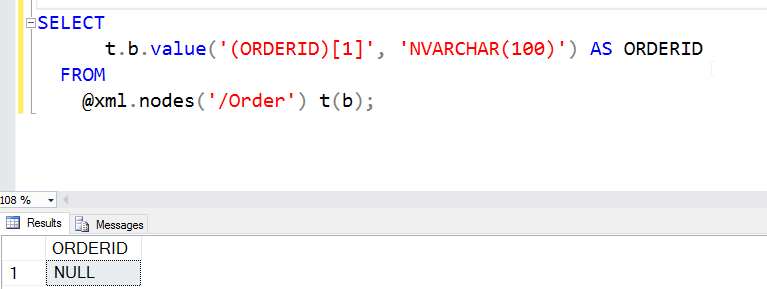
    This doesn’t work.

    2016-06-15 13_09_07-Photos

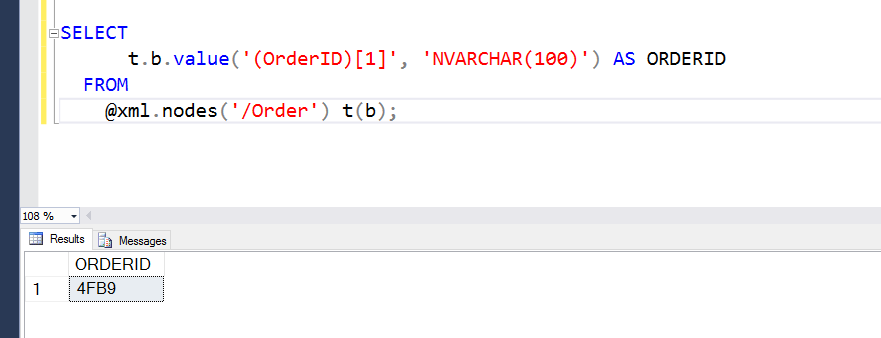
    The reason this doesn’t work is that XML is case sensitive. Meaning ORDERID != OrderID. The former is in the query, the latter in the XML document. If I change the query, this works (note I have OrderID below).

    2016-06-15 13_11_23-Photos

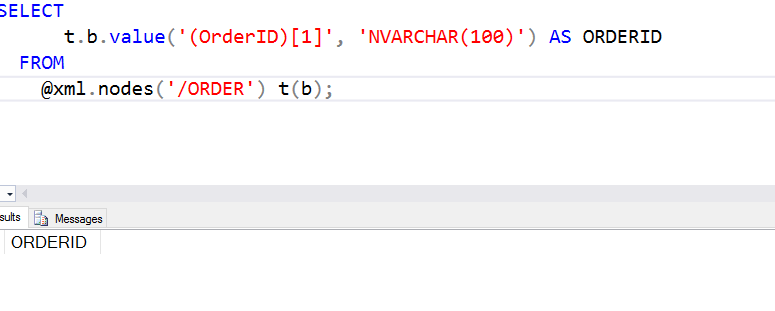
    This would also apply to the .Nodes call. If I had .ORDER, this also wouldn’t work.

    2016-06-15 13_11_54-Photos

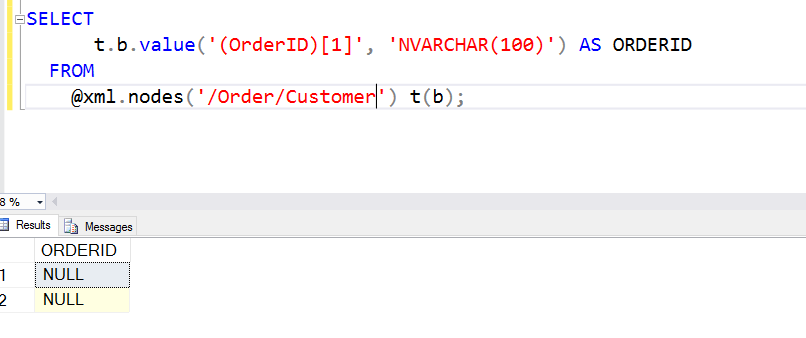
    The @xml.nodes() call determines the root at which I’ve essentially set the document. I could have this as /Order/Customer if I wanted. In that case, I couldn’t access the OrderID. The OrderID isn’t below the Customer node.

    2016-06-15 13_13_21-Photos

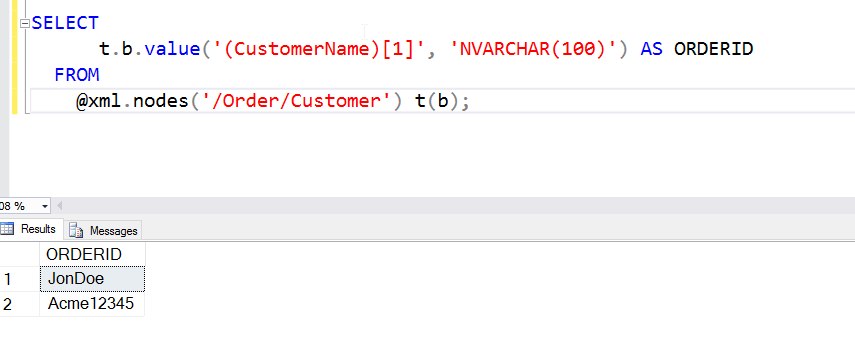
    However, from below Customer, I can get to the names.

    2016-06-15 13_14_05-Photos

    There is a lot more to know about XML, but you can experiment with the various nesting levels by including different paths. I’ll show a few more things in another post.

    SQLNewBlogger

    Querying XML is hard, and can be frustrating as the document size grows and complexity grows. However, this is a good way to showcase your skills (or build them), but tackling different query questions or challenges and writing about them.

    Hint: this will also help solidify your XML skills.

  • The Desktop Rebuild–Part 3

    This is the last part of this series, at least for now. If you haven’t seen Part 1 and Part 2, feel free to check them out.

    After I got through Part 2, I was working again. In fact, I continued to chocotaley install a few things, but for the most part, I could get productive quickly, working on writing, email, even code. I did install Visual Studio, SQL, and SSMS by hand, mostly to be sure they were the right versions I needed.

    However, things weren’t great. The two monitors I showed from Part 2 were OK, but the not great. I missed my third monitor, especially when I had the second one in portrait more. I decided I needed to just upgrade things again. Not everything, just the video card.

    I tried my two older cards, shown below, in various combinations, but every time I added them to the motherboard, I couldn’t boot. Remove them, and things worked again. After 4-5 tries, I thought it was time to abandon this path.

    Photo Jun 27, 12 54 11 PM

    I’ve been stretching my budget slightly. I’ve had a few expenses here, and while this is tax deductible, it still costs real money. I got a few recommendations for video cards, including this Quadro K1200, which looked great. However, another $300 right now would likely get my wife a bit more upset than I’d like.

    I looked around the Internet a few times at night and found some other cards that would support 3 monitors, at a more reasonable cost. In the end, I decided to switch from ATI to NVidia and got a EVGA GeoForce GT740 card with two DVI and one mini HDMI out. Quite a few people had used this for workstations and it seemed to support 3 monitors well.

    Photo Jun 27, 12 54 16 PM

    This was a large card, and the first one I’ve ever owned that needed its own power connections. Hardware has changed. This is also a card with 4GB of memory, which is a long way from the first computer I built after college that had 4MB of main memory.

    Installing the card was easy. It slipped in, I connected it to power and my desktop booted right up. Well, I had a CMOS error, but I cleared things and then it booted. The mini-HDMI cable was a tight fit, but I managed to get it in there.

    One note on cables, go longer. I got a 3ft mini-HDMI to HDMI and it wasn’t quite long enough. I had to rearrange monitors a bit, which is OK, but I should have just gotten a 6 foot cable and then secured the extra.

    I downloaded the NVidia driver before I’d shut down the machine, so I booted to a single monitor, installed the driver, and things worked right away. I configured things and ended up going with a 3 monitor config that has the center one in portrait mode.

    Photo Jun 27, 1 00 12 PM

    It’s been a few days and so far everything looks and works great. I’ve rebooted a few times, taken the desk up and down multiple times, and connections are solid, hardware is working, and I can get back to getting work done.

    I ran a test using UserBenchMark and got great scores everywhere but video and then only for gaming. Overall, this is a much faster machine, and seems to work smoother. I’ve had zero issues with the hardware and Windows 10 seems more stable since the fresh installation.

    2016-06-27 13_08_24-Asrock Z170 Extreme6 Performance Results - UserBenchmark

    My Windows Experience Index also changed dramatically.  The old machine was a 5.1, mainly due to graphics, with the other scores in the low 8s. The new score is 7.9, with graphics holding things back, but I have a third monitor now and more CPU and RAM resources.

    Summary

    Here are the changes I made. Note I’m not recommending these items. I got some recommendations from Glenn Berry, and they worked well for me. This stuff changes often, so check with friends and do your own research.

    Old

    • MB – Gigabyte, circa 2010-ish
    • 24GB RAM
    • 256 boot SSD, 512 SSD, 2x1TB HDD
    • ATI 512MB RAM graphics card, circa 2010
    • ATI 1MB graphics card, circa 2012
    • Corsair 600W power supply

    New

    ASRock Extreme6 motherboard – $109 (after rebate)

    Intel i7-6700k – $269

    32GB Memory – $50

    Cooling fan – $30

    EVGA Video – $110

    That’s $620 for a fairly substantial upgrade.

    I’m pretty happy for now, and I suspect this will last for some time. If I change anything, it will be adding another graphics card because I need video stuff (or I buy Doom 4) and getting a larger power supply.

  • Come to IT/Dev Connections–July Sale

    You can register for IT/Dev Connections in October and save this weekend with the July Sale. Use code: JULYSALE.

    I’ll be speaking, though I’m not sure which sessions will be chosen. This year the conference is going to be on Oct 10-13 in Las Vegas at the Aria, which is a great hotel and centrally located on the strip. It’s also got great conference wi-fi, which is still amazing to me.

    The event is a great way to get exposure to a bunch of technologies, with Visual Studio, SQL Server, ASP.NET, C#, Azure, Exchange, and more being covered. I find myself taking advantage of the time to get some sessions in on non-SQL Server topics, learning things I might not otherwise get exposure to. The All Access pass also allows you to get online access to sessions and take a pre-con.

    If you’re looking for some intense learning, and you wear a lot of hats, check out IT/DevConnections as a possible way to learn a few things this fall.