Category: Blog

  • Continuous Database Delivery from the Command Line

    I’ve been working with Red Gate to learn more and the different ways in which we can help you ease and smooth the database deployment process. I know that I’ve dreaded deployments to production in most of my jobs, and only enjoyed them in one. The mission of one of the teams at Red Gate is to make this easier and easier and I’m learning about how they do that.

    They’ve also been working with many others in the world of software, providing them with tools, getting feedback, and learning from their experiences. One of the people that has done some work with our tools is Matt Whetton, and he wrote a piece on how he’d gotten SQL Compare to work with his version control system (VCS) to get a Continuous Integration (CI) process in place. He’s using TFS, as many of you are, though he has the SQL Source Control plug in to SSMS to make managing his database code easier.

    I won’t duplicate his process here, though it’s one that should work well. It has lots of pieces and parts, and might seem confusing, but it’s not. He describes in detail how he runs tools from the command line to build a more automated process. If you want us to do more of the work, we have an automation pack to smooth the entire process, and we’re improving it all the time.

    I would encourage you to think about building your own automated process for database changes. It might seem like adding work for no good reason, but it can pay off as you expand the process through later environments to deploy to QA, Staging, UAT, Production and any other environments you might need to. If you move to the cloud, having automated processes become even more important.

    You can also take a look at the Red Gate “Learn more about databass delivery and continuous integration” page.  We’ve got some resources up there and are looking to add more all the time.
  • On the Go

    So much for limiting events. There was a time in May when I had nothing scheduled as far as speaking goes.

    Now I have 12 events, and 9 trips in the pipeline. At least a few are local, with just an hour or so drive to speak.

    Crazy and I still need to plan a trip with my wife in there somewhere.

  • Quick Tips–SQL Prompt Custom Aliases

    I love SQL Prompt, and think it’s a great productivity tool. Even before I worked at Red Gate, I love the tool and had a copy before Red Gate bought the technology from the original developer. Recently I’ve run into a few people that weren’t aware of some of the ways in which it can help you. This is a quick look at one of the ways I use SQL Prompt.

    Custom Aliases

    SQL Prompt can automatically create aliases for tables. However, as I’ve worked on different systems, I’ve often found that development teams like to use specific aliases consistently to ensure that everyone can easily read the code and understand which tables are being queried.

    Suppose I decide that I have these tables:

    • Product
    • Product Details
    • Orders
    • OrderDetails

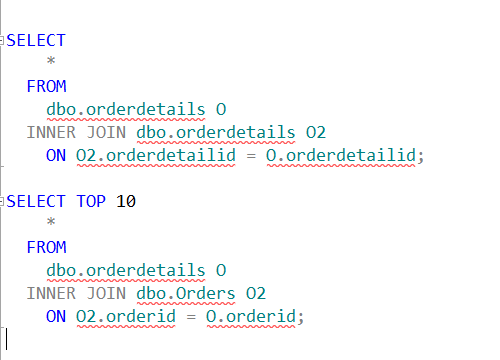
    I often use these tables in queries in my system, and I want to have consistent aliases. Right now, I could have these two queries with the default SQL Prompt alias settings:

    aliases20

    Note that the Orders table has “O” as an alias in the first query, but “O2” as an alias in the second query. This isn’t an issue when I’m writing a query, but when I revisit this code in a month or two and add an enhancement, it can be tricky.

    What I’d like to do is ensure I had consistent aliases for my tables, so that every developer always knows that “o” is Orders and “od” is OrderDetails. I want these aliases

    • Product – P
    • Product Details – PD
    • Orders – O
    • OrderDetails – OD

    I can do that in SQL Prompt with custom aliases. Let me go back to the Options dialog and select Aliases.

    aliases_21

    I’ve already added an item in the Custom aliases section for the product table. However I can click New (highlighted above) and I’ll get a little dialog.

    aliases22

    I repeat this process for each table, and soon I have all four entered.

    aliases_23

    Now I can rewrite my query. I start typing each table, and once it’s highlighted, click “tab”. When I get done, I have:

    aliases_24

    A quick way to ensure that all of your tables are consistently aliased, no matter in which order you type things.

    aliases_25

    You can see a complete list of SQL Prompt tips at Redgate.

  • T-SQL–Converting Seconds to Time

    I was working on a small piece of code the other day that was calculating the seconds for an event. I had a function that returned me the seconds as an integer. That’s good, but I wanted to get that value back in minutes and seconds. The scale wasn’t so large as to worry about hours, or days (I hope).

    In any case, I could certainly do some math. Takes seconds, divide by 60 to get minutes, and then take the remainder and add that as seconds, concatenate, convert to time. Crazy.

    There’s an easier way using CONVERT.

    DECLARE @s INT
    SELECT
        @s = 325
    SELECT
        @s
      , CONVERT(TIME, DATEADD(SECOND, @s, 0));

    I can just add the seconds to the 0 time, which is midnight, and I’ll get the time back in the right datatype.

    This code gives me 5:25, which is correct. Five minutes and 25 seconds.

    If I increase the numbers, say into hours, I can take 4325 like this:

    DECLARE @s INT
    SELECT
        @s = 4325
    SELECT
        @s
      , CONVERT(TIME, DATEADD(SECOND, @s, 0));

    And get this;

    time