Category: Blog

  • Quick Tips – SQL Prompt Stop the Yelling

    I love SQL Prompt, and think it’s a great productivity tool. Even before I worked at Red Gate, I love the tool and had a copy before Red Gate bought the technology from the original developer. Recently I’ve run into a few people that weren’t aware of some of the ways in which it can help you. This is a quick look at one of the ways I use SQL Prompt.

    Lower Case Keywords

    One of the things that many developers like is lower case keywords. If you examine some C# code, you’ll often find that they have keywords in lower case. For example, here’s a sample from MSDN.

    // versioning.cs
    // CS0114 expected
    public class MyBase 
    {
       public virtual string Meth1() 
       {
          return "MyBase-Meth1";
       }
       public virtual string Meth2() 
       {
          return "MyBase-Meth2";
       }
       public virtual string Meth3() 
       {
          return "MyBase-Meth3";
       }
    }

    When I’ve gotten projects from Red Gate, I see something similar.

    However, if I enter some code in Management Studio, by default, SQL Prompt will format it like this:

    prompt_aa

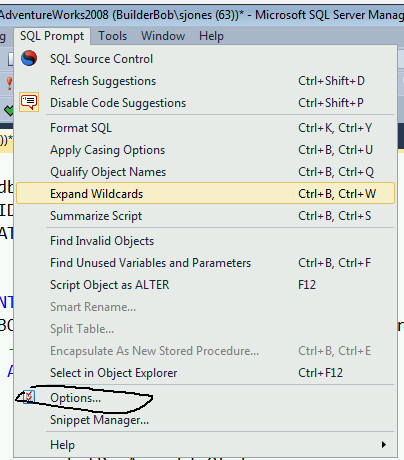
    Notice the upper case keywords. Personally I like these, but many developers may not. Fortunately there’s an easy fix. Access the SQL Prompt menu in Management Studio and select options (circled below).
    prompt_ab

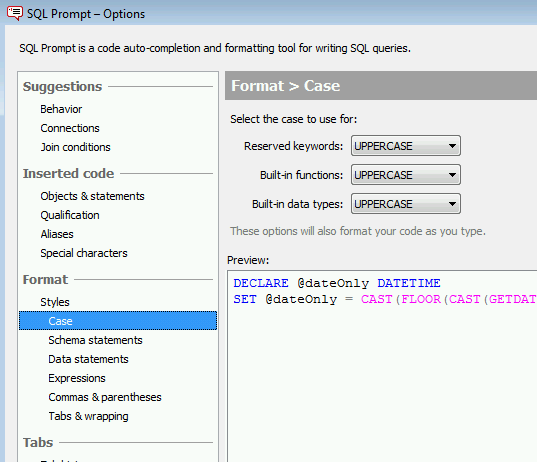
    This will bring up the options dialog. Select the CASE item as shown below.
    prompt_ac

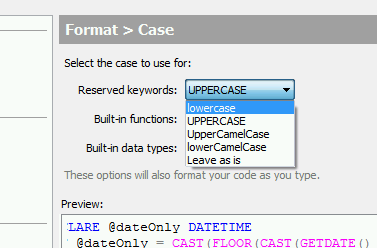
    On the upper right side, you’ll notice that you have drop downs for keywords, built-in functions and data types. By default these are all set to uppercase. However you have a number of choices.
    prompt_ad

    I’ll change mine to lowercase, click OK, and then reformat my code. I now see this.

    prompt_ae

    Quick and easy, and I can now read code that looks more like what developers are used to. Maybe I’ll leave things set like this…

    You can see a complete list of SQL Prompt tips at Redgate.

  • Sabbatical–Volunteer Signups

    I did my first volunteer sign ups with Habitat for Humanity today. After completing the orientation, I was waiting for an email that confirmed I had been entered in their system, but since it’s been a week, I decided to just go ahead and start signing up.

    ReStore

    The ReStores in Denver are where old, reclaimed, and donated building supplies are for sale. There are actually three stores in Denver, and I decided to sign up for one to get started.

    June 2, first day off, is my first day of work. I actually picked a second day the next week, and I’ll try to do at least one a week moving forward after that.

    Construction

    One of the main things I’ve always heard about with Habitat is their builds of new housing. I had been looking forward to this, but coming off knee surgery, I was a little worried when I’d be able to start. However with the knee doing well, some outside chores this weekend, I think I’m ready to go.

    Well, not now, but in a few weeks. I volunteered for my first shift on Jun 12. There aren’t a lot of builds going on in Denver right now, but I’ll keep my eyes open and hopefully I’ll get involved in a few more.

  • Attaching All Databases with PowerShell – The Overview

    TL;DR Script is here: Git Hub Powershell Scripts. It’s the attachdbs.ps1 and will attach all databases in a folder to a SQL Server instance, if they don’t exist.

    I wrote a PowerShell script recently to actually accomplish a task I that I needed. What’s more, this was the first time I thought that Powershell might prove more useful than other methods. This series looks at my script, and this part examines the first part that I wrote.

    After my problems with Windows 8.1 and my reinstallation of SQL Server, I had a problem. I had no databases.

    I had the files. I had backup files. However the instance didn’t have any databases registered. I started down this path.

    attach_a

    However that seemed inefficient. I actually had a pattern of things that I knew needed to be done, I had a bunch of repeatable work, this sounded like it should be a PowerShell type task. I could have done it in T-SQL, or grabbed a script from SQLServerCentral, but it made more sense to load databases with PowerShell.

    The Start

    Of course I started Googling, but didn’t see any posts that shower someone with mdf/ldf files and needing to attach them to an instance without knowing what you had. What I had was an instance, with no backup/restore/detach history.

    attach_b

    I also had a bunch of mdf/ldf files in a folder. As well as some folders for Filestream/Filetable information.

    attach_c

    What did I do? I’ve got the script on GitHub, and you can grab the latest version at: Powershell Scripts (choose the attachdbs.ps1 file)

    This post will give an overview of what I needed to do and I’ll post more details about how I built the script in pieces. The overview of the process is:

    • Get all MDF Files in a folder
    • Connect to a SQL Server instance and loop through all databases
    • If a file name (less the .mdf) does not exist as a database, track this.
    • Get the log file associated with an mdf
    • Attach the mdf and ldf files to the SQL Server.

    That’s what I needed to do and development went in those stages. Certainly there were issues, but I got it working as of this post. When I ran my script, I saw these results:

    attach_f

    In SSMS, I had my databases.

    attach_d

    I even had my Filestream stuff in place. SQL Server handled that for me.

    attach_e

    I’ll include other posts that talk about the details of how I build this, which took about 3 hours one day, and an hour the next.

    References

    Here are a few posts where I picked up bits and pieces of what I needed to do.

  • The MCM Saga

    There was a comment posted on my Connect item for Open Sourcing the MCM. It said:

    “I have been able to contact the MS Learning team and they have given me some information about the content. My restatement of that, is that the ownership of the content is a bit complex. Some content is owned by other groups at Microsoft and is being repurposed for delivery in other workshops. In some cases the content is canibalized into a substantially different form. In some cases content was paid for and licensed content for a specific use, and it can’t just be reissued. At any rate, Microsoft doesn’t want to waste the money spent on it, and efforts are being made to use it in some manner. But you won’t see a consistent publishing pattern.”

    That’s reasonable, and I’m sure it’s true. I know multiple people worked on the project, and perhaps there is IP from some people that they don’t want released. I understand that, though I don’t like it.

    I made my case for this, and while plenty of MCMs disagreed, I was looking at this as a way to improve the community’s knowledge in building applications. Having specific scenarios to work through could help administrators and developers understand what types of real world problems they may face, or even introduce in their designs.

    It’s easy to say there’s all this information out there, but it’s incredibly unorganized. I’ve started to try and organize my content, build shorter, smaller posts that lead through a solution. I’m trying to help people (and myself) grow knowledge in a targeted way. Too much of the stuff out there doesn’t do that.