Tag: administration

  • Attaching All Databases with PowerShell–Attaching Missing Databases

    I wrote a PowerShell script recently to actually accomplish a task I that I needed. What’s more, this was the first time I thought that Powershell might prove more useful than other methods. This series looks at my script, and this part examines the first part that I wrote.

    In the last post, I had a script that matched up databases with the mdf files in a folder. That’s good, but that’s actually the opposite if what I want to return. I want to return the files that aren’t matched up.

    To do this, I add a few variable to my script, re-setting it for each loop of a file in my folder. I do this inside my test for the extension (shown), so I’m not executing this if I don’t need to.

    if ($file.Extension -eq ‘.mdf’)
    {
    if ($debug -eq 1)
    {
    write-host “MDF Files: ”  $file.name
    #end debug
    }

        # Reset our flag for each file
    $found = 0

    The last two lines are what I added. We set this to 0, or false, because we assume we haven’t found a database that matches this file by default. That way when we do find a file, we can trip the flag.

    The next step is to set that tripwire. Inside the loop, where we check for the file matching a database file, we add a reset of this flag.

    if ($file.FullName -eq $dbfile.FileName)
    {
    $found = 1

    Since we will check this file against every database, this logic allows the flag to be set, and it doesn’t get reset for this physical file. Any databases we check that don’t match this file won’t reach this point.

    The last step is the other end of the file loop. After we’ve left the database loop, we check to see if our file was found. If it’s not ($found is still 0), then we can do work. I’ve included the end of the foreach and the end of the mdf test for reference.

        # end foreach
    }

    if ($found -eq 0)
    {
    # attach this file
    if ($debug = 7)
    {
    Write-Host $file.Name “not found”
    #end if debug
    }

    #end if found = 0
    }

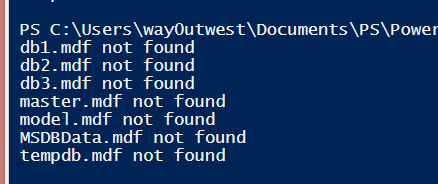
    There’s a comment placeholder in there to show the action we need to take, and there’s a debug to print things. Let’s set debug to 7 and run this.

    attach_n

    That’s bad. Certainly I noted that my test databases (db1, db2, db3) were detected. These I detached manually to play in a test environment. However why are my system objects there?

    I looked through the code and realized it’s because I had this line:

    | Where-Object {$_.ISSystemObject -eq $false}

    I’m ignoring system objects in my scan, but I don’t want to do that. I actually have these databases, so I removed that Where-Object call. Then I get this:

    attach_o

    That’s what I want to see. Now I have a list of files to attach, let’s work inside SQL Server.

    Attaching Database Files

    I have my .mdf files, but I also want my ldf files. I know these fit a pattern from looking at the files. Since I haven’t changed anything from the defaults, I can exploit that pattern. If you change things on your systems, make sure you keep a pattern.

    I did some googling, and found that the AttachDatabase method takes a few parameters. However one of them is a StringCollection so I need to create that.

    $dbfiles = New-Object System.Collections.Specialized.StringCollection

    Once I have this variable, I can then add my mdf file. The FullName property includes the path, and I call the Add() method.

    $dbfiles.Add($file.FullName) | Out-Null

    Now, I need a few more things. I need the log file and the database name. The database name is first, mostly because I thought of it first.  The BaseName is just the name of the file. I found that out by using my debug clause and writing out the various properties until I got the one I wanted.

    #get database name
    $dbname = $file.BaseName

    The next step is to get my log file. I can use the basename, along with my folder path, and include my log pattern. Once I build this file, I add it to the collection.

    # get log file, assuming same basename as mdf
    $logfile = $folder + “\” + $file.BaseName + “_log.ldf”
    $dbfiles.Add($logfile) | Out-Null

    I added a logging item, which will always run, to my script as this is output I’d want to see.

    “Attaching as database (” + $dbname + “) from mdf (” + $file.FullName + “) and ldf (” + $logfile + “)”

    Now we attach the database. I’ve seen some code that had other parameters, but this worked well for me. I captured this in a try..catch block, mostly because it failed early on and this allowed me to see the whole exception. Some of what was shown from PoSh was truncated, so this helped me to realize I needed to add the “_log” to my filename.

    try
    {
    $server.AttachDatabase($dbname, $dbfiles)
    #end try
    }
    catch
    {
    Write-Host $_.exception;
    #end catch
    }

    That’s it. I run it and get some output.

    attach_q

    A slight issue in my debug code. I had $debug = 7 and needed $debug –eq 7. Still, it records each database as being attached, with the catch block not executing. If I check SSMS.

    attach_p

    My databases are back.

    It’s not a perfect script, and there are probably improvements, but it does get me my databases back easily.

  • Attaching All Databases with PowerShell–Checking All Databases

    I wrote a PowerShell script recently to actually accomplish a task I that I needed. What’s more, this was the first time I thought that Powershell might prove more useful than other methods. This series looks at my script, and this part examines the first part that I wrote.

    I wrote an overview of this process, and then a script to loop through files. The next step is to connect to a SQL Server and loop through databases. I’ll also compare these against the MDF file names.

    The first step is to connect to a database. First, I need to add a variable (eventually a parameter) that will hold the name of my instance.

    $instance = ‘Tiny’

    With this, I need to now open a SQL Server connection. I start with some assemblies I need. I saw a post that noted I need these assemblies. I’m not sure if I need them all, but this is where I started.

    [System.Reflection.Assembly]::LoadWithPartialName(“Microsoft.SqlServer.SMO”) | Out-Null
    [System.Reflection.Assembly]::LoadWithPartialName(“Microsoft.SqlServer.SmoExtended”) | Out-Null
    [System.Reflection.Assembly]::LoadWithPartialName(“Microsoft.SqlServer.ConnectionInfo”) | Out-Null
    [System.Reflection.Assembly]::LoadWithPartialName(“Microsoft.SqlServer.SmoEnum”) | Out-Null

    The next step is to create a server object and connect. Note that as I add this code, I’ll run F5 to be sure things still work.

    $server = New-Object (“Microsoft.SqlServer.Management.Smo.Server”) $instance

    That works fine, and now I need to see if I can get information from the server.

    if ($debug -eq 2
    {
    “Database List”
    “————-”
    foreach($sqlDatabase in $Server.databases)
    { write-host “DB:” $sqlDatabase.name
    }
    #end debug
    }

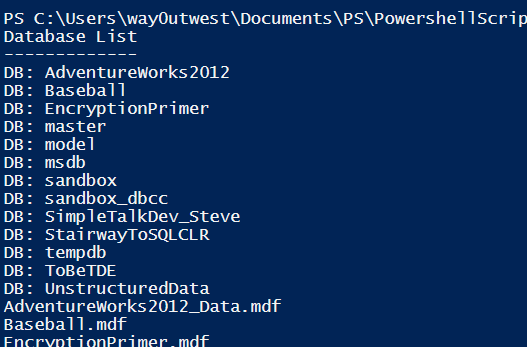
    I add this right after the connection so that I get a list of databases. I use a new debug value so that I don’t see all files. What I expect is a list of databases, and then a list of mdf files (from the previous article).

    This works by setting a variable to each of the items in the databases collection of the SQL Server instance. I then write out the name. When I do this, I see:

    attach_k

    Success!

    Now I want to alter this a bit more. I want to move this loop inside of the file loop. My plan is to take each file and use that to loop through each of the databases for a matching name.

    However I’m not sure that a name match here is enough. What I want to note is if any of these MDF files are being used by SQL Server. Meaning that the MDF file is being used by one of the databases. To do that, I need to find the file and path of each database mdf file.

    I do this by looping through each filegroup with this code. Note that I only worry about default filegroups. I’m torn on that, but it works for me.

    $sqlfg = $sqlDatabase.FileGroups
    foreach ($fg in $sqlfg| Where-Object {$_.ISDefault -eq $true})

    Once I have this, I sub-loop inside this to check each of the files.

    foreach ($dbfile in $fg.files | Where-Object {$_.ISPrimaryFile -eq $true} )

    In here, I go through the files, pipe those to the Where-Object command and look for a property of ISPrimaryFile set to true. The result of this is run through the foreach loop. This gives me this code:

    # loop through each  of the databases
    foreach($sqlDatabase in $Server.databases)
    {

        $sqlfg = $sqlDatabase.FileGroups
    foreach ($fg in $sqlfg | Where-Object {$_.ISDefault -eq $true})
    {
    foreach ($dbfile in $fg.files | Where-Object {$_.ISPrimaryFile -eq $true} )
    {

           if ($debug -eq 4)
    {
    write-host “DB MDF File: ”  $file.name
    #end debug
    }

          #end foreach db file
    }
    #end foreach filegroup
    }

       # end foreach
    }

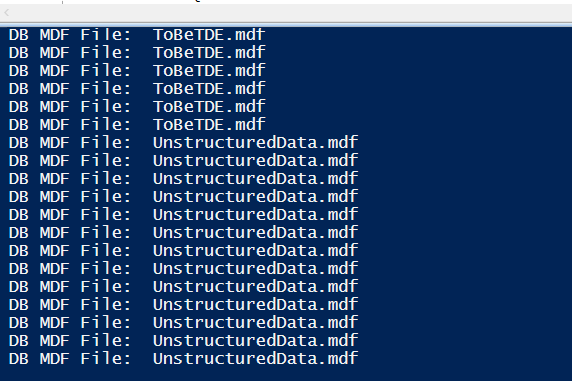
    and this result

    attach_l

    That seems funny until you think about it. In this case, I’m taking the file and checking against each database, which means that I’m getting a loop inside a loop. Not the most efficient, but when this runs, it will be attaching these databases ones, so this should be OK.

    What I want to do now is test if I get a match of the file. To do that, I need to get the full path. I’ll check to the FullName property to get the path and file. I then compare that to my mdf file with. Now I add an IF statement below my database loop.

    if ($file.FullName -eq $dbfile.FileName)
    {
    if ($debug -eq 5)
    {
    write-host “Match ” $file.FullName ” = ” $dbfile.FileName
    #end if
    }
    #end if
    }

    That gives me (with the proper debug value:

    attach_m

    I can see my files (the first value) matching the file for my database (second value).

    That concludes this post. At this point, I can tell what matches, The next step is to track those files that don’t match, and those will be the ones I attach. We’ll tackle that in the next post.

  • Attaching All Databases with PowerShell–Finding My MDF Files

    I wrote a PowerShell script recently to actually accomplish a task I that I needed. What’s more, this was the first time I thought that Powershell might prove more useful than other methods. This series looks at my script, and this part examines the first part that I wrote.

    The overview contains information about my strategy and breakdown, and this post looks at the first item.

    When I decided I was going to use Powershell for this task, the first thing I decided to do was find all the MDF files in my folder. When I examined my folder, I saw lots of files.

    attach_c

    Actually, my instance had no files, but I copied over all my mdf/ldf files (apart from system databases) from my original install to the \Data folder for my new instance. I had created these databases for various tests and experiments, and as such, they tended to use the default naming from SQL Server. This meant:

    • The database name was used as the mdf file, i.e. the Baseball database has Baseball.mdf as the file.
    • The log file is the database name with _log.ldf. As in Baseball_log.ldf.

    To start the script, I began by noting I’d need some parameters for the script, as in the folder where the data was stored. I decided to start with a variable, which I can then turn into a parameter.

    $folder = ‘D:\mssqlserver\MSSQL11.MSSQLSERVER\MSSQL\DATA’
    $debug = 0

    I include a “debug” variable that I can use to print out information if needed.

    I started with the  Get-ChildItem command using the folder. I can use this in a foreach loop to run through all the child items.

    # loop through each  of the file
    foreach ($file in Get-ChildItem $folder)
    {

    # end for loop of files
    }

    Note that when I build these loops, I close the brackets first, and include a comment that helps me figure out where this item ends. Before I go further, I decided to start outputting information. I added a debug statement.

    # loop through each  of the file
    foreach ($file in Get-ChildItem $folder)
    {
    #Debug
    if ($debug -eq 1)
    {
    write-host $file.name
    #end debug
    }

    # end for loop of files
    }

    This will output all the files in the folder. I can change the debug value to 1 and then I’ll get this output:

    attach_g

    I see all my .mdf and .ldf files, along with my Filestream storage folders. Now I need to limit things to a specific type of file.

    There’s an Extension property for the items in a folder that I can use. I’ll add that.

    if ($file.Extension -eq ‘.mdf’)
    {
    if ($debug -eq 1)
    {
    write-host $file.name
    #end debug
    }

    # end if
    }

    When I run this, I get this output, and immediately see a problem.

    attach_h

    My output runs together. I need to differentiate which log output is being printed. I do that with a message before each file name.

    write-host “MDF Files: ” + $file.name

    With this added (and customized) for each debug message, I get this:

    attach_i

    That gets me the list of MDF files. If I turn off debugging, and add just a print, I see just my MDF files.

    attach_j

    That’s a good loop. I’m sure there are easier and shorter ways to do this, but this works well, and it gives me flexibility if I’d like to change to another extension.

    This is also the basis of moving forward, where I’ll need to connect to SQL Server and check this list of files against the databases on the server.

  • Attaching All Databases with PowerShell – The Overview

    TL;DR Script is here: Git Hub Powershell Scripts. It’s the attachdbs.ps1 and will attach all databases in a folder to a SQL Server instance, if they don’t exist.

    I wrote a PowerShell script recently to actually accomplish a task I that I needed. What’s more, this was the first time I thought that Powershell might prove more useful than other methods. This series looks at my script, and this part examines the first part that I wrote.

    After my problems with Windows 8.1 and my reinstallation of SQL Server, I had a problem. I had no databases.

    I had the files. I had backup files. However the instance didn’t have any databases registered. I started down this path.

    attach_a

    However that seemed inefficient. I actually had a pattern of things that I knew needed to be done, I had a bunch of repeatable work, this sounded like it should be a PowerShell type task. I could have done it in T-SQL, or grabbed a script from SQLServerCentral, but it made more sense to load databases with PowerShell.

    The Start

    Of course I started Googling, but didn’t see any posts that shower someone with mdf/ldf files and needing to attach them to an instance without knowing what you had. What I had was an instance, with no backup/restore/detach history.

    attach_b

    I also had a bunch of mdf/ldf files in a folder. As well as some folders for Filestream/Filetable information.

    attach_c

    What did I do? I’ve got the script on GitHub, and you can grab the latest version at: Powershell Scripts (choose the attachdbs.ps1 file)

    This post will give an overview of what I needed to do and I’ll post more details about how I built the script in pieces. The overview of the process is:

    • Get all MDF Files in a folder
    • Connect to a SQL Server instance and loop through all databases
    • If a file name (less the .mdf) does not exist as a database, track this.
    • Get the log file associated with an mdf
    • Attach the mdf and ldf files to the SQL Server.

    That’s what I needed to do and development went in those stages. Certainly there were issues, but I got it working as of this post. When I ran my script, I saw these results:

    attach_f

    In SSMS, I had my databases.

    attach_d

    I even had my Filestream stuff in place. SQL Server handled that for me.

    attach_e

    I’ll include other posts that talk about the details of how I build this, which took about 3 hours one day, and an hour the next.

    References

    Here are a few posts where I picked up bits and pieces of what I needed to do.