Tag: Backup/Recovery

  • SQL Backup 7

    sqlbackuproWhat more could you add to a SQL Server backup product? It seems that many software products, including Red Gate’s SQL Backup Pro, have been able to handle the things most DBAs care about for some time: compression and encryption. Today my company has released a new version of SQL Backup, version 7, which does add a couple of very nice features.

    One of the problems that exists in many database configuration is the lack of verification of the backups, and a lack of consistency checking for corruption. Both of these are fairly rare events, but when they do strike, they can propagate through backups for weeks, months, or even years at times. When a disaster does strike, this can result in a tremendous amount of lost data for an organization.

    SQL Backup Pro 7 helps to ensure your backups can be verified and checked for issues with the addition of two great new features: scheduled restores and automated verification checks.

    You can see a walkthrough of the features from my colleague, Grant Fritchey, on the Red Gate website. Grant shows how you can automate the restores, to another server, and run your DBCC checks.

    Run these Checks

    When corruption strikes, you may not be able to actually recover data. It could be too late, so it’s important that you regularly run DBCC checks. However it can be a performance issue on your production server since DBCC is resource intensive. The solution is to offload these checks to another instance, but for many DBAs, the scripting required to ensure this runs every day is rather complicated. You can do it any number of ways (T-SQL, PowerShell, VBScript, etc), but it’s important that you do it.

    The addition of this feature to Backup Pro is something myself, Brad McGehee, Grant Fritchey, and others have been requesting for some time. The ease with which you can set this up means there is no reason not to run your DBCC on almost every backup file.

  • Backup and Restore

    Rainbow Six
    The team at Rainbow Six has to be prepared for a disaster anytime.

    Today’s editorial was originally published on May 13, 2007. It is being re-run as Steve is at SQL Server Connections.

    I think that it’s important to practice restoring and rebuilding your systems. You never know when you’ll encounter problems and need to restore your data onto another piece of hardware. It’s definitely something that people don’t often practice and with documentation not usually being up to par, it’s something that people should be comfortable with performing.

    I saw this article for CIOs that seemed to suggest that IT people aren’t testing their systems enough. The statistic in the article was that 89% only test once a year. Also that 67% were only minimally confident that their disaster recovery system would work as planned.

    I think it’s pretty good that 89% test their systems. I’m guessing that 11% do it more than once a year, but I’d be concerned if 89% hadn’t tested it at all! I think once a year is a pretty good plan given the hectic scheduled, heavy workloads, and the lack of buy-in by many executives for a DR plan. It’s not like we’re the guys from Rain bow Six that could be called on multiple times to perform this year. In all likelihood most of us will never encounter a disaster in our careers.

    And if you do, it won’t go as planned. I’ve had disasters and disaster tests in my career and none of them goes as planned. It’s like I’ve seen quoted: “No battle plan ever survives contact with the enemy.” We could easily paraphrase this for IT and note that no DR plan will every survive a disaster. You need people that can adapt, think in the heat of the moment, and get things working when the plan doesn’t cover every contingency.

    As DBAs I think most of us tend to practice the DR stuff on a more regular basis as part of our jobs. Many of us are constantly restoring databases for QA and development, getting practice that sysadmins don’t usually get. We also have the advantage of being separated from the hardware and we can install SQL Server and restore databases on any Windows server host.

    I think you should practice your DR skills in little bits. Maybe grab the tail of the log and do a point in time restore for your next QA cycle. But practicing a full plan more than once a year isn’t practical for most of us.

  • Where’s My Backup? SQL Server Backup Issues

    You can cause yourself problems if you don’t know where your backups are stored, and how they are being made. It also helps to understand the defaults of how your backups are created in files.

    Here’s a short story to illustrate an issue you might encounter as a beginner if you are not clear about the backup process.

    Let’s say you’re a junior DBA, and you create a database.

    CREATE DATABASE BackupRestoreTest
    go
    CREATE TABLE MyTable( mychar CHAR(1), mytest VARCHAR(200))
    go

    You know that backups are important, so you setup a basic command like the first one below, schedule it in SQL Agent, and you have backups being performed. In between the backups, work is being done. Probably more than one INSERT, but this is just to show something is happening in the database.

    -- schedule backup
    BACKUP DATABASE BackupRestoreTest
      TO DISK = 'MyBackup.bak'
    GO
    
    -- do work
    insert dbo.mytable SELECT 'a', 'b'
    GO
    
    -- backup database
    BACKUP DATABASE BackupRestoreTest 
      TO DISK = 'MyBackup.bak'
    GO
    

    This continues on, day after day. Work gets done, you run your nightly backups.

    -- do work
    insert dbo.mytable SELECT 'c', 'd'
    GO
    
    -- nightly backup
    BACKUP DATABASE BackupRestoreTest 
      TO DISK = 'MyBackup.bak'
    GO
    
    -- do work
    insert dbo.mytable SELECT 'e', 'f'
    -- mistake is made
    DELETE dbo.mytable
    -- more work
    insert dbo.mytable SELECT 'g', 'h'
    GO
    
    -- nightly backup
    BACKUP DATABASE BackupRestoreTest 
      TO DISK = 'MyBackup.bak'
    GO

    Then one day, someone runs this and calls you:

    -- mistake noticed
    SELECT MyChar FROM dbo.mytable
    GO

    Only the row with “g” is returned from this. The user asks about all the other data. Where are the rows with “a”, “c”, and “e”?

    You decide to restore.

    -- restore, use good habits. NORECOVERY always.
    USE master
    GO
    RESTORE DATABASE BackupRestoreTest 
      FROM DISK = 'MyBackup.bak'
      WITH NORECOVERY
      , REPLACE
    GO
    
    -- bring online
    RESTORE DATABASE BackupRestoreTest
      WITH recovery
    go
    

    You check the data and you get this:

    -- check data
    USE BackupRestoreTest
    GO
    SELECT MyChar FROM dbo.mytable
    GO

    The results?

    MyChar

    ———–


    Nothing. No data. Why not? If you look, you’re last insert (row “g”) occurs after the delete and before the backup. Why isn’t it in the restore?

    The answer comes from a few sources. If we read the BACKUP page in Books Online (BOL), we find that if we don’t include the INIT option for a disk file, the backup is appended to the current file. The phrase in BOL is:

    “If the physical device exists and the INIT option is not specified in the BACKUP statement, the backup is appended to the device. ”

    If we look at the INIT argument, we see that the default is NOINIT

    “NOINTI – Indicates that the backup set is appended to the specified media set, preserving existing backup sets. If a media password is defined for the media set, the password must be supplied. NOINIT is the default.”

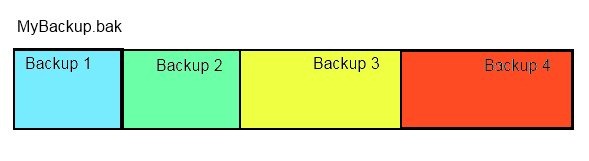
    This means that we’ve essentially done this:
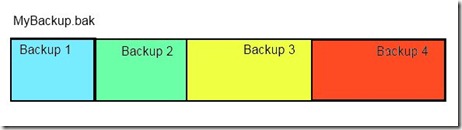
    backup3

    Our one file, MyBackup.bak, contains 4 full backup files. This file is larger than it needs to be, and also it poses a risk. If I lose this file, I don’t lose one backup, but I lose 4.

    Can I check this? Sure. Run this:

    RESTORE HEADERONLY FROM DISK = 'MyBackup.bak'
    

    I get these results:

    backup4

    You can see there are four files, with a “position” that differs.

    Now, on the restore, why didn’t I get one row back in my table? The insert for row “g” occurred before the last full backup (backup 4), so why wasn’t it restored?

    If we read the RESTORE Arguments page in BOL, we find out that for the FILE arguement

    “When not specified, the default is 1, except for RESTORE HEADERONLY in which case all backup sets in the media set are processed. For more information, see "Specifying a Backup Set," later in this topic.”

    The backup that was restored was our first backup, made before we did any work (inserted any rows).

    What do we do? Well, we have a few choices. The last (fourth) backup would only get us the one row. If we restore the third backup, we lose the data in rows “e” and “g”. That’s usually what we want to do, so let’s restore that backup:

    -- restore file 3
    USE master
    GO
    RESTORE DATABASE BackupRestoreTest 
      FROM DISK = 'MyBackup.bak'
      WITH NORECOVERY
      , FILE = 3
      , REPLACE
    GO
    -- bring online
    RESTORE DATABASE BackupRestoreTest 
      WITH recovery
    go
    -- test data
    USE BackupRestoreTest
    go
    SELECT TOP 10 
       mychar, mytest
     FROM mytable

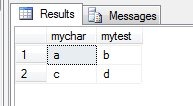
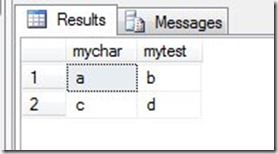
    That gives me two rows back. I’ve lost some work, but I potentially have recovered more in many situations.
    backup5

    Ideally I could recover more if I had transaction log backups, but that’s another blog.

    The main thing to be aware of here is to use the INIT command, write your backups to separate files, preferably with the timestamp in the file name. If you’re not sure how to do it, a maintenance plan can do it, or there’s a great script on SQLServerCentral that can help.

    Lastly, the default recovery models mean you need log backups. Make sure you know how to manage your transaction logs.

  • Filestream and Backups

    What happens when you backup a filestream enabled database in SQL Server 2008? According to BOL, your data is backed up as part of the normal backup process.

    Does it work? Let’s do a little test. I made a simple AdventureWorks2008 backup like this:

    backup database AdventureWorks2008 to disk = c:\sqlbackup\ADW2K8test.bak’

    That gave me a single file, 222MB in size. This includes the filestream data, which by default is located in the \Documents folder below your default data folder in SQL Server 2008.

    filestream

    I can create two new folders. I created a “test” folder below my data directory on the test machine, and then a “FilestreamDocs” folder below that.

    filestream2 

    I then issued this restore:

    RESTORE DATABASE [ADW2k8Test] 
     FROM  DISK = N'C:\SQLBackup\adw2008.bak' 
     WITH  FILE = 1,  
     MOVE N'AdventureWorks2008_Data' TO N'C:\Program Files\Microsoft SQL Server\MSSQL10.MSSQLSERVER\MSSQL\DATA\test\adw2008.mdf',
     MOVE N'AdventureWorks2008_Log' TO N'C:\Program Files\Microsoft SQL Server\MSSQL10.MSSQLSERVER\MSSQL\DATA\test\adw2k8.ldf',  
     MOVE N'FileStreamDocuments' TO N'C:\Program Files\Microsoft SQL Server\MSSQL10.MSSQLSERVER\MSSQL\DATA\test\filestreamdocs',  
     NOUNLOAD,  REPLACE,  STATS = 10
    GO
    

    That completed, and I had a fully functional database that included my filestream data.