Tag: Backup/Recovery

  • New Connect Item – TDE

    Does the certificate matter for TDE? Apparently not as I found a number of people discussing the fact that the expiration date for certificates is not checked for TDE restores. So if your certificate expires, you can still restore the TDE backup.

    However the documentation doesn’t mention this, and I think it ought to be clarified, so I submitted this Connect item. Feel free to vote if you agree:

    https://connect.microsoft.com/SQLServer/feedback/details/677365/doc-clarify-the-expiration-date-field-of-certificates-impact-on-tde

    Whether the expiration date should matter is another debate. I think it should, but I need to really think about the pros and cons of this.

  • SQL Server Default Backup Directory

    Someone asked me in a webinar how to change the default backup directory. I knew, but realized that I didn’t have a reference and ended up with more explanation than needed if I’d had a post. So here it is:

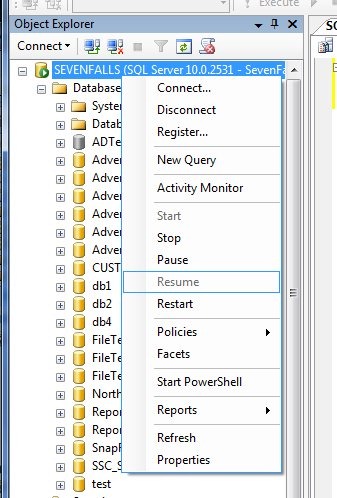
    If you right click on a server in Management studio and select properties, you get dialog with lots of options.
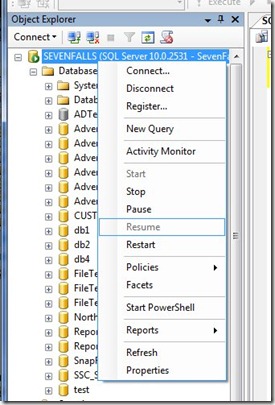
    serverpropertoes


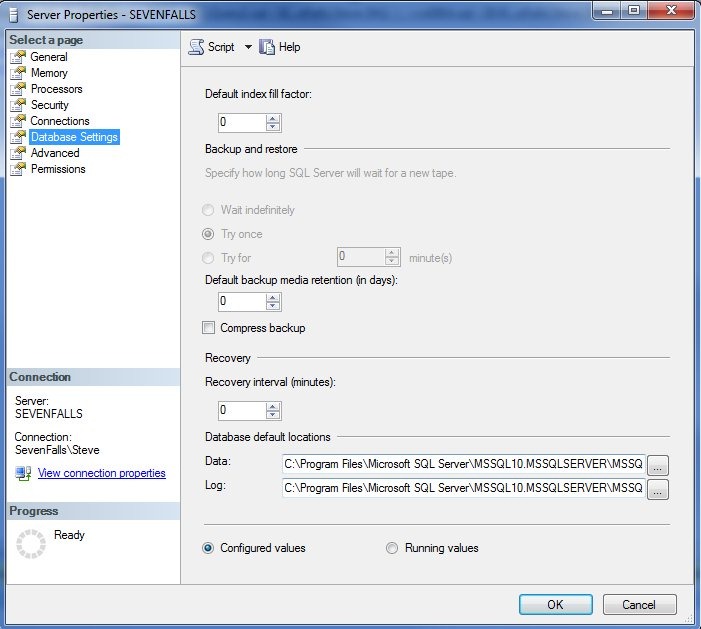
    If you click on the “Database Settings” you get this:
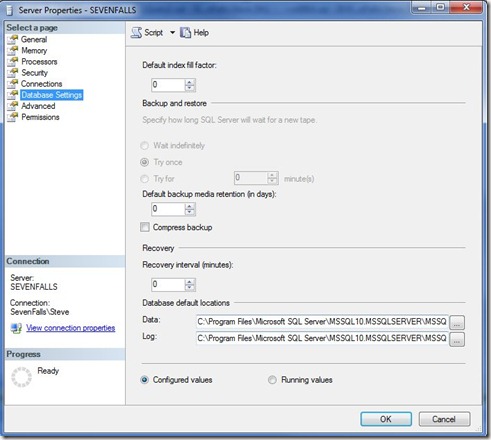
    serverdbsettings

    Note that there is a default path for data files and log files, not not one for backup files.
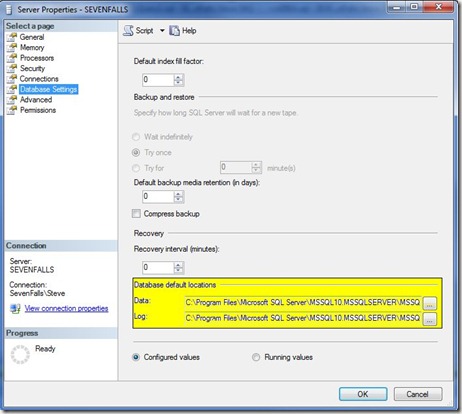
    serverdbsettings1

    So how do you change it? In XP or Win 7, click Start and type this right away “regedt32”

    regedior

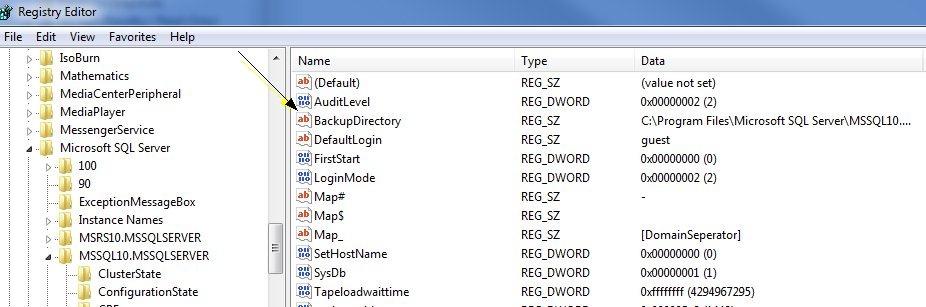
    That will start the registry editor. You ought to get a UAC box to confirm access, which is fine. Do that and you’ll be in the registry. In the left pane, browse to this path:

    HKey_LocalMachine\Software\Microsoft\Microsoft SQL Server\MSSQL.1\MSSQLServer”

    Note that the “MSSQL.1” might be different, depending on your instance. For me it’s SSQL10.MSSQLServer.
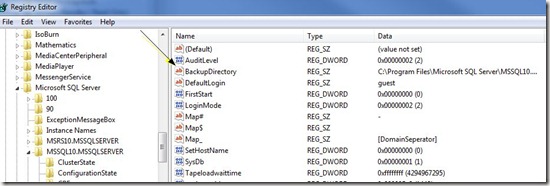
    backupdir

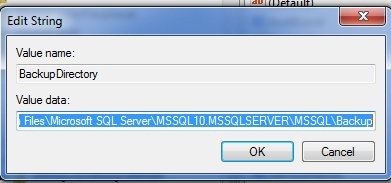
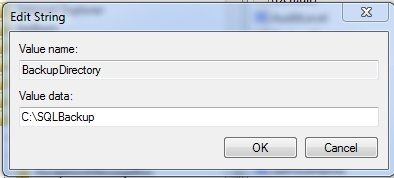
    Note that there’s a “BackupDirectory” key here. You can double click it to change the path:

    backupdir2

    I changed mine to a new path, c:\sqlbackup. Note that I had to create this folder.
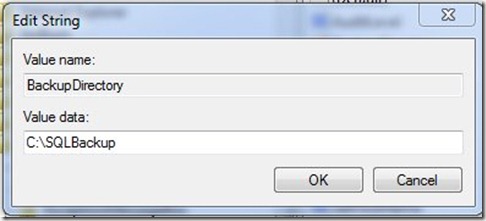
    change path

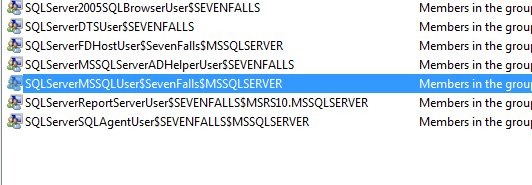
    That’s not enough, however. If you go into your adminstrative tools and find the Computer Management and look for Users and Groups (Select groups), you’ll find groups like this. The name varies, depending on the name of your workstation/server and instance.
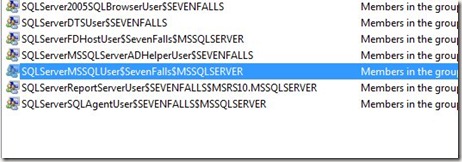
    security


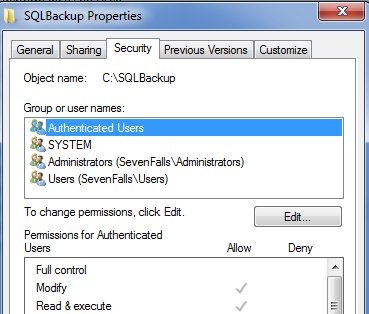
    Once you have this name, I’d copy it and go to your new folder. Right click, select properties, and then the security tab

    sevc1

    As you can see, my group isn’t in here, but this group, with the SQL Server service account in it, needs permissions to this folder. So add them, with modify.


    sec2

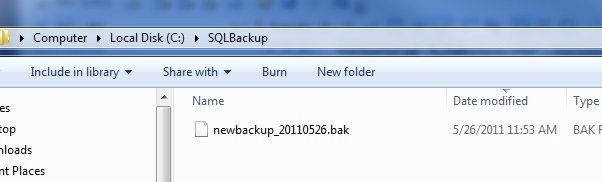
    Is my default changed? I could now run this:

    backup1

    and I find a file in my new default folder:
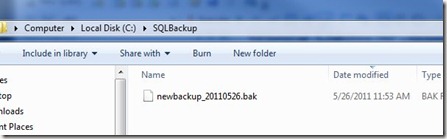
    backup2

  • The Backup Passwords

    Hopefully you have better password management

    One of the things that my boss was excited to implement a few years back were passwords for our backups. Actually we were using a third party backup utility, like SQL Backup, for our SQL Server instances. We purchased the tool because of the compression, but the encryption feature was appealing to management in the wake of so many data loss reports in the media.

    It seemed like a good idea, and we started to make plans for the backups. However we quickly ran into a concern: how would we manage the passwords for the backups? After all, if we lost track of the passwords, then the backups couldn’t be restore and that would be a problem. Keeping the same password forever was only slightly better than not having a password given the turnover we had seen at the company.

    We used Password Safe to track current administrative passwords for our team, and that worked well, but backups introduced  the new dimension of time into our password storage.  We wrestled with the problem and came up with a solution, but I thought it would make an interesting Friday poll:

    How do you deal with key management across time?

    This mostly applies to backups because most other systems or accounts only have one password at any given time. However backups could exist for a long time, and even in a short period of time, you might have 3 or more passwords to manage. If you changed passwords one day and had an administrator quit the next day, you might end up with another change and 3 passwords across 3 days of backups.

    I want to know if you’ve thought about this and how you deal with it, or if you ignore it, keep the same password, avoid encryption or any other ideas.

    Steve Jones


    The Voice of the DBA Podcasts

  • Backups after a DR Restore – MCM

    If you have a disaster, and you need to restore to some point in time prior to the last log backup you have, what’s the first thing you should do at this point in time?

    Make a full backup, of course.

    Actually anytime you complete a restore sequence, you want to do a full backup immediately before you turn users loose to do work. Why is that?

    Think about what happens if you complete the restore and then have another issue? You would have to go through the entire restore sequence again from before the first disaster. If that were a full backup, a differential, and a dozen log backups, would you want to explain that delay to your boss again?

    Would you even want to go through it?

    I wouldn’t, and it’s easy to prevent. Once you get done with your restore, start a full backup right away. You might never need it, but then again, you probably said that about the full backup you just restored.