Tag: Backup/Recovery

  • When Did That Restore Finish?

    I saw this question come across Twitter under the #sqlhelp tag one day and was wondering myself. Someone suggested the default trace, I was thinking msdb.dbo.restorehistory and decided to check.

    First I hit Books Online. It notes that the restore_date column means: Date and time of the restore operation. Can be NULL.

    Very helpful (hopefully you read the sarcasm). This looks like a CS 101 comment, not very helpful and not detailed. Here’s a Connect item for more detail, and here’s one I submitted for clarification.

    OK, time for testing. I first grabbed a copy of AdventureWorks since I assumed it would take at least a minute to restore. I restored a new database as “ADW_3”. It was around a minute and so I checked restorehistory:

    USE msdb
    GO
    SELECT TOP 10 * FROM restorehistory

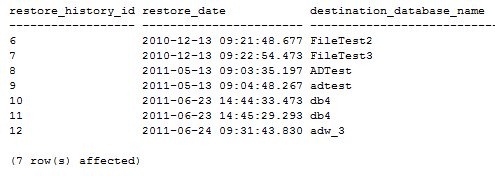
    And I got this:
    restore2

    This was not terribly helpful. At the time I ran this, it was 9:32, so this appears to be the start date/time of the restore.

    Then I checked the default trace: ‘

    SELECT * FROM ::fn_trace_getinfo(0)
    
    SELECT *
    FROM ::fn_trace_gettable('C:\Program Files\Microsoft SQL Server\MSSQL10.MSSQLSERVER\MSSQL\Log\log_54.trc',0)
         INNER JOIN sys.trace_events e
              ON eventclass = trace_event_id
         INNER JOIN sys.trace_categories AS cat
              ON e.category_id = cat.category_id
    WHERE databasename = 'ADW_3'

    The first query gets the name of the file, which is put into the second query as the file source and that returned a number of results, of which the interesting ones were:

    restore

    That isn’t terribly helpful either. I was hoping there would be a second event in the default trace, but there isn’t, even 10 minutes later when I checked. (I’m ever optimistic)

    Then I thought “wouldn’t recovery run in a restored database? Isn’t that in the error log?”, so I decided to check there and found this:

    restore3

    The “starting up datbaase ‘adw_3’ is likely just after the log file is built and corresponds to a tenth of a second after the restore starts. I suspect the files are created first as part of the restore, but not marked in the error log. Then the database is started, and is marked a “restoring” immediately after.

    There is a checkdb informational message, which is the last time that the command was run not on this database, but on the source database that created the backup file (bad, Steve, bad, 8 months old!).

    Last we see that just about 6sec later there is the completed restore message.

    No duration, but you can calculate that based on the “starting up” message.
  • SQL Server Backup – Inadvertent Striping

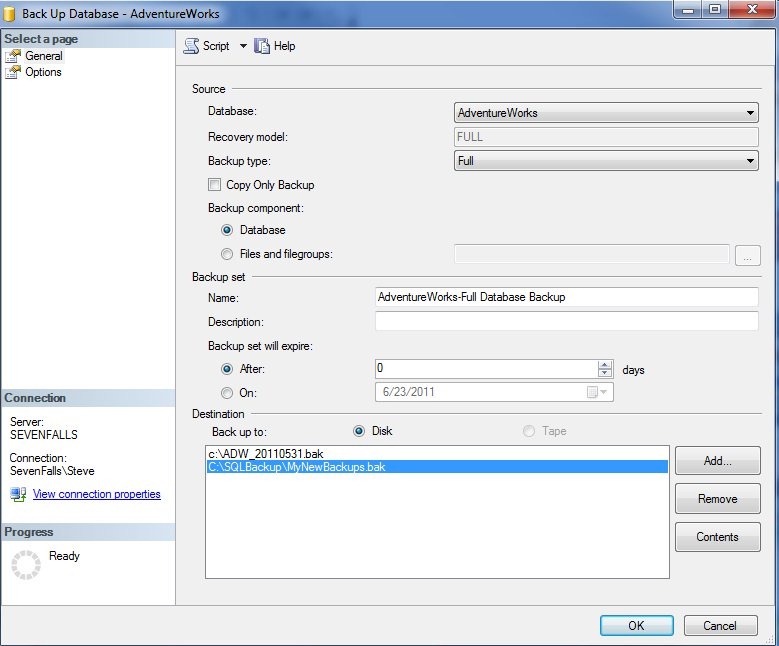
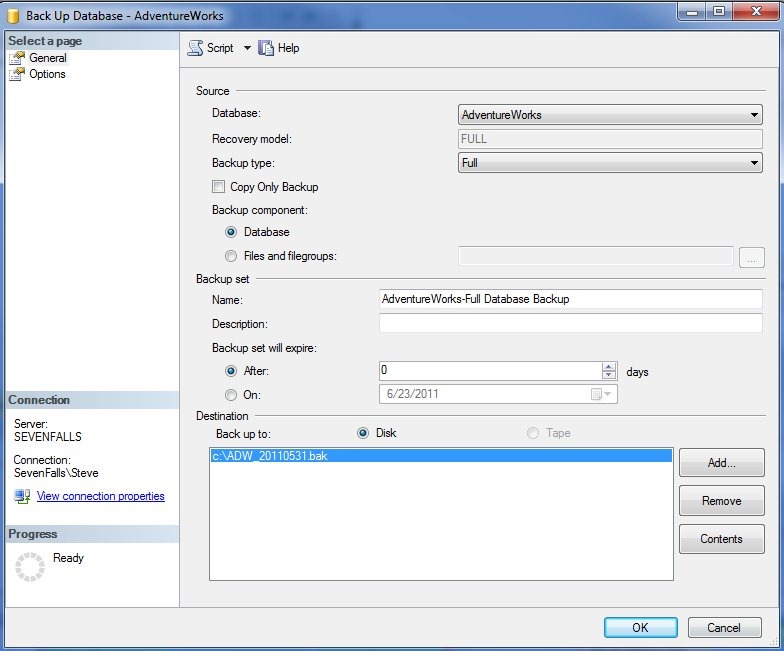
    When I started working with SQL Server I got bit in the rear one day while I was testing backups. I was in the process of making a quick backup before I deployed some changes. I think this was in the Enterprise Manager days of SQL 2000, but it could have been v6.5. In any case, I had a dialog similar to this one that I’ve shown in Management Studio. For simplicity I’ve recreated this with AdventureWorks:

    stripebackup

    No biggie, right? I click add, and enter my new file for the backup:

    stripebackup2

    I accept this, and highlight me new file and click “OK” to do the backup. That will work, won’t it?

    stripebackup3

    Actually it won’t. or rather, it will but not in the way I expect.

    What this will do is create a striped backup (search in this article for “striped). I will have my data in a backup, but I will need both of these files in order to do a restore as each will only have half my data.

    It’s a rookie mistake, one that’s not possible with a script, which is why you should backup with scripts, not the GUI.

    However if you notice this, delete all the files, add yours back, and make a full backup right away. Chances are that you might have broken your recovery chain. And make sure you let everyone know this is not what you want to encounter.

  • Striping Backups in SQL Backup Pro

    SQL_68x68_BackupThere are times you really do want to stripe backups across multiple files. If you have a short backup window, or a large data set, if you can write the backup to multiple files at the same time, you can drastically reduce your backup window. I think I heard one person say they had a client that was backing up a 2TB database in around 30 minutes with striping. Now that’s cooking with gas!

    My company, Red Gate Software, makes a nice backup product called SQL Backup Pro, which offers a number of features, compression and encryption being the two most notable ones. However I noticed at one point that it supported striping as well, so I decided to play with it.

    I started the backups, picking a database and then getting to the backup file screen.

    sqlbackup1

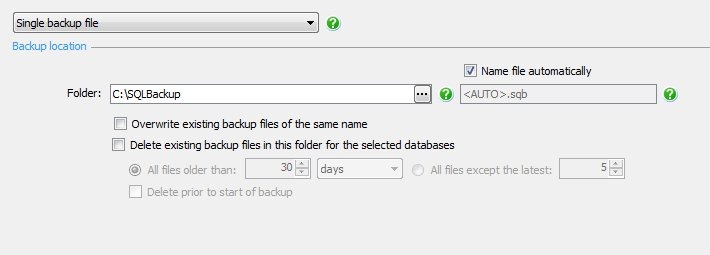
    There’s a drop down in the upper left, which gives you a few choices. One of these is the backup and mirror and the other is a backup to multiple files.

    sqlbackup2

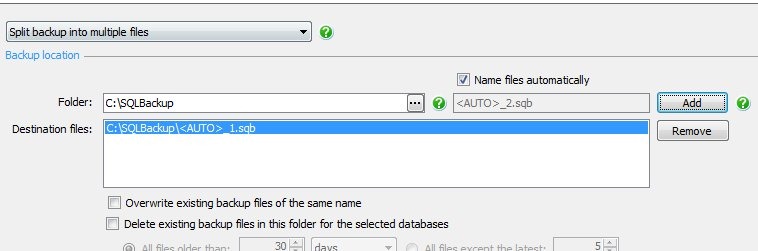
    I selected the “Split backup into multiple files”, which equates to striping, and then added a file to the file dialog.

    sqlbackup3

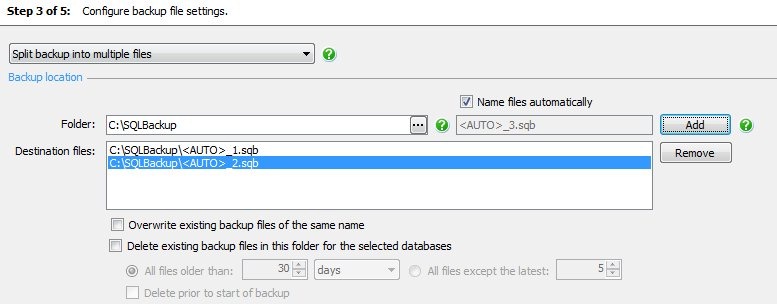
    However I wanted to add a second file. I clicked “Add” again.

    sqlbackup4

    It’s nice that the names are changed, but adding a second file to the same path isn’t likely to give me much more throughput on the backup. Both files would write to the same I/O device. I was thinking that “Add” might give me a dialog for a different drive/path, but it didn’t.

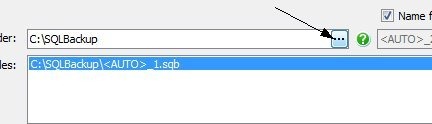
    Instead I needed to click on the ellipsis next to the folder (I’ve added the arrow in the image below):

    sqlbackup5

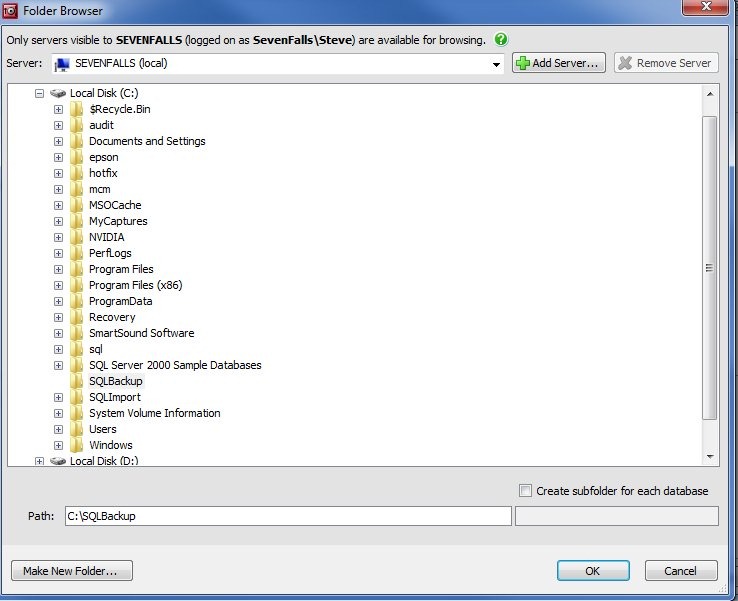
    This brought me to a dialog that shows me the drives my machine can see. I didn’t test UNC paths, but I assume any valid path would work. You can set a path, or you can pick one, and you can even create a new folder. Handy since this could be a remote machine. The SQL Backup Pro client is like SSMS, it’s a client view to a remote service.

    sqlbackup6

    I select the D: drive on my machine, which is actually a separate physical drive.

    sqlbackup7

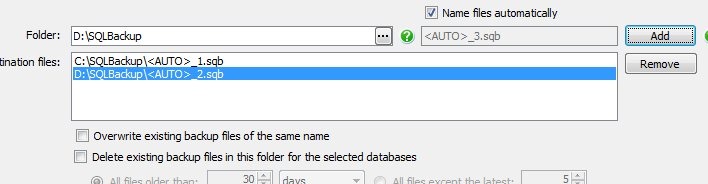
    I get back to the main dialog, and this time when I click “Add”, I get the desired result. A second file on a different path.

    sqlbackup8

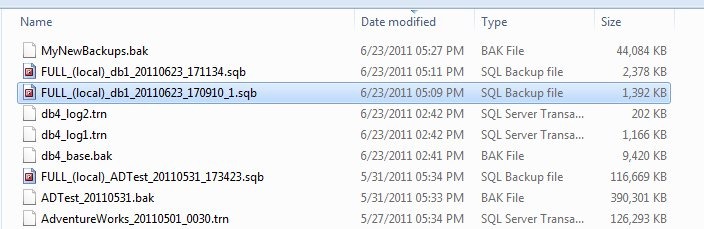
    I run the backup, and sure enough, I have files in two places, each a little over 1MB. There’s some overhead, so it’s not a completely even stripe.

    sqlbackup10

    sqlbackup11

    As a comparison, I’ve highlighted a regular backup I made after this, same db, with one file:

    sqlbackup9

    That seems a little cumbersome, but I’d anticipate that you would only set this up once for each set up databases, and since you can easily script a SQL Backup set of commands (on the last screen) or create template, this shouldn’t be too hard to manage. In fact, the command for multiple databases does support striping as well, as in this example:

    EXECUTE master..sqlbackup ‘-SQL “BACKUP DATABASES [AdventureWorks,AdventureWorks_SSC,AdventureWorks2008R2]

    TO DISK = ”F:\Program Files\Microsoft SQL Server\MSSQL10_50.MSSQLSERVER\MSSQL\Backup\<AUTO>_2.sqb”,

    DISK = ”C:\Program Files\Microsoft SQL Server\MSSQL10_50.MSSQLSERVER\MSSQL\Backup\<AUTO>_1.sqb”

    WITH DISKRETRYINTERVAL = 30, DISKRETRYCOUNT = 10″‘

    Since striping is usually done with only very large databases, this might not even be necessary. Most databases won’t need striping, and you can set a template for them that backs up to whatever location you wish.

    SQL Backup Pro has some nice features, and allows you to easily manage lots of backups across lots of servers. The compression ratios are nice and it has some great features, like this striping of backups, that can really improve your backup performance.

  • Recovering a Database

    So you’re restored a database, restored a few logs, all with NORECOVERY as expected and realize there are no more logs. You see this in Management Studio and wonder what do to:

    restoringdb

    I’ve run a bunch of code, restoring lots of files, but I’m done.

    RESTORE DATABASE db4 FROM DISK = 'db4_base.bak' WITH norecovery
    RESTORE LOG db4 FROM DISK = 'db4_log1.trn' WITH norecovery
    RESTORE LOG db4 FROM DISK = 'db4_log2.trn' WITH norecovery
    RESTORE LOG db4 FROM DISK = 'db4_log3.trn' WITH norecovery
    RESTORE LOG db4 FROM DISK = 'db4_log4.trn' WITH norecovery
    ....
    RESTORE LOG db4 FROM DISK = 'db4_log42.trn' WITH norecovery
    

    You don’t need another log to bring things online. This simple command will fix things:

    RESTORE DATABASE db4 WITH recovery
    

    That will return:

    RESTORE DATABASE successfully processed 0 pages in 2.629 seconds (0.000 MB/sec).

    and your database will be ready to go:

    retoreddb