Tag: continuous integration

  • MSBuild and Azure SQL Database

    I saw a report of a problem building a database with ReadyRoll in Azure SQL Database. This person wanted to use a local Shadow database in LocalDB and target an Azure SQL Database. I hadn’t build that config, so I decided to give it a try.

    Update: ReadyRoll has become SQL Change Automation,and this no longer applies. Contained users are supported with SQL Change Automation projects, which will solve this issue.

    I ended up with this:
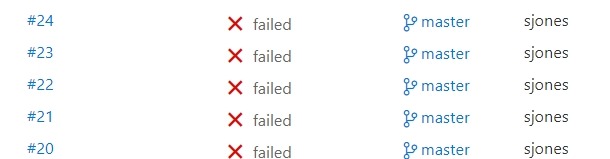
    2017-07-20 10_56_01-builds_azure-CI summary

    which was making me a little crazy. I’ve had most builds work really well. I tried a number of things, but kept getting a few items in the build. There were login errors or network errors, both of which bothered me since I could manually log in with SSMS from the same machine as my build agent.

    I suspected a few things here, one of which was the use of named pipes for the Shadow database and TCP for Azure SQL Database.

    Eventually, I decided to fall back with msbuild, ignoring VSTS, and make sure all my parameters were correct. I started here:

    C:\Windows\Microsoft.NET\Framework\v4.0.30319\msbuild builds_azure.sqlproj /p:TargetServer=”dkranchapps.database.windows.net” /p:TargetDatabase=”SSBuilds” /p:TargetUsername=”dlmdeploy” /p:TargetPassword=”astrongpassword” /p:ShadowServer=”(Localdb)\ShadowSSBuilds7″ /p:GenerateSqlPackage=True /p:SkipDriftAnalysis=True /p:ShadowUsername=”shadowuser” /p:ShadowPassword=”someotherpassword”

    I promptly got a VS build started and then this error:

    C:\Program Files (x86)\MSBuild\ReadyRoll\ReadyRoll.Data.Schema.SSDT.targets(513,5): error : An error occurred while attempting to
    create a patch script: Login failed for user ‘dlmdeploy’. [E:\Documents\Visual Studio 2015\Projects\builds_azure\builds_azure\buil ds_azure.sqlproj]
    Done Building Project “E:\Documents\Visual Studio 2015\Projects\builds_azure\builds_azure\builds_azure.sqlproj” (default targets)
    — FAILED.

    I verified the password in SSMS, verified the firewall and tried again. Same issue. Then I tried this:

    > sqlcmd -S dkranchapps.database.windows.net -U dlmdeploy -P “AStrongPassword”
    Sqlcmd: Error: Microsoft ODBC Driver 13 for SQL Server : Login failed for user ‘dlmdeploy’..

    Hmmm, that’s interesting. Why would this work in SSMS and not SQLCMD? My first thought was some driver setting, maybe ADO v ODBC, but that seems silly.

    Eventually I suspected some mismatch in databases, and found this post. It confirmed what I was about to test. I needed the same login/password in the master db as in the particular db I was using.

    I used SSMS and connected to master to create a user there.
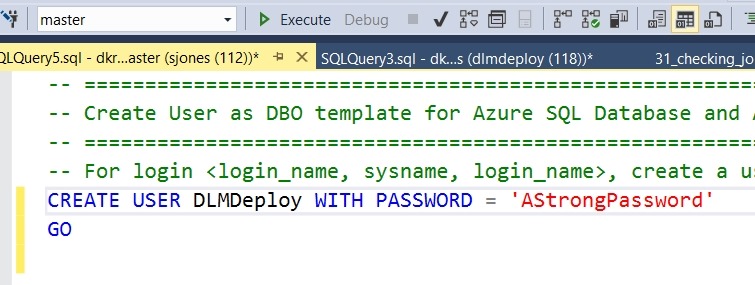
    2017-07-20 11_06_42-SQLQuery5.sql - dkranchapps.database.windows.net.master (sjones (112))_ - Micros

    Once I did this, the build ran fine, both in the command line and in VSTS.

    A couple lessons here. First, in Azure, you connect to databases, but since some processes (like MSBuild) might connect to a default, you need the user in your db and in master. If you have multiple databases (as I do), I’d suggest separate accounts for building in each db.

    Second, work with the command line first. That’s the key. Once you have things working from there, it’s easy to move to a tool and automate your command line instructions.

  • Including Your Database in a DevOps CI/CD Process

    Abstract

    DevOps is changing today’s software development world by helping us build better software, faster. However many organizations struggle to include their database changes with their application deployment. In this session, we will examine how the concepts and principles of DevOps can be applied to database development by looking at both automated comparison analysis as well as migration script management. We will cover using branches and pull requests for database development while performing automated building, testing, and deployment of database changes to on premise and cloud databases.

    Level: 300

    I chose 300 because you’ll need some understanding of how software development proceeds, be very comfortable with producing code and executing it on different servers, using a variety of techniques.

    Downloads

  • Validating a Set of Database Scripts using DLM Automation

    The basis of all the DLM Automation from Redgate is a series of PowerShell cmdlets. They might look intimidating or confusing, but they aren’t. This is part of a series of posts that examine how you use each one.

    Previously I looked at New-DatabaseConnection. In this post, I’ll go through Invoke-DlmDatabaseSchemaValidation. This is the cmdlet that one uses to check if your set of scripts will actually produce a database. This is equivalent to the “build” plugin that exists for a few platforms.

    The way this works is that the location of the database scripts is passed to this object through a pipe. This will then validate the scripts on LocalDB with a build of the database and the static data scripts. If this works, then an output object is returned.

    A Quick Build

    Let’s see how this works. I have a valid database folder on my computer. This has all my object code in subfolders, including static data in the data folder. I want to validate this folder.

    2016-11-22 13_56_30-ScriptFolder

    I can do that with this code. I’ll pass the location of the scripts into the cmdlet.

    $output = “e:\Documents\GitHub\SimpleTalk_Devlopment\ScriptFolder” | Invoke-DlmDatabaseSchemaValidation

    When I do this, a LocalDB instance is created and the code validated. I get a message to that effect. The output variable has the confirmation message.

    2016-11-22 14_06_39-powershell

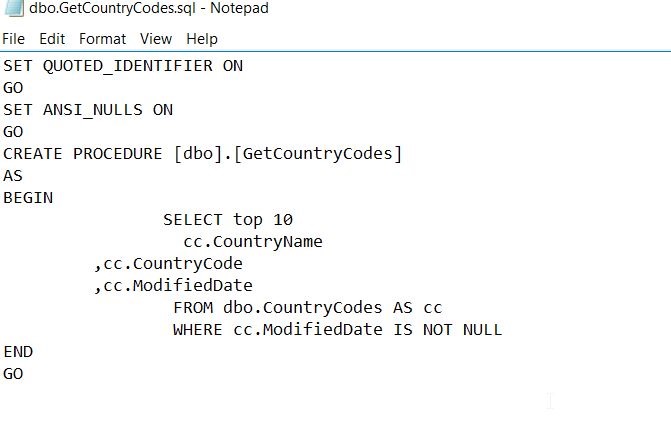
    This means the code is valid. However, does this really work? Let’s edit some code and see. I’ll change the code for a procedure. Here’s the original GetCountryCodes.sql.

    2016-11-22 14_08_29-dbo.GetCountryCodes.sql - Notepad

    Let’s change this to top 100 and add an ALTER, but I’ll get an extra comma in there. This is no longer valid SQL.

    2016-11-22 14_10_45-dbo.GetCountryCodes.sql - Notepad

    Let’s re-run the build. We now see this has failed with an error, and the file is the one I edited:

    2016-11-22 14_11_41-powershell

    This is a quick look at builds, but there is more that can be done. You can specify the server and database to be used, combining this with the New-DlmDatabaseConnection I previously wrote about.

    I urge you to experiment with this cmdlet if you want to perform your own builds.

  • Getting Team City working with BitBucket

    As a part of building a CI/CD home lab, I set up TeamCity in the past. I plan on using this for multiple projects, and in fact, I’d built a basic Hello, World C# application as my first build.

    Now it is time to work on something more complex. As a part of my SQL Server Builds project, I decided to host the Ready Roll build here. That means connecting TeamCity to BitBucket.

    I had no idea how this might work, and some searching showed that this needed a plugin prior to v10, but the capability was built-in after that. I’ve been meaning to upgrade, so I did that first. As you can see, I have my TC v10 system, and when I go to create a new project, BitBucket is a first class citizen.

    2016-11-15 11_57_33-Projects — TeamCity

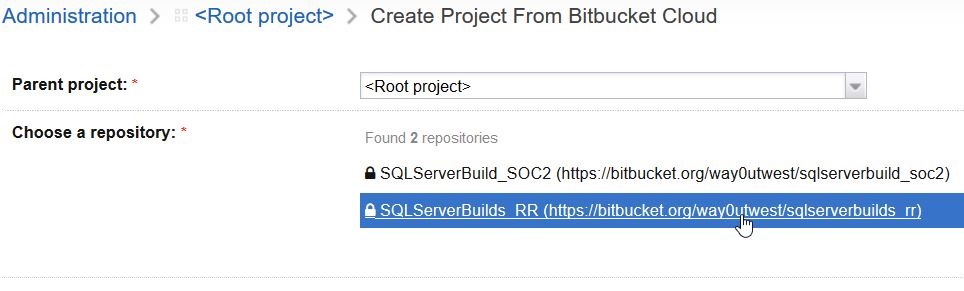
    Once I picked this, the system has me authenticate with Bitbucket (I won’t show this) and then get a key and secret that I paste into the dialog. This is fairly easy to follow, but for security purposes I’ll skip that. Once I’m authenticated, I can see my repos:

    2016-11-15 14_21_23-Create Project From Bitbucket Cloud — TeamCity

    I pick this repo and a project is created. In fact, TeamCity detects that I’ve got a VS solution in the repo, so it sets that as my build config.

    2016-11-15 12_02_58-Build Configuration — TeamCity

    That’s pretty cool, and I’m hooked up. Or am I? Let’s see. I’ll manually run a build.

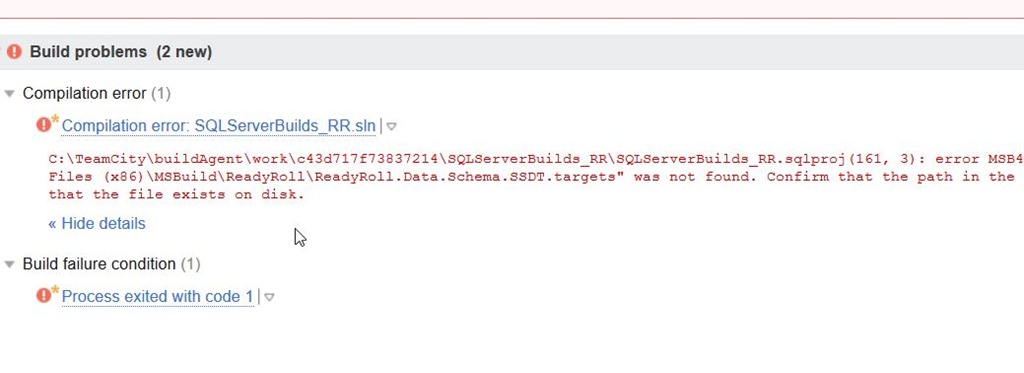
    2016-11-15 12_43_56-Sqlserverbuilds RR __ Build _ #1 (15 Nov 16 12_36) _ Overview — TeamCity

    It doesn’t work. However, if you read the error, you’ll realize that the ReadyRoll project type doesn’t seem to work. That’s because I’m building on this server, which is separate from my development machine. I need to install the ReadyRoll binaries there.

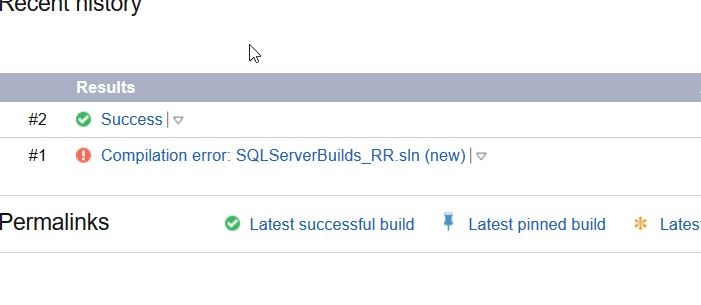
    A quick download from Redgate, and I install ReadyRoll. Now when I click “run”, I get this:

    2016-11-15 12_44_05-Sqlserverbuilds RR __ Build _ Overview — TeamCity

    Success.

    There’s more to getting setup, but this is a quick look at getting TeamCity hooked up to BitBucket.

    If you want to try ReadyRoll, grab an eval.