Tag: DevOps

  • Flyway Desktop Projects for My PoC

    In a previous post, I set up the basic databases for the PoC project I’m working on. In this next post, we’ll get the Flyway Desktop projects set up for the PoC.

    This is part of a series of working through Flyway and Flyway desktop to demo database changes. Disclosure: I work for Redgate Software.

    Flyway Desktop

    Flyway Desktop (FWD) is the GUI that Redgate built on top of Flyway for managing your database project. This replaces the SQL Source Control and SQL Change Automation products that we used to try and integrate into IDEs.

    I like Flyway Desktop, which is standalone app for capturing code and committing it to Git. It is a project based app, so you set up a project in a folder for a particular database (and possibly schema). In my case, I’m going to set up two projects to start for my PoC.

    Version Control

    We work with Git, which has become the de facto VCS for most people.

    On GitHub, I set up a public project where I’m putting this repository. It is located at: https://github.com/way0utwest/FWPoC

    This is on my local machine as a copy at e:\Documents\Git\FWPoC

    MSSQL

    The first project I’m setting up is my SQL Server project, in a folder called MSSQL under the root of the git repo. This is a project folder just for Flyway Desktop. Once I create the folder, I’m going to create a new project in FWD.
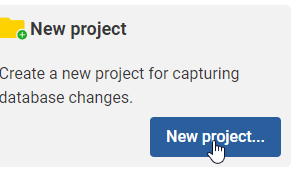
    2022-12-28 17_05_51-Flyway Desktop

    I get a form after clicking New project. I’ll set the name as MSSQL, choose the root folder, and since I created the folder, I uncheck the checkbox. While I appreciate it’s good to put things in a subfolder, at times I’ve had FWD make a subfolder under the folder I choose, so I’m wary of this box. Mostly because I make mistakes.
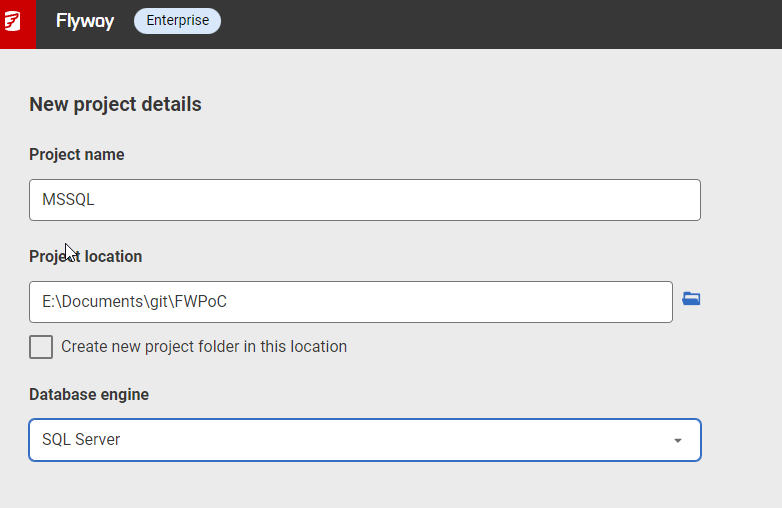
    2022-12-28 17_05_33-Flyway Desktop

    Once this is created, I start in the Schema Model tab. I hate this nomenclature, as it’s weird. This is the list of objects whose code I’m capturing. There’s nothing here, because I need to link this to my development database.
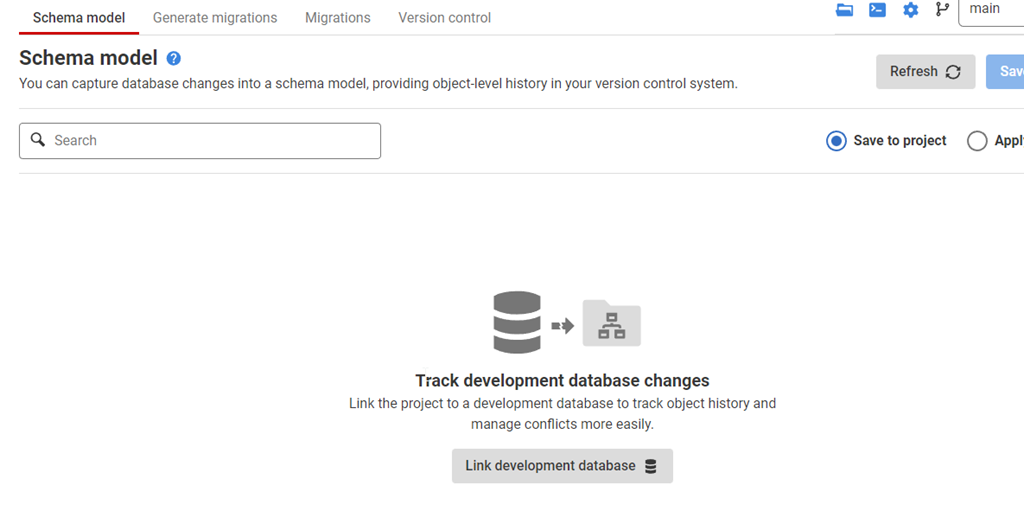
    2022-12-28 17_07_44-Flyway Desktop

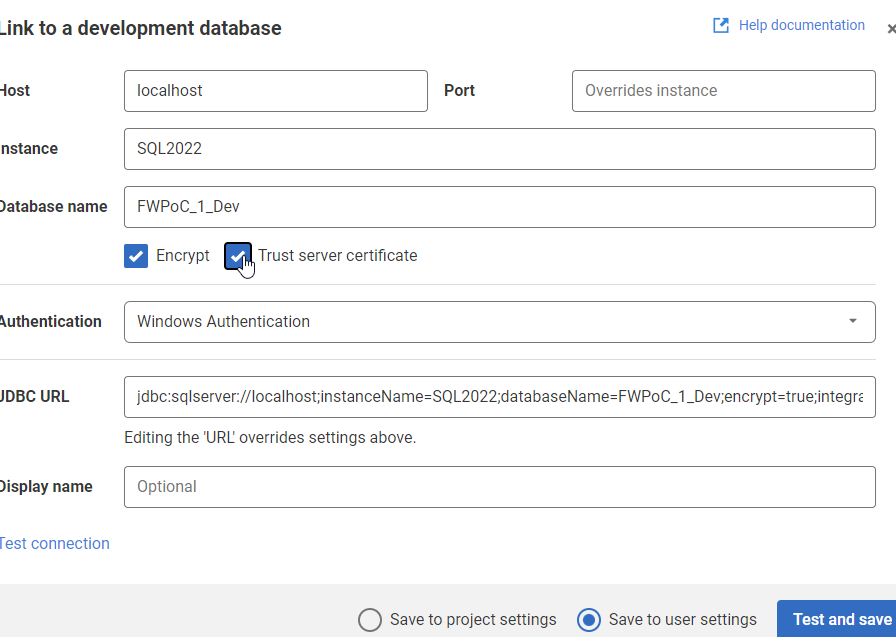
    If I click the “Link” button at the bottom, I get a dialog for the JDBC connection string. Don’t worry, you don’t need to know Java. Just fill in the boxes.
    2022-12-28 17_09_47-Flyway Desktop

    Two things in the dialog above.

    One: Click Trust Server Certificate. Most new installations of SQL and driver upgrades require this. I don’t know why we don’t have this checked by default.

    Two: Click “test connection” in the lower left, so if you have issues, this gets found quickly.

    Once this is done, I go back to the Schema model and I see this:

    2022-12-28 17_11_44-Flyway Desktop

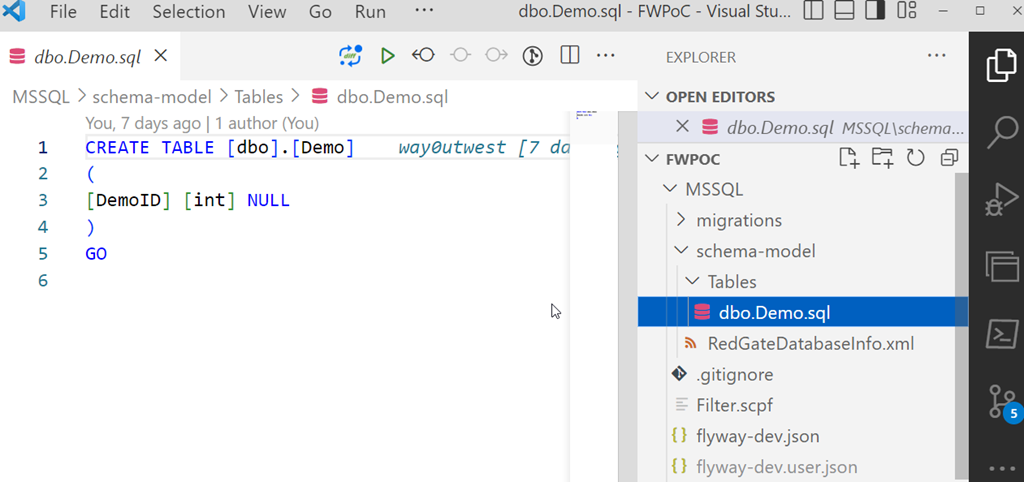
    I’ll select this object and save this to the project. This puts the file in the file system for this object, but doesn’t commit this to version control. We can see this in Visual Studio Code below. This is just a git repo, so if I open it in VSCode, I can see the file, the contents, and a note there are changes to be committed in the left icon.
    2023-01-03 12_31_22-dbo.Demo.sql - FWPoC - Visual Studio Code

    One project complete.

    PostgreSQL

    My second project is for PostgreSQL. Same git repo, similar process. I’ll create a new project, but say this is a PostgreSQL project.

    2023-01-03 12_33_16-Flyway Desktop

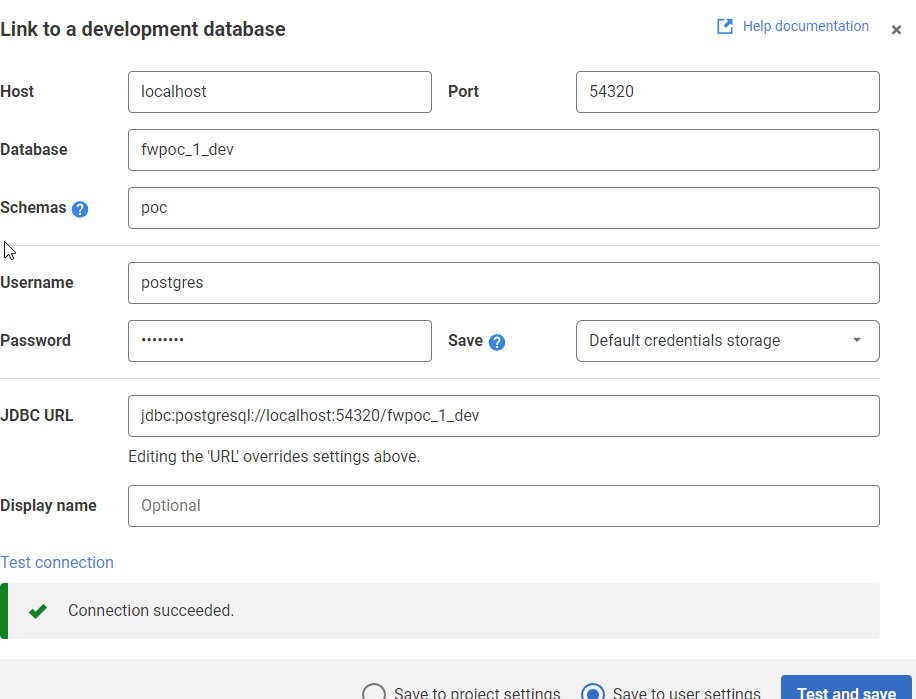
    The process is the same. I’ll link this to a dev database. I need to specify the port and database I’m using. I also specify the schema here, as it’s not the default.
    2022-12-27 17_36_50-Flyway Desktop

    Once I get the project connected, I see the same as I did above for SQL Server. I save it, and I get a slightly different structure in the project. I see a schema below the schema-model folder. In here, I see my table, but it’s not the code, but a description.

    2023-01-03 12_37_14-demo.rgm - FWPoC - Visual Studio Code

    From here, I just commit and push this stuff up to the repo. Note that commits and pushes, can push everything from both projects as they are in one repo. I did this on purpose to keep everything organized for me. However, if this were a team, I’d likely separate SQL Server and PostgreSQL into separate repos so individual developers don’t get confused.

    The next step here is to get a second database to where I can deploy changes for each project. I’ve got these set up, and in the next post, we’ll work on an initial deployment.
  • Starting the Flyway PoC–Environment

    I’ve had a goal to redo my demo environments and get them set up to work for a variety of customers in different places. I decided to do this in a way that uses new Redgate technology, with the integration of Flyway with Flyway Desktop.

    This first article looks at the environment I’ve set up for my system.

    This is part of a series of working through Flyway and Flyway desktop to demo database changes.

    Overview

    I wanted to demonstrate DevOps, as I would recommend most customers set up to get started in their environment. It doesn’t matter if they’re SQL Server or another RDBMS, the approach at a high level is the same. Obviously the setup for each technology would be different in the details.

    I DO NOT recommend starting with a live database or project. This is a Proof of Concept (PoC), so use something that can fail.

    For this start, I’m working with SQL Server and PostgreSQL.

    SQL Server

    I work with SQL Server all the time. That’s the majority of my customers, so we’ll start with a new SQL Server instance. I’ll run this code, but this is to simulate multiple environments:

    CREATE DATABASE FWPoc_1_Dev
    CREATE DATABASE FWPoc_2_Integration
    CREATE DATABASE FWPoc_3_QA
    CREATE DATABASE FWPoc_4_Staging
    CREATE DATABASE FWPoc_5_Prod
    GO

    These environments are set up to be this model:

    • 1_Dev – the place I make code changes. This should be the only place I actually touch code.
    • 2_Integration – this is a place where we mix up code from multiple developers. all code ought to get pulled to each dev db at some point, but for many environments. I recommend getting some deployment here for devs to see all code.
    • 3_QA – standard test environment
    • 4_Staging – This is a DBA test environment, and this ought to get refreshed from production, either schema-only or full refresh, to validate the deployment
    • 5_Prod – live database.

    I’ll then run this code:

    USE FWPoc_1_Dev
    GO
    CREATE TABLE dbo.Demo (DemoID INT )
    GO

    The idea is we get that table to the other 4 DBs without actually connecting to them directly and running this code.

    PostgreSQL

    My setup for PostgreSQL will be similar, but smaller. I’m experimenting here, and one large 5 environment demo is enough. Here I’ll use 3:

    • fwpoc_1_dev – development environment
    • fwpoc_3_qa – test environment
    • fwpoc_5_prod – live environment

    Again, the goal is only write code in 1 and get it to 3 and 5. I’m keeping the numbering to try and keep everything simple and similar.

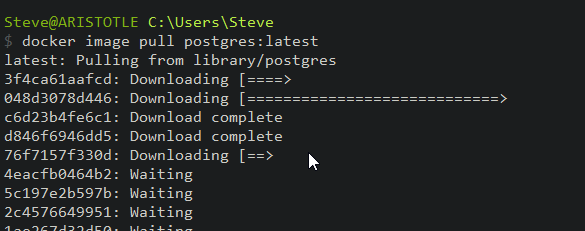
    I want to run PostgreSQL, but I want to use containers. I have enough server services running, so I’m starting with a container. First step, update the container:

    2022-12-26 13_16_43-cmd - docker image pull postgres_latest

    Next, I need to run the container. I’ll do that with this command. This names my container pgdev and gives me a password to connect for the “postgres” user. I also will use a volume on my local drive.

    docker run --name pgdev -e POSTGRES_PASSWORD=demo1234!@# -d -p 54320:5432 -v C:\Docker\postgresql-1-dev:/var/lib/postgresql/data postgres


    Before I run this, I’m create folders on my local C: drive for the docker data to safe. This is the folder I’ll map in my containers.

    2022-12-26 13_38_14-Documents

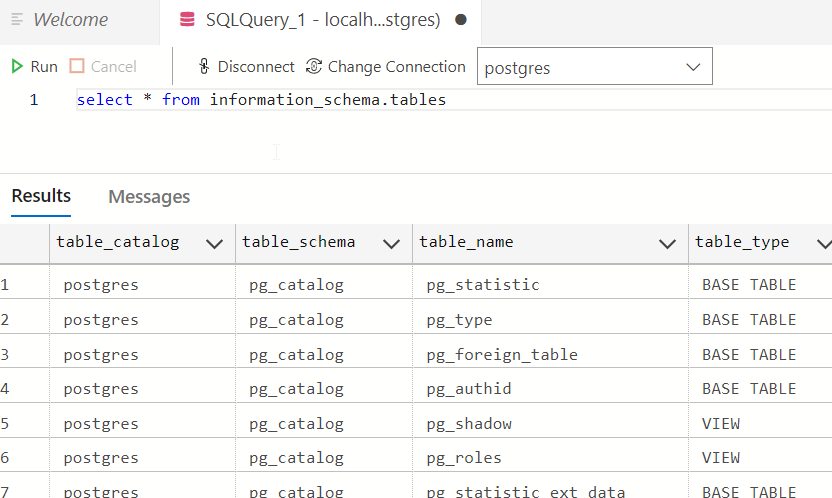
    I’ll connect with Azure Data Studio (ADS) as I have the PostgreSQL extension. Once connected, I’ll query the information schema tables.

    2022-12-26 16_14_55-● SQLQuery_1 - localhost.postgres (postgres) - DBAScripts - Azure Data Studio

    This works. Now, let’s set up a dev environment similar to SQL Server. First, we create a database with the CREATE DATABASE command.

    create database fwpoc_1_dev

    Once I run that, I’ll select it in the ADS connection drop down. Now I run this to create a schema and table.

    create schema poc;

    create table poc.Demo ( DemoID int);

    insert into poc.Demo (DemoID) values (1), (2)

    select * from poc.demo


    This works and gets me a development environment. I’ll start another container for qa and prod, but I won’t do that now. Instead, I’m just getting the base environments set up.

    Summary

    That’s it. This post was about getting an environment set up and ready for development on a PoC. This is the first step, and it’s already a lot.

    Future posts will look at the Flyway and Flyway Desktop settings, a repository, and a MySQL set of environments.

    Follow the entire series on my blog.

  • Minimize Typing

    It couldn’t have happened to a worse set of people, and I’m glad it did, but I’ll still take a positive lesson out of this. A hacker sent a typo in a command to a botnet and lost control. That’s kind of funny, and I’m glad it happened. The less botnets, the better, IMHO.

    The coding in this software didn’t have good error handling, which is a lesson in and of itself. Overall it seems many developers do a good job of error handling, but I still encounter more pieces of software that allow problematic input than I’d like. While we don’t have great error handling in T-SQL, you can make some checks, and you should.

    That’s not the big lesson for me. The bigger lesson is that we ought to do less typing in much of our daily work. The last decade has had me work often with companies looking to implement DevOps software pipelines and driving automation wherever possible. We want to limit the chances humans can make mistakes, which means we want to limit their typing. Or clicking, as is the case in much of today’s software.

    Instead, we want to ensure all our code or commands are reviewed by someone, they are submitted to an automated pipeline, and they are validated or practiced on some system ahead of production execution. We ought to do this for no other reason than we want to ensure we have an audit trail, but preventing typos is good as well.

    I don’t know if you can completely get away from typing, but we can reduce the number of human error mistakes if we include some static code analysis (including for commands), some peer review, some sort of unit testing, and pre-production deployment. A lot of mistakes I find are fairly simple ones. Common human error that occurs because we’re busy, we’re stressed, we’re moving too fast, or we just miss something.

    Use the computer for one of its strengths. Tediously checking the simple things that humans do wrong.

    Steve Jones

    Listen to the podcast at Libsyn, Stitcher, Spotify, or iTunes.

  • The Database DevOps SeQueL with SQL Solutions Group

    Next week, on Jan 18, 2023, I’m doing another webinar with the SQL Solutions Group. This is the SeQueL to our first webinar on Database DevOps.

    You can register here.

    Since the first webinar, Scott has been working with clients, integrating DevOps into their software process. It’s a big change in some ways, small in others. We decided to do another webinar, discussing some of the challenges clients face in moving to a DevOps style of software development.

    Join me on Wed, Jan 18. Be sure you register for the event and set a reminder.