Tag: DevOps

  • DevOps Basics–Git log

    Another post for me that is simple and hopefully serves as an example for people trying to get blogging as #SQLNewBloggers. This is also a part of a basic series on git and how to use it.

    In a few previous posts I’ve looked at getting going with git, and in this post we continue by looking at how we can get some information about the actions we’ve taken.

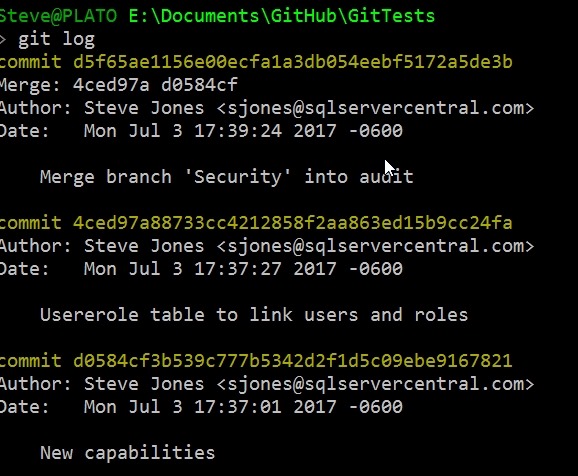
    If we want to see what has happened in our repo, lots of clients will show a list of changes, but from the command line we use a simple “git log”. When I do this, I see the reverse chronological view of commits.

    2017-07-05 11_21_52-cmd - git log

    There are a lot of options for the log command, but there are a few I use often.

    Limit Entries

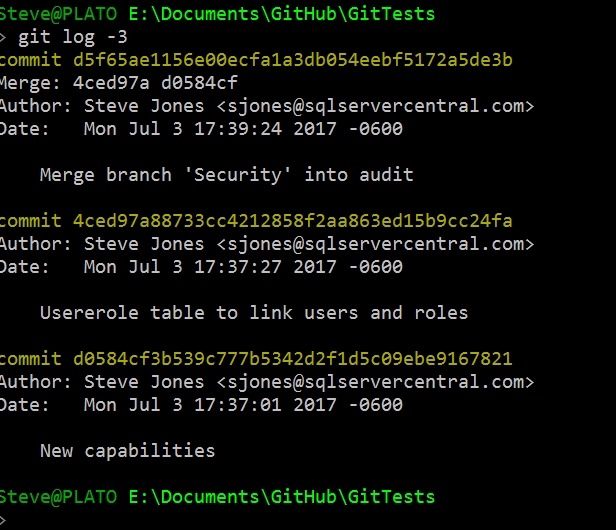
    I often use a –n, where n is a number, to limit what’s returned. For example, I’ll use –3 to show the last 3 commits.

    2017-07-05 11_27_17-cmd

    I also like the –p option, which will show differences. As you can see here, I added the UserRoles.SQL file, putting in new lines.

    2017-07-05 11_28_53-cmd - git log -3 -p

    At times, I like the –decorate option, which lets me know which branch was affected. This is helpful if I’m moving around on branches and I get confused. That does happen.

    2017-07-05 11_32_29-cmd - git log -4 --decorate

    There are lots of search options, and I use them at times, but rarely, so I’m usually searching for the documentation to know the dates or patterns. I do look at the –committer= syntax with my name. That lets me find my changes among others.

    I also like to keep things small, so using the –pretty=oneline option is handy.

    2017-07-05 11_36_04-cmd

    Now I can easily see what I’ve done lately.

    There are lots of ways to look at history, and certainly a client makes things easier, but I’d say that you should learn the command line, just in case there’s some issue and your client doesn’t display it properly.

    Last thing, when you run git log and end up with a colon prompt, you’re in the less utility (I think, been a long time since Unix). To get out just type:

    q

  • DevOps Basics–Staging and Committing Changes

    Another post for me that is simple and hopefully serves as an example for people trying to get blogging as #SQLNewBloggers. This is also a part of a basic series on git and how to use it.

    In the course of normal work, you’ll change your code files. Git requires that you specify those changes that you want to commit, and those that you don’t. This means I can make changes to a few files, but not commit all those changes.

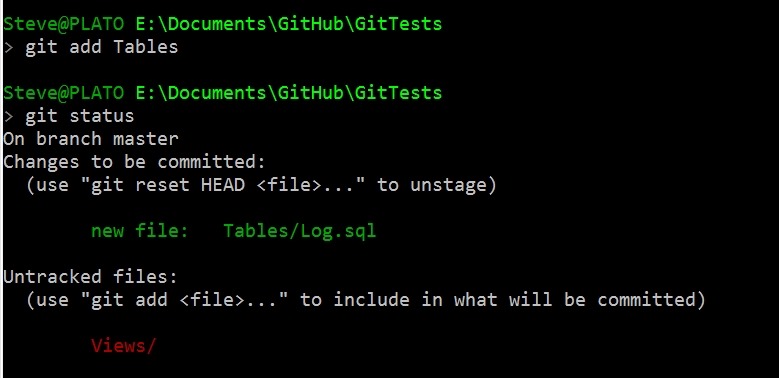
    For example, let’s say that I add a couple files to my repo. I’ll add the Tables/Log.sql and Views/LogView.sql to my repo. This will give me a status in git that shows these are new files. In this case, I see the folders as they are new as well.

    2017-06-27 21_21_16-cmd

    If I add these files as being tracked, I’ll use “git add Tables” to add that folder and file. I get a new status.

    2017-06-27 21_22_07-cmd

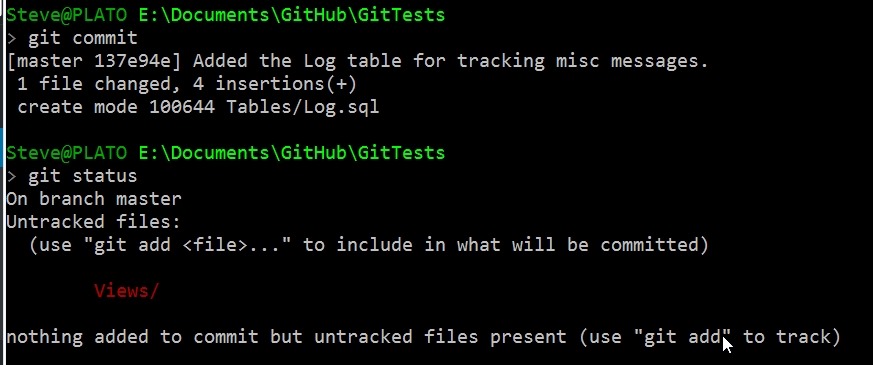
    Here my Log.sql file is being tracked (and the folder) as changes that are staged to be committed. If I commit now, I’ll get just that file added, but not Views\LogView.sql.

    2017-06-27 21_23_40-cmd

    Staged and Changed

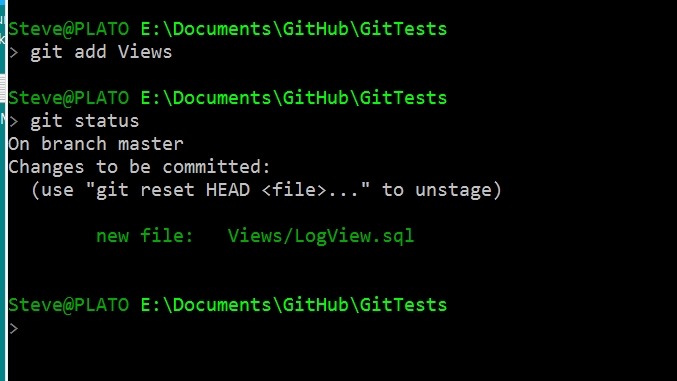
    There is one strange thing I’ve run into, at least, strange to me. If I stage my Views folder, I’ll get this:

    2017-06-28 12_12_23-cmd

    Now I’ll change the LogView.sql file, removing the SELECT * and adding columns. When I check the status, I now see the file in both the staged and unstaged areas.

    2017-06-28 12_13_25-cmd

    This is allowed, but if I commit, I’ll get the original version of LogView.sql as it existed when I ran the git add command. See below that after my commit, I still see the modified file.

    2017-06-28 12_15_50-cmd

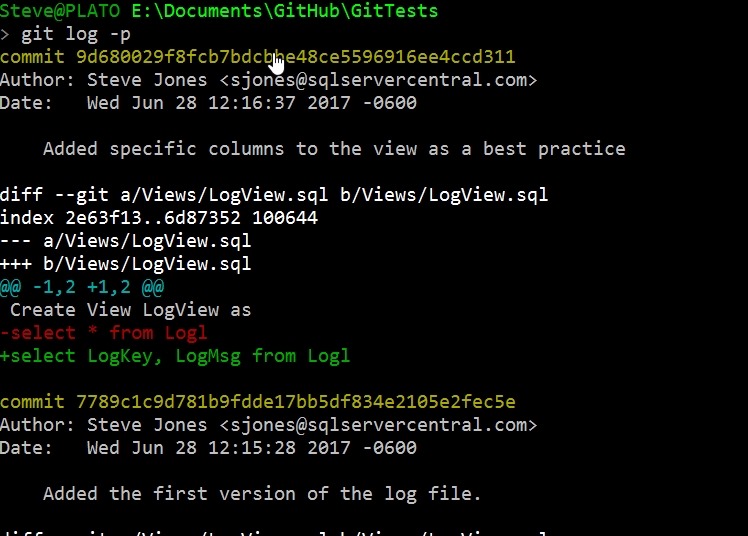
    If  I add and commit that file, I can use git log to see the actual changes. See the line in red with the – is the original line, while the green line with + is the change.

    2017-06-28 12_17_02-cmd - git  log -p

    Git add and git commit are the main ways you’ll commit files. If you have issues with a GUI client, then this is a good way for you to debug and clean up your repo. Knowing the command line is always the best way to truly understand what is happening.

  • DevOps – Downloading a File from the Internet with PoSh

    One of the things we need to do as data professionals is move data files around. Often we’ll get a local path, but in looking for public data sets, I wanted to get a file from the Internet. In this case, a rather large file.

    I could have put the URL in a browser, but the file was slow to load, and while waiting ten minutes or so for the download to complete and doing a “Save As” is quick, it isn’t easily repeatable. Plus, since I needed to get a few files, and might need to do it again, I thought a PoSh download would be better.

    A quick search turned up a few options. I could use System.Net.WebClient, or I could use Invoke-WebRequest. I decided to use the latter because it could use credentials or even parse the file prior to doing some save.

    I just had a simple item, so I used:

    Invoke-WebRequest -Uri “http://labrosa.ee.columbia.edu/millionsong/sites/default/files/AdditionalFiles/unique_tracks.txt” -OutFile “e:\Downloads\unique_tracks.txt”

    I could easily have wrapped this in a function to simulate a copy command, and I may do that at some point. For now, I can drop this in a file, copy/paste, and change a few filenames.

    If this were part of a regular process, such as getting files from a remote web server, I could easily automate this in a task on some server. For now, this is a quick, easy way to get a file from the Internet without a browser.

  • DevOps Can Help

    Amazon had a load balancer failure in 2012. The analysis of the event shows that there were missing data in the devices that caused issues. The restore of data from these devices is complex, way more complex with less mature tools than most database platforms. The result was a nearly 10 hour period of time when some customers were experiencing issues.

    In 2016, Gliffy had three days of downtime from a database error. In this case, an admin was updating a replicated system, but failed to sever a link with the primary node. Forgetting this step caused a data removal on the node, which replicated to the secondary nodes. They discovered the restore and replay of logs would take many days due to the size. They hadn’t practiced a DR situation in some time, and were not prepared for the delays.

    Digital Ocean received alerts earlier in 2017 that some services were not functioning. They traced this down to the primary database being deleted. The issue was a process used the wrong credentials for automated testing, and I’m guessing that part of the testing was removing and rebuilding a database. Five hours across the middle of the night resulted in the main database being restored, and a couple more hours to get replicas caught up.

    In the first two cases, there were issues with the deployment of changes to systems, as well as inadequate backup and restore processes. In both of these cases, I would argue that a good DevOps process would have automated the way the code was deployed, including ensuring that steps weren’t forgotten or predeployment backups captured the state of configuration. DevOps includes the “Ops” changes and should ensure that all state information is captured and stored in a VCS. If this had been done, it’s possible that these companies wouldn’t have had these issues.

    In the last case, certainly whoever sets up a system is responsible for using the correct credentials. While it’s easy to say that a developer or tester shouldn’t know the production credentials, but it’s entirely possible that the person that configured the process would have the credentials. I don’t know what to do here, as the first test of this might cause the issue. Maybe a second set of eyes is important for security changes in automated systems? That certainly could be part of your DevOps process. What I’d like here is two factor authentication for all security setup, including for SQL Server.

    DevOps isn’t a prescriptive set of things that someone does. Whenever I talk with people about DevOps and they give reasons why a particular step I’ve demonstrated won’t work for them, I tell them to stop doing that step. After all, the way you implement DevOps doesn’t have to match what I did. We each need to do what works for our environment, and ensure we have some consistency and repeatability in our process. Hopefully preventing downtime from simple mistakes.

    Steve Jones

    The Voice of the DBA Podcast

    Listen to the MP3 Audio ( 4.2MB) podcast or subscribe to the feed at iTunes and Libsyn.