Tag: DevOps

  • T-SQL Tuesday #91–Early DevOps

    tsqltuesdayThis month the T-SQL Tuesday invitation is from Grant Fritchey, my colleague at Redgate Software. Surprise, surprise, the topic is DevOps.

    I write and talk about this a lot, but for this month I’ll look back at DevOps for me in 2001.

    If you want to participate in the blog party, you need to publish on the second Tuesday of the month, GMT time. You can see the invitations at tsqltuesday.com.

    2001, A DBA’s Journey

    I started working for a small startup in 2001. I was the DBA (dev and production) with 4-5 developers. Eventually we grew to 10 developers, a couple QA people, and a UX person. Our goal was to release code every Wednesday night, and developers would work from Tues-Mon am on that week’s changes.

    The initial plan when I started was to get together with the lead dev and produce the scripts to upgrade our web application as well as the database. Early on we had a small system, so it was a few hours on Monday afternoon putting together a script for the QA server. Inevitably we’d make changes if QA found issues, and then Wednesday night we’d go into the office and usually spend a few hours deploying and fixing things. Often we had another developer or two with us to ensure that we could get the changes out.

    Over a few months we started to try and smooth our process. We talked about the issues, and started small. First with version control, Visual SourceSafe at that time. We’d get everyone to check in changes, which let us more easily determine what had changed that week.

    We also talked about what made life easier for the lead dev and me. How could we package code to easily ensure it gets deployed. For the database, this meant ensuring all files were named easily and branched to a folder.

    Ultimately, the technical challenges were few. A few scripts that automatically packaged changes for us and deployed them. However, the biggest challenge was cultural. Getting all the developers to think forward about what was needed to get code to production and slightly alter their behavior. We also had to break habits of “fixing” code in QA. We had to learn to reset QA, change our scripts in version control, and then redeploy.

    Sharing information, communicating, and adhering to a consistent process for deployments, ensuring that we practiced our production deployment on QA, helped us move to a release process that consisted of a phone call and a few minutes instead of a late night at the office.

    DevOps works, but you have to work at building a process for your environment.

  • VSTS–Changing the Default Build Queue

    I wrote recently about the Release agent using the hosted queue as the default, which is sometimes a problem. The Build process has the same issue, though the way you change things is different.

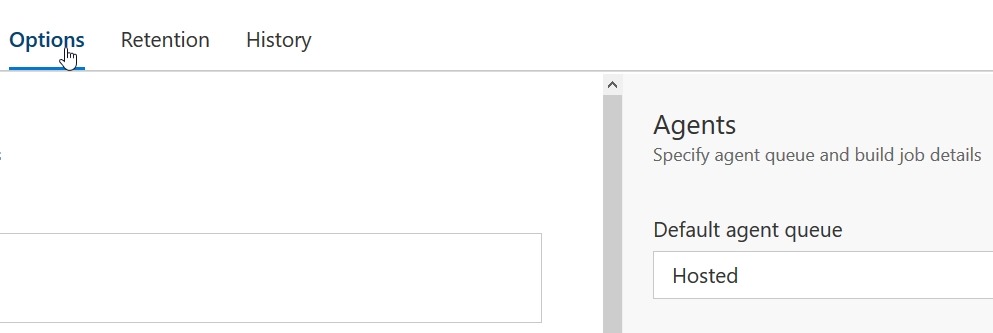
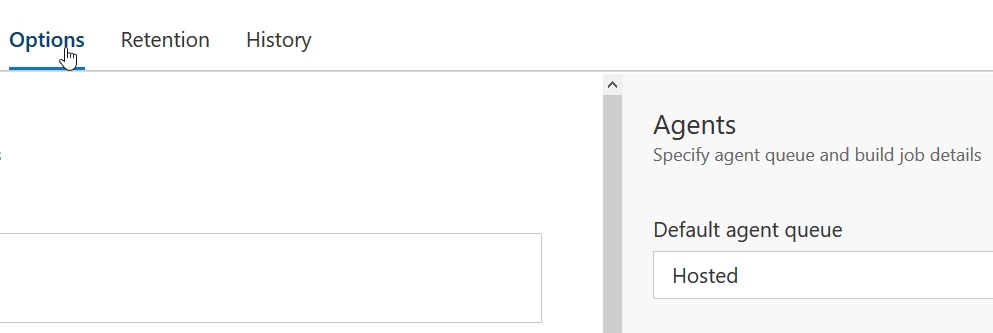
    In a build, you see a set of tasks with various menu items across the top, as shown here.

    2017-06-01 19_48_11-Build-CI - Visual Studio Team Services

    If you click on Options, which will then be underlined, on the right side the Agents options appear. The default, as with releases, is the hosted agent. Change this to another pool if you want local builds.

    2017-06-01 19_48_19-Build-CI - Visual Studio Team Services

    Microsoft makes this the default for a couple reasons. One, it’s easier. No need to install an agent, which might be an issue for some people. I think it’s simple, but for some teams, you might not want this.

    The other reason is that while you get 240 minutes per month, if you’re like me and built often, you can blow by this. Also, I have machines available, so I’d rather build locally, and I wish I could make this a default.

    Microsoft wants to make money, and that’s fine. I like the service, and in a commercial environment I’d weight the cost here v purchasing something like TeamCity + add-ons, and then make a decisions. Since I dislike uncertainty, and not knowing the costs, I lean towards local builds always. YMMV.


  • VSTS– Hosted Agent is the Default for Releases

    In keeping with the idea I don’t want this to get out of date, this is VSTS as of Jun 1, 2017. If your screen looks different, find a different article.

    I was setting up a test the other day using VSTS (Visual Studio Team Services) and once had something bite me (again). This has happened a few times this year as the service has evolved, but it is one of those things that I keep having to change.

    Here’s a new Release definition, where I start with an empty process. I clicked “New Release Definition” and then selected an Empty task, hooking this up to my current CI process.

    2017-06-01 16_32_14-New Empty Definition 01-Jun - Visual Studio Team Services

    Usually I add tasks, and then create a release and execute it. Since I mostly work with databases, I’m usually releasing to a local SQL Server instance and want to use my local agents. I have separate ones running on my desktop and laptops, so I can easily demo releases in different environments.

    However, when I’ve done this, usually things fail at first. If I’m not paying attention, I won’t notice my build agent looking like this:

     2017-06-01 16_38_09-cmd - RunAgent.cmd

    That’s the screen showing nothing happening with my agent.

    Grouping Tasks in VSTS

    Earlier this year, the release process in VSTS changed to allow us to group tasks. I can now add different groups of phases, which I stumbled upon by clicking the arrow next to “Add Tasks”. This is a UI Fail because the arrow in other parts of VSTS is linked to the text to the left (like the Add environment area).

    2017-06-01 16_39_23-New Empty Definition 01-Jun - Visual Studio Team Services

    I stumbled on this one day, thinking the arrow let me add tasks, but I accidently added a new agent phase. By default, we have a single agent phase, but clicking the arrow allows more.

    What’s also interesting, and not intuitive to me, is that if I click on the “Run on agent” area, I get settings to the right. This is different than the old release section, which had the properties as a global item at the top.

    2017-06-01 16_41_54-WWI_SSDT - Microsoft Visual Studio

    This is where I need to change to the agent queue, in this case, the default for my desktop.

    2017-06-01 16_44_24-New Empty Definition 01-Jun - Visual Studio Team Services

    This might not be a big deal, and I’m sure lots of people are happy to use the hosted agent. I’m always wary of costs, so I try to avoid spending compute dollars in Azure when I don’t need to, and this is a place I want to avoid spending $$.

    Hopefully, after writing this, I’ll remember to set the queue for my future demos the first time. Now if I can just get the VSTS people to give me a “default” setting I can change…

  • DevOps Basics – Connecting to a Git Remote

    Another post for me that is simple and hopefully serves as an example for people trying to get blogging as #SQLNewBloggers. This is also a part of a basic series on git and how to use it.

    As I work more and more with Git, I find myself learning little tips and tricks that are helpful. One of those tricks is adding a remote to my local repo so that I can sync with it, and start collaborating with others. In many cases, I find myself pulling from a remote repo and pushing back, and much of the work is done for me. However, if I create a local repo, how do I get this to a remote service?

    Certainly some tools like VS or GitHub for Windows/OSX/etc help, but I like to understand the process myself, so I spent a few minutes practicing.

    First, I create a new repo with some documents. This is basic git stuff that you should understand, but if not, I’ve written a few posts on git basics. Here’s the first steps I took in another post.

    2017-04-26 14_01_08-cmd

    Create a Remote

    The next step is to have a remote git repo, which is really a remote git init spot. For this post, I’ll make on at Github, but the process is similar anywhere. In my repositories list, there is a new button.

    2017-04-26 14_32_08-Your Repositories

    I click that and get a form. In my case, I’ll name this to match the repo on my local machine. Life is easier if you match names, but you don’t have to.

    2017-04-26 14_33_51-Create a New Repository

    Once I do that, Github guides me along. I get a page with quick setup.

    2017-04-26 14_34_24-way0utwest_GitTests

    In my case, I want to push things from an existing repo on my machine. Again, tooling may do this for me, but from the command line, I need to add a “git remote”. I’ll use the “add” option, and I specify a name and URL. These are shown near the bottom of the image. I’ll run these locally.

    2017-04-26 14_35_38-cmd

    Once I do this, my local git repo has a remote repo (called origin) that it can send code to (push) and get code from (pull). Git manages conflicts and versions and all that.

    If I try to just push, what I’ll find is I don’t have enough config.

    2017-04-26 14_38_55-cmd

    My push needs to specify the remote and then the branch. Let’s do that.

    2017-04-26 14_39_29-cmd

    Once I do this, 7 objects got pushed, which includes some of the .git stuff. If I go to Github and look at the repo, I see this under Code.

    2017-04-26 14_40_15-way0utwest_GitTests_ Git testing

    I’ve connected my local repo to a remote, and copied my code up. Now I can push/pull as I make changes (or others do) to keep my local copy in sync with the remote.

    I’ll look at other flows in a future post.

    SQLNewBlogger

    This was a fairly quick post, about 10 minutes, as I connected up the local stuff to the remote. I’ve done this before and learned some of this the hard way, but this post allows me to organize my thoughts and be sure I understand what’s going on.

    I did end up spending a few minutes looking at the git docs to be sure I was describing things correctly.