Tag: encryption

  • Encryption and Full Text Search at The Mandalay Bay (DevConnections)

    It’s just a week until Dev Connections.  This is one of the great conferences for the hybrid technology person, with a variety of technologies being talked about, all for a single admission price. I’ll be speaking at SQL Server Connections, but wandering over to the development side at times since I’m getting back into a little bit of software development as part of my job with Red Gate Software, and of course, for fun.

    This fall the Dev Connections event is at the Mandalay Bay in Las Vegas. It’s a great hotel at the end of the strip with nice amenities and a good conference center. It’s easy to get to from the airport, which I like since traffic can be a pain. There’s also the Luxor next door, with Carrot Top playing. I’m hoping to sneak over there for a show.

    However I’m primarily there to teach you a few things about SQL Server. I’ve rewritten a bit of my Encryption talk to add a few things and give you a good grounding in how the technology works in SQL Server.  I’ll be looking at how you can encrypt your connections, secure your physical files with TDE (don’t miss the hex editor demo) and also look at data encryption using symmetric and asymmetric keys. I’ll also be talking about full-text search. I’ve reworked my talk on searching binary data to focus on extracting information from office documents.

    Both of my talks are on Wednesday, October 2, 2013, but if you are looking for other SQL Server topics, there are some great ones. Denny Cherry talks partitioning, Allen White talks Powershell and SQL Server, Tim Ford talks DMVs and Stacia Misner talks BI. There are a number of other great SQL Server speakers as well as speakers to talk Windows, Visual Studio, Exchange, Sharepoint and more.

    If you’re looking for a great conference to attend soon, think about registering for Dev Connections and I hope to see you in Las Vegas.
  • Backups, Encryption and Branding in San Diego

    This weekend is SQL Saturday #249 in San Diego. I’m looking forward to the trip for a few reasons, but mostly because I used to live in the Northern San Diego area and love going back to spend time near the beach. I’m not sure what I’ll have time to do this trip, but since the event is in La Jolla, likely I’ll visit Del Mar, where I used to work and see some sights. A short run in the sand might also be required 😉

    I arrive Thursday because Red Gate Software is hosting a small event Friday with The DBA Team: Grand Fritchey and myself.  This is one of our mini SQL in the City seminars and is targeted to DBAs. We’ve done two so far in 2013, with (I believe) three more to come. I’ll be talking about backups this time while Grant covers monitoring and parameter sniffing. I’m not sure if we’re full, but if you can come, register and we’ll see you Friday.

    Saturday is the SQL Saturday event, at the UCSD Extension campus. I’ll be opening the day talking about encryption and then have the second session on branding yourself. I enjoy these two talks, and they’ve been popular at a number of events across the last couple of years.

    I’m hoping for good weather, especially after a rainy week in Denver.

  • Backup Your Certificate for TDE

    If you’ve enabled TDE, you need to be sure you have a copy of the certificate that protects the Database Encryption Key (DEK). If you follow my instructions, then you have one.

    If you didn’t make a backup, or you have just discovered a TDE database, make one now, and secure the password you use with your DR materials (off site).

    How do you make a backup? That’s easy. Use the BACKUP CERTIFICATE command. Here’s the command I use in demos:

    USE master
    ;
    go
    BACKUP CERTIFICATE TDEPRimer_CertSecurity
     TO FILE = 'tdeprimer_cert'
      WITH PRIVATE KEY (
                   FILE = 'tdeprimer_cert.pvk',
                   ENCRYPTION BY PASSWORD = 'AStr0ngB@ckUpP@ssw0rd4TDEcERT%')
    ;
    go


    The certificate for TDE is in master, so you must make sure you’re in master for the backup. The TO FILE option lets you choose the file path. By default, this will be in the DATA folder for your instance, but you can choose other locations. You can give an extension if you like. This file is the certificate (public).

    There is a private key portion of the certificate, which is backed up with the “WITH PRIVATE KEY” portion of the command. This is where you specify the password and provide the protection for your certificate.

    You will need this password on restore, so keep track of it.

  • Restoring a TDE Database on a New Instance

    You’ve enabled Transparent Data Encryption (TDE) on one of your databases, and the server has failed. How do you get this database working on a new instance? This short post will show you how this works.

    Files Needed

    There are two files you need in order to restore the database.

    1. A full backup of the TDE database
    2. A backup of the server certificate that protects the Database Encryption Key (DEK).

    You might have multiple files for the backup, and potentially other backup files (diff, log), but the process for those will be the same as any other restore once you complete this process.

    If you have multiple full backup files (striped backup), just include them in the restore command as you normally would.

    Prepare the New Instance

    To prepare the new instance for restore, you need to ensure that you have a database master key (DMK) in the master database. You can do this by checking the master_keys DMV.

    SELECT * FROM sys.symmetric_keys


    If you have a key, that’s fine. If you don’t, you can create one like this:

    CREATE MASTER KEY ENCRYPTION BY PASSWORD = 'sdkj3G3$sh'

    Now you need to restore the certificate from your source instance. You do this with the CREATE CERTIFICATE command, and the FROM FILE option. You’ll typically find the backup from your BACKUP CERTIFICATE command in the DATA folder for SQL Server if you didn’t specify a complete path.

    You do have a backup, right?

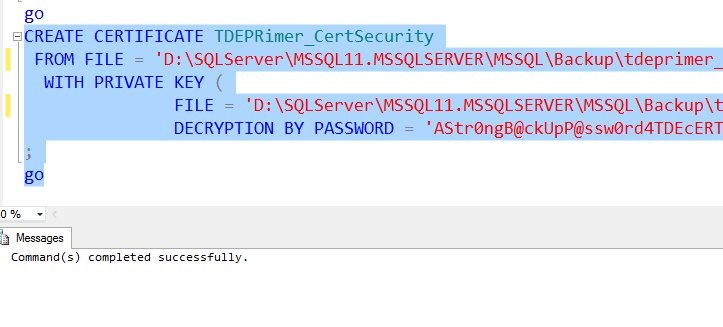
    For me, I’ll run the create certificate command:

    CREATE CERTIFICATE TDEPRimer_CertSecurity FROM FILE = 'D:\SQLServer\MSSQL11.MSSQLSERVER\MSSQL\Backup\tdeprimer_cert' WITH PRIVATE KEY ( FILE = 'D:\SQLServer\MSSQL11.MSSQLSERVER\MSSQL\Backup\tdeprimer_cert.pvk', DECRYPTION BY PASSWORD = 'AStr0ngB@ckUpP@ssw0rd4TDEcERT%') ; go


    This works

    tde_a

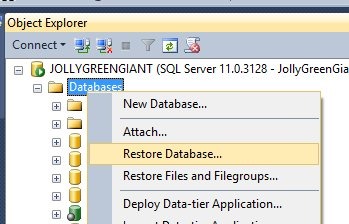
    Now I’m ready to restore the TDE database.

    tde_b

    I select my backup file, and everything proceeds as a normal restore. How do I know the certificate worked?

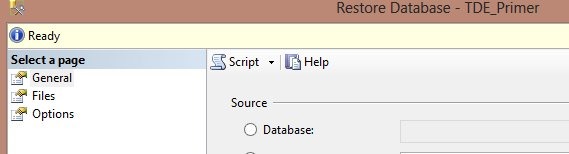
    Because I have a “Ready” at the top of the dialog.

    tde_c

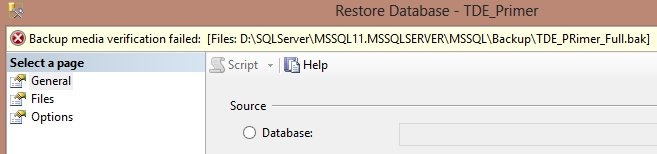
    If I didn’t have the certificate on the instance, I’d get this:

    tde_d

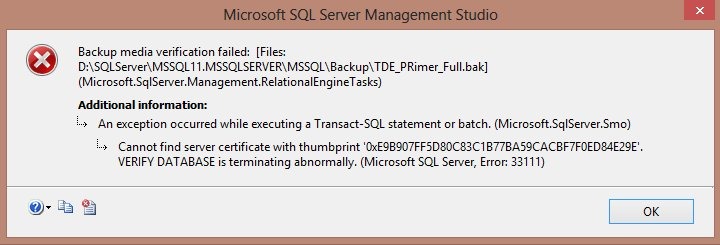
    Double clicking that would bring up the error:

    tde_e

    If the certificate is not on the instance, then the server cannot decrypt the DEK and restore the database.

    Hope this helps, and if you use TDE, make sure you can do this.