Tag: encryption

  • Speaking at the Boulder SQL Server Users Group – November

    I’m scheduled to give “The Encryption Primer” at the Boulder SQL Server Users Group on the November 13 meeting. It’s a basic look at the encryption features in SQL Server, updated for SQL Server 2012. This meeting is at the Confio office and will have a short presentation by Mike Fal as well.

    The local user group is a great way to meet people in the business, network, and learn a few things. It’s worth a night out of your life every month or two, so come on by.

  • SQL in the City Slides

    I’m making the slides available from my SQL in the City 2012 talks. You can download them here

    If you attended, you’ll get an email with links to videos to watch soon.

  • Enable Transparent Data Encryption

    This is one of the things in my Encryption Primer presentation that I don’t demo. It’s really easy to do, and it’s rather mechanical, so I just show the image that has the steps from MSDN and leave it at that.

    However there are a few things I wanted to change, and test, so I thought I’d show my procedure on a local database. I roughly follow the MSDN article, but a few slight items.

    First, use master and create your keys and certificates.

    CREATE DATABASE TDETest
    ;
    GO
    USE master
    ;
    GO
    CREATE MASTER KEY
     ENCRYPTION BY PASSWORD = 'AReallyStr0ngP@ssword'
    ;
    go
    CREATE CERTIFICATE SteveCert
     WITH SUBJECT = 'My DEK Certificate'
    ;
    go
    USE TDETest
    ;
    GO
    CREATE DATABASE ENCRYPTION KEY
     WITH ALGORITHM = AES_128
     ENCRYPTION BY SERVER CERTIFICATE SteveCert
    ;
    GO

    I created a test database here for another process, and this is roughly the setup. However before I enable the encryption, here’s what I recommend you do:

    USE master
    ;
    go
    BACKUP CERTIFICATE SteveCert
    TO FILE = 'c:\SQLBackup\SteveCert'
    WITH PRIVATE KEY 
    (
        FILE = 'c:\SQLBackup\SteveCertPrivateKeyFile',
        ENCRYPTION BY PASSWORD = 'R@ndomP3ssW0rd'
    );
    go

    Encryption is serious stuff. If you lose this certificate from a server crash, you are definitely not going to be able to open your database or recover your data. Gone is gone, and data loss means data loss here.

    Back up your certificate.

    Quick question: do you know where your backup of the certificate is?

    Once this is done, you can continue on:

    USE TDETest
    ;
    go
    ALTER DATABASE TDETest
    SET ENCRYPTION ON;
    GO
    

    The encryption is quick on this new, small database.

    Now let’s see if this worked. We’ll add data and make a backup.

    CREATE TABLE MyTable( LogData VARCHAR(MAX))
    ;
    INSERT MyTable SELECT 'This is an encrypted database'
    ;
    GO
    BACKUP DATABASE TDETest
     TO DISK='tdetest.bak'
    ;

    If I go to my backup location and look for this backup, I can open it in an editor.
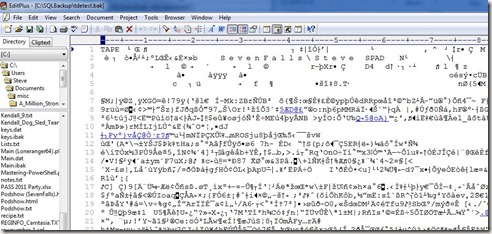
    encrypt2

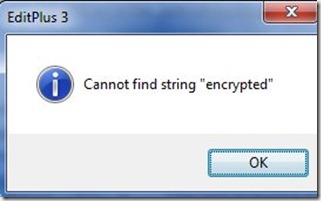
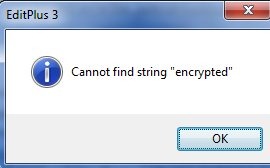
    It’s random gibberish. If I run a search for data in my table:
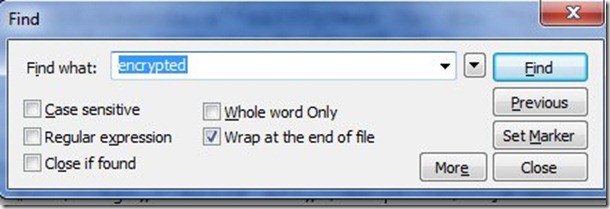
    encrypt1

    I get no results

    encrypt3

    Don’t think this is valid? Run this below and re-search this backup for the string. You’ll find it. This is one thing encryption protects you from.

    CREATE DATABASE NoTDE
    ;
    GO
    USE NoTDE
    ;
    GO
    CREATE TABLE MyTable( LogData VARCHAR(MAX))
    ;
    INSERT MyTable SELECT 'This is an encrypted database'
    ;
    GO
    BACKUP DATABASE NoTDE
     TO DISK='notde.bak'
    ;

    The database is encrypted, but anything I do with the database doesn’t require code changes, hence the “transparent” nomenclature.

    The value of this is debatable, but I think it’s not a bad feature to implement if you have Enterprise Edition and you need this protection for PCI, HIPAA, or some other regulation.

  • Where’s My Certificate Backup?

    If you’re like me, you take advantage of the default backup paths in SQL Server. It makes my code cleaner, and if I need to move the instance somewhere else, all my code works. No pathing issues.

    A certificate backup might look like this for me:

    USE master
    ;
    go
    BACKUP CERTIFICATE SteveCert
    TO FILE = 'SteveCert'
    WITH PRIVATE KEY 
    (
        FILE = 'SteveCertPrivateKeyFile',
        ENCRYPTION BY PASSWORD = 'R@ndomP3ssW0rd'
    );
    GO
    

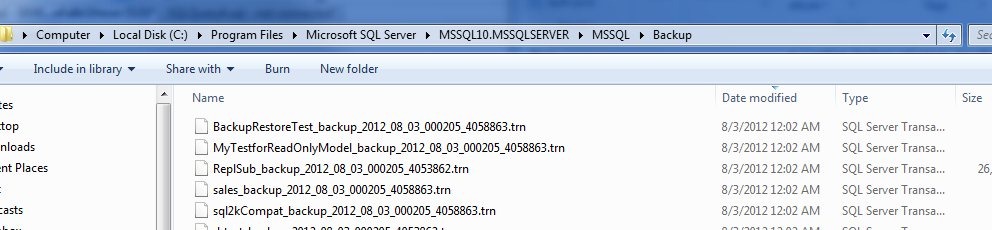
    If I run this, and immediately go to my backup folder, sorting by the last modified date for files, I see this:

    backupcert1

    No certificate backup file. What happened?

    The answer is actually documented, and you should be aware of this. In the BACKUP CERTIFICATE page, it says this: “The default is the path of the SQL Server DATA folder. “

    That’s interesting, and it makes sense to me. This folder is more likely to be secured than the backup folder, where developers and who knows who else may have access to the folder. By limiting it in the data folder, you provide a little obfuscation, perhaps more protection, and you force the administrator, the DBA, to get the files.

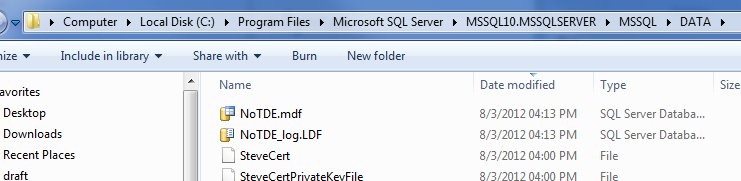
    However the files are also ACL protected. If I go to my data folder, I see the files.

    backupcert2

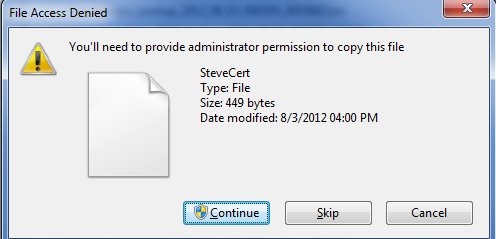
    If I select the certificate and CTRL+C (copy) it, and then go to the backup folder and try a CTRL+V (paste), I get this:

    backupcert3

    The service account has permissions to this file, not administrators by default. This action invokes the UAC command to require me to make a conscious decision to make this copy.

    Of course, I can just provide a path to make sure I can find the file.

    BACKUP CERTIFICATE SteveCert
    TO FILE = 'c:\SQLBackup\SteveCert'
    WITH PRIVATE KEY 
    (
        FILE = 'c:\SQLBackup\SteveCertPrivateKeyFile',
        ENCRYPTION BY PASSWORD = 'R@ndomP3ssW0rd'
    );
    go

    Whatever you do, make sure you backup your certificate files and keep them safe. If they go, you do lose data.