Tag: encryption

  • Restoring a Certificate

    I have written about creating a certificate and backing up a certificate, and the next step is the restoration of a certificate into a server instance. This post covers the basics of restoring a certificate.

    There is no RESTORE CERTIFICATE command because the CREATE CERTIFICATE command accomplishes the same thing. It is expected that many people will get a certificate from another company that is a trusted provider, and in that case, they would create their SQL Server internal certificates from the files provided by the vendor.

    However you get your certificate, it will come as two separate files. A .cer file, which is the public key for the certificate, and the .pvk file, for the private key of the certificate. These are the same files that are were created by the makecert.exe utility. They are also the files that were created by the backup in the last post.

    To restore the certificate, you perform the same procedure as the CREATE CERTIFICATE. For my exported certificate, I’ll execute:

    create certificate MySalaryCert
     from file = N'c:\EncryptionPrimer\MySalaryCert.cer'
     with private key
      ( file = N'c:\EncryptionPrimer\MySalaryCert.pvk'
      , decryption by password = N'AReallyStr0ngK#y4You'
       );


    This will load both the public and private sides of the encryption key into SQL Server and you can view them with this DDL:

    select
      name
    , certificate_id
    , pvt_key_encryption_type_desc
    , subject
    , expiry_date
    , start_date
    , thumbprint
    , pvt_key_last_backup_date
     from sys.certificates


    This will show you the results. There are other fields here, but these are the ones I look at to check that this is the proper key. Note that on CREATE, the last backup date is NULL, even if you created this from a file.


    cert2

    cert3

    Note that there are other uses for certificates in Windows. You can install them for IPSec, for SQL Server SSL communications, and more. If you use certificates for any purpose, be sure you can back them up, restore them, and properly manage passwords.

  • Backing up a Certificate

    If you create your own certificate in SQL Server, you need to make sure that you back it up immediately. Once you start to encrypt anything with a certificate, you increase the risk that you’ll lose your data if an catastrophic event occurs. In this case, if you lose the certificate, you can’t access the data.

    I talked about creating a certificate in another post, and there is corresponding DDL for backing up a certificate. BACKUP CERTIFICATE is the command you want to use, and it works like most of the other backup commands.

    Let’s assume I have the certificate named MySalaryCert from the previous post. To create the backup of this certificate, I’d issue:

    BACKUP CERTIFICATE MySalaryCert
     TO FILE = N'c:\SQLBackup\MySalaryCert.cer'
     WITH PRIVATE KEY
      ( FILE = N'c:\SQLBackup\MySalaryCert.pvk'
      , ENCRYPTION BY PASSWORD = N'AReallyStr0ngK#y4You'
      , DECRYPTION BY PASSWORD = N'R3allyToughP@ssword4You'
      )
    ;
    

    This will generate two files for me in c:\sqlbackup as shown below.

    backupcert1

    The certificate was created with a password, so the backup must include the DECRYPTION BY option with that password. The password you use for the backup can be different, as shown, but you need to be sure that you manage this password properly. You will need it to restore the certificate, which I’ll show you next time.

  • Creating Your Own Certificates

    Did you know that you don’t need to go to Digicert or Thawte, or any other company to get a certificate to use in SQL Server? You can create your own certificate.

    Why you would want to do this is a longer discussion, but suffice it to say that if your environment allows for self-signed certificates, you have a couple options for creating these in SQL Server and Windows. I’ll show you how easy this can be using these two methods:

    • makecert
    • CREATE CERTIFICATE

    Please be careful if you plan on creating your own certificates. The value of a certificate and asymmetric keys comes in the hierarchy of trust for these certificates and if you do not have a strong hierarchy, you could potentially be making your security worse, rather than better.

    Makecert

    The Windows Software Development Kit (SDK) contains a number of utiltiies, one of which is makecert. It’s a command line tool that creates certificates for you, and It’s easy to use.

    I downloaded the SDK, extracted it, and then fired up a command prompt, running this:

    makecert -sv "c:\EncryptionPrimer\MyHRCert.pvk" -pe -a sha1 -b "01/01/2012" -e "12/31/2012" -len 2048 -r -n CN="HR Protection Certificate" c:\EncryptionPrimer\MyHRCert.cer

    This code creates a private key file (MyHRCert.pvk) and a public key certificate (MyHRCert.cer)

    You can click the link and read the parameters, but it’s really that simple. When you create this certificate, you can use the FROM FILE options for CREATE CERTIFICATE to load this certificate into your SQL Server.

    CREATE CERTIFICATE

    I guess technically you are using the CREATE CERTIFICATE in either case here, but this section looks at the actual creation of the certificate by SQL Server.

    CREATE CERTIFICATE is standard DDL, like so many other commands in SQL Server. The parameters are similar to those for makecert. Here’s a statement that matches up with the one above.

    create certificate MySalaryCert
       ENCRYPTION BY PASSWORD = N'R3allyToughP@ssword4You'
       WITH SUBJECT = 'HR Protection Certificate',        
       START_DATE = '20120101',
       EXPIRY_DATE = '20121231';

    Note that you don’t need to specify the algorithm or other parameters. SQL Server handles that for your. You also don’t need to specify the two files here. The database engine stores these keys inside the database. You should make a backup of them, and you can use the BACKUP CERTIFICATE command to do this.

  • Encryption in Production

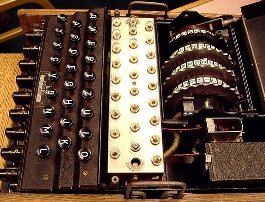
    WWII era encryption with the Enigma Machine

    The encryption capabilities of SQL Server have been growing in each new version. We have gone from password protected backups to Transparent Data Encryption (TDE), we have moved form PWDENCRYPT() to symmetric, asymmetric keys, and certificates. There are quite a few options available in the current SQL Server platform. However I don’t often see people writing or talking about their use of security.

    It might be the nature of sensitive data means keeping the use of encryption quiet, but that shouldn’t matter. If you are keeping your keys safe, the algorithms and deployments you use should not matter. This Friday I wanted to ask a question about your use of encryption in real world systems.

    If you have sensitive information (identity/financial/medical) data in a database, have you deployed encryption?

    I would like to know if you’ve actually implemented native or third party encryption and if so, in what percentage of the databases that have sensitive information is encrpytion deployed. Do you strip out data before you store it, perhaps only storing something like the last four digits of a credit card in plain text? How diligent do you think your employer is being with regards to encryption?

    If you work with encryption, are you confident that you can recover your systems in a disaster? That’s one question I’d want to be sure I could answer before I deployed any keys in my database.

    Steve Jones


    The Voice of the DBA Podcasts

    We publish three versions of the podcast each day for you to enjoy.