Tag: ETL

  • Brush Up on Your ETL Skills

    Many of us that work with data will find requests and demands to import or export data at some point. Plenty of us have regular processes that perform these actions, and we may regularly troubleshoot or enhance these activities. In fact, I know some people have a full time, or nearly full time, position just dealing with ETL operations.

    Working with data in disparate formats and the myriad of inconsistencies even when formats are known is a challenge. Integration Services is a useful tool, but many us find that we need to pre or post process data separate from a simple import or export. Some of us may prefer using T-SQL or other languages, such as R or Python, to process data rather than programming SSIS. It seems that I often find that every client wants a slightly different format or change to their data that a simple query export won’t handle.

    These days, as we add in Machine Learning and other downstream processing activities, it seems that there is more and more of a need to process data beyond imports and exports. After all, it seems that the majority of the time in any ML project is spent preparing and transforming data. In addition, in Article 15 of the GDPR, there is language that notes a data subject has the right to request a copy of the data relating to them when it is being processed by an organization. I don’t know how often someone will want to get data about themselves or their organization, but I’m sure it will happen more than it happens today.

    I think this means I’ll need to brush up on ETL skills, perhaps to ensure I can easily extract out a copy of an individual’s data. In fact, I probably should compile some scripts now to ensure I can let someone know what we information keep at SQLServerCentral that would fall under GDPR. I think it’s just email addresses, but I could be wrong.

    Steve Jones

    The Voice of the DBA Podcast

    Listen to the MP3 Audio ( 2.9MB) podcast or subscribe to the feed at iTunes and Libsyn.
  • Bulk Inserting Build Data–#SQLNewBlogger

    Another post for me that is simple and hopefully serves as an example for people trying to get blogging as #SQLNewBloggers.

    One of the common tasks that many DBAs need to do is insert data into a database. Often this comes from various sources, but a CSV (comma separate value) format is common. One could use the data import wizard, but that seems to be very flaky with CSVs, so I’ll show a quick way to use the BULK INSERT command.

    This command is a way to read files and load them into a table, similar to how bcp works. However, this is a T-SQL command, and can be included inside your database.

    The basic format is

    BULK INSERT <table>

    FROM <source>

    WITH <options>

    For most CSV imports, this means we need to pick a table, in my case, the BuildStaging table, and a source file. My statement looks like this:

    BULK INSERT dbo.BuildStaging
    FROM ‘e:\Documents\ssc\BuildList_SQLServer2014.csv’

    I also need some options. The basics for a CSV are:

    WITH
    (   FIELDTERMINATOR = ‘,’,
         ROWTERMINATOR = ‘\n’
    );

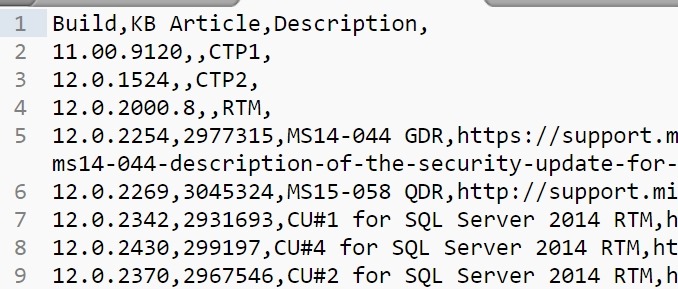
    There could be other items you want to enable, and there is quite a list. In my case, my file looks like this:

    2017-08-24 14_26_20-E__Documents_ssc_BuildList_SQLServer2014.csv - Sublime Text

    I have a header row, so let’s get rid of that by adding a FIRSTROW = 2 option.

    Now when I run my command, the data is inserted.

    2017-08-24 14_28_12-SQLQuery1.sql - (local)_SQL2016.SSBuilds_1_Dev (PLATO_Steve (62))_ - Microsoft S

    From here, I need to work with the data and clean it futher for insert into other tables.

    SQLNewBlogger

    This was a quick task I needed to accomplish. I knew most of the syntax, but had to double check the option names, and ended up taking about 2 minutes to import the data and 10-15 to write this post.

    And, I’ll likely remember how to do this import after spending time writing about it.

  • Loading All CSV Files with PowerShell

    I ran across Denis Gobo’s post about working with names from Social Security cards and wanted to play with the dataset. However, rather than use xp_cmdshell, which I might have, I decided to use PowerShell. I need to repeat this with Python, but for now, this worked.

    There is a file you can download that has a lot of .txt files, each one with a CSV. You can read about this in more detail in Denis’ post. Essentially there were three fields, and the year of the file in the name. I downloaded and unzipped the files into a folder.

    Here was my process:

    1. Loop through the files
    2. Extract the year from the file name
    3. bcp in the file into a staging table
    4. call a proc that takes the year as a parameter and moves all data

    With that in mind, here’s how I set things up.

    The SQL Server Side

    I started by creating two tables.

    CREATE TABLE Names
    (   FirstName  VARCHAR(500),
         Gender     CHAR(1),
         NameCount  INT,
         YearInFile INT
    );
    CREATE TABLE Names2
    (   FirstName VARCHAR(500),
         Gender    CHAR(1),
         NameCount INT
    );

    With these in place, I created a procedure:

    CREATE PROCEDURE MoveNames @year INT
    AS
    INSERT Names SELECT FirstName, Gender, NameCount, @year FROM Names2;
    TRUNCATE TABLE Names2;
    GO

    I tested these and they worked fine for my process. I want to load into Names2, then to get the year, I move the data to the other table, adding the year. There are probably better ways, but this worked fine for a relatively small load (few million rows).

    PowerShell

    With PoSh, I started with a simple loop. I tend to set variables first since this makes this easier to turn into a function.

    $sourcefolder = “E:\Downloads\names”

    $sourcefiles = Get-ChildItem $sourcefolder -Filter “*.txt”

    foreach($file in $sourcefiles ){
       $yearinfile = $file.Name.Substring(3, 4)
       write-host “Loading File:” $file.Name ” year: ” $yearinfile

    }

    Running this gets me a list of all files along with the  years. That’s what I want, since I’m going to process each file and load it in with bcp. Thanks to Mike Fal for the outline of how I’ll do this.

    Next, I set more variables at the top:

    $InstanceName = “.\SQL2016”
    $DatabaseName = “Sandbox”
    $StagingTableName = “Names2”
    $StagingProc = “MoveNames”

    I’ll use these in this code. I call Invoke-Expression to run bcp and then Invoke-Sqlcmd to run my proc.

    $cmd = “bcp ‘$DatabaseName.dbo.[$StagingTableName]’ in ‘$file’ -S’$InstanceName’ -T -c -t’,’”

    Invoke-Expression $cmd
    Invoke-Sqlcmd -ServerInstance $InstanceName -Database $DatabaseName -Query “$StagingProc $yearinfile”

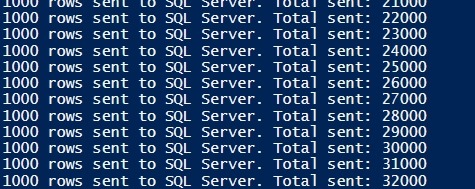
    From here, I put this in a file and ran it from my download location. The result:

    2017-06-16 12_41_08-Windows PowerShell ISE

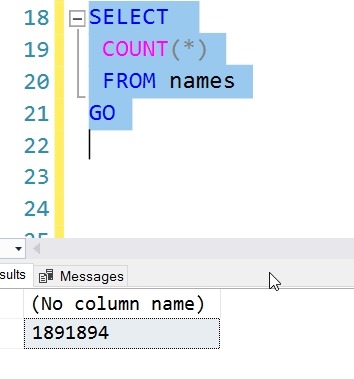
    and from SQL Server:

    2017-06-16 12_41_50-SQLQuery7.sql - (local)_SQL2016.sandbox (PLATO_Steve (56))_ - Microsoft SQL Serv

    Now I can run some queries, and find out where I stand. #26, it turns out.

    2017-06-16 12_43_35-SQLQuery7.sql - (local)_SQL2016.sandbox (PLATO_Steve (56))_ - Microsoft SQL Serv

  • DevOps – Downloading a File from the Internet with PoSh

    One of the things we need to do as data professionals is move data files around. Often we’ll get a local path, but in looking for public data sets, I wanted to get a file from the Internet. In this case, a rather large file.

    I could have put the URL in a browser, but the file was slow to load, and while waiting ten minutes or so for the download to complete and doing a “Save As” is quick, it isn’t easily repeatable. Plus, since I needed to get a few files, and might need to do it again, I thought a PoSh download would be better.

    A quick search turned up a few options. I could use System.Net.WebClient, or I could use Invoke-WebRequest. I decided to use the latter because it could use credentials or even parse the file prior to doing some save.

    I just had a simple item, so I used:

    Invoke-WebRequest -Uri “http://labrosa.ee.columbia.edu/millionsong/sites/default/files/AdditionalFiles/unique_tracks.txt” -OutFile “e:\Downloads\unique_tracks.txt”

    I could easily have wrapped this in a function to simulate a copy command, and I may do that at some point. For now, I can drop this in a file, copy/paste, and change a few filenames.

    If this were part of a regular process, such as getting files from a remote web server, I could easily automate this in a task on some server. For now, this is a quick, easy way to get a file from the Internet without a browser.