I had a customer question whether Flyway Desktop (FWD) would cause problems if developers were adding columns into the middle of tables. It’s a valid concern, and this post shows that FWD doesn’t cause you issues, even if your developers do silly things.
Unless they want to do silly things.
I’ve been working with Flyway Desktop for work more and more as we transition from older SSMS plugins to the standalone tool. This series looks at some tips I’ve gotten along the way.
The Scenario
Imagine that you have a table with a few columns, like this one.
CREATE TABLE Product
( ProductID INT NOT NULL CONSTRAINT ProductPK PRIMARY KEY
, ProductName VARCHAR(50)
, ProductDesc VARCHAR(1000)
, ProductSize CHAR(1)
, ProductWeight INT
, ProductColor VARCHAR(20)
, StatusID int
)
GO
This table has the same structure in dev and prod, and I need to add a new column. We need a quantity per package as we have new products where there are multiple items in a box, so there is a need to add ProductQtyPerUnit to the table.
I decide that this needs to be before StatusID since it’s related to the other product description items, and I want them to be together. This is a good concept when designing entities, but it’s not worth doing when we have millions of rows in this table in production.
In the SSMS designer, I do this. I right click my table, click Design, the right click before StatusID and select Insert Column:
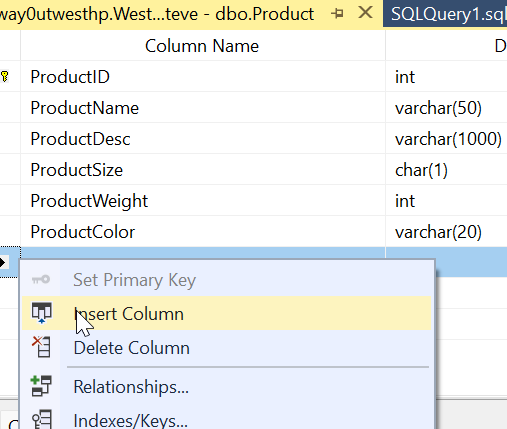
I then design my new column. Things look good.

Most developers would just save this change. However, if I were to click the Generate Change Script button, I’d see this (I leave out the SET stuff at the top).
BEGIN TRANSACTION
GO
CREATE TABLE dbo.Tmp_Product
     (
     ProductID int NOT NULL,
     ProductName varchar(50) NULL,
     ProductDesc varchar(1000) NULL,
     ProductSize char(1) NULL,
     ProductWeight int NULL,
     ProductColor varchar(20) NULL,
     ProductQtyPerUnit smallint NULL,
     StatusID int NULL
     )  ON [PRIMARY]
GO
ALTER TABLE dbo.Tmp_Product SET (LOCK_ESCALATION = TABLE)
GO
IF EXISTS(SELECT * FROM dbo.Product)
      EXEC('INSERT INTO dbo.Tmp_Product (ProductID, ProductName, ProductDesc, ProductSize, ProductWeight, ProductColor, StatusID)
         SELECT ProductID, ProductName, ProductDesc, ProductSize, ProductWeight, ProductColor, StatusID FROM dbo.Product WITH (HOLDLOCK TABLOCKX)')
GO
DROP TABLE dbo.Product
GO
EXECUTE sp_rename N'dbo.Tmp_Product', N'Product', 'OBJECT'
GO
ALTER TABLE dbo.Product ADD CONSTRAINT
     ProductPK PRIMARY KEY CLUSTERED
     (
     ProductID
     ) WITH( STATISTICS_NORECOMPUTE = OFF, IGNORE_DUP_KEY = OFF, ALLOW_ROW_LOCKS = ON, ALLOW_PAGE_LOCKS = ON) ON [PRIMARY]
GO
COMMIT
This script essentially creates a new table, copies over data, then drops the old table before a rename. On a large table, this could acquire a number of locks and potentially cause errors or disruptions for clients. If I want deployments at any time, without causing downtime, this isn’t the script I want to run.
Flyway and Column Changes
If I do this in dev, assuming I don’t have millions of rows of data, I might not notice this. What about detecting this change in Flyway? Let’s see.
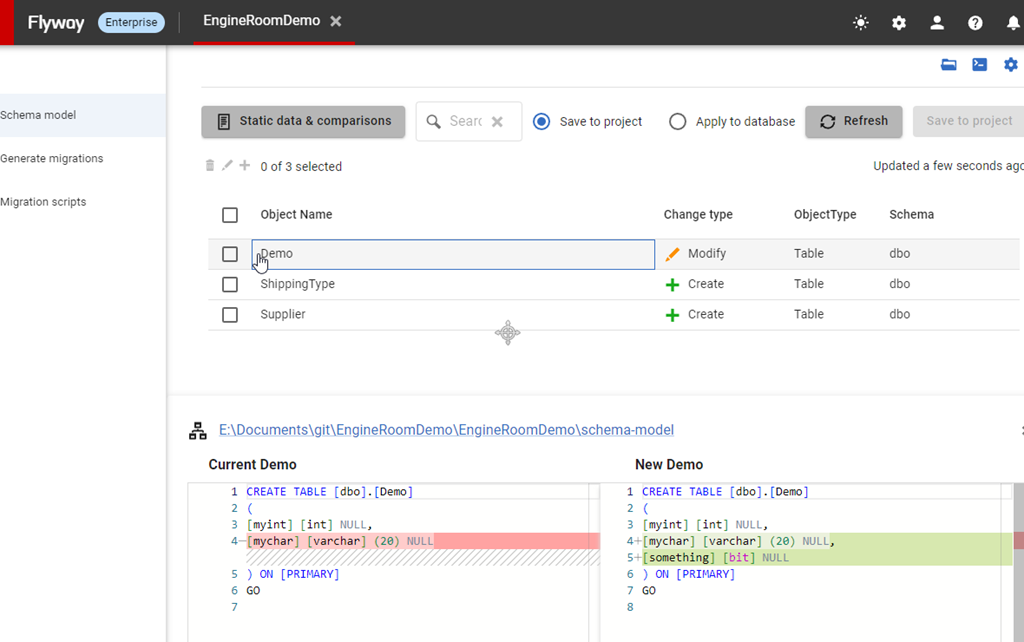
I have a Flyway project open in Flyway desktop and I’ll refresh the changes. As you can see, we detect this new column. As you can see, we detect the change, showing the insertion of the column into the middle of the table.
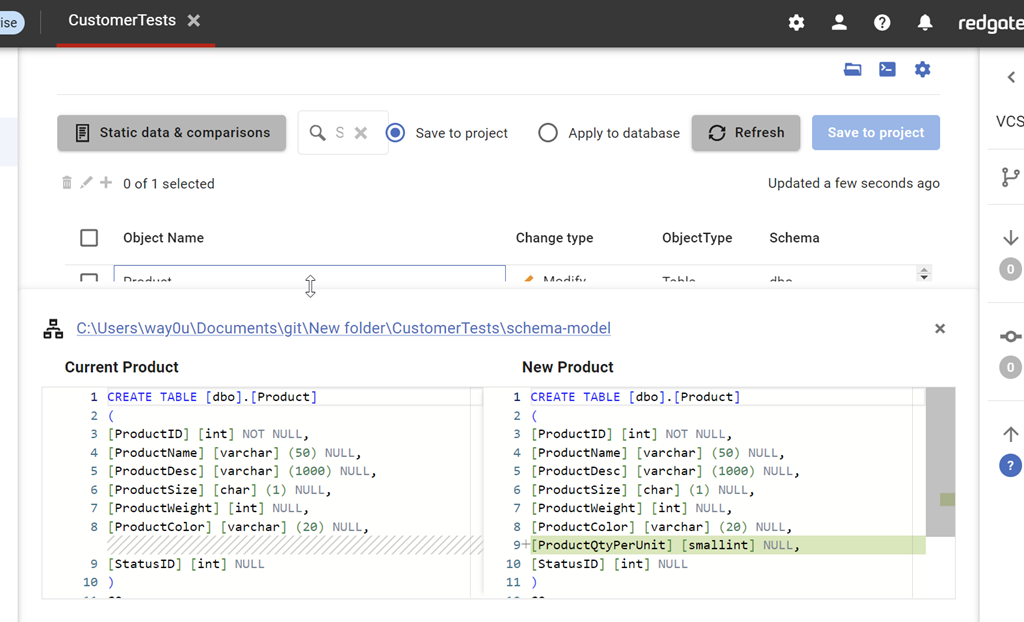
I can save this and then generate a migration script for this change. When I do this, I see this script. Notice that this script is unlike the SSMS script and just adds a column to the table.

This is the same behavior in SQL Compare. By default, we don’t want to rebuild tables and move data. We want to just add the new change to the system.
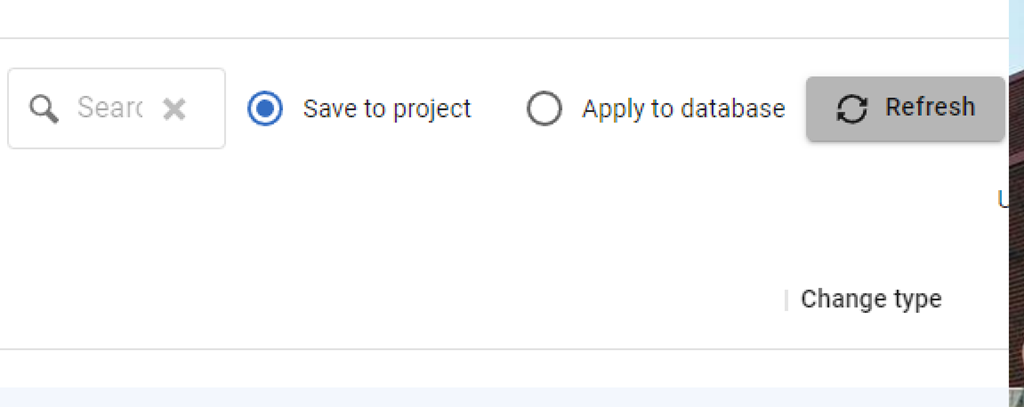
This is controlled by the Force Column Order option, which is off by default. We can see this when I look at the comparison options for the project.
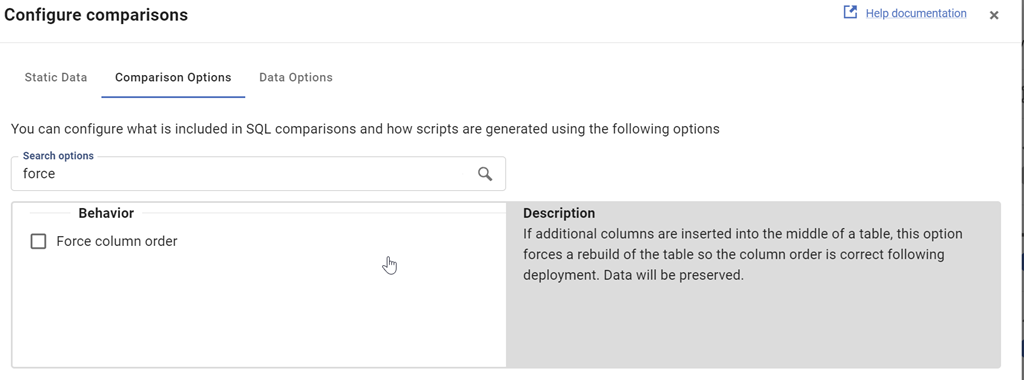
I can check this and then re-generate the migration script. When I do that, we see this script. This one
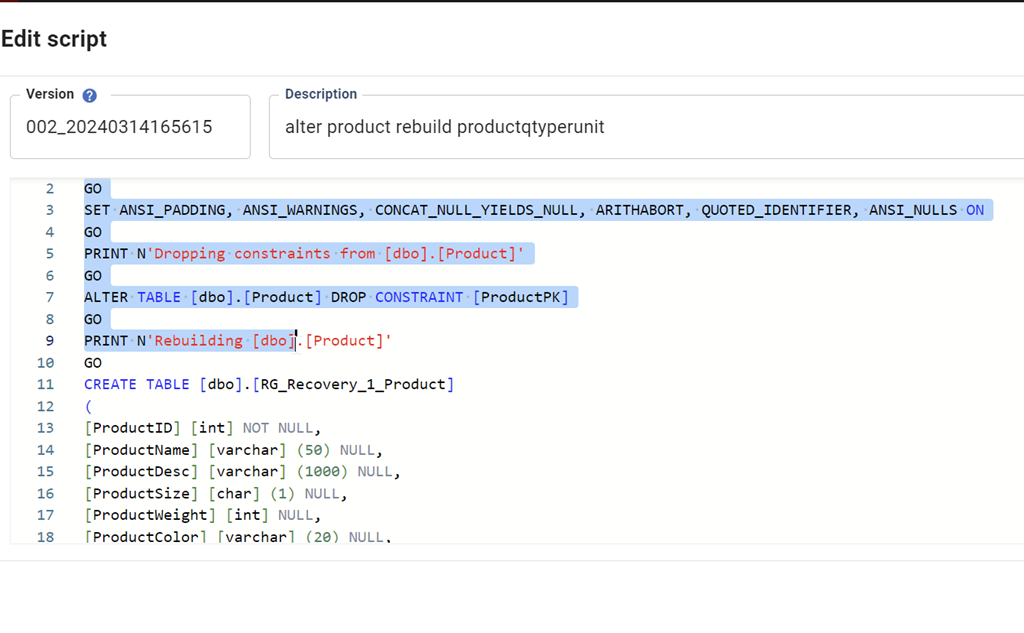
The entire script is here:
PRINT N'Dropping constraints from [dbo].[Product]'
GO

ALTER TABLE [dbo].[Product] DROP CONSTRAINT [ProductPK]

GO

PRINT N'Rebuilding [dbo].[Product]'

GO

CREATE TABLE [dbo].[RG_Recovery_1_Product]

(

[ProductID] [int] NOT NULL,

[ProductName] [varchar] (50) NULL,

[ProductDesc] [varchar] (1000) NULL,

[ProductSize] [char] (1) NULL,

[ProductWeight] [int] NULL,

[ProductColor] [varchar] (20) NULL,

[ProductQtyPerUnit] [smallint] NULL,

[StatusID] [int] NULL

)

GO

INSERT INTO [dbo].[RG_Recovery_1_Product]([ProductID], [ProductName], [ProductDesc], [ProductSize], [ProductWeight], [ProductColor], [StatusID]) SELECT [ProductID], [ProductName], [ProductDesc], [ProductSize], [ProductWeight], [ProductColor], [StatusID] FROM [dbo].[Product]

GO

DROP TABLE [dbo].[Product]

GO

EXEC sp_rename N'[dbo].[RG_Recovery_1_Product]', N'Product', N'OBJECT'

GO

PRINT N'Creating primary key [ProductPK] on [dbo].[Product]'

GO

ALTER TABLE [dbo].[Product] ADD CONSTRAINT [ProductPK] PRIMARY KEY CLUSTERED ([ProductID])

GO
By default, Flyway isn’t going to try and rebuild your tables if developers add columns into the middle of a table. This is the recommended and preferred way of dealing with these changes. If your developers complain, then discuss the fact that we don’t need to worry about the physical order of columns in a table. If you want columns returned in a different order, do that in a query (and don’t use SELECT *).
If you really need tables rebuilt, you can check the option, but you shouldn’t do that.
Try Flyway Enterprise out today. If you haven’t worked with Flyway Desktop, download it today. There is a free version that organizes migrations and paid versions with many more features.
If you use Flyway Community, download Flyway Desktop and get a GUI for your migration scripts.
Video Walkthrough
I made a quick video showing this as well. You can watch it below, or check out all the Flyway videos I’ve added: