This post looks at how to set up a PostgreSQL container on Windows using Docker for Windows. I’ve seen a few posts, but I had to cobble together some instructions from places, so I decided to make my own post to help me remember and keep things simple.
tl;dr: do this:
- Create a folder c:\docker\pgdev
- get the Docker image: docker pull postgresql:latest
- Run the container, command below:
docker run --name pgdev -e POSTGRES_PASSWORD=Str0ngP@ssword -d -p 5432:5432 -v C:\Docker\pgdev:/var/lib/postgresql/data postgres
That’s it. Then you have a PostgreSQL instance running on port 5432 (default) with a user, postgresql, and a password, Str0ngP@ssword.
More detailed instructions below
Create a place for data
Containers are ephemeral, which isn’t what we want for a database. We want to keep data around, so let’s make a place for this. This will be a volume for our container, which we will map to a particular location inside the container. Then if the container dies, we can map this to another PostgreSQL container and have our data appear.
Create a c:\Docker folder on your machine. This is a good spot for any Docker related volumes.
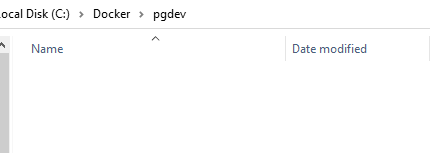
Now create a pgdev folder under c:\docker. This is the place we’ll keep data for this PostgreSQL container. It should be empty.

Get the Image
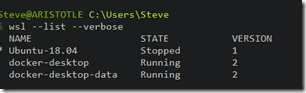
Container images are available from Docker. I won’t cover installing Docker or setting up Linux containers, but you do need to do this. I used Windows 10, and I have WSL v2, as you can see:
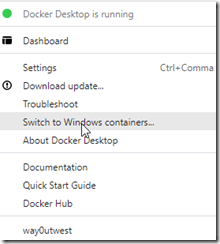
Docker Desktop is running Linux containers. You can see that since it say “Switch to Windows containers”.
Next, use Docker Pull. I assume you are working with the default Docker registry, so this command should work:
Docker image pull postgres:latest
This will start downloading the image.

When this completes, move on.
Starting the container
Once we have the image, we can start the container. You could do this without the folder above, but your data would be in the container and if the container were ever deleted, then the data is lost.
The basic command for starting the container requires a few parameters. Here is a list of what I provided in the command at the beginning:
- –name – This is a name you can use in docker commands to refer to the container. You can put anything. I chose “pgdev”.
- The password in the database system for the postgres user. This is a default user and you send this in as an environment variable with -e. The password I used here is: Str0ngP@ssword
- -d runs this detached, rather than interactively. This means your command shell can return command to you. Otherwise, all output from the container appears in the shell and you can’t type anything.
- -p is the port mapping. This is host:container. In this case, we map 5432 on the host (where we use some postgreSQL driver to connect) to 5432 inside the container. You can choose any unused port for the first number, but 5432 is needed for the second number as the postgresql service is listening on 5432.
- -v is the volume mapping. Here we map our host folder to a container folder (host:container). We enter the folder we created above and then map this to the place where postgresql stores data. That’s in /var/lib/postrgresql/data
- postgres is the image name.
Here is the command again:
docker run --name pgdev -e POSTGRES_PASSWORD=Str0ngP@ssword -d -p 5432:5432 -v C:\Docker\pgdev:/var/lib/postgresql/data postgres
Once this executes, we should see a long hex code returned, which is the container identifier.

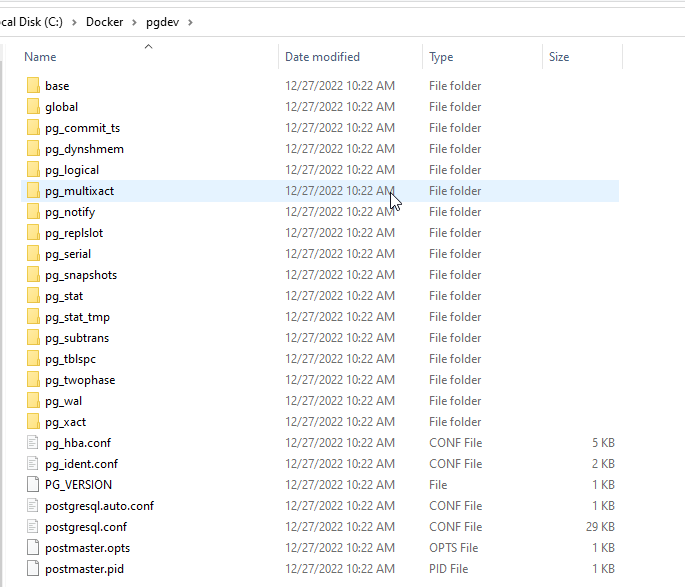
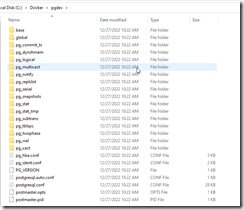
We also see our folder is now filled with postgresql specific data files and folders:
That’s it, our container is running.