Tag: powershell

  • Powershell in a Month Day 18–Variables

    This is part of my Powershell Challenge, to learn more about PowerShell (PoSh) using the Learn Windows Powershell 3 in a Month of Lunches book by Don Jones.

    I’m slightly behind here after holidays and some travel. Apparently my pop-up reminder for my own studies bears about as much value as quite a few other reminders that appear from people at work.

    I’ve had to deal with variables in any number of languages in my career: BASIC, Pascal, C, C++, Java, C#, VB6, VB.NET, Foxpro, T-SQL, and a few more. I thought this chapter would be simple and it certainly started out that way, but I learned a few things and was pleasantly surprised.

    NOTE: The editor here is substituting left and right quotes, and left and right double quotes as part of formal writing. In executing this code, the normal straight quote and double quotes are needed in PoSh.

    The chapter starts out with the simple stuff, assigning values to variables. Unlike most languages,we don’t need to declare variables. You need one, just use it.

    $domain = ‘SSCLab’

    I’ve done this quite a bit in some of the practice for this series, but also in setting up my virtual lab. However I wasn’t sure why single and double quotes matter. If you’re not sure, this this:

    $computer = ‘Tiny’

    $Phrase = ‘Computer: $computer’

    $phrase

    and then this

    $computer = ‘Tiny’

    $Phrase = “Computer: $computer”

    $phrase

    You’ll see a difference. The first produces

    Computer: $computer

    The second actually does substitution and produces

    Computer: Tiny

    That means that you really need to pay attention to which set of quotes you are using in code. That’s an area I need to be careful. I also learned about the backtick as an escape character, but that’s an easy one as it’s similar in lots of languages to escape things out for newline and other special characters.

    What’s interesting about PoSh variables, and probably one of the more powerful things, is that the variables can contain objects. That’s big. It’s like being able to overload classes into variables easily and quickly. I’m sure the exercises just scratch the surface, but it’s cool.

    The lab was easy, just getting a job running and putting results in a variable. A combination of a few of the last few chapters.
  • Virtual Lab – Setting up a new VM

    This is part of a series where I set up a virtual lab for testing and misc. work. The other parts in the series are here: Building a Virtual Lab with Hyper-V.

    I have my disks set up, now it’s time to create my virtual machines. I’m going to show you how to create one, but all really are done the same way. The names change, but no matter what my purpose is, this is how I set up the VMs. Once this is done, I’ll use other posts to go into the customizations for each machine.

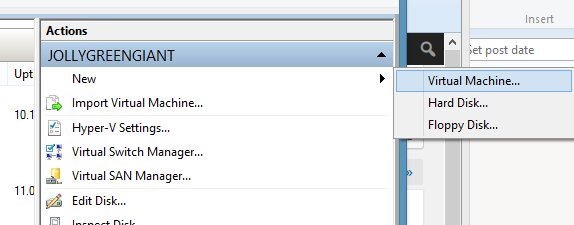
    We’ll start in Hyper-V manager, selecting a new VM.

    virtlab_p

    After the welcome screen, you need to name your VM and choose a location. I’ve got a folder set up for this lab on my machine, so I choose that, and set the name (for this machine) as DenverDC. This will be my domain controller and the first machine I set up.

    virtlab_q

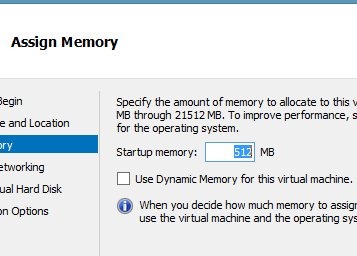
    Next we assign memory. I’ll want more for the SQL Servers, but this is easily changed at a later date, so I’ll leave this alone. One of the advantages of Core is less memory needed, and I could probably get by with less, but since I have 24GB on the host, I can spare half a gig.

    virtlab_r

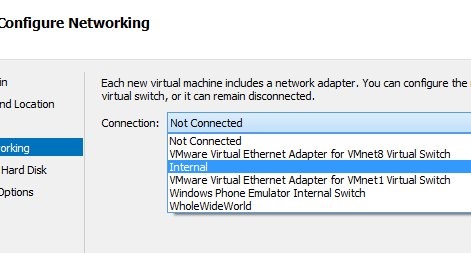
    After memory comes the networking. As you can see, I have a number of choices. The "WholeWideWorld" is the connection some of my VMs use to access the internet. In this case, I’m choosing the Internal network, which is the Internal switch I have set up. This is limited to connections between the VMs and since I want this to be an isolated network, this works fine.

    virtlab_s

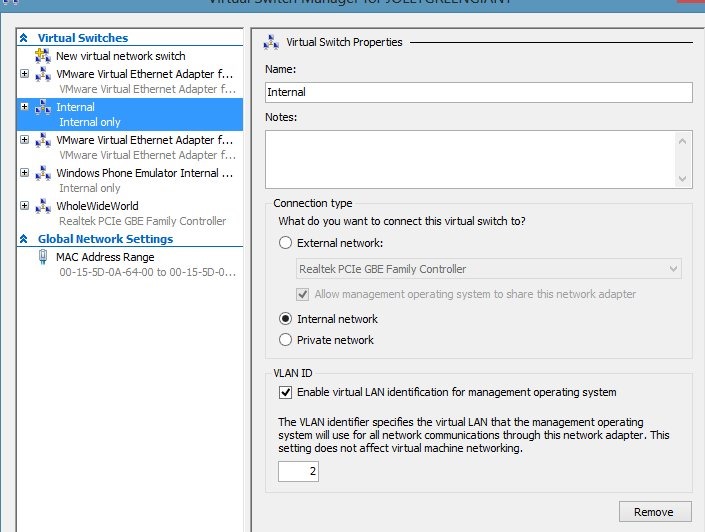
    My internal switch is actually configured as follows:

    virtlab_v

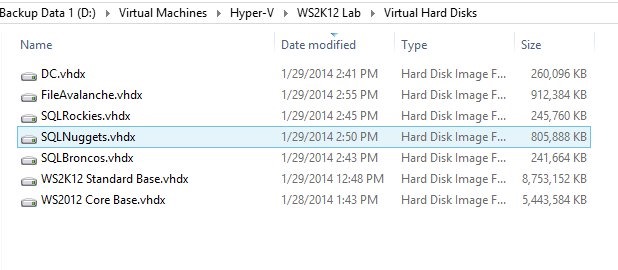
    Now we need to set storage. Since I set up my disks before this and named them in a way that I can understand, I choose the one I need. The default here is a new hard disk, but I’m saving space with differencing disks.

    virtlab_t

    I get a summary. Please check this as you set things up. Note that my differencing disk is set.

    virtlab_u

    I click finish, and I have a VM. I start it up from Hyper-V Manager and connect.

    virtlab_w

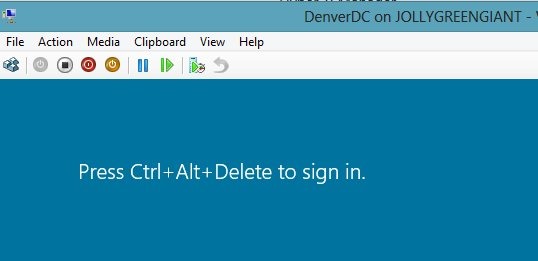
    Inside of Windows, I get the familiar Windows start screen (for Win8/WS2012). I click CTRL+ALT+DEL (leftmost icon on the toolbar) and then get prompted to change my password

    virtlab_x

    I change it,and I’ll use the same admin password on this machine that I use on a number of VMs.

    NOTE: This is NOT the password I use for any other services, including my VMWware VMs. At all. It’s only for Hyper-V VMs, but since I may have a few generations of VMs, I don’t want to forget this password. I also may end up starting up a few random VMs for talks, so I need to be able to get in.

    Once I log in, I get a basic session. Not much in Core.

    virtlab_y

    The only thing I really want to do here is rename the computer. I need to do more, but those will be in other posts. Let’s get the hostname.

    I could start server config (sconfig.exe) and get a basic setup, but I wanted to play with my PowerShell knowledge. So I started PoSh, and Google helped me find the computer name. I also used Google to find out the rename.

    virtlab_z

    The computer name (hostname) comes from

    $env:computername

    It doesn’t make sense, so I rename it with

    Rename-Computer -Newname "DenverDC"

    Once this machine restarts (Restart-Computer), it will have a new name.

    I know that I could use sconfig and it’s fast, or click around on my Standard servers and rename the machine, but once I get used to typing these commands in Powershell, it’s very, very quick.

    Note that my disks have been updated with changes. Their sizes have grown from the original 4MB.

    virtlab_aa

    I repeat this process for all the other machines, just to get them set with a password and name. Once they’ve rebooted, they’re ready for the next step.

  • Powershell in a Month Day 17 – Security Alert

    This is part of my Powershell Challenge, to learn more about PowerShell (PoSh) using the Learn Windows Powershell 3 in a Month of Lunches book by Don Jones.

    Security. It’s important, and I was thinking this chapter would show us more about changing security. Instead, this chapter is really an outline and discussion of what security method are built into the PoSh shell. The chapter first emphasizes that the PoSh environment doesn’t bestow and special rights or abilities to the executor. The commands just execute, or fail to execute, base do on the rights you have in windows already. I can see that as some of the commands I run at times fail when I haven’t run the shell as an administrator.

    From there the chapter talks about the different execution policies, which I haven’t thought much about. I end up typically changing the execution policy on each VM initially so I can run scripts to Unrestricted. I know that isn’t recommended, but I typically need things to just work.
    I also hadn’t realized that I could set this in a GUI in Windows. That’s good to know, and I suspect, it’s another example of where Windows is implementing PoSh commands under the hood of the GUI. It would be nice to see a Trace for PoSh to watch commands come through GUI actions.
    The chapter finisheds by talking about the digital signing of scripts, how it works, and what you need to do. I haven’t messed with this and it’s not a part of the lab, but it’s something I’d probably do in a large organization, or even any organzation to be sure that hte code that’s being automated and run is actually the code that has been tested.
    Overall, a short chapter. Slightly informative, and definitely an easy day.
  • Powershell in a Month Day 16 – Working with many objects

    This is part of my Powershell Challenge, to learn more about PowerShell (PoSh) using the Learn Windows Powershell 3 in a Month of Lunches book by Don Jones.

    One of the great powers of T-SQL is that we can owrk with many rows at once. We use a query to tell the server what we want done to a group of objects, and then the query executes against every row that matches the filters. It’s this power that makes SQL much more efficient than the RBAR method of moving through a cursor structure. This chapter introduces the ways in which we do that with Powershell.

    The first part of the chapter is about batch commandlets, using things like Stop-Process receiving a pipeline of objects from something like Get-Process. I like their favorite example, which I’ve yet to run. I need to do this in a VM and see what happens.
    Get-Process | Stop-Process
    That’s an easy concept for me, and I see how valuable this is. However not all of the cmdlets we call will handle batches. The next part of the chapter examines WMI and the Invoke-WmiMethod call, which can take a series of objects as well. I somewhat dread the idea of needing to use this method, or worse, having to call a series of methods in which I have to pass in all the parameters. It’s good to know that I need the $null parameter for those parameters I don’t want to deal with, but it’s an ugly syntax. It’s handy to know this is an option, but I think I’ll be doing MSDN research for those times that I need to work with these methods.
    The next part of the chapter looks at the ForEach-Object syntax. I’ve seen this in scripts, and I could guess what i does, but this starts to make sense now and I can more easily decode the scripts when I see them. Along with the $_ marker to represent an object, the whole structure of PoSh is becoming easier to read.
    The chapter isn’t long and and starts to spend time comparing the various methods of enumeration. That’s helpful. Seeing how the same end result can be achieved in different ways is very handy. The lab was easy, though I had to skip the WMi stuff as I was unwired at the time that I went through this chapter. However I had an idea of what to do, just no way to look up the WMI classes.