Tag: powershell

  • Attaching All Databases with PowerShell–Finding My MDF Files

    I wrote a PowerShell script recently to actually accomplish a task I that I needed. What’s more, this was the first time I thought that Powershell might prove more useful than other methods. This series looks at my script, and this part examines the first part that I wrote.

    The overview contains information about my strategy and breakdown, and this post looks at the first item.

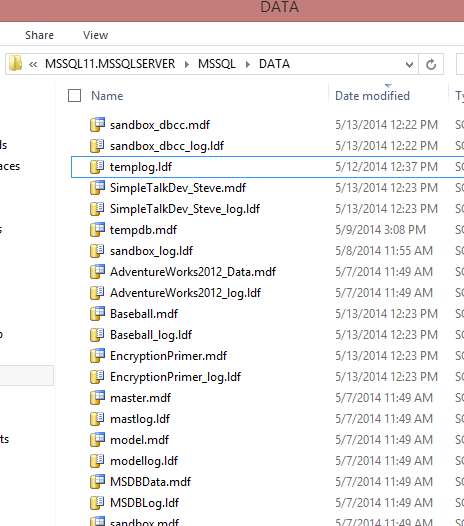
    When I decided I was going to use Powershell for this task, the first thing I decided to do was find all the MDF files in my folder. When I examined my folder, I saw lots of files.
    attach_c

    Actually, my instance had no files, but I copied over all my mdf/ldf files (apart from system databases) from my original install to the \Data folder for my new instance. I had created these databases for various tests and experiments, and as such, they tended to use the default naming from SQL Server. This meant:

    • The database name was used as the mdf file, i.e. the Baseball database has Baseball.mdf as the file.
    • The log file is the database name with _log.ldf. As in Baseball_log.ldf.

    To start the script, I began by noting I’d need some parameters for the script, as in the folder where the data was stored. I decided to start with a variable, which I can then turn into a parameter.

    $folder = ‘D:\mssqlserver\MSSQL11.MSSQLSERVER\MSSQL\DATA’
    $debug = 0

    I include a “debug” variable that I can use to print out information if needed.

    I started with the  Get-ChildItem command using the folder. I can use this in a foreach loop to run through all the child items.

    # loop through each  of the file
    foreach ($file in Get-ChildItem $folder)
    {

    # end for loop of files
    }

    Note that when I build these loops, I close the brackets first, and include a comment that helps me figure out where this item ends. Before I go further, I decided to start outputting information. I added a debug statement.

    # loop through each  of the file
    foreach ($file in Get-ChildItem $folder)
    {
    #Debug
    if ($debug -eq 1)
    {
    write-host $file.name
    #end debug
    }

    # end for loop of files
    }

    This will output all the files in the folder. I can change the debug value to 1 and then I’ll get this output:

    attach_g

    I see all my .mdf and .ldf files, along with my Filestream storage folders. Now I need to limit things to a specific type of file.

    There’s an Extension property for the items in a folder that I can use. I’ll add that.

    if ($file.Extension -eq ‘.mdf’)
    {
    if ($debug -eq 1)
    {
    write-host $file.name
    #end debug
    }

    # end if
    }

    When I run this, I get this output, and immediately see a problem.

    attach_h

    My output runs together. I need to differentiate which log output is being printed. I do that with a message before each file name.

    write-host “MDF Files: ” + $file.name

    With this added (and customized) for each debug message, I get this:

    attach_i

    That gets me the list of MDF files. If I turn off debugging, and add just a print, I see just my MDF files.

    attach_j

    That’s a good loop. I’m sure there are easier and shorter ways to do this, but this works well, and it gives me flexibility if I’d like to change to another extension.

    This is also the basis of moving forward, where I’ll need to connect to SQL Server and check this list of files against the databases on the server.

  • Attaching All Databases with PowerShell – The Overview

    TL;DR Script is here: Git Hub Powershell Scripts. It’s the attachdbs.ps1 and will attach all databases in a folder to a SQL Server instance, if they don’t exist.

    I wrote a PowerShell script recently to actually accomplish a task I that I needed. What’s more, this was the first time I thought that Powershell might prove more useful than other methods. This series looks at my script, and this part examines the first part that I wrote.

    After my problems with Windows 8.1 and my reinstallation of SQL Server, I had a problem. I had no databases.

    I had the files. I had backup files. However the instance didn’t have any databases registered. I started down this path.

    attach_a

    However that seemed inefficient. I actually had a pattern of things that I knew needed to be done, I had a bunch of repeatable work, this sounded like it should be a PowerShell type task. I could have done it in T-SQL, or grabbed a script from SQLServerCentral, but it made more sense to load databases with PowerShell.

    The Start

    Of course I started Googling, but didn’t see any posts that shower someone with mdf/ldf files and needing to attach them to an instance without knowing what you had. What I had was an instance, with no backup/restore/detach history.

    attach_b

    I also had a bunch of mdf/ldf files in a folder. As well as some folders for Filestream/Filetable information.

    attach_c

    What did I do? I’ve got the script on GitHub, and you can grab the latest version at: Powershell Scripts (choose the attachdbs.ps1 file)

    This post will give an overview of what I needed to do and I’ll post more details about how I built the script in pieces. The overview of the process is:

    • Get all MDF Files in a folder
    • Connect to a SQL Server instance and loop through all databases
    • If a file name (less the .mdf) does not exist as a database, track this.
    • Get the log file associated with an mdf
    • Attach the mdf and ldf files to the SQL Server.

    That’s what I needed to do and development went in those stages. Certainly there were issues, but I got it working as of this post. When I ran my script, I saw these results:

    attach_f

    In SSMS, I had my databases.

    attach_d

    I even had my Filestream stuff in place. SQL Server handled that for me.

    attach_e

    I’ll include other posts that talk about the details of how I build this, which took about 3 hours one day, and an hour the next.

    References

    Here are a few posts where I picked up bits and pieces of what I needed to do.

  • Powershell Tips–PSEdit

    I got this from watching a session from Jeffrey Snover at TechEd. It was a neat trick, and it’s worked better than what I used to do.

    Editing files

    Suppose I have the ISE open and I want to edit a file. I could easily do this:

    psedit_a

    Click File –> Open, or click the open Folder button, and get a dialog to open a file. I stopped doing that soon after I began playing with PowerShell because I was typing most of the time, and it was easier to do this:

    psedit_b

    Just type notepad and the filename, whether it exists or not, and have notepad open up. However working with notepad isn’t great because you lose intellisense and some of the other nice ISE features.

    However today I saw this. Type psedit and a file (it has to exist).

    psedit  attachdbs.ps1

    And I see the file open above.

    psedit_c

    Very cool.

    Of course, as I mentioned, the file needs to exist. If it doesn’t, then a CTRL+N will get you a new file, which you can save and then easily open from the command line the next time.

  • The Powershell Challenge Update

    I’ve fallen down on my challenge over the last month. It’s been a content time, with me working more towards presentations and writing most of Mar and April to meet deadlines and commitments. I also let my calendar reminder die in Feb and didn’t renew it.

    As a result, here I am, 6 months in and only done with 19 chapters. That’s a good way in, but it’s not complete. With some downtime coming, I’m looking to get back into this and using it a bit more.