Tag: Redgate

  • Quick Tips–SQL Prompt Aliases for Every Table

    I love SQL Prompt, and think it’s a great productivity tool. Even before I worked at Red Gate, I love the tool and had a copy before Red Gate bought the technology from the original developer. Recently I’ve run into a few people that weren’t aware of some of the ways in which it can help you. This is a quick look at one of the ways I use SQL Prompt.

    Aliases

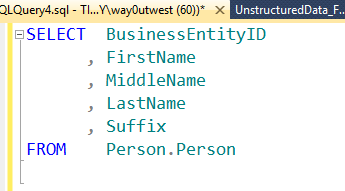
    Aliases are used to make code more readable, and shorten the amount of code that one needs to write. Typically we use these to give a short name to a table. Instead of:

    aliases_12

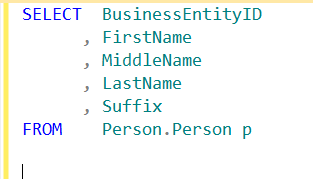
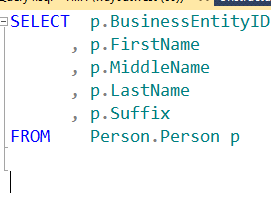
    We could use an alias. Note the “p” after the table below and the change in the column list.

    aliases_13

    Automated Aliases

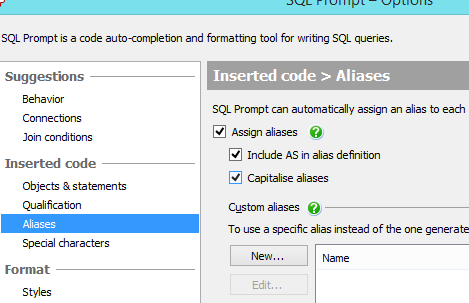
    SQL Prompt can automate aliases for me. Under the Options dialog, there is an Aliases selection (shown below).

    aliases_1

    Note that I’ve checked the “Assign Aliases” box. This is not checked by default, but once I check it, I get aliases. Let me write a query.

    aliases_3

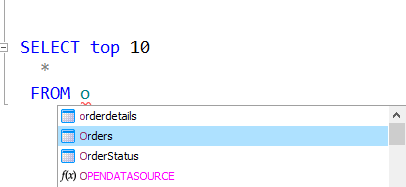
    I’m about to select my Orders table from the Prompt drop down. Once I click Tab, I’ll get this:

    aliases_34png

    SQL Prompt has added the alias for me. It’s a lower case “o”. If I add another table:

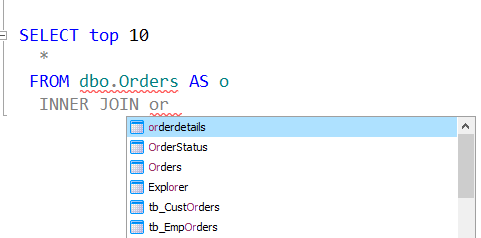
    aliases_5

    I hit tab at this point and I get:

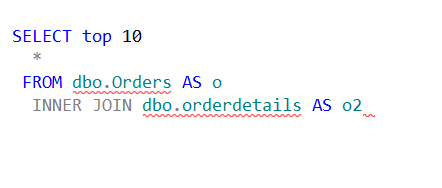
    aliases_6

    I have a new alias of “o2”. Not terribly creative, but it works.

    I have some options for changing these around. Suppose I want to make these upper case to stand out. I can change this in options:

    aliases_2

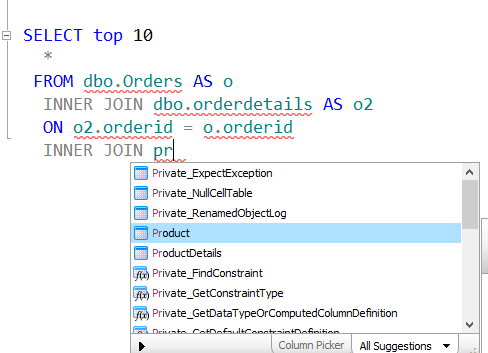
    Now I add a third table:

    aliases_7

    I hit tab:

    aliases_8

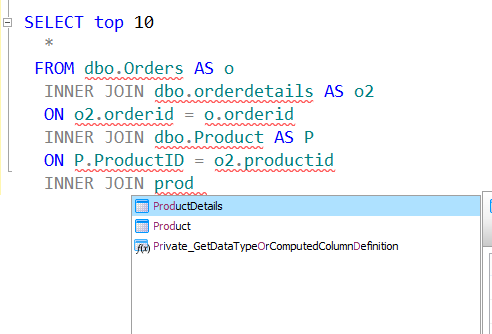
    My new alias is an upper case “P” for the Product table. That gives me a bit of differentiation for my tables.

    I, however, do not like the “AS” keyword. I typically just space my alias after the table. I can change that in options:

    aliases_9

    I’ve unchecked the box and now I add a new table.

    aliases_10

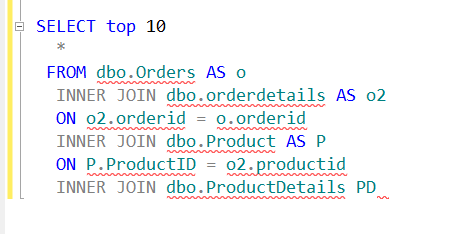
    When I hit Tab, I’ll get a new alias, upper case, but no AS.

    aliases_11

    These are not terribly intuitive aliases, but this does at least clean up your code a bit, so when you see all the column names they aren’t spread way to the right with table names like “ProductDescriptions”.

    aliases_14

    You can see a complete list of SQL Prompt tips at Redgate.


  • Quick Tips–SQL Prompt Qualifying Columns

    I love SQL Prompt, and think it’s a great productivity tool. Even before I worked at Red Gate, I love the tool and had a copy before Red Gate bought the technology from the original developer. Recently I’ve run into a few people that weren’t aware of some of the ways in which it can help you. This is a quick look at one of the ways I use SQL Prompt.

    Qualifying Columns

    One of the things that’s a good programming practice for T-SQL is to qualify your columns. Imagine that I have this query:

    qualify_a

    Note that my column names are listed with just the column name and don’t include the table from which they come. Not a big deal here, but as I enhance this code over time, I may add another table to a join, perhaps one that includes BusinessEntityID in it. In that case, I’ll get an ambiguous column error, and a squiggly in SSMS (shown below).

    qualify_e

    SQL Prompt tries to make writing code quicker and easier, and if I look back to my first query, Prompt can qualify those columns for me.

    If I press CTRL+B, CTRL+Q, I’ll get this (from the first query).

    qualify_b

    Note that every column now includes the table names.

    It also works for aliases. If I have this (note I’ve added an alias)

    qualify_c

    CTRL+B, CTRL+Q gives me this:

    qualify_d

    As I add tables and modify this code, anytime I find columns unqualified, I can use this quick shortcut to fix my code.

    Note: If you have ambiguous columns, Prompt can’t fix them (yet).

  • Quick Tips – SQL Prompt Stop the Yelling

    I love SQL Prompt, and think it’s a great productivity tool. Even before I worked at Red Gate, I love the tool and had a copy before Red Gate bought the technology from the original developer. Recently I’ve run into a few people that weren’t aware of some of the ways in which it can help you. This is a quick look at one of the ways I use SQL Prompt.

    Lower Case Keywords

    One of the things that many developers like is lower case keywords. If you examine some C# code, you’ll often find that they have keywords in lower case. For example, here’s a sample from MSDN.

    // versioning.cs
    // CS0114 expected
    public class MyBase 
    {
       public virtual string Meth1() 
       {
          return "MyBase-Meth1";
       }
       public virtual string Meth2() 
       {
          return "MyBase-Meth2";
       }
       public virtual string Meth3() 
       {
          return "MyBase-Meth3";
       }
    }

    When I’ve gotten projects from Red Gate, I see something similar.

    However, if I enter some code in Management Studio, by default, SQL Prompt will format it like this:

    prompt_aa

    Notice the upper case keywords. Personally I like these, but many developers may not. Fortunately there’s an easy fix. Access the SQL Prompt menu in Management Studio and select options (circled below).

    prompt_ab

    This will bring up the options dialog. Select the CASE item as shown below.

    prompt_ac

    On the upper right side, you’ll notice that you have drop downs for keywords, built-in functions and data types. By default these are all set to uppercase. However you have a number of choices.

    prompt_ad

    I’ll change mine to lowercase, click OK, and then reformat my code. I now see this.

    prompt_ae

    Quick and easy, and I can now read code that looks more like what developers are used to. Maybe I’ll leave things set like this…

    You can see a complete list of SQL Prompt tips at Redgate.

  • Quick Tips–SQL Prompt Formatting

    I love SQL Prompt, and think it’s a great productivity tool. Even before I worked at Red Gate, I love the tool and had a copy before Red Gate bought the technology from the original developer. Recently I’ve run into a few people that weren’t aware of some of the ways in which it can help you. This is a quick look at one of the ways I use SQL Prompt.

    Ugly Code

    It’s often that I’ll get code submitted at SQLServerCentral, or it will come in a demo from Red Gate, and it will look something like this:

    prompt_af

    This is actually code from Microsoft in the AdventureWorks 2008 sample database. It’s ugly and hard to read. In fact, I struggle trying to interpret code when I see it like this.

    Reformatting

    One of the things I probably do most often, after SSF, is reformat code so that I can read it. I have a few settings I prefer, but to apply them, I’ll click CTRL+K, then CTRL+Y and my code will get fixed.

    prompt_ag

    If I have invalid SQL, Prompt will throw an error and there will be a squiggle line under the offending sections. If I only want to reformat a portion of code, I can highlight it before hitting the shortcut.