Tag: Redgate

  • Another Fun Photoshoot

    It’s been three weeks in a row I’ve been in the Austin airport. First was corporate annual kickoff, which was a lot of fun seeing and chatting with people that I don’t often get to spend time with. This week was THAT Conference in Round Rock. However, last week was the most interesting.

    Our Database DevOps Rocks tour was very successful last year, and we decided to do another one in 2024. I went to Austin last year for a photoshoot with the van, and ended up with some fun pics. One of my favorites is here:

    2024-01-25 12_08_07-Window

    The 2024 Tour

    Rather than a van, we wanted to go bigger this year. Someone proposed a plane at Summit, and I thought that was interesting. I wasn’t sure this would work, but it did. I flew to Austin last week with Grant for a quick shoot.

    Someone is working on post production of pictures, and some video. We shot a lot of stuff for promo videos and commercials, so the final results will be different, but here are a few fun ones.

    Grant and I sat in a couple old first-class Delta seats in the hanger.

    2024-01-25 12_12_15-way0utwest ️ (He_Him_His) (@way0utwest) _ X

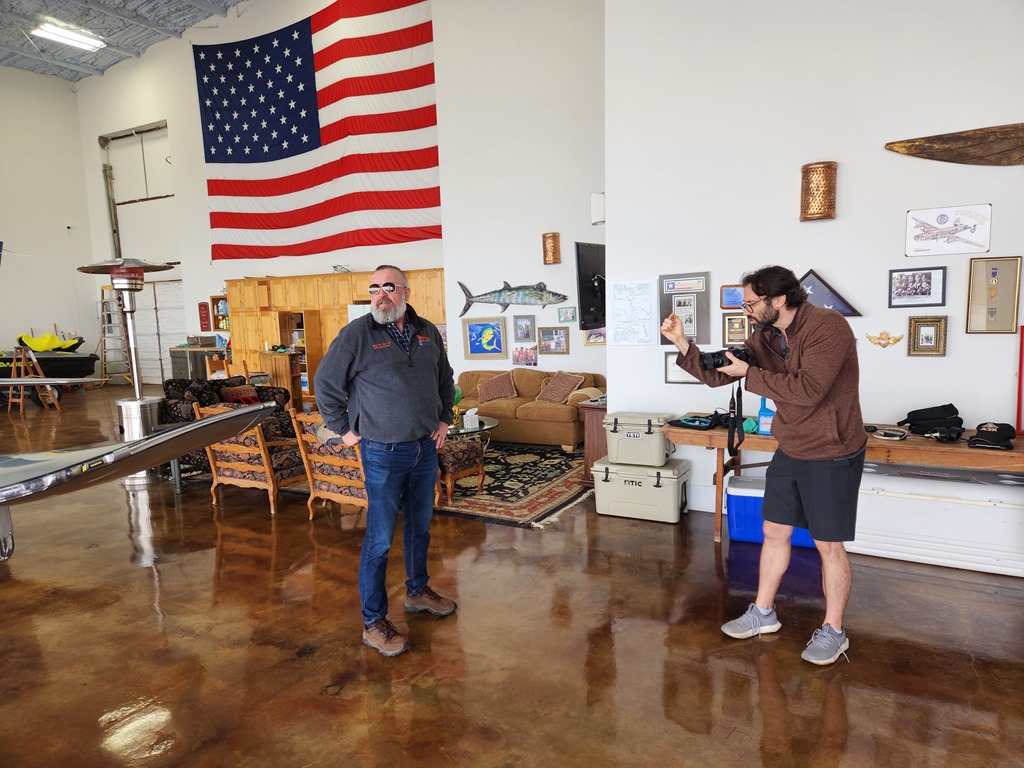
    We were given the jackets and sunglasses for props, which was fun. We took turns changing them. Here’s Grant modeling the jacket in front of the plane with our photographer giving him instructions.

    20240123_140329

    I even got to walk on the runway, which was slightly unnerving. However, it was super foggy, so no planes were coming or going. Still, it was neat to stand out there. Something I haven’t done.

    20240123_134308

    I’m looking forward to the final props, and also the tour. I’m only on part of it, but there a few places scheduled for me:

    • San Jose
    • Atlanta
    • London
    • Chicago
    • Brisbane
    • Sydney
    • Melbourne

    Maybe a few more, but we’ll see.

  • So You Think You’re Agile… (Webinar Jan 25)

    I’ve got another webinar tomorrow. This one in conjunction with Clear Measure, who work with companies to build better software. This should be interesting as Jeffrey Palermo and I talk about the characteristics of organizations that are getting better at delivering software in general, with some specific focus on the testing and data side of ensuring your software works.

    Register and I’ll see you tomorrow.

  • Moving SQL Prompt History to Another Machine

    A customer was asking about SQL Prompt recently and how their history is stored and if it can be moved to another machine. This post shows how this works, and how you could move it. There is also a video walk through at the bottom.

    Caution: This is history for your specific queries, and moving the database means you overwrite history on the new machine. Don’t do this to share code. Do this only if you are upgrading your own machine.

    This is part of a series of posts on SQL Prompt. You can see all my posts on SQL Prompt under that tag.

    SQL Prompt History

    History in SQL Prompt is a slightly hidden, but amazing piece of technology. A number of customers find it incredibly valuable to see the history of their queries, especially when they’ve gotten busy with a number of different pieces of code.

    In SSMS, when SQL Prompt is installed, it is keeping track of what you write in queries. Don’t worry, this is local, and it’s on your machine. Let’s look at this.

    Say I have a query window, like this:

    2024-01-09 12_59_53-SQLQuery10.sql - ARISTOTLE_SQL2022.compare2 (ARISTOTLE_Steve (121)) - Microsoft

    I can’t remember who the users are, but I add a new query to this window, as shown here.

    2024-01-09 13_00_25-SQLQuery10.sql - ARISTOTLE_SQL2022.compare2 (ARISTOTLE_Steve (121))_ - Microsoft

    All that is captured in SQL History. In one of the menu bars in SSMS, you can see this listed with other Redgate products.

    2024-01-09 13_00_35-SQLQuery10.sql - ARISTOTLE_SQL2022.compare2 (ARISTOTLE_Steve (121))_ - Microsoft

    When I click this and open it, I see my query windows in the upper left, with the window text in the right, and below on the left, a timeline.

    2024-01-09 13_00_45-Moving SQL Prompt History to Another Machine - Open Live Writer

    This is the latest version, but if I click down, I see the previous version without the SELECT.

    2024-01-09 13_00_54-

    I can go back further and see before I added the ALTER ROLE statement.

    2024-01-09 13_01_00-SQL History - Microsoft SQL Server Management Studio

    Finding History

    All of my data is stored in my local profile. I can browse the path under AppData \ Local for my user, and inside there is a Redgate folder. Under that is SQL Prompt 10 (or your version). If I sort by date modified, I see my SqlHistory.db file, which is the database of my SQL History in Prompt.

    2024-01-09 13_10_37-SQL Prompt 10

    If I were changing to a new machine and wanted history to move with me, I’d copy this file to the new machine. Unfortunately, I can’t put this in a VCS, as the path is set.

    As I cautioned above, this isn’t something you send to colleagues. This is an individual file of your work and only copy this to a new machine when you are upgrading, not trying to sync work. Use a VCS for proper code control.

    Browsing the Database

    This is a SQLLite database, and any tools that let you look at the data work. I have the sqllitebrowser tool on Windows, which works great. I can click “Open Database in this tool and browse to my file.

    2024-01-09 13_13_43-Choose a database file

    Inside here, I see my schema and tables and if I scroll down to the bottom of the QueryVersions table, I can see my query in the last entry in the Contents field. Note the query on the right looks like the one in SSMS.

    2024-01-09 13_14_32-DB Browser for SQLite - C__Users_Steve_AppData_Local_Red Gate_SQL Prompt 10_SqlH

    If I click up a few, I see the other version.

    2024-01-09 13_14_40-DB Browser for SQLite - C__Users_Steve_AppData_Local_Red Gate_SQL Prompt 10_SqlH

    No magic here, just good solid programming that saves you a lot of time and helps you deal with the chaos of software development and the frailty of the human mind.

    If you haven’t tried SQL Prompt, download the eval and give it a try. I think you’ll find this is one of the best tools to increase your productivity writing SQL.

    Video Walkthrough

    I made a video of how this works if you’d prefer to watch this. You can also see all my SQL Prompt Tips.


  • Friday Flyway Tips–Linking a GitHub Issue to a Code Commit

    Recently I was doing a demo and a customer asked how I had linked my commit in Azure DevOps to the work item that existed. It’s easy, and tldr; it’s with the commit comment. This post shows how that works.

    I’ve been working with Flyway Desktop for work more and more as we transition from older SSMS plugins to the standalone tool. This series looks at some tips I’ve gotten along the way.

    Creating an Issue

    Many people use GitHub and adding issues is easy. You go to the Issues tab, click “New” and enter details. What is required might vary by project. I have a public demo project here: https://github.com/way0utwest/FlywayNorthwind

    My issues tab has a few items, but you can see one of the issues below. Note, I’m not proud of this, as I just added this for a demo. I didn’t really add enough detail for anyone to work off this. I’ll do better with other issues.

    2024-01-05 17_01_26-Add a Products Entity · Issue #1 · way0utwest_FlywayNorthwind — Mozilla Firefox

    In any case, the thing to note is I have a #1 at the top, meaning this is issue #1. If I type a comment or note anywhere in this project and include #1, a link is created to this issue.

    Linking A Commit in FWD

    This is very similar to the technique I showed in Azure DevOps. Actually, it’s the same. I’ll make some changes for a products table and generate a migration script. When I go to the Version Control blade, I see the changes and I commit them with a message that includes #1.

    2024-01-05 17_05_11-

    In the GitHub code tab, I see my commit message, and the #1 is hyperlinked. If I hover over it, I see the issue.

    2024-01-05 17_06_13-way0utwest_FlywayNorthwind_ Test project using Northwind and Flyway — Mozilla Fi

    In the Issue itself, I see a flow with the commit listed.

    2024-01-05 17_06_51-Add a Products Entity · Issue #1 · way0utwest_FlywayNorthwind — Mozilla Firefox

    Now I’m not only tracking discussion and comments of the issue, I’m linking commits as well.

    This is less a Flyway Desktop feature than a GitHub one, but you can access this from Flyway Desktop by writing good commit messages with Issue numbers.

    Try Flyway Desktop out today. If you haven’t worked with Flyway Desktop, download it today. There is a free version that organizes migrations and paid versions with many more features.

    Video Walkthrough

    I made a quick video showing this as well. You can watch it below, or check out all the Flyway videos I’ve added: