Tag: Redgate

  • Friday Flyway Tips–Above Target Migrations

    Recently I was working with Flyway Desktop (FWD) and practicing deploying certain migrations and not others. I don’t recommend this, but a customer was doing this and I wanted to reproduce some things they were trying to help them.

    In doing this I discovered a bunch of scripts marked as “Above Target” in the GUI, but not in the database. I learned a few things from our support team.

    I’ve been working with Flyway Desktop for work more and more as we transition from older SSMS plugins to the standalone tool. This series looks at some tips I’ve gotten along the way.

    Setting a Target

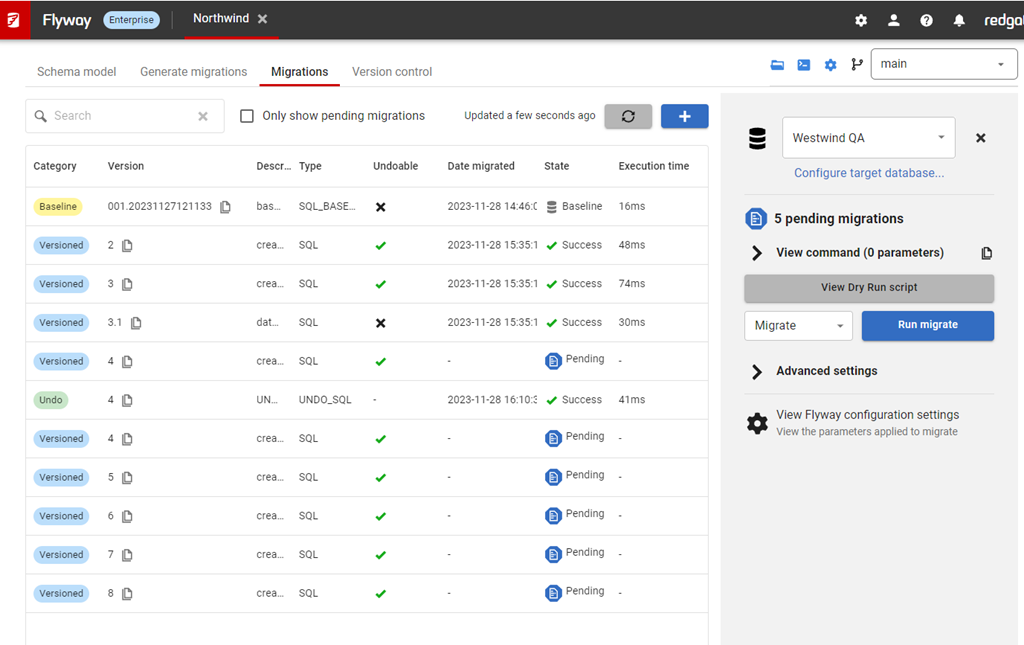
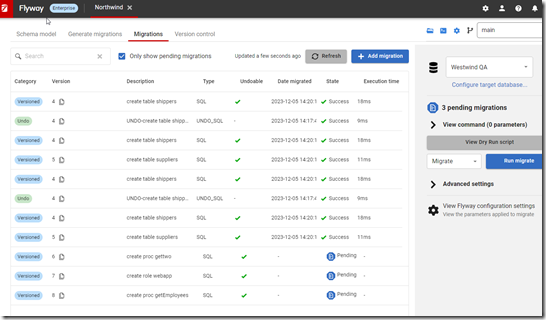
    I’ve got a FWD project here, and you can see the migrations below. In this case, I’ve selected a target of my QA machine and we can see that I have migrations applied up to 3.1 and there are pending migrations from 4-8 (ignore the undo).

    2023-12-05 14_07_37-Flyway Desktop

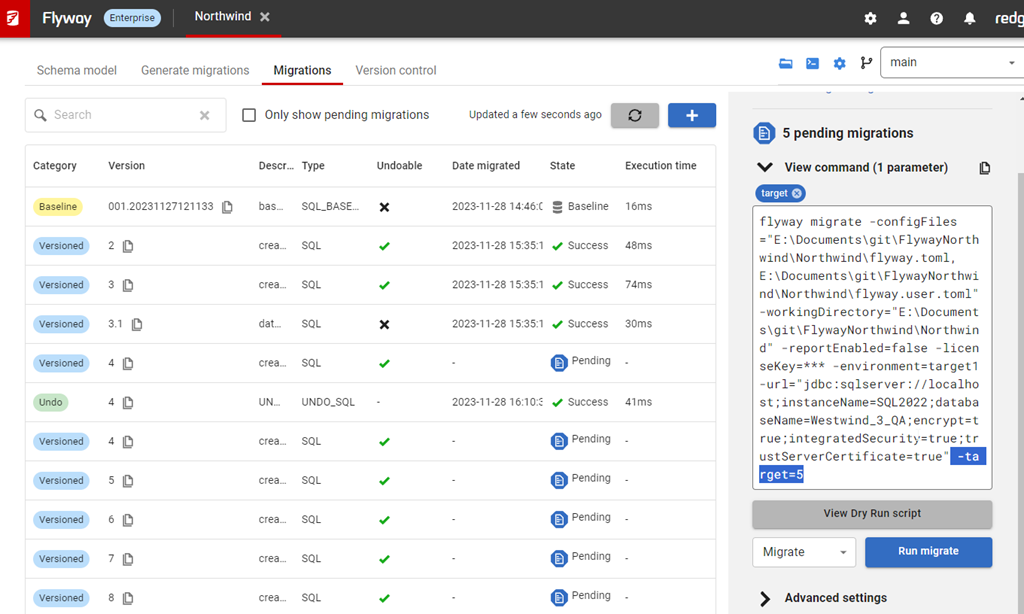
    Now, I want to migrate QA, but only to version 5. When I do this, from “Advanced Settings” on the right, I’ll see the target is listed as a parameter, and if I’ve highlighted the parameter on in the script.

    2023-12-05 14_10_13-Flyway Desktop

    I’ll run migrate, which works.

    2023-12-05 14_12_58-Flyway Desktop

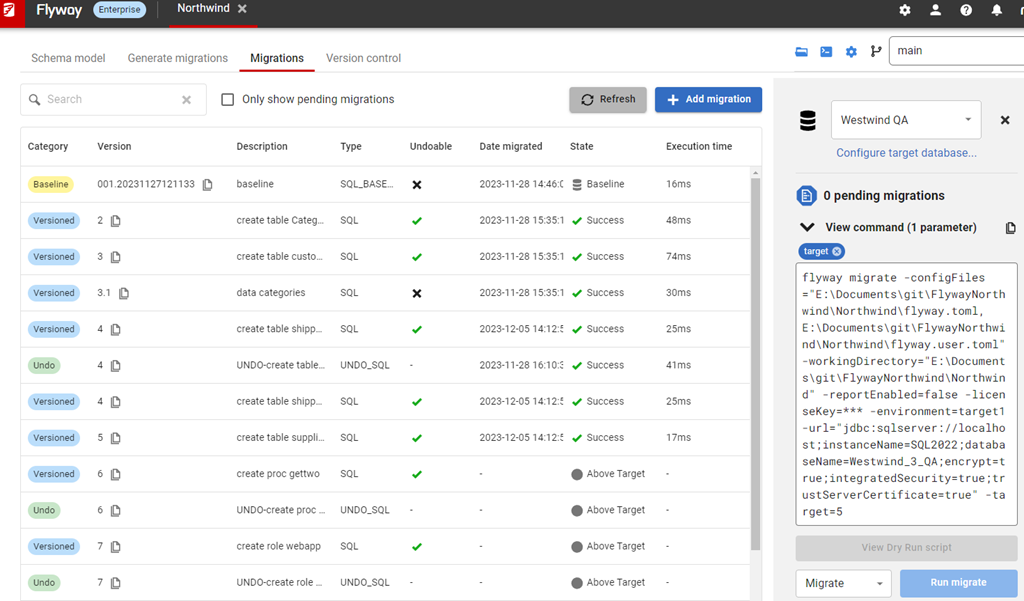
    When I close this, I now see a different view. I see success next to migrations 4 and 5, but I also now see “above target” listed for the other migrations.

    2023-12-05 14_13_14-Flyway Desktop

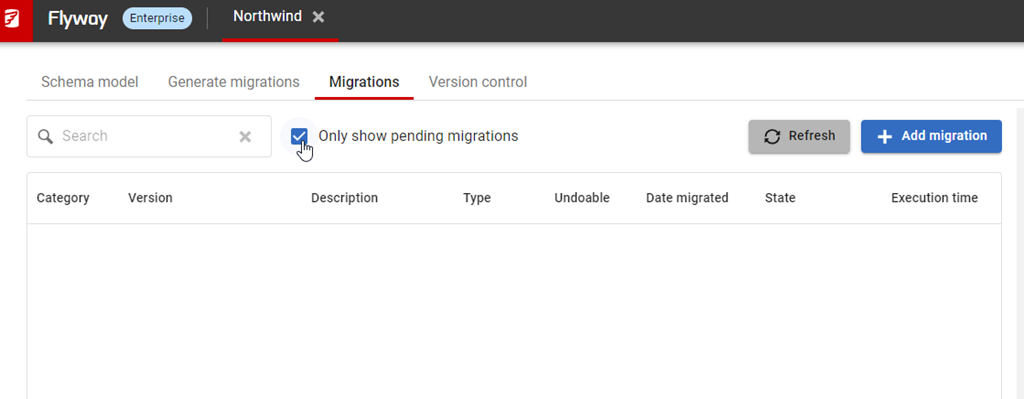
    That’s not great, for this reason. If I check the “only show pending migrations”, I lose all my migrations. In large, complex projects, this isn’t good.

    2023-12-05 14_14_55-Flyway Desktop

    Getting Pending Migrations Back

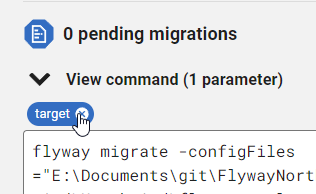
    The easy solution to this is to remove the target. If I click the “x” on the target parameters…

    2023-12-05 14_15_50-Flyway Desktop

    And then click Refresh at the top, I now see my migrations as pending.

    2023-12-05 14_16_00-Flyway Desktop

    Seems obvious, but I’d forgotten about the target as I was focused on testing the code I’d released and then wanted to release other code. Peter in support educated me on what I was missing.

    Try it out today. If you haven’t worked with Flyway Desktop, download it today. There is a free version that organizes migrations and paid versions with many more features.

    Video Walkthrough

    I made a quick video showing this as well. You can watch it below, or check out all the Flyway videos I’ve added:
     

  • Creating a Scripts Folder in SQL Compare

    While I was at a conference recently, someone asked me about the Scripts Folder feature in SQL Compare and how to set that up. This post just looks at how to get SQL Compare to set up a Scripts folder on a machine.

    This is a part of a series of posts on SQL Compare on my blog. You can read other posts I’ve written by clicking the link.

    Getting Started

    I’ve got a D: drive on my machine that looks like this.

    2023-11-20 14_34_40-SanDisk500 (D_)

    I’m going to create a folder, called “Compare Script Folders”, which you can see is empty. This is where I’ll store the scripts for various databases.

    2023-11-20 14_35_29-Compare Script Folders

    I also have a couple databases I use to test things on a local instance. You can see below my “compare1” database has a few things in it.

    2023-11-20 14_49_17-googlemaps.sql - ARISTOTLE_SQL2022.way0utwest_dev (ARISTOTLE_Steve (53))_ - Micr

    Now, I want to get a text copy of my schema from SQL Compare that I can use to check for changes, so let’s do that.

    Creating a Scripts Folder

    In order to create a scripts folder, I need to run SQL Compare. Once I do that, I see a screen like that shown below.

    2023-11-20 14_51_31-SQL Compare

    By default, SQL Compare looks to compare two databases. However, I can change the source. If I click the drop down next to Source, I see all of the options I have available. One of these is Scripts folder, which I’ll select.

    2023-11-20 14_51_41-(local)_SQL2017.SimpleTalk_1_Dev v localhost.SimpleTalk_1_Dev.scp

    Once I do this, my dialog changes. Now, I have the ability to compare a Scripts folder to a database. How do I get the Scripts folder? I click the Create link shown below.

    2023-11-20 14_51_49-(local)_SQL2017.SimpleTalk_1_Dev v localhost.SimpleTalk_1_Dev.scp_

    I missed this a few times, so that’s part of why I wrote this post. Once I click that, I get a new dialog. This is the one that let’s me choose the way I want to create the folder.

    2023-11-20 14_52_30-Create new scripts folder

    Just like the comparison, I have a number of choices for the source. I can use various items, but in my case, I’ll choose database.

    2023-11-20 14_52_02-(local)_SQL2017.SimpleTalk_1_Dev v localhost.SimpleTalk_1_Dev.scp_

    Once I do this, I enter the credentials to access the database. Note that I’ve clicked “Trust”, which is required for all modern versions of SQL Server. I have also selected the new folder I created.

    2023-11-20 14_52_30-Create new scripts folder

    Once I click Create, the engine will start to script out my database into separate files. This is the same process used when running a comparison, but in this case the results are just output to files rather than held in memory to compare with another set of objects.

    2023-11-20 14_52_38-Creating scripts folder - Completed

    Once the comparison completes, I see a new folder created below the folder that was in my dialog.

    2023-11-20 14_52_54-Compare Script Folders

    Inside this folder are all my objects, separated into different folders, which is the SQL Compare structure. This is the same structure used in SQL Source Control and Flyway.

    2023-11-20 14_53_09-Tables

    Now I can use this as the basis for a source or target against another source or target in SQL Compare.

    If you want to do this from the menu, there’s also an item in the File menu to get the Create Scripts folder dialog.

    2023-11-20 15_04_12-SQL Compare

    SQL Compare is a fantastic product for simplifying work and it does so much more than this. Give it a try if you own it or download an evaluation today.

  • Friday Flyway Tips–Deploying Migrations with a Target

    Recently I was working with Flyway Desktop (FWD) and helping a customer work on deploying part of their work. They weren’t sure how easy this could be, but this post follows what I showed them.

    Using the ability to run Flyway commands in FWD, we can deploy some migrations and not others. This post shows how to configure this.

    I’ve been working with Flyway Desktop for work more and more as we transition from older SSMS plugins to the standalone tool. This series looks at some tips I’ve gotten along the way.

    Picking Migrations

    I’ve got a FWD project here, and you can see the migrations below. In this case, I’ve selected a target of my QA machine and we can see that I have migrations applied up to 5 and there are pending migrations from 6-8 (ignore the undo).

    2023-12-05 15_07_27-Flyway Desktop

    If I want to apply migration 6, but not 8, I can do that. First, I’ll click the Advanced settings on the right side. When I do that, I see text with a “add parameters” button.

    2023-12-05 15_08_15-Flyway Desktop

    If I click the Add parameters button, I get a drop down that is searchable.

    2023-12-05 15_08_58-Flyway Desktop

    I can start typing “ta” in here and you see matching items. “Target” is the last one and this is the parameter that you want.

    2023-12-05 15_09_06-Flyway Desktop

    The value of the target is the last migration you want to run. In this case, I can pick 6 and it will run only migration 6. If I pick 7, it will run 6 and 7.

    2023-12-05 15_09_15-Flyway Desktop

    Once I do this, I can click back (or add more parameters) and on the main screen I see that target is in blue, as a parameter added. In the command text box, I’ve highlighted this command as added to the CLI.

    Note: This text is what you could run in a CI system or at a cmd/shell .prompt

    2023-12-05 15_09_38-Flyway Desktop

    When I click migrate, the command is run and I get output about which migrations ran.

    2023-12-05 15_12_16-Flyway Desktop

    If I close this, then I see 6 is successfully applied (after unchecking only show pending) and 7 and 8 are above target. In another post, I’ll explain those.

    Try Flyway Desktop out today. If you haven’t worked with Flyway Desktop, download it today. There is a free version that organizes migrations and paid versions with many more features.

    Video Walkthrough

    I made a quick video showing this as well. You can watch it below, or check out all the Flyway videos I’ve added:

  • Clearing Intellisense in SQL Prompt

    I got this question from an account rep: if a customer is using SQL Prompt and a snippet, for example AT, that was also used as an alias, is there a way to avoid it triggering the snippet or do they just avoid hitting the tab key?

    It’s a good question. Let’s see how to deal with this.

    This is part of a series of posts on SQL Prompt. You can see all my posts on SQL Prompt under that tag.

    The Scenario

    Say I have this code:

    2023-12-01 16_36_26-SQLQuery1.sql - ARISTOTLE_SQL2022.sandbox (ARISTOTLE_Steve (80))_ - Microsoft SQ

    Notice I have an alias that is the same as a snippet, in this case AT. Seeing this pop up is annoying, but there are ways to avoid getting concerned about this.

    First, the Esc key will get rid of the intellisense popup. Pressing escape at this point brings me back to this:

    2023-12-01 16_36_18-SQLQuery1.sql - ARISTOTLE_SQL2022.sandbox (ARISTOTLE_Steve (80))_ - Microsoft SQ

    My other option is to type a ., essentially keep typing. If I do that, I get this:

    2023-12-01 16_39_10-SQLQuery1.sql - ARISTOTLE_SQL2022.sandbox (ARISTOTLE_Steve (80))_ - Microsoft SQ

    The same thing if I had a longer alias. Here I’ve added 2 characters, but if I type the 3rd, the snippet goes away and I get the table. I could hit tab here to fill this in or type the s.

    2023-12-01 16_39_32-ObjectDefinitionBox

    The other thing to do is raise the time for intellisense if it’s popping up too quickly and annoying you. I don’t know the default (nor do I want to reset lots of stuff), but here I’d set it to 100ms, which is a nice delay for me. I find 500 too long. Of course, you can CTRL+space to pop it open.

    2023-12-01 16_41_10-SQL Prompt – Options

    If you haven’t tried SQL Prompt, download the eval and give it a try. I think you’ll find this is one of the best tools to increase your productivity writing SQL.

    Video Walkthrough

    I made a video of getting rid of intellisense. You can also see all my SQL Prompt Tips.