Tag: Redgate

  • Friday Flyway Tips–Comparison Options

    Recently a customer asked how they could get index changes to be captured in Flyway Desktop. In their case, they wanted a different fill factor, but I decided to investigate a bit more how things work.

    This post looks at how to control the comparison options in Flyway Desktop (FWD).

    I’ve been working with Flyway Desktop for work more and more as we transition from older SSMS plugins to the standalone tool. This series looks at some tips I’ve gotten along the way.

    The Setup

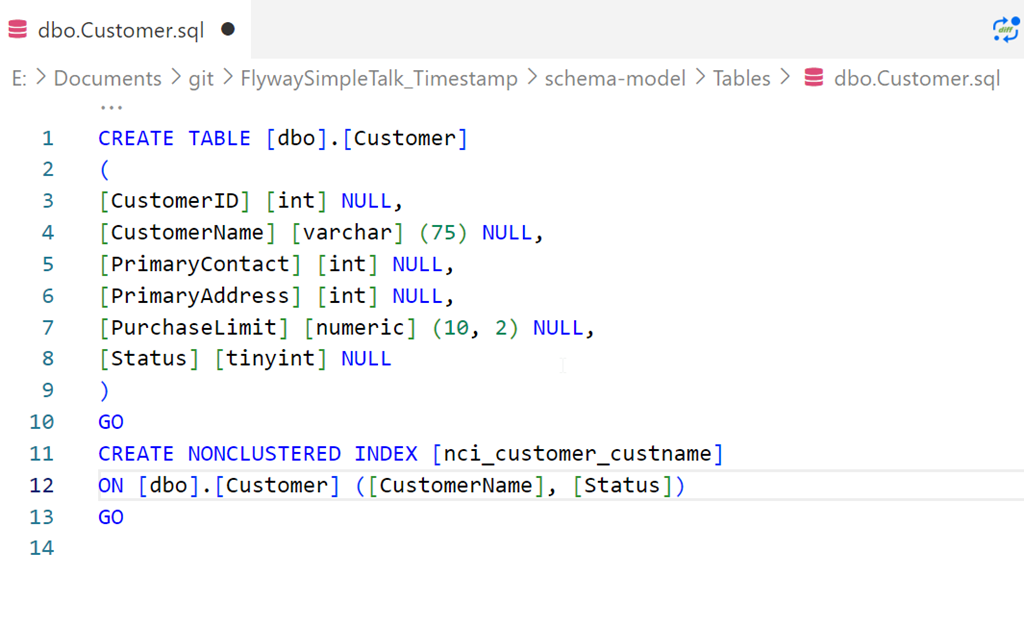
    I’ve got a table and an index, which I created with this script.

    CREATE TABLE [dbo].[Customer]
    (
    [CustomerID] [int] NULL,
    [CustomerName] [varchar] (75) NULL,
    [PrimaryContact] [int] NULL,
    [PrimaryAddress] [int] NULL,
    [PurchaseLimit] [numeric] (10, 2) NULL,
    [Status] [tinyint] NULL
    )
    GO
    CREATE NONCLUSTERED INDEX [nci_customer_custname] ON [dbo].[Customer] ([CustomerName], [Status])
    GO

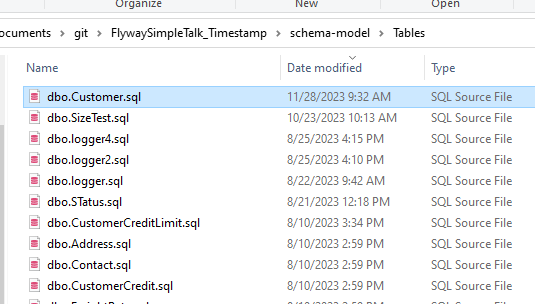
    I saved this in Flyway Desktop, which we can see here in the filesystem:

    2023-11-28 09_48_55-Window

    and here in VS Code.

    2023-11-28 09_52_32-Window

    If I refresh the schema model tab in FWD, there are no changes.

    Making Index Changes

    I’m going to alter this index. Specifically, I’m changing the pad index, fill factor, and statistics options. Here’s the script I’ll run.

    ALTER INDEX [nci_customer_custname] ON [dbo].[Customer] 
    REBUILD PARTITION = ALL 
    WITH (PAD_INDEX = ON, STATISTICS_NORECOMPUTE = ON, SORT_IN_TEMPDB = ON, ONLINE = OFF, 
           ALLOW_ROW_LOCKS = ON, ALLOW_PAGE_LOCKS = ON, FILLFACTOR = 80)
    

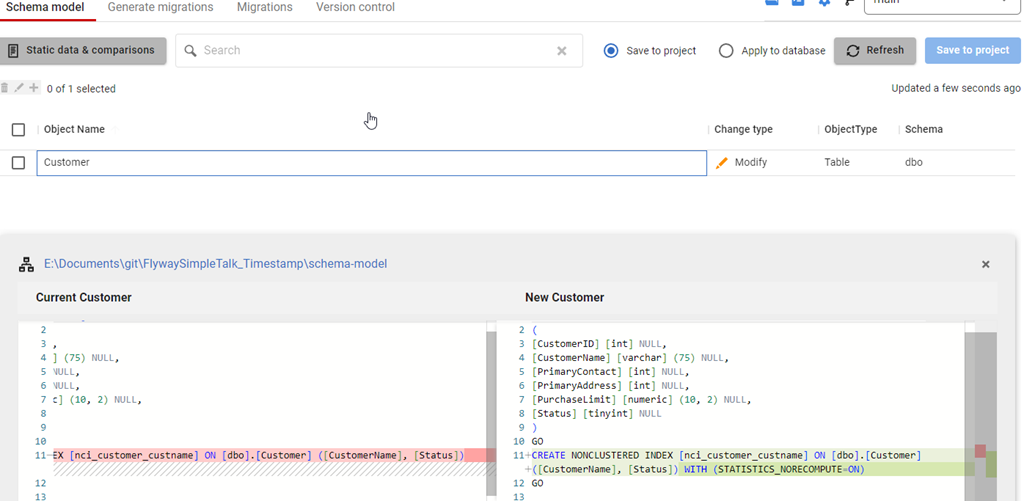
    Once this runs, I’ll refresh FWD and I see this. Note that I see an index change, but only one option is captured: STATISTICS_NORECOMPUTE.

    2023-11-28 09_54_21-Window

    What’s happening is that FWD is using the SQL Compare engine and the default options set in the engine. Among these are to ignore fill factor and pad index. However, I can change this.

    Changing Configuration

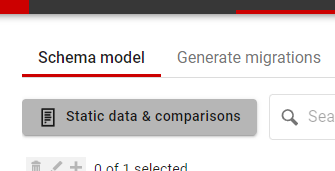
    In the past, I would need to edit a config file to make this change, but the team has enhanced FWD to add new options. In this case, notice the button near the top of the Schema model tab: Static data & comparisons. Not a great name, but it’s there:

    2023-11-28 09_56_31-Window

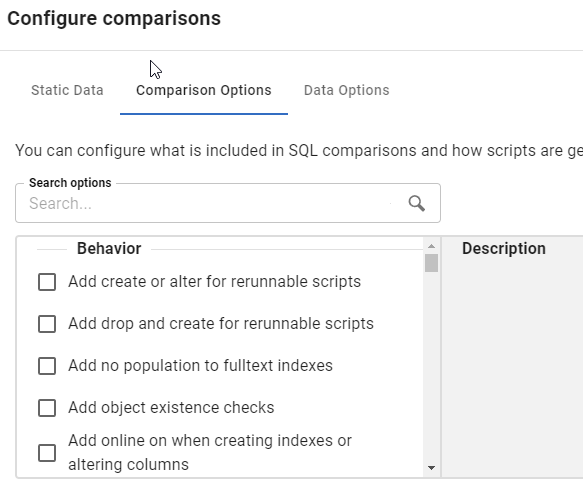
    Once I click that, I get a new dialog. This starts with static data, but I’ll click the second tab, which is Configure comparisons. This shows all the options available in the Compare engine

    2023-11-28 09_56_37-Window

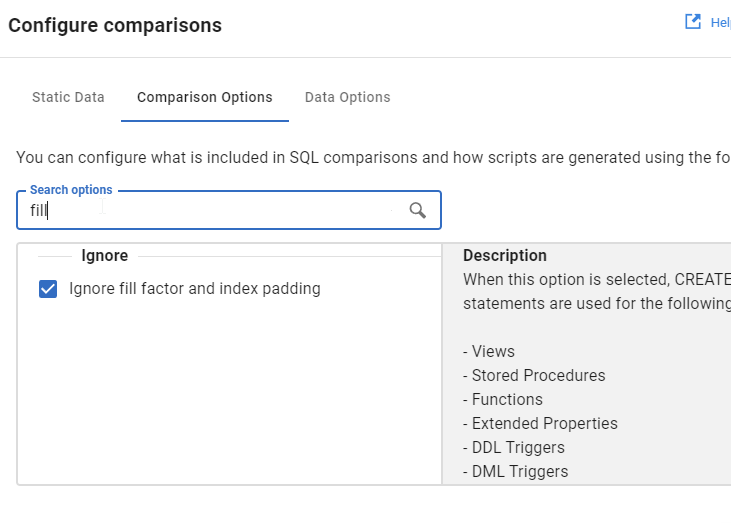
    Rather than scroll, I’ll type in the search box, and I see fill gets me the “Ignore fill factor and index padding” option.

    2023-11-28 09_56_42-Window

    I’ll uncheck this and click OK.

    Once I do that, I’ll refresh the comparison, and now I see my options.

    2023-11-28 09_58_46-Window

    Try it out today. If you haven’t worked with Flyway Desktop, download it today. There is a free version that organizes migrations and paid versions with many more features.

    Video Walkthrough

    I made a quick video showing this as well. You can watch it below, or check out all the Flyway videos I’ve added:

  • SQL Prompt Tips–Using $surroundtext$ in a Snippet

    A user on the SQL Community Slack was asking about what the $surroundtext$ variable. This post looks at how this can be used in snippets.

    This is part of a series of posts on SQL Prompt. You can see all my posts on SQL Prompt under that tag.

    A Scenario

    I find that I want to convert some inline SQL to a stored procedure. We have a lot of code in an application that looks like this:

    SELECT 
         SUM(sod.OrderQty) OVER(ORDER BY sod.SalesOrderID, sod.ProductID) AS Total
      FROM Sales.SalesOrderDetail AS sod
      WHERE sod.ProductID = <somevalue>

    The application replaces <somevalue> with an actual value and runs this code. This potentially is a SQL Injection vector, but this also isn’t easily tuned on the server, and can get copied and pasted into different places in the code. It would be better to have this as a stored procedure.

    Make the Conversion Easy

    To make this a stored procedure, I would want this query to look like this:

    CREATE PROCEDURE dbo.GetGroupedSales
         @Id INT
    AS
    BEGIN
    SELECT 
         SUM(sod.OrderQty) OVER(ORDER BY sod.SalesOrderID, sod.ProductID) AS Total
      FROM Sales.SalesOrderDetail AS sod
      WHERE sod.ProductID = @id
    
    END

    I can create a snippet that looks like the skeleton of a stored procedure with this code:

    create procedure $procname$
    $param1$ $paramdt$
    as
    begin
    $SELECTEDTEXT$
    end
    go

    I’ve got a screenshot of this below, showing some default values for the various parameters. This makes it easy for me to build a proc. However, there is one variable that isn’t in the list: $SELECTEDTEXT$.

    This variable will take any text that is selected in SSMS (or VS) and put it inside of the snippet in that location specified.  That will help us wrap our query with the other code in the snippet.

    Here is my snippet:

    2023-11-10 14_17_05-SQL Prompt - Edit Snippet

    Using the Snippet

    Let’s see this in action. In SSMS, I have highlighted my query.Notice the little Prompt popup near the cursor.

    2023-11-10 14_23_22-SQLQuery2.sql - ARISTOTLE_SQL2022.AdventureWorks2017 (ARISTOTLE_Steve (71))_ - M

    When I see this, I can hit the CTRL key and I’ll get a drop down list. I will type “mp” which is my snippet code.

    2023-11-10 14_23_29-SQLQuery2.sql - ARISTOTLE_SQL2022.AdventureWorks2017 (ARISTOTLE_Steve (71))_ - M

    This finds my snippet. I can hit Tab and my snippet is inserted, with my default variable values and also the text I selected in the place where $SELECTEDTEXT$ was in the snippet.

    2023-11-10 14_23_58-SQLQuery2.sql - ARISTOTLE_SQL2022.AdventureWorks2017 (ARISTOTLE_Steve (71))_ - M

    Now like any other snippet, I can tab between the variables and change them. When I’m done, I hit Enter and I have my code.

    Now I just need to save this in version control and deploy it to my production system.

    If you haven’t tried SQL Prompt, download the eval and give it a try. I think you’ll find this is one of the best tools to increase your productivity writing SQL.

    Video Walkthrough

    I made a video of using $surroundtext$ that you can watch. All my SQL Prompt tips are in this playlist.


  • Deploying Indexes with SQL Compare

    I suspect many people assume this is the case, but a customer recently asked if SQL Compare handles indexes. It does, and this post shows the basics of index comparisons with no filters.

    This is a part of a series of posts on SQL Compare on my blog. You can read other posts I’ve written by clicking the link.

    The Setup

    I have two databases that are completely synced from a schema perspective.

    2023-10-30 13_56_53-SQL Compare - E__Documents_SQL Compare_SharedProjects_(local)_SQL2017.SimpleTalk

    I’ll now create an index in Compare1. This is a simple index on a single table. I use this code:

    CREATE INDEX IDX_mychar ON dbo.MyTable (Mychar)

    Once I refresh the compare, I see this. Note that I’ve selected the table that has a difference and it shows the new index. This bottom left shows the scripted version of the code I ran above.

    2023-10-30 13_58_13-SQL Compare - E__Documents_SQL Compare_SharedProjects_(local)_SQL2017.SimpleTalk

    If I create the deployment script, I see the index in it, as shown here:

    2023-10-30 13_59_03-Deployment

    By default, SQL Compare includes almost all objects and that includes indexes. There are options to change the behavior with indexes, and I’ll cover those in future posts. You can also set a filter that might exclude indexes (or include those), but those are also future posts.

    SQL Compare is a fantastic product for simplifying work and it does so much more than this. Give it a try if you own it or download an evaluation today.
  • Friday Flyway Tips – Adding the Type of Database Project

    There was an update to Flyway Desktop which lets you see the type of database your project is associated with, and this post shows how to get this in your list of projects.

    As an example, you can see below my first project is a “SQL Server” project.

    2023-11-07 09_27_18-Flyway Desktop

    I’ve been working with Flyway Desktop for work more and more as we transition from older SSMS plugins to the standalone tool. This series looks at some tips I’ve gotten along the way.

    Two Simple Steps

    The first step to seeing the type of database project is to upgrade Flyway Desktop. The team is releasing basically every week. My version, upgraded before this post, is 6.9.3, so anything after this should have this capability.

    The second step is you need to open your project. If I open the “DBCode” project above, it starts the comparison.

    2023-11-07 09_28_51-Flyway Desktop

    I don’t have to wait for the comparison, I can just close the project. Once I do, the type of project appears on the right side.

    2023-11-07 09_29_57-Flyway Desktop

    If you’ve been working with Flyway Desktop for awhile, you might have noticed an “Upgrade project” in the upper right. This is to upgrade the project from a JSON format to a TOML format, which doesn’t matter for you, but it does make the management of the internals of Flyway and Flyway Desktop easier for the developers.

    In any case, you don’t need to upgrade the project. If I open and close a PostgreSQL project, I see this:

    2023-11-07 09_30_22-Flyway Desktop

    If I reopen the FWPoC_PostgreSQL project (named before this feature appeared), I see the upgrade is still there.

    2023-11-07 09_34_50-Flyway Desktop

    Try it out today. If you haven’t worked with Flyway Desktop, download it today. There is a free version that organizes migrations and paid versions with many more features.

    Video Walkthrough

    I made a quick video showing this as well. You can watch it below, or check out all the Flyway videos I’ve added: