Tag: Redgate

  • SQL in the City Comes Back to Seattle

    This year at the PASS Summit, Redgate is holding our SQL in the City Summit as one of the pre-con events at the conference. You can add this in as a part of your conference registration and come learn about DevOps and how to build the best software development process for your database. We’ll focus on the Redgate solutions, but our speakers will talk about the general practices and ideas as well.

    sitc-summit-social 1200x630- Seattle

    We’ll just give specific examples with the amazing Redgate Toolbelt tools.

    I’ll be there on Monday, Nov 4, for our SQL in the City and hopefully I’ll see a few of you there as well. Kendra and I also have a pre-con talk on Tuesday on development patterns, so you can add in both and spend two days with me.

  • Launching SQL Compare with Context

    Years ago Redgate Software started some work to link our tools together. I remember early efforts, about which I had dubious thoughts as to the value. I hadn’t looked at how the work had progressed until a little earlier this year, when I started examining in more detail some features I had missed.

    One of these is in SQL Source Control, as it relates to SQL Compare. I often don’t have SQL Compare running, but I will find places where I want to look at the quick differences between one database and another, or between the database I’m working on and source control. While I can easily launch SQL Compare, or find a project with that is set up, it’s slightly annoying to have to find a file or create a new project and load a context.

    Much easier to use SQL Source Control.

    The Product Menu

    In SQL Source Control, there is a Redgate icon in the upper left corner. When I’m working in SSMS, I can quickly switch over to the SQL Source Control (SOC) tab and click the icon.
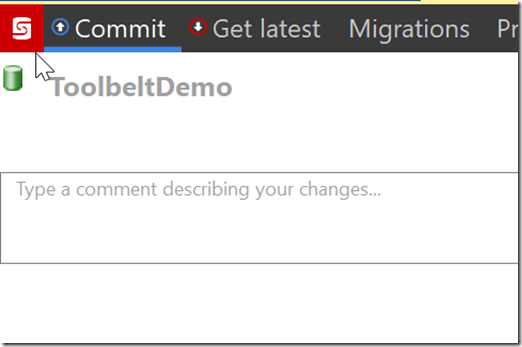
    2019-09-04 17_50_14-SQL Source Control - Microsoft SQL Server Management Studio

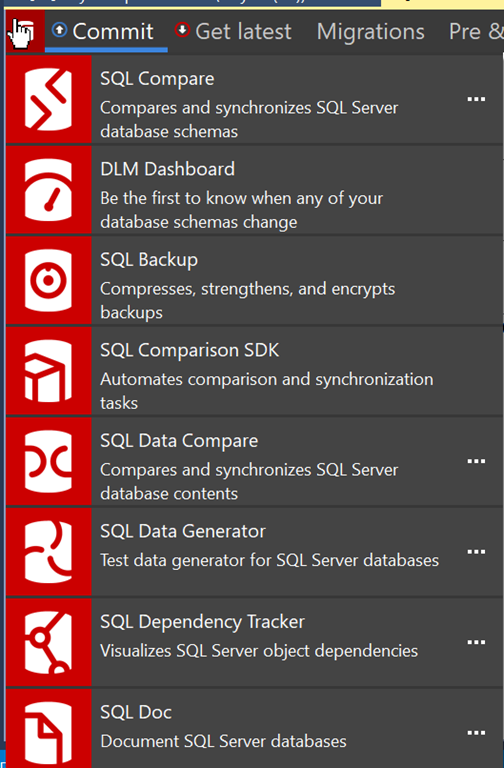
    This will open a long menu, with a list of my Redgate tools. SQL Compare is at the top, and all other tools listed below.
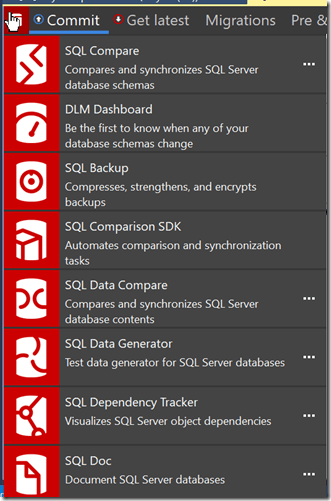
    2019-09-04 17_50_21-

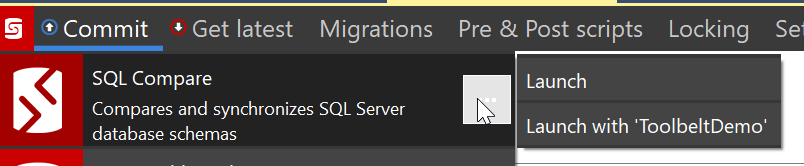
    If I click the ellipsis in the SQL Compare pane, I’ll get a couple of options.
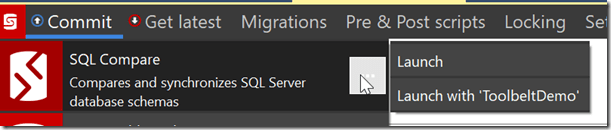
    2019-09-04 17_50_32-SQL Source Control - Microsoft SQL Server Management Studio

    If you don’t see these options, then the database you’re working on isn’t linked to a VCS. That’s a separate problem.

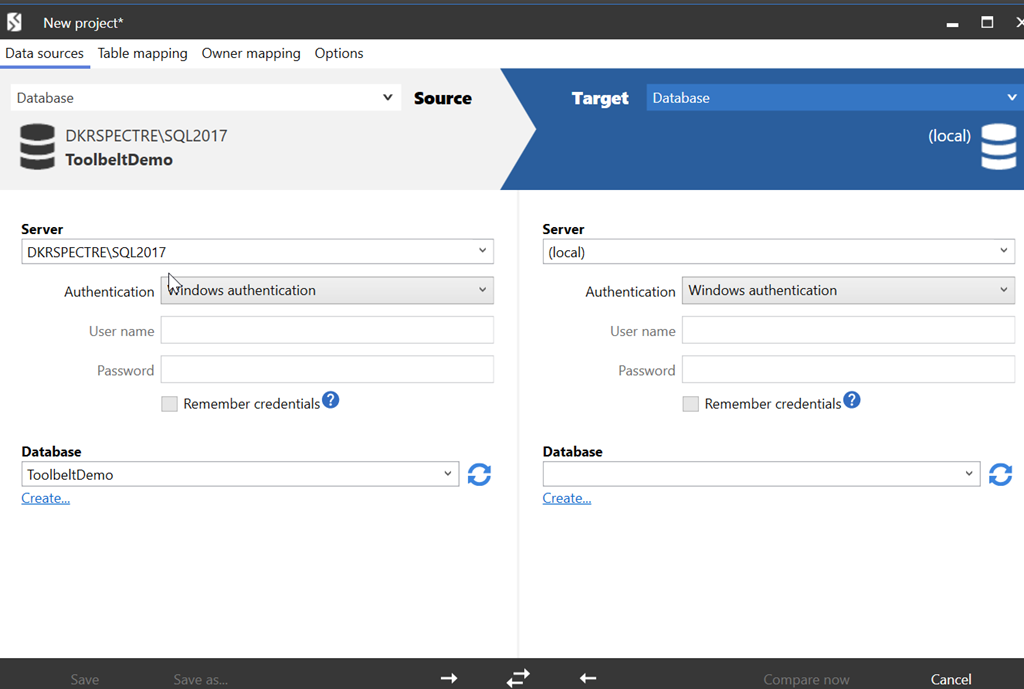
    This feature, however, is designed to fit into our DevOps solution, bringing the tools together for those people that are working inside of the Redgate process. In this process, I can quickly launch many of the tools with context. When I click the “Launch with ‘ToolbeltDemo’, I see this when Compare opens.
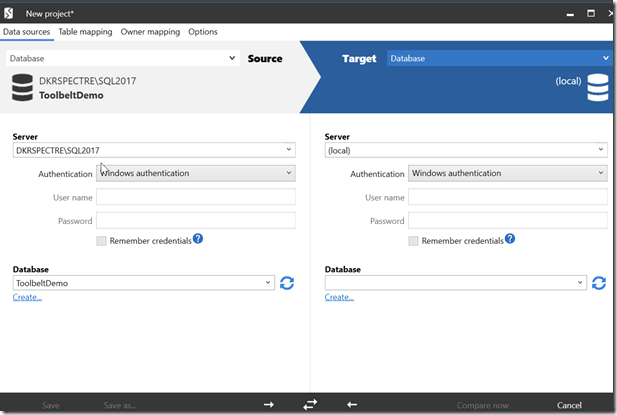
    2019-09-04 17_54_03-New project_

    My current database is listed on the left. I can then pick a database on the right, or a backup, project, etc., and run the comparison.

    A minor time saver, but a nice touch that eases my mental focus. If I continue to work, or check something while I wait for SQL Compare to launch, I know when I come back that half the work is done.

    You can launch other products as well, in a similar manner, making your workflow move along a little smoother.

  • SQL in the City Back in London

    It’s just a couple weeks until the SQL in the City Summit comes back to London. This is our second Summit this year in London, and I’m honored to attend. This time we will be at the Prospero House, on Borough High Street in SE1 1GA.

    This time I get to run two keynotes, a first for me. I’ll open the day with the current state of Database DevOps and close things down with The Future of DevOps before a short happy hour. I’ll also be in the open space if you want to have a more private discussion.

    There are lots of great talks about different topics, including many of our lead developers. I’m excited as we have had, and will have, a few more products to show this time, so I’m excited.

    If you can make a day of learning and talking DevOps, register today and join us on the 25th of October.

  • Using SQL Dependency Tracker as a Picklist

    This is part of a demo series I did for a customer workshop. I’m adding a little more detail and explanation of the demos of products I gave.

    A long time ago Andy and I were chatting with the founder of Redgate. At the time SQL Compare use was growing and it was becoming one of the “must have” tools for any DBA. I suggested that having a separate way to getting just the dependencies for an object listed was a good idea. Redgate agreed and at some point SQL Dependency Tracker was released.

    This post looks at one of the main uses I’ve found for Dependency Tracker: a picklist of things to examine.

    Altering a Table

    One of the common things a developer might do is change a table. In my case, I’ll add a column to a table.

    2019-09-13 17_10_12-Window

    Once I do this, I might think I’ve fixed something, but what if there are dependencies? Could there be a view of other item I want to ensure gets changed? There might be. While I could run a query against sys.depends, that might not get me everything that I need.

    Dependency  Tracker fulfills a need here and can make this process smoother. I’ll flip over to my SQL Source Control tab and click the icon in the upper left. I can use this integrated menu to launch Dependency Tracker with context, in this case, the database in which I’m working.

    2019-09-13 17_11_27-Window

    When Dependency Tracker launches, it will build a project out from my database, including a diagram. While this looks great, I find the diagram hard to use and navigate, especially when I’m in an unfamiliar database.

    Maybe if Redgate bought me a 42” monitor for home, I’d feel differently (hint, hint).

    In any case, this is the basic Dependency Tracker view

    2019-09-13 18_03_05-Window

    To me, the best part of the tool is on the right side. Specifically, the middle and lower panes. If I click in the middle pane, I can see my objects listed.

    If I now start to type a table, say my “Articles” table, I can see the list of objects sorts down to matching items.

    2019-09-13 18_03_41-Window

    Nothing special here, but when I click on the object in the middle pane, the bottom pane fills. In this case, I see what items depend on my object.

    2019-09-13 18_03_45-Window

    This bottom pane is where I find value. This is my picklist of things to examine. I can click on one of the items, and then go back to SSMS and find that item in SQL Search. I can see if I need to do work.

    2019-09-13 18_03_52-Window

    When I’m done, I ALT+TAB back to the Dependency Tracker screen and down arrow to the next item. In this way, I can walk down a picklist and try to ensure I don’t miss any dependencies. If I change any object, I can double click on it in the “Dependencies” window in Dependency Tracker and see if there are lower dependencies on that object.

    2019-09-13 18_03_57-Window

    Keeping track of work and ensuring I catch everything that might be affected by a change is an area that many developers struggle to do well.

    Dependency Tracker is a great way of ensuring that you catch all the dependencies that might be affected by your database change.