Tag: Redgate

  • SQL in the City Summits coming this spring

    The SQL in the City Summits are back for 2019, and we’ve got more scheduled than every before. You can see the complete list on our event page, and I’m lucky to be invited to all of them. Here’s the schedule.

    London

    We kick off the year in London on April 30. Having been busy with volleyball all this year, my first weekend free is going to be heading back to London and helping kick off our 2019 tour.

    Tickets are on sale now, and if you use “SteveJones” as a code, you should get 50% off. Register today and I’ll see you at Canary Wharf.

    The US Tour

    It’s a short tour, but we’ll be back in the fall again, so if you’re not near one of these cities, you’ll still have a chance to attend. Use “SteveJones” as the code when you register for a ticket.

    We start on May 15 with SQL in the City Summit Los Angeles. I enjoy the city of Angels for a few day and I’m looking forward to coming back for an hour at Venice Beach. I’ll also be speaking, along with Kendra, our top engineer, Arneh, and the amazing Ike Ellis. It will be a great time, so brave the traffic and come see us at the Microsoft office in LA.

    Next we head to Austin, TX on May 22 for the next Summit. Austin is a great town, and full of SQL Server professionals. We came through here a few years ago and I’m looking forward to coming back. A quick trip for me as my daughter graduates this week, so I’m jetting back to Colorado after the event.

    SQL in the City Down Under

    Redgate recently opened an office in Australia and as part of our expansion, we’re doing a SQL in the City Tour in June. I’m very excited as I’ve never been to this part of the world, though this will be a long trip with some vacation taken to enjoy the trip.

    We start in Brisbane, on May 31 as the first stop. We coincide with SQL Saturday #838 – Brisbane on June 1, so be sure you register for both. Warwick Rudd, of SQL Masters Consulting, will be joining me to talk about Redgate and database DevOps. We also have Hamish Watson, Michael Noonan, and Dr. Greg Low joining us. A special thanks to Warwick for moving the SQL Saturday date to align here and help me out.

    Next I’m taking a few days off and making my way to Christchurch, NZ for our second event on June 7, with SQL Saturday #831 on June 8. Hamish Watson is an exciting speaker and he’ll be hosting us. Looking forward to a fun NZ winter, perhaps with some skiing before or after.

    We round out the tour in Melbourne on June 14, with SQL Saturday #865 on June 15. I’ve heard wonderful things about the city and I’m hoping I get to enjoy a little time there. If you say hi, let me know what you like to do around town.

    It’s going to be a hectic few months, but I’m looking forward to delivering some sessions and meeting some wonderful people to talk databases.

  • SQL Source Control and Bitbucket–Getting Started

    This is in response to someone asking about getting started with their database in SQL  Source Control and then hosting at BitBucket. I’m going to assume people can set up an account at Bitbucket and won’t cover that. Instead, this is part of a series that looks at getting a CI build working.

    I’m going to start showing how to get a git repo set up locally and connect a database to it with SQL Source Control in this post. I’ll then connect that to Bitbucket and move changes around. In a future post, we’ll see a CI build taking place from our Bitbucket repo.

    Linking SQL Source Control

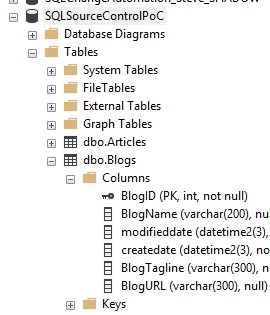
    I’ve got a test database set up on a SQL Server 2017 instance, called SQLSourceControlPoC. The script for that database is here: SOCPoC_Create.sql.

    2019-03-14 09_54_39-SQLQuery1.sql - Plato_SQL2017.SQLSourceControlPoC (PLATO_Steve (60)) - Microsoft

    The first step is to get a repository set up. You need to install git, which is easy. You can get a client tool, like SourceTree or Github Desktop for Windows, but I like the command line and I’ll use that.

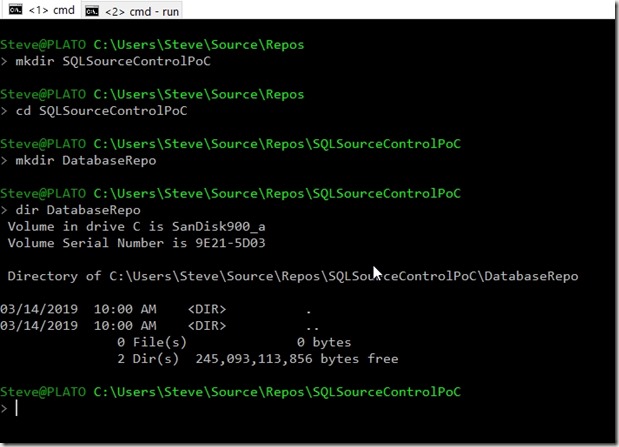
    On Windows machines, under your use account, you have a Source, and then a Repos set of folders. I’ll change to those in the command line. I’ll then create a folder, called “SQLSourceControlPoC”. I find it easy to keep the folder name the same as my project, which in this case is the database. I’ll create a folder under this to store my actual code.
    2019-03-14 10_00_50-cmd

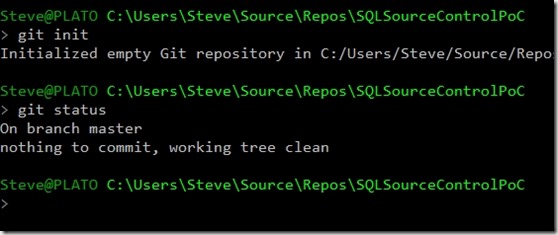
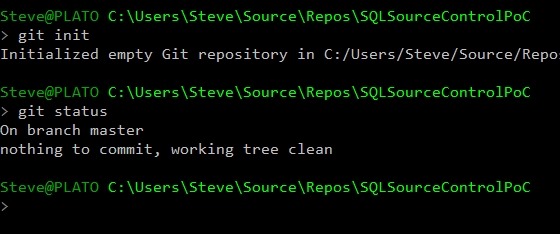
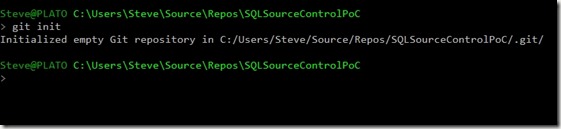
    Now I’ll set up a git repo, which I do with “git init” in the folder.
    2019-03-14 10_01_39-cmd

    That’s it. Now let’s start with SQL Source Control.

    I’m going to assume you have SQL Source Control installed already. If you don’t have that, download an eval and run the setup. From there, I can right click on the database name and select “Link database to source control”.
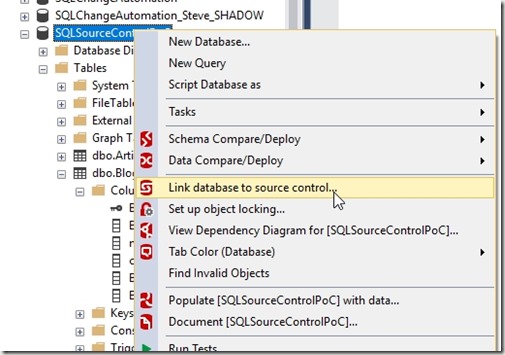
    2019-03-14 09_56_10-SQLQuery1.sql - Plato_SQL2017.SQLSourceControlPoC (PLATO_Steve (60)) - Microsoft

    This will open the SQL Source Control tab in SSMS. This shows my database name at the top, and since this database hasn’t been linked, we’ll start with the wizard for linking.

    2019-03-14 10_03_26-SQL Source Control - Microsoft SQL Server Management Studio

    We set up a git repo already, so we’ll leave the top item checked. We click Next and get a dialog that asks which VCS and where is our repo. I’ll select git and browse to the location where I created the repo.

    Note, I’ve specified the subdirectory. I like a subdirectory as this allows me to place other code in the repo if I need it (like notes, readme, etc.) and keep the database code from SQL Source Control clean.

    2019-03-14 10_04_41-Link to source control

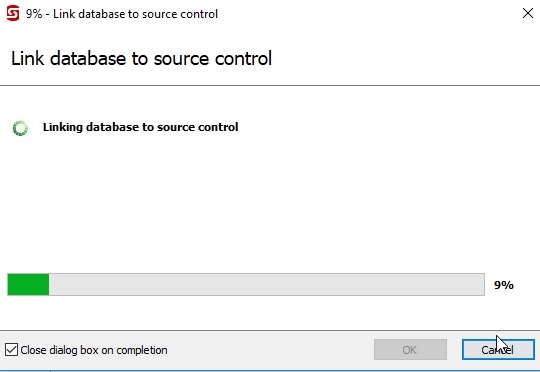
    When I click link, I get a progress bar.

    2019-03-14 10_06_15-Link to source control

    When that finishes, I get the Setup tab, which shows me the configuration and gives me some options.
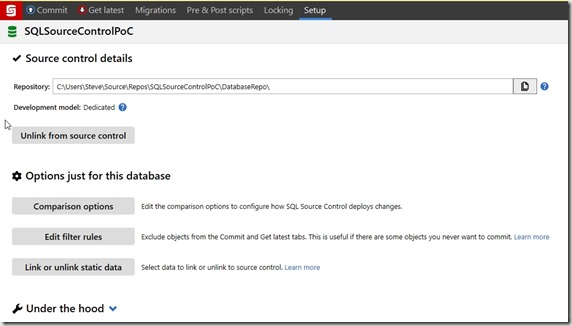
    2019-03-14 10_07_47-SQL Source Control - Microsoft SQL Server Management Studio

    We can ignore this for now and select the “Commit” tab instead (top left). This will switch to that tab and look for changes in the database that aren’t stored in our version control system. Here’s our current VCS view:

    2019-03-14 10_09_10-DatabaseRepo

    We only have our SQL Source Control file. There are many more objects in the Commit tab, as we see below. SQL Source Control assumes the database is the source of truth here and tries to capture all changes.

    2019-03-14 10_12_35-SQL Source Control - Microsoft SQL Server Management Studio

    There’s a lot to see here, but we won’t dive into what’s here. There are other articles and posts on this. For this article, I’ll enter a commit message and click “Commit”. Once I do that, my VCS view changes.

    2019-03-14 10_17_19-DatabaseRepo

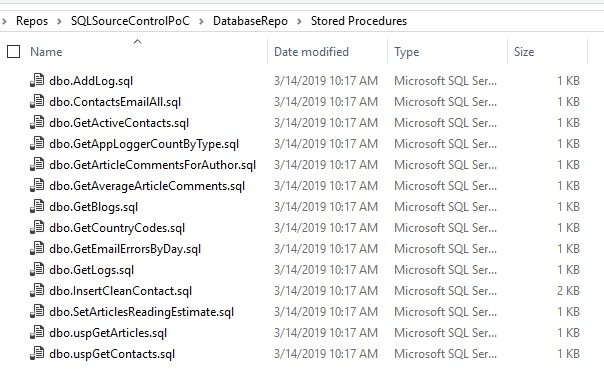
    SQL Source Control has created folders for my objects, with a separate file for each object below the folder. For example, the Tables folder looks like this:

    2019-03-14 10_19_28-Tables

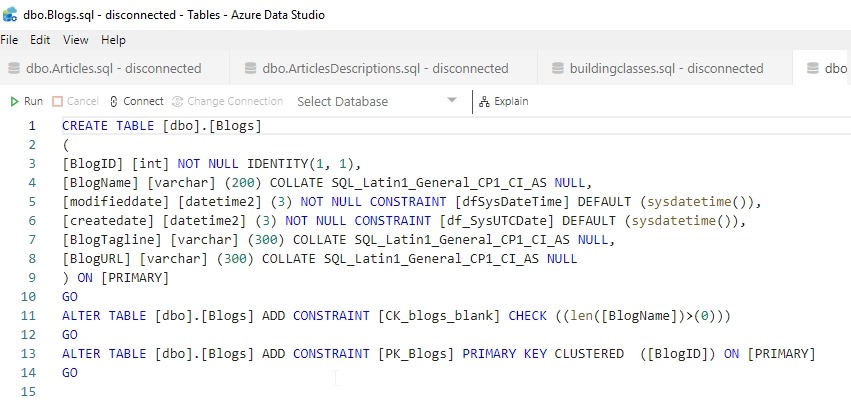
    The contents of the dbo.Blogs.sql file are shown here in Azure Data Studio.

    2019-03-14 10_19_57-dbo.Blogs.sql - disconnected - Tables - Azure Data Studio

    And my git status:

    2019-03-14 10_21_01-cmd

    We’ve gotten our code into a git repo, now let’s move on.

    Connecting to BitBucket

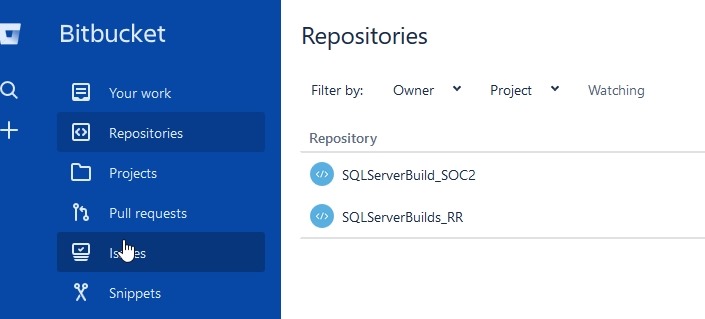
    I’m going to assume you have a Bitbucket account. If not, go do that. When you do, click your Repositories menu item, and you will get a list of repos. I have two already.

    2019-03-14 10_22_12-way0utwest _ home — Bitbucket

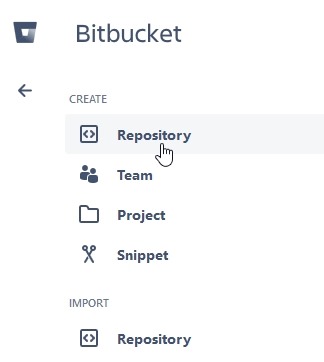
    In the mid left, there’s a plus (+) sign. Click that to get the add dialog.

    2019-03-14 10_22_22-way0utwest _ home — Bitbucket

    Pick repository and then you’ll enter some data. I chose a name that’s the same as my local repo to ensure some easy tracking. I made this public, so anyone can download my repo if they want to play with the code.

    Note: I’m not likely to accept and PRs.

    2019-03-14 10_22_58-Create a repository — Bitbucket

    Once I click Create repository, I get a welcome screen. In this case, I get some instructions, and the important ones are moving my local git repo here.
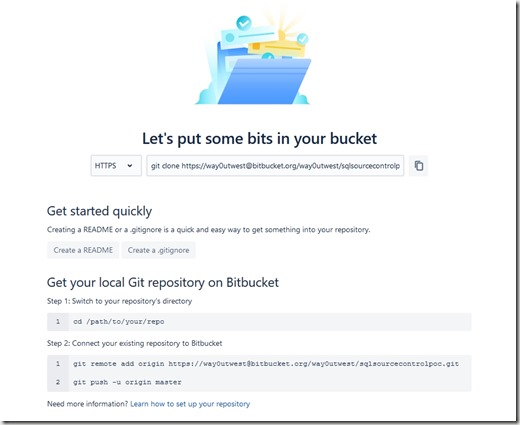
    2019-03-14 10_23_13-way0utwest _ sqlsourcecontrolpoc — Bitbucket

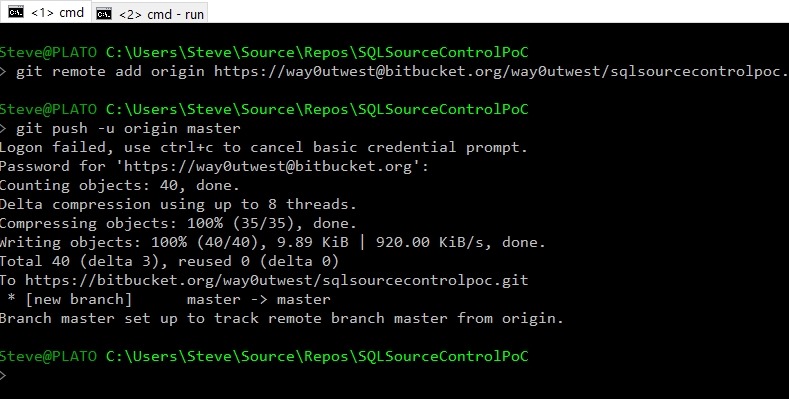
    Let’s do that. I’ll go back to my command line and enter the git remote command (from above) and then the git push. Note the authentication popup.

    2019-03-14 10_26_34-cmd - git  push -u origin master

    That failed for me, but when I went back to the command line, I entered my password again and it worked.

    2019-03-14 10_26_57-cmd

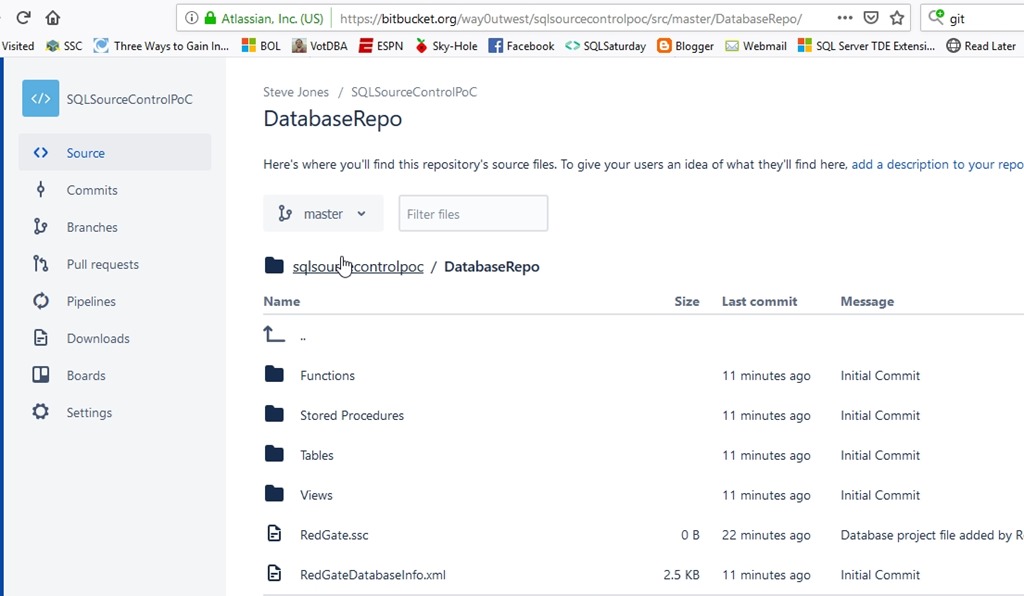
    Going back to Bitbucket and refreshing the Source tab, I see code.

    2019-03-14 10_28_34-way0utwest _ sqlsourcecontrolpoc _ DatabaseRepo — Bitbucket

    Right now I have code in a SQL Server database. This is linked to a local git repo on my desktop, which is linked to a remote git repo at Bitbucket.

    Making Changes

    One last thing is to make a change on the local database and get that to Bitbucket. Let’s do that. I’ll enter this code in SSMS:

    2019-03-14 10_31_58-SQLQuery1.sql - Plato_SQL2017.SQLSourceControlPoC (PLATO_Steve (60))_ - Microsof

    I execute this and I have a proc in my database, but this isn’t in git.
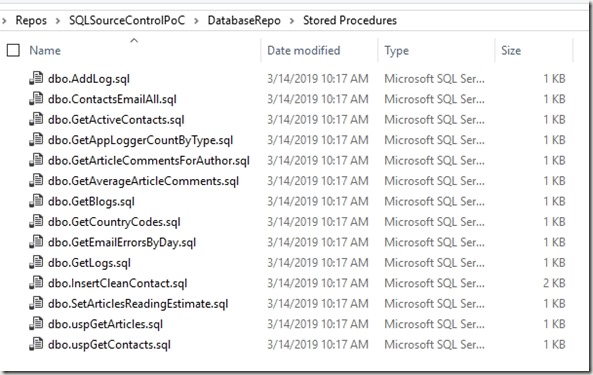
    2019-03-14 10_32_37-Stored Procedures

    If I go to the Commit tab in SQL Source Control, I see one change. I’ll check this in the lower windows to verify the code, select the item in the middle and enter a Commit message.
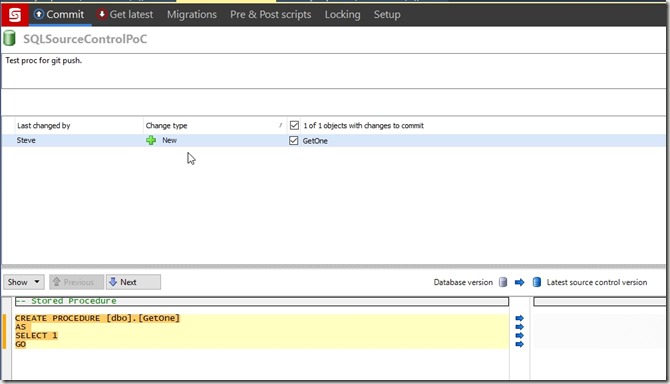
    2019-03-14 10_33_39-SQL Source Control - Microsoft SQL Server Management Studio

    Once the commit completes, the change is in my local repo, but not in Bitbucket. However, SQL Source Control gives me a “Push” button. If I click this, a git push will execute.

    2019-03-14 10_35_17-SQL Source Control - Microsoft SQL Server Management Studio

    Note: I had some authentication issues here. The push may or may not work, depending on how you have authorization set up for Bitbucket. I had to enter a username and password, which sometimes worked, sometimes didn’t. Performing a “git push” from the command line worked.

    In Bitbucket, I now see my procedure.

    2019-03-14 10_56_42-way0utwest _ sqlsourcecontrolpoc _ DatabaseRepo _ Stored Procedures — Bitbucket

    Summary

    This is a quick look at how to get my database code in to Bitbucket via SQL Source Control and git. This should help you begin to understand how to start enabling database development to follow what application developers do.

    I’ll work on getting a CI build in my next post. If you want to see a particular CI system, let me know.

  • Two Weeks to #sqlinthecity Streamed

    It’s just two weeks until the SQL in the City Streamed starts up again in 2019. I’m ready to travel to the UK and join Kendra, Grant, Kathi, and fellow Redgaters for a few hours of training and learning. We’ll be broadcasting live from the Redgate office, and I hope you’ll join us.

    I’ll be talking about culture and collaboration, while others will cover other Compliant Database DevOps topics. The schedule is out and it’s full of different talks that will help you get started with DevOps, improve your process, and convince your boss this is the way to build better database software.

    I hope you’ll join us for a few hours, take a break, and see how we can help you make database development just a little smoother.

    Register today, get a few friends together, and let’s talk DevOps.

  • Enter our Database #DevOps Contest

    Share your story and you could win. Enter as often as you like before Mar 20.

    https://www.red-gate.com/hub/entrypage/competition