Making changes on your own system for a SQL Change Automation project is great, but if you’re the only one using the project, it might feel like a lot of overhead. I’d argue it isn’t and it’s a better way of building software, but that’s a separate discussion.
For most of us, we need to get a good copy (and backup of code) as well as share this with others. In the previous article, I was making changes in my own SQL Change Automation project. I was committing these to a local git repo and now I want to put them into another place. This article will look at moving my repo to the cloud.
Enter Azure DevOps
I love Azure DevOps as a software development platform. It has everything I need, hundreds of extensions, and I can easily replace parts of it with other technology if I want. I could use my own git repo locally (or at BitBucket) and still build/release with Azure DevOps. I could use the Azure DevOps repos and build my software with Team City. Or release it with Octopus Deploy.
I have flexibility.
For me, I’m going to stick with Azure DevOps in this series, and I’ll show you how to add a project to Azure DevOps.
Sign In to Visual Studio
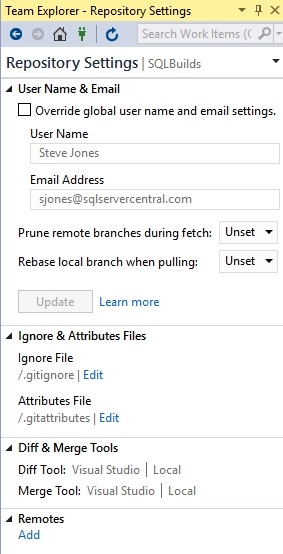
When I created this project, I used a git repo as the default from Visual Studio. However, as you can see, I didn’t add any remotes.
I did log into Visual Studio at some point when I started it, and since I’ve used this before, I have a number of connections to different services. You can see below my connections in Team Explorer.

If you go to dev.azure.com/name, you can see your organization. For me, this is https://dev.azure.com/SteveJonesRedgate/. When I log in, I see my organization, and a list of projects.
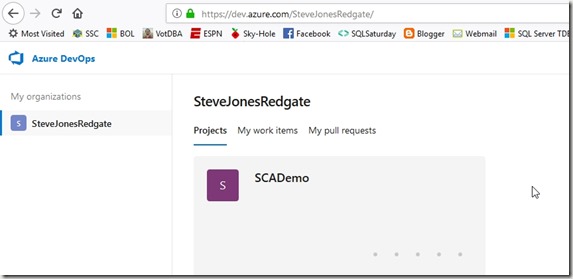
In the upper right is a “create project” button, and I’ll click that. When I do, I get a blade to enter some data. I can do that, and I’ll make this public, so anyone can see it.

The project is created, and I get a welcome screen. For now, let me ignore this and go back to Visual Studio. If I click the Sync item in Team Explorer, I’ll see this:

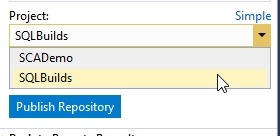
VS sees my account. If I click advanced, I can see the projects, and I’ll select the one I just created.
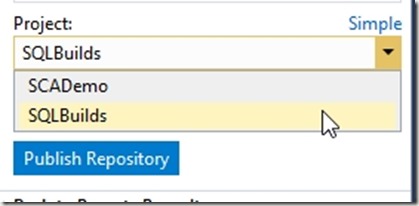
When I click publish, this moves the repo up to the web. If I return to my project online, I can click “Repos” and see the code.

This is the structure as my local VS project. If I had make a screen shot of the before, this would be an empty space online, with instructions for connecting local repos, adding files, and more.
A Backup Copy
From here, I can continue to do local development and push/pull as necessary between my local project and the online repo at Azure DevOps. I can set up branches and do more. This is also my backup in case my local storage crashes. From here I can pull down copies of my code if needed.
In the next article, we’ll look at how we get code from this repository onto another machine.