I’m late writing this, and I did mean to get to it earlier, but life got in the way.
TL;DR: It was a great event, lots of fun, and I’d love to do it again.
When I first heard of a SQL Saturday coming back to Richmond (from Carlos Chacon of the Richmond SQL Server Users Group at SQL in the City 2012 – Boston), I started making plans to attend. I used to work in Richmond, for Dominion Resources in the Innsbrook area, and have spent a good amount of time in the city.
The timing for Richmond was perfect, as Red Gate has been looking to experiment with some smaller events where we can teach people about SQL Server in The Red Gate Way. We decided to try this in Richmond, with Grant Fritchey, myself, and two of our salespeople flying into Richmond on Thursday night. I drove down from Washington D.C., arriving just in time to take a 30 minute walk around the Innsbrook area before delivering an encryption talk to the Richmond SQL Server User Group.
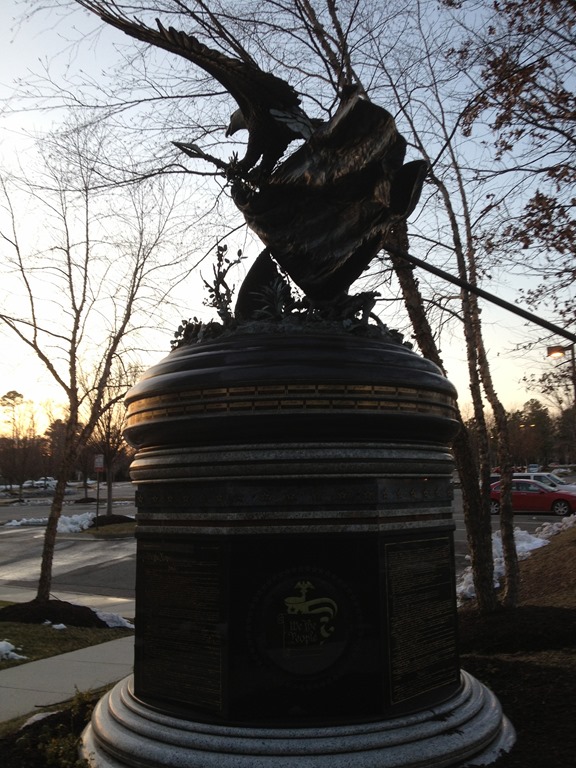
One of the things I loved about growing up in Virginia was all the history of the beginning of our country which is noted and celebrated there. This statue outside the user group building has the US Constitution engraved in it.

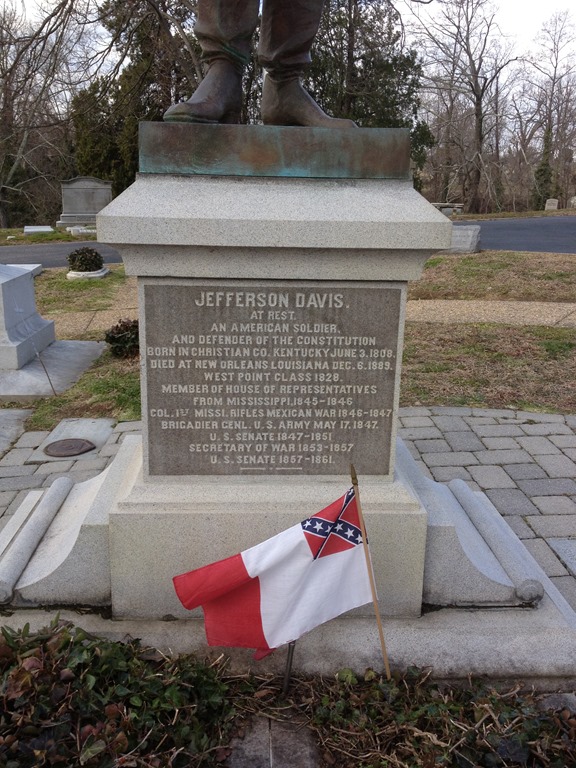
Friday had me up early, getting a little exercise before heading over to the Hollywood Cemetery with Grant Fritchey. We walked around for a half hour, seeing Jefferson Davis’ tomb along with many other famous Confederate resting places.

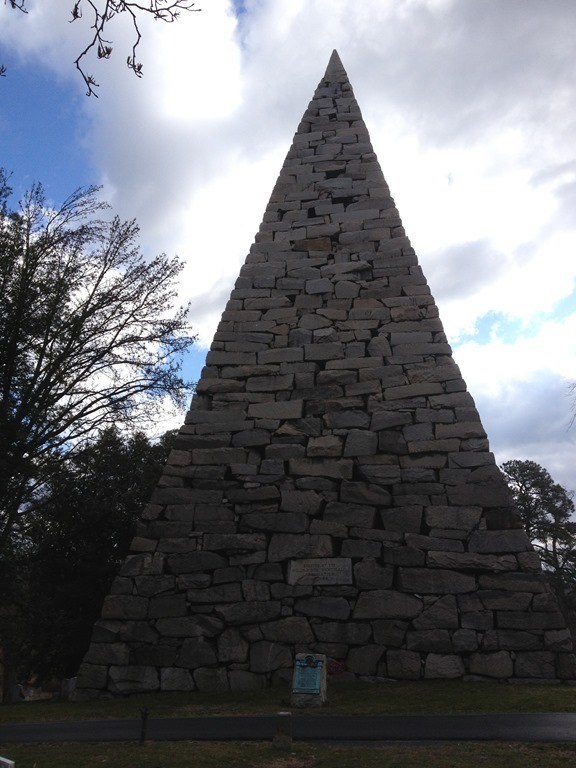
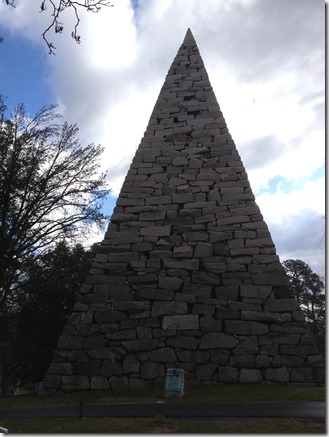
We also saw this amazing pyramid, seemingly constructed of loose stones. No mortar we could find.
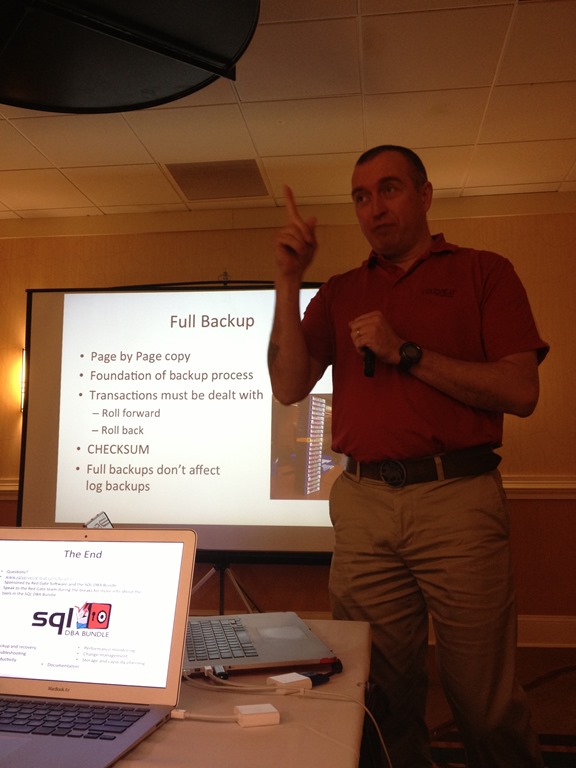
Afterwards it was prep time for our Micro Event with The DBA Team. This was a short, four hour event where Grant and I each presented two sessions. This was our experiment, designed to let us talk about technical talks and include information about how our tools help you solve problems.
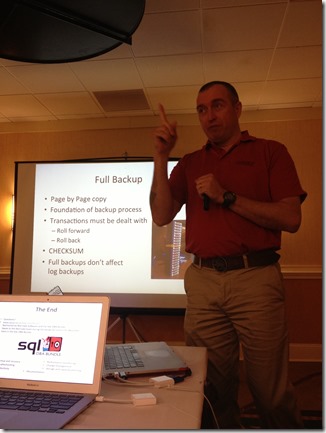
We talked about these topics, in a technology neutral way, but our demos included Red Gate products. This isn’t a sales talk, but really a way to educate and inform people about SQL Server topics, but we include our products in the demos to show how easy it can be to handle any of these items:
- backups
- monitoring
- indexing
- corruption
The event went well, and I’m hoping we try a few more of these at other events later in the year.
One interesting thing I learned was a number of people attending our event hadn’t heard about the SQL Saturday, as well as vice versa. Definitely we, and the events, need to market better. Somehow.
After a short happy hour, Grant and I drove over to the speaker’s dinner for SQL Saturday. This was a nice get together for speakers and volunteers at a local restaurant. We had the chance to catch up with quite a few people we hadn’t seen in a long time. I love having a few hours to chat and bond with the speakers and volunteers.
Note for all organizers: I appreciate the dinner, but I’d be happy with us just meeting in a room and each person paying their own way. The important thing is for us to get together and enjoy the company.
Saturday morning was a drive over to the University of Richmond. I’d never been there, and as we wound through large houses on big, treed lots, I wasn’t sure Google Maps had me going to the right place. It did, and we arrived at the campus, which was beautiful. Spread out, hidden in trees, brick buildings, an amazing location. I was reminded of the University of Virginia, which I attended.
The event was in the Science building, which had a large, open atrium. All the vendors were set up, and as usual, the rooms were spread out. That made for lots of traffic between sessions, but that’s not bad. I thought it was fairly easy to find all the rooms and plenty of people were willing to point those that looked lost in the right direction.
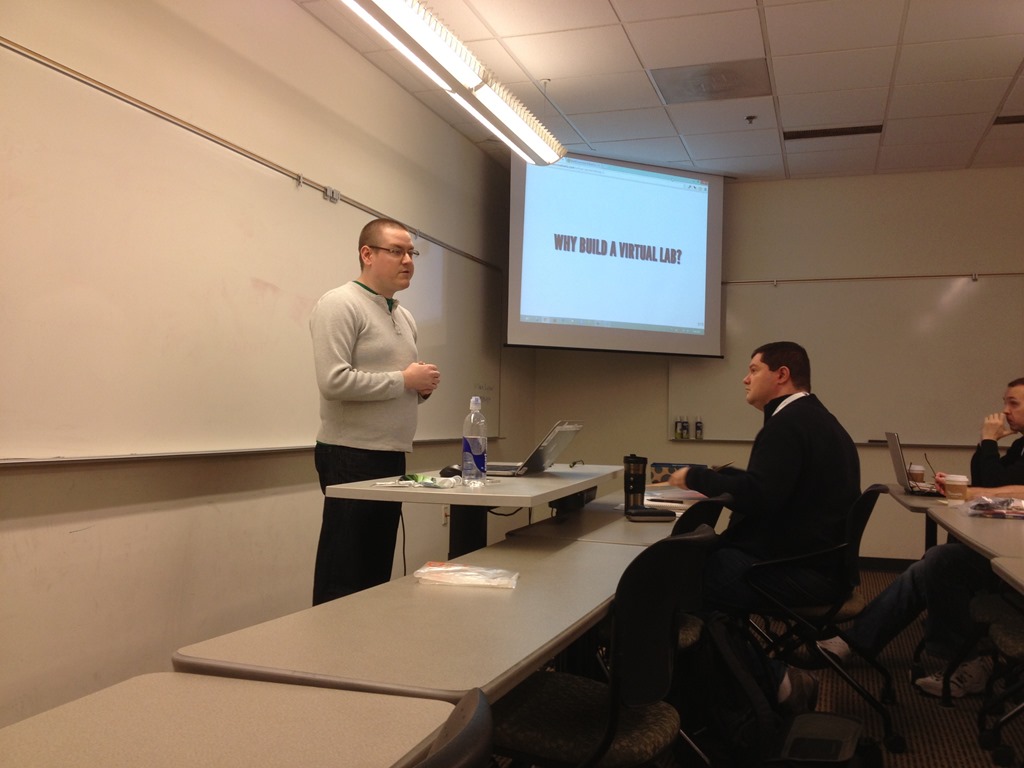
I started the day with Matt Velic’s session on building a virtual lab. He took an interesting approach, using free software to do this. Virtual Box, FreeNAS, and more allowed Matt to show how a virtual clustered environment can be set up for testing.
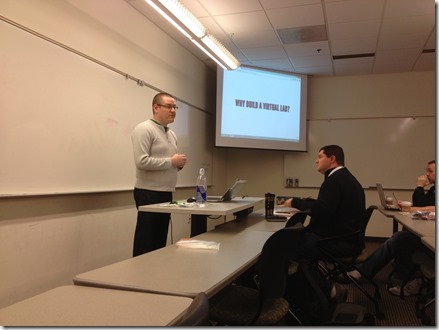
Matt has blogged about this a bit and even written an ebook that you can download to learn how to build your own lab. He did a good job, though I’ll admit I had to duck out early to take a phone call.
The inclusion of the ebook, which Matt mentioned a few times as stragglers came in, was good. I’ve been toying with the idea of providing some “prep” materials, as well as post talk support for attendees. Understanding a little of what the background for the material is might allow some presenters to go a little quicker for some talks. Something to consider for the future.
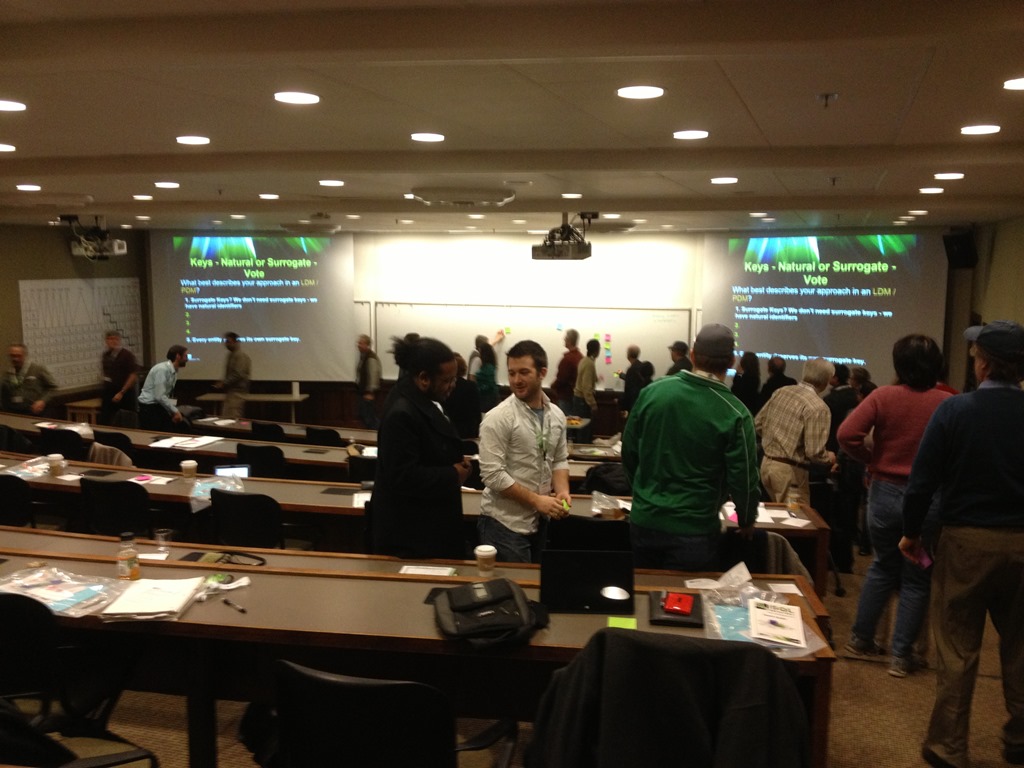
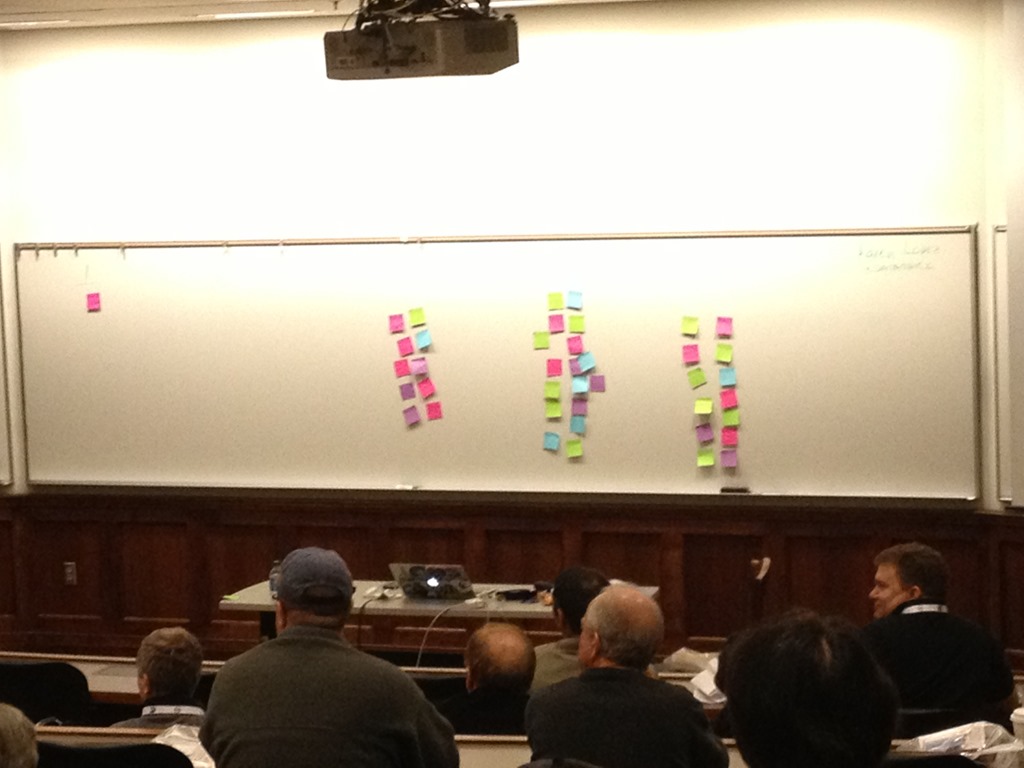
I also slipped into Karen Lopez’s database modeling talk. Karen has a fun style, and this was an interactive talk, with people being asked to “vote” on various topics with post it notes.
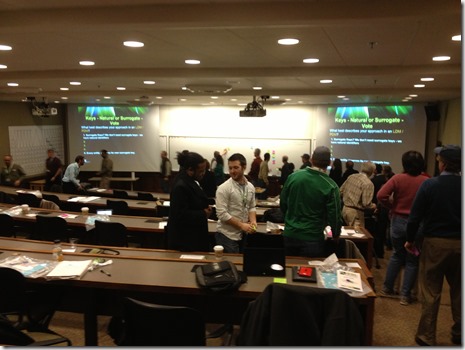
I sat in the back watching, and was glad to see so many people, probably everyone, participating. Based on the “votes”, Karen led some fascinating discussions.
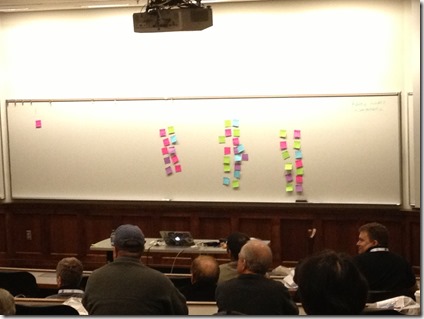
If you get a chance to see Karen, do so. This was a great talk, and thought provoking for those of us that have had to design databases.
I was up before lunch, delivering my “Branding” talk for an audience in the auditorium. I was glad to have a little pad with lunch following my talk as I ran a little over. It was a fun talk, and had some good tweets.
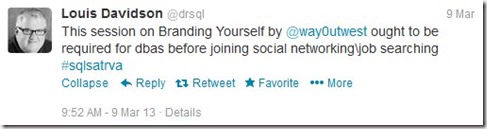
It was also special as my Mother had driven up from Virginia Beach to see it and spend a few hours with me. I ate lunch with her and spent a little time before she left and I headed out to chat with more people.
The events are always a busy day for me and this was no exception. While most people are in sessions, a few are always wandering around, and I had a few short chats with people that were attending the event, as well as some other speakers and vendors.
In the afternoon I presented my Encryption Primer before packing up at the end of the day.
The closing event was well attended, with people packing into the auditorium for thank-you’s and prizes. A nice tribute from the organizers for the speakers and volunteers, including recognition of the young lady who arranged for the use of the building. I hear this a lot, but many people don’t, and it’s always nice to remind people that this “free” event actually required work, effort, and donations from many people.
There were lots of prizes given out, and some fun drawings as Carlos’ daughter participated in picking entries. I love seeing kids involved since they are the future of events and business, and letting them see all the people willing to work on improving their careers is a good role model, IMHO.
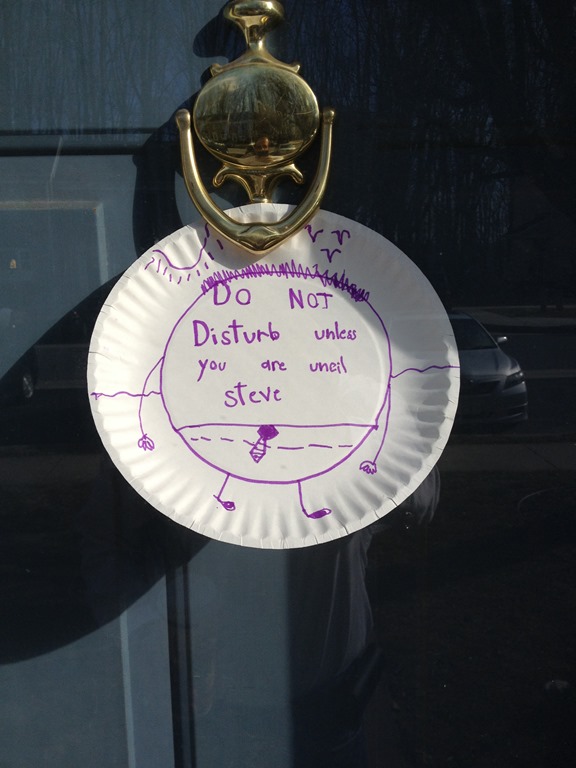
I left right after the drawing, skipping the after event as I had to drive back to Washington DC. I arrived late, grabbing a hotel and a late dinner, but I had a nice surprise Sunday morning. My name on a sign.

A fun event and trip for me.
I know this event was stressful for the organizers, and it always is, but it ran smoothly, and people learned things. Yes, the coffee was slow to get out in the morning. Yes, rooms were spread out all over the building.
None of that’s a big deal. People came, they learned things, and that’s the whole point of these events.
Great job, Richmond, and I hope to come back in the future.