Tag: SQL Compare

  • Using SQL Compare with Read-only Access

    Recently a customer asked if SQL Compare and SQL Data Compare can be used with a read-only database as a source. It’s a good questions as I’ve seen some tools that create temp tables or do some other work in a source database, which might cause problems. Certainly someone running SQL Compare against production would want to ensure it works as a read-only application.

    This post will look at SQL Compare with a read-write database but a user account with read-only access. My previous post looked at a read-only database.

    This is part of a series of posts on SQL Compare.

    Setup

    I’ve got a couple of databases that I use for Compare demos. In this case, compare5_prod and compare1. The compare5_prod is set to read write, which is normal.

    2024-10_0110

    I created a new login, which will default to the Compare5_prod database.

    2024-10_0107

    This login maps to a user, which has read only rights in the database.

    2024-10_0109

    In my compare setup, I’ll use this login to connect to the database.

    2024-10_0111

    As you can see below, Compare works fine, even reading the various system metadata tables:

    2024-10_0113

    This works because SQL Compare is not writing anything to the database. We read metadata and then process that in-memory on the client before returning the results.

    You can see this also works in SQL Data Compare. Here’s the connection:

    2024-10_0115

    And here are the results

    2024-10_0114

    Summary

    This was a very simple example, but I find that clients always would prefer to see examples already completed and proof that something works when they are evaluating software. Hopefully this helps answer this question.

    SQL Compare is an amazing tool that millions of users have enjoyed for 25 years. If you’ve never tried it, give it an eval today and see what you think.

  • Using SQL Compare in Read-Only Databases

    Recently a customer asked if SQL Compare and SQL Data Compare can be used with a read-only database as a source. It’s a good questions as I’ve seen some tools that create temp tables or do some other work in a source database, which might cause problems. Certainly someone running SQL Compare against production would want to ensure it works as a read-only application.

    This post will look at SQL Compare with a database set to read-only. I’ll do a second post on a login that only has read authorization.

    This is part of a series of posts on SQL Compare.

    Setup

    I’ve got a couple of databases that I use for Compare demos. In this case, compare5_prod and compare1. The compare5_prod is set to read only, as you see below.

    2024-10_0103

    My connection is as a sysadmin, but that doesn’t override a read-only database. As you can see below, Compare works fine:

    2024-10_0105

    This is because SQL Compare is not writing anything to the database. We read metadata and then process that in-memory on the client before returning the results.

    You can see this also works in SQL Data Compare.

    2024-10_0106

    Summary

    This was a very simple example, but I find that clients always would prefer to see examples already completed and proof that something works when they are evaluating software. Hopefully this helps answer this question.

    SQL Compare is an amazing tool that millions of users have enjoyed for 25 years. If you’ve never tried it, give it an eval today and see what you think.

  • Grouping by Object Type in SQL Compare

    A customer recently was asking about grouping objects by type to see all the differences in two databases for one set of objects, like all stored procedures. This post shows how this works and what this changes for your system.

    This is part of a series of posts on SQL Compare.

    I have two databases, Compare_1_Source and Compare_2_Destination. I made a number of changes to the Source db and when I run SQL Compare between these, my default view shows me the different objects, as well as those in one database and not in the other. You can see this below.

    Screenshot 2024-07-31 170641

    This is the way most of us want to make changes, by deciding from this short list what changes to deploy. If you look closely, you can see there are 115 objects that are identical, so it’s nice to be able to see what has changed.

    However, I have had a few people ask to see all the stored procs that have changed, so they can decide what needs to move. They aren’t ready for table changes.

    In the upper right corner, above the destination database, I have a drop down for grouping options. I can use the default (type of difference), switch to type of object, or have no grouping.

    Screenshot 2024-07-31 171350

    If I choose object, I see this grouping. In here, the stored procedures are expanded, showing my differences. Second, in the middle, near where the checkboxes are for object selection, I see a count of how many objects are selected, and how many are changes. However, I don’t know the type of change.

    Screenshot 2024-07-31 171501

    I’ll modify a procedure and delete one and I see something slightly different. Now I see the object name to the right side of the checkbox, so I can infer a change if the name is on both sides, or a delete if there is an “x” next to the name.

    Screenshot 2024-07-31 172047

    My default view of tables is shown below. Note that my table changes are mixed within non-changed tables.

    Screenshot 2024-07-31 171517

    However, I can click on the Last modified column and resort the data. If I sort descending, then I see my table changes at the top.

    Screenshot 2024-07-31 172416

    Toggling these settings allows me to see different views. If I just want changes without groups or differences, then I can set no groups and see this (I’ve sorted by modified date).

    Screenshot 2024-07-31 172450

    I have a request to hide the unchanged objects, but that’s not something we do now, nor am I sure we will change things. You can submit your own ideas on Uservoice and get some votes from friends.

    SQL Compare is an amazing tool that millions of users have enjoyed for 25 years. If you’ve never tried it, give it an eval today and see what you think.

  • SQL Compare Force Column Order in a Table

    I had a client that was concerned about SQL Compare behavior when a developer adds a column to the middle of a table. I wanted to reassure them, so I wrote this post to show how SQL Compare behaves by default.

    This is part of a series of posts on SQL Compare

    Making a Table Change

    Let’s assume I have this table in a database:

    CREATE TABLE [dbo].[Product]
    (
    [ProductID] [int] NOT NULL,
    [ProductName] [varchar] (50) NULL,
    [ProductDesc] [varchar] (1000) NULL,
    [ProductSize] [char] (1) NULL,
    [ProductWeight] [int] NULL,
    [ProductColor] [varchar] (20) NULL,
    [StatusID] [int] NULL
    )
    GO
    

    I want to add a column to this table, called ProductQtyPerUnit. However, I decide to add this before that StatusID column so all my product data is together.

    Note: This shouldn’t be done. Don’t worry about order of columns. Deal with that in your INSERT/SELECT statements instead.

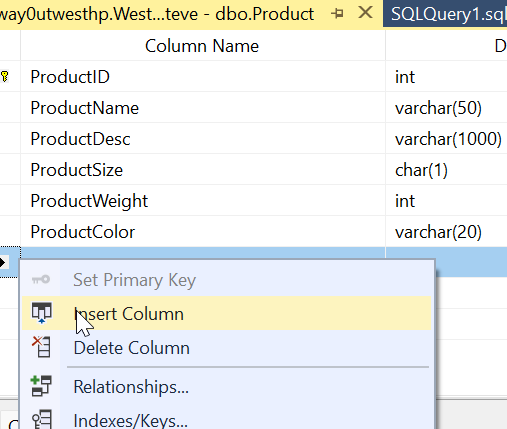
    If I do this in the SSMS designer, I’ll right click the table and select INSERT Column.

    2024-03-12 12_23_15

    Then I can add the column, as appropriate to my table.

    2024-03-12 12_24_54

    Before I save this, I’ll create a scripts folder and compare things. As you can see, things are in synch.

    2024-03-14 13_10_46

    Now I’ll save the change.

    SQL Compare Behavior

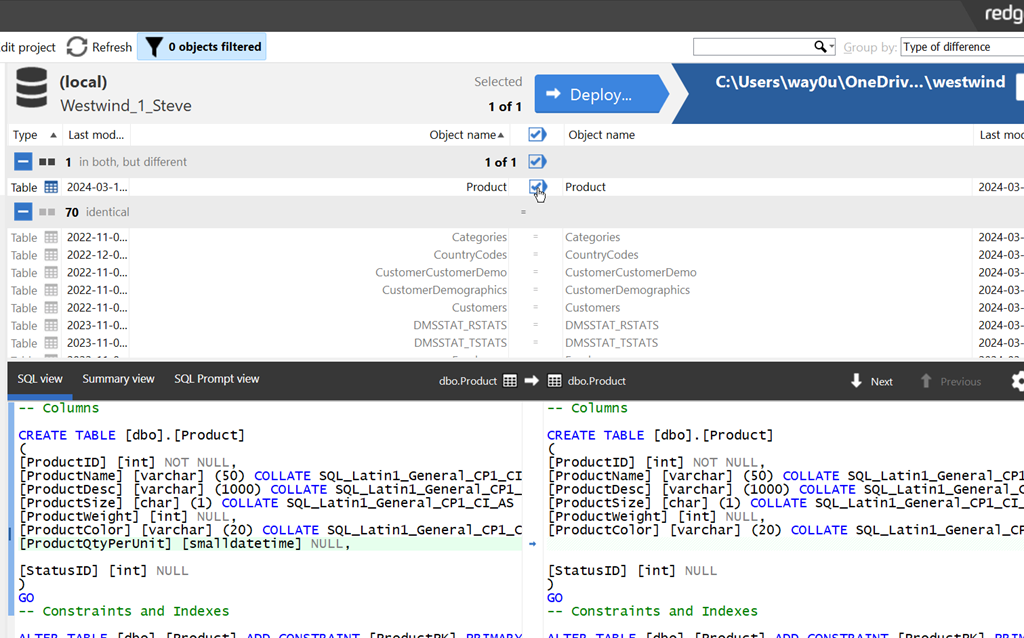
    Now I’ll refresh my project. When I do that, I see a difference, as I should. Note that SQL Compare detects the change, and shows the new column in the middle of the table.

    2024-03-14 13_12_56

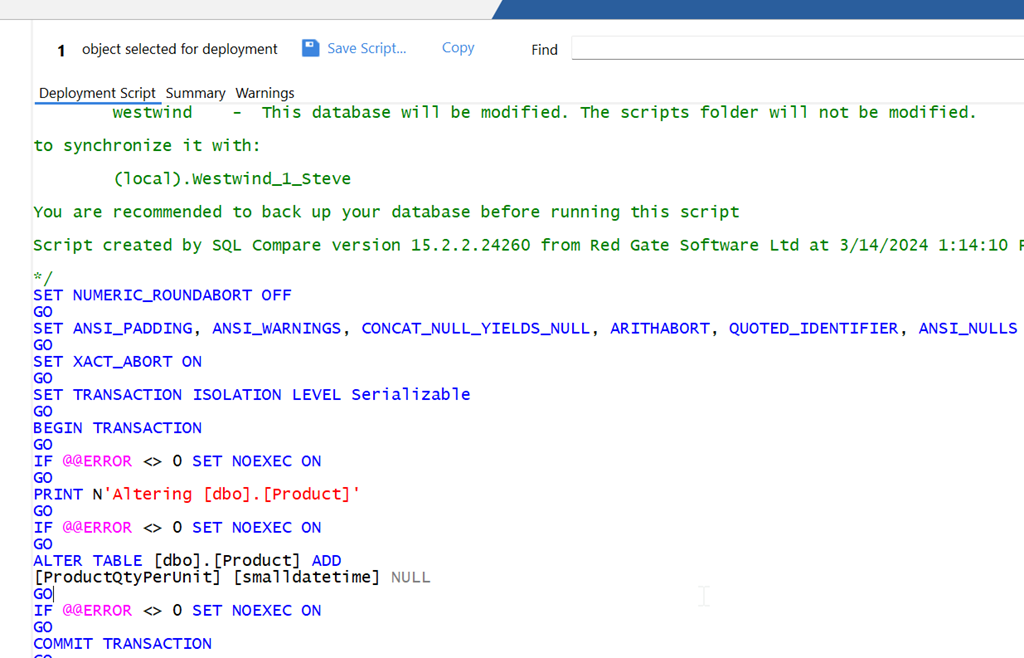
    I’ll click Deploy and generate the deployment script. When I do that, I see the script below. Note that SQL Compare has just added a column, not rebuilt the table.

    2024-03-14 13_14_21

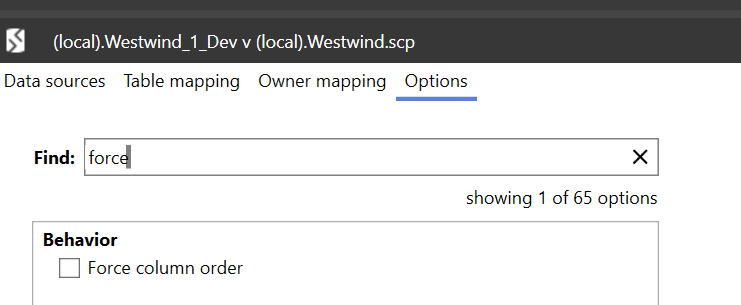
    This is controlled by the Force Column Order option, which is off by default. This is the way we’d like to have the tool behave, as rebuilding tables is unnecessary.

    I’ll close this dialog and then click Edit Project and select the options tab. I can search for Force and see the option is off.

    2024-03-14 13_15_32

    to show how this works, I’ll check the checkbox and then recompare. Now when I generate the deployment script, I see this. The deployment wizard opens to this warning.

    2024-03-14 13_16_30

    If I view this script, you can see below that this part of the script creates a new table and then renames it after data is moved and the old table dropped.

    2024-03-14 13_17_13

    In general, you should leave this option off all the time. The physical order of columns doesn’t matter.

    If you haven’t used SQL Compare from Redgate, it’s the industry standard for SQL Server schema comparison and an amazing tool. Download an eval today and give it a try.