Tag: SQL Compare

  • A Multitude of Summary Views in SQL Compare 15

    A client asked for a summary of changes, so I wrote a post to show where to find this in SQL Compare 15. As I was checking out the Summary, I realized there are different ways to present this info, which can make your job as a data professional easier. This post shows the different views.

    This is part of a series I have on SQL Compare from Redgate Software. It’s an amazing piece of software that you should try if you haven’t. Download an eval today.

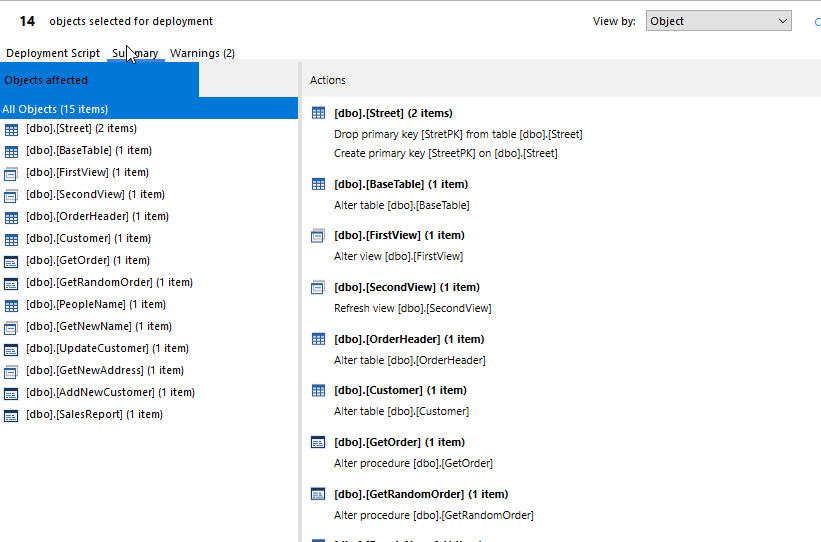
    In the previous post, I showed this image, which is the default view. This lists the changes by object, meaning that I see the objects listed on the left with schema and name, and then the actions on the right. In the image below, the first item on the left is dbo.Street, with two items after it. On the right, we see this is a need to drop a PK and then create a new PK.
    2023-07-20 14_21_37-Deployment

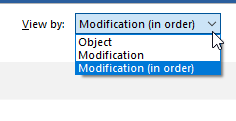
    This is a good list, but there are other choices. In the upper right, there is a drop down. If I click it, I see this:
    2023-07-20 14_27_13-Deployment

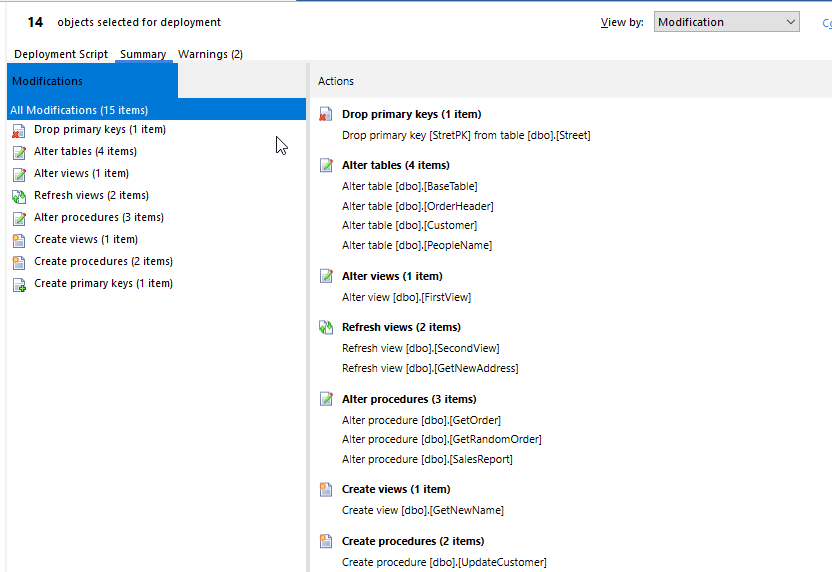
    The Object is the default one, but if I click Modification, I see this view, which lists the types of changes. You can see that I have 1 drop PK, 4 table alters, 1 view alter, etc.
    2023-07-20 14_26_56-Deployment

    A good view, though I don’t often case about this, other than I usually would look for drops because those are problematic.

    The third view is the modifications, but in the order they’ll take place. I like this, since as someone who has been a production DBA, I want to know what changes are happening in what order.

    2023-07-20 14_27_07-Deployment

    In this view above, the alters are split out. So I get one alter of a table, BaseTable, then a view, then a refresh, then alters for two other tables.

    Using these summary views are good ways to initially conduct a review of what is changing for a deployment. This is valuable because for a lot of changes, this makes sense. For some, I might want to see the code, so having the changes in order here let me quickly find this change in the script and view the exact way this is going to be deployed.

    SQL Compare is an amazing tool and it makes life much easier. If you haven’t tried it, download an eval today and give it a try. If you’d like to see this in a pipeline or more automated system, give the Flyway suite of tools a try.
  • Getting a Summary of Changes in SQL Compare 15

    A client asked for a summary of changes, so I wrote this quick post to show where to find this in SQL Compare 15.

    This is part of a series I have on SQL Compare from Redgate Software. It’s an amazing piece of software that you should try if you haven’t. Download an eval today.

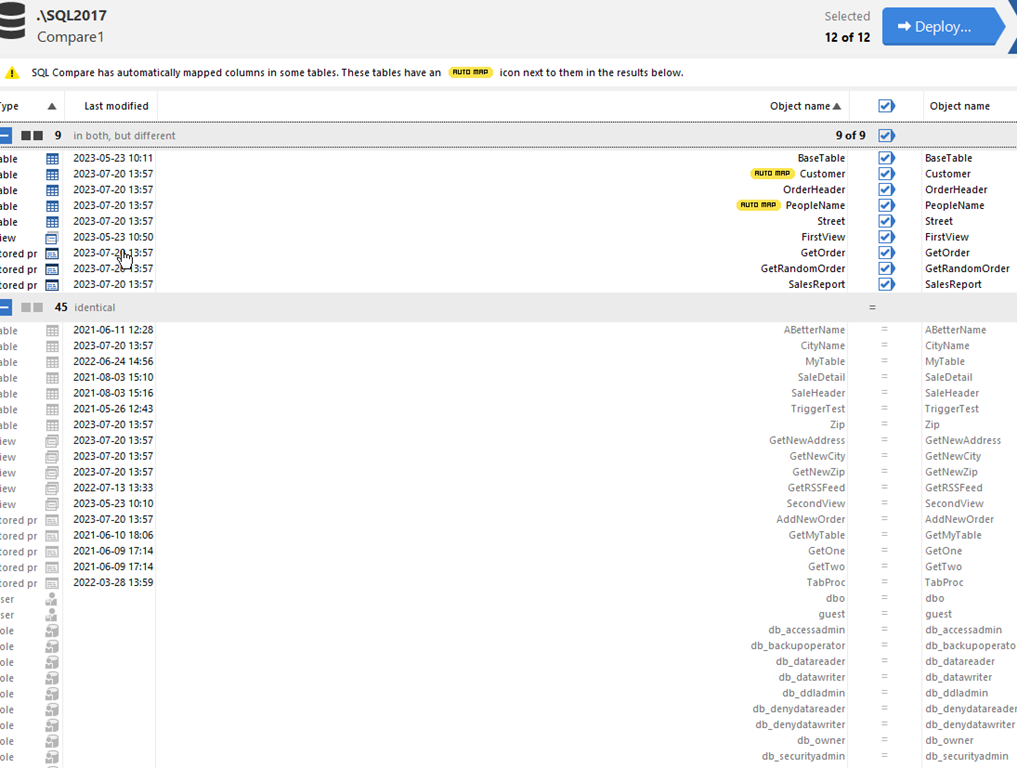
    If you use SQL Compare, you might find yourself in situations like this, where there are a bunch of changes.

    2023-07-20 14_17_58-SQL Compare - E__Documents_SQL Compare_SharedProjects_(local)_SQL2017.SimpleTalk

    This isn’t a lot, but when you build the script, you then are confronted with a lot of information. If I choose all those objects, here’s my script in the deploy wizard.

    comparescript

    This is a lot of code to look through. Most people can do this, but it’s also easy to miss something in this long listing. Humans make mistakes, and we want to minimize mistakes.

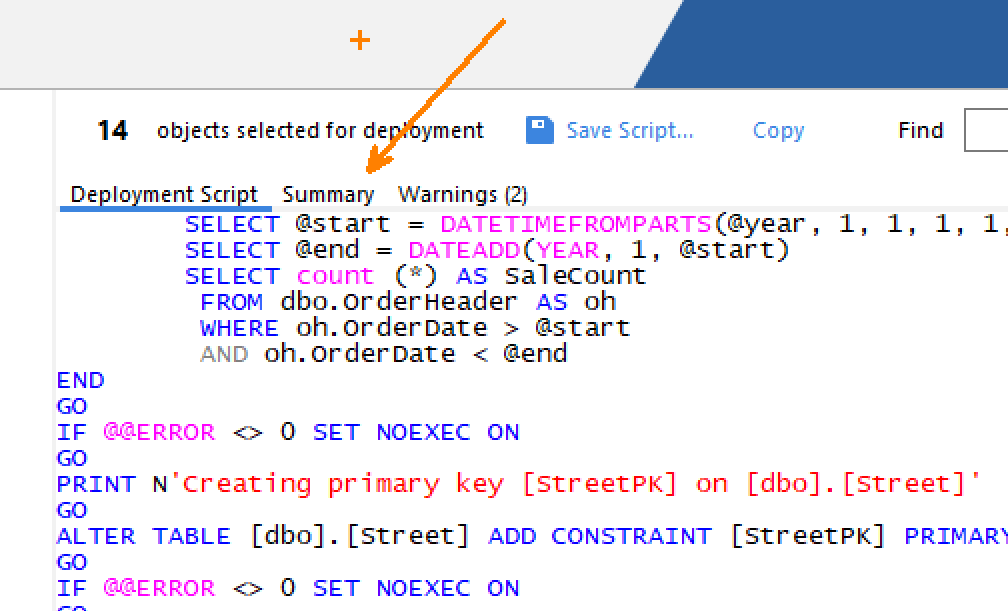
    The UX isn’t great, but if you look at the top of the code window, below the 14 objects part, there are three items: Deployment Script, Summary, and Warnings. If there are significant warnings, that will actually be the default screen, but the summary is something people miss. You can see this below:

    2023-07-20 14_21_30-Zoomit Zoom Window

    If I click Summary, I see this:

    2023-07-20 14_21_37-Deployment

    This is a much more manageable list of things that are being touched, and a good list to show in a standup or code review for others to watch.

    Grabbing a screen shot is something you could easily send to people as well. If you use the Flyway solution, we’ll also generate a report of this with your CI or deployment processes.

    Give this a try the next time you use SQL Compare. If you don’t use it, give it a try. It’s amazing.

  • A Security Change with SQL Compare 15

    Actually, this is a change for many products and software that connects to SQL Server. Updated drivers require us to now decide to trust the server certificate.

    This is part of a series I have on SQL Compare from Redgate Software. It’s an amazing piece of software that you should try if you haven’t. Download an eval today.

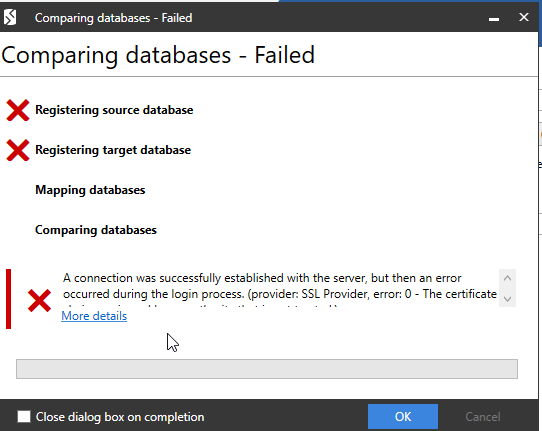
    I opened a project recently in SQL Compare 15 to check something for a friend. I went to run the compare and saw this:

    2023-07-20 14_05_48-(local)_SQL2017.SimpleTalk_1_Dev v localhost.SimpleTalk_1_Dev.scp

    At first I thought that one or both of my instances were broken, but I realized that this is a security issue. Updated drivers changed the default encryption options, which means we need to specify this.

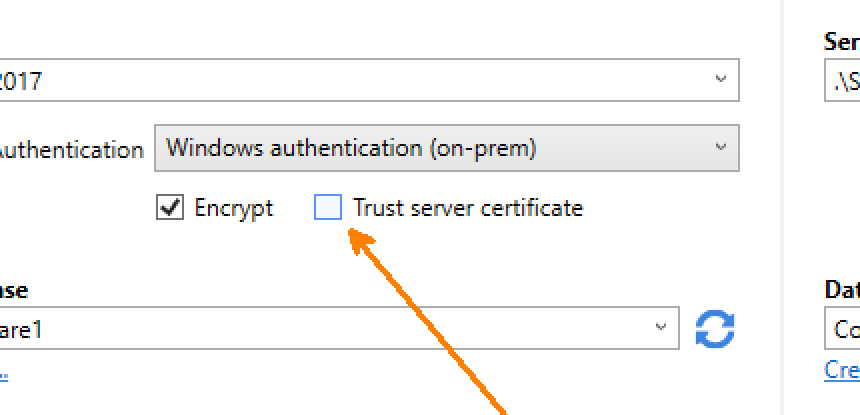
    2023-07-20 14_06_02-Zoomit Zoom Window

    The products at Redgate have been getting updated across the last year to add in a “trust server certificate” box. It’s not set by default, which I find annoying, as I rarely find SQL Server’s with certs. Certainly none of my test instances, and I wish I could set this to check by default.

    In any case. when I check the boxes in the image above, the compare runs.

    Something to keep in mind and a muscle habit to build if you still use SQL Compare often. If you don’t, give it a try. It’s amazing.

  • A SQL Compare Picklist

    Recently a customer was trying to sync up production and development. They’d somewhat lost control of both environments and wanted to build a plan of how to sync them. This post covers a process I suggested to them to tackle this challenge.

    This is part of a series I have on SQL Compare from Redgate Software. It’s an amazing piece of software that you should try if you haven’t. Download an eval today.

    The Scenario

    Production is running. It’s got all sorts of objects, and most of them are probably valid. You’d be surprised how often I find broken code in production. Anyway, way want to ensure developers have visibility into what production looks like.

    However.

    Development is also in progress. They have lots of changes they’ve made in development, some of which need to be pushed to prod, some of which are in flight. They don’t want to just sync prod->dev or dev->prod.

    How they get things deployed and keep track of work isn’t something I asked. I’m not judging; I know most people are just trying to get through the day.

    So they wanted to know what’s different and mark those objects for someone to work on.

    The Solution

    This is just one way to solve the problem. My approach here is to create a picklist of work that can be assigned to others. Since the customer has SQL Compare and is familiar, I used this tool to help me.

    First, we back up development.

    Next, I created a project that points from prod->dev. Worse case, we break development and restore it. We certainly don’t want to “break” production with too many mouse clicks.

    For the sake of this demonstration, let’s say these are the databases:

    • Production:  way0utwest_prod
    • Development: way0utwest

    I set this up in SQL Compare, ensuring I have things pointing the right direction.

    2022-12-16 16_57_06-(local)_SQL2017.SimpleTalk_1_Dev v localhost.SimpleTalk_1_Dev.scp_

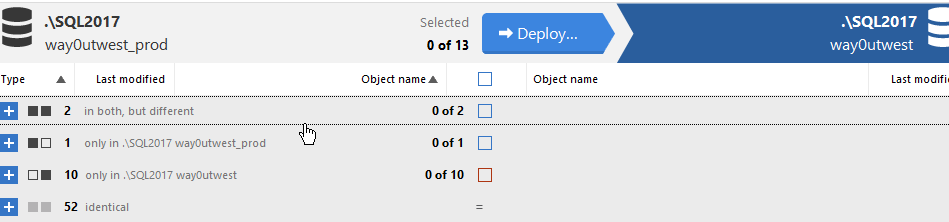
    When I compare the databases, I see changes that are in all states. Some only in one or the other, some different, some the same. At this point, I don’t really care about counts or what’s different, so I don’t need to expand this list.

    2022-12-16 16_59_30-SQL Compare - E__Documents_SQL Compare_SharedProjects_(local)_SQL2017.SimpleTalk

    Now I select all objects and click “Deploy” at the top, which takes me to the next screen. Here I’ll create the script. Click Next.

    2022-12-16 17_00_17-Deployment

    At the next screen, I see the deployment script, but I’ll click the Summary tab. This gives me a list of what changes would be made to dev. Keep in mind we are trying to clean up development.

    2022-12-16 17_01_39-A holiday gift for you - Message (HTML)

    The summary gives me a list of the change at a high level. What operations on which objects. You can see I have a number of objects in the image above. In the upper right side of the image there is also a “Copy” button. Click this.

    Now paste this into any editor. I’ll use Notepad. Now I have a list of changes needed for each object.

    2022-12-16 17_03_15-_Untitled - Notepad

    This is the picklist of work. Someone needs to go through this. You could paste this into Teams/Slack or anywhere, but really, this is the gross list of things to go through.

    From here, they can take each item and create a work ticket for this. A work item in Azure DevOps Boards, a ticket in Jira, an entry on a Kanban board, it doesn’t matter. Use your work system to create these work items and then assign to people.

    If necessary, repeat this process as you move forward until you have a list of things that ensure all objects from prod are in development. You also then delete things in dev that you will not deploy, and leave those items that are in flight.

    You could also select the various categories in SQL Compare (different in both, only in one) above and generate separate pick lists for the types of work needed.

    Ultimately the developers will know how to resolve these issues, so let them do the work. Just organize it for them.