Tag: SQL Compare

  • Search and Replace Three Part Names with SQL Compare

    A customer had an interesting challenge in their codebase recently, and I thought this would make a good post. This involves SQL Compare and three part names.

    This is part of a series I have on SQL Compare from Redgate Software. It’s an amazing piece of software that you should try if you haven’t. Download an eval today.

    The Scenario

    A customer was using SQL Compare and they wanted to update the database name in a script to point to a new database. They had objects in a development database pointing to another development database. What they asked was: “How can we search and replace across all objects to change db1.dbo.mytable to db2.dbo.mytable?”

    There are a couple ways that you can attack this problem, but I’ll show you what I think works best.

    Ensuring Three Part Names Appear

    There is a switch in a SQL Compare that allows you to include or exclude three part naming in the scripts. This is the switch that says “Ignore Server and Database Names in Synonyms”.

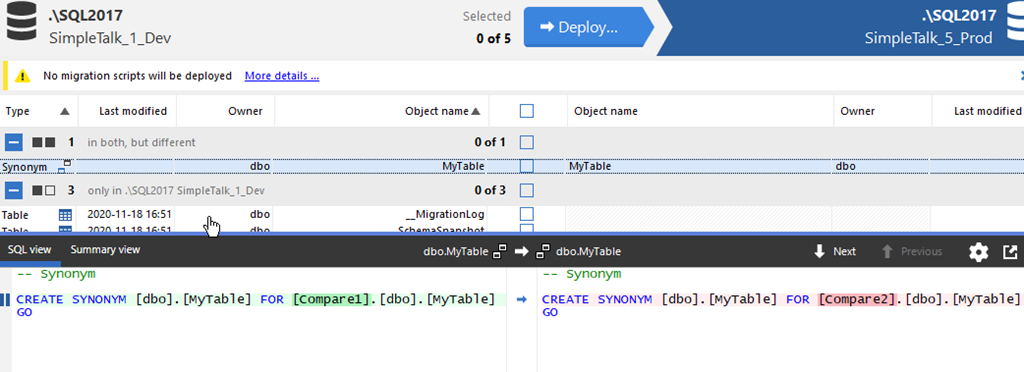
    I don’t have that checked, and when I look at my comparison, I see this. There are two synonyms in these database, which you can see in the image, point to different targets.

    2022-04-19 16_43_59-SQL Compare - E__Documents_SQL Compare_SharedProjects_(local)_SQL2017.SimpleTalk

    If I have this option checked, as shown here:

    2022-04-19 16_45_19-(local)_SQL2017.SimpleTalk_1_Dev v localhost.SimpleTalk_1_Dev.scp

    Then nothing appears.

    2022-04-19 16_45_31-SQL Compare - E__Documents_SQL Compare_SharedProjects_(local)_SQL2017.SimpleTalk

    Make sure you don’t have this option checked. I’ll fix that first.

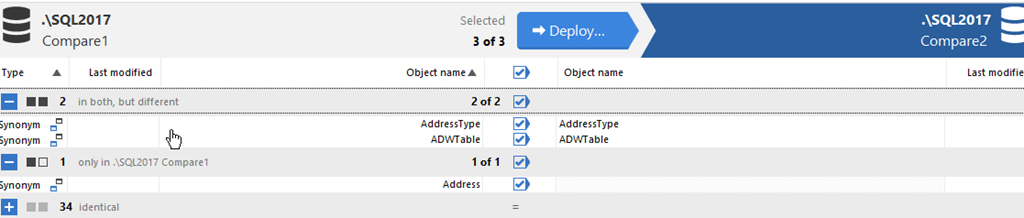
    Next, I’ll add a couple more synonyms to show a few differences and then re-run the compare. Now I have 3 objects, 2 of which are different, one doesn’t exist in the comparison database.
    2022-04-19 16_49_11-SQL Compare - E__Documents_SQL Compare_SharedProjects_(local)_SQL2017.SimpleTalk

    Generate the Script

    I want to generate a script. I’ll do that by pressing the “deploy” button. I’ll change the option from deploy to generate script. This will open in SSMS.

    2022-04-19 16_50_34-Deployment

    I click the “Open in editor” button and SQL Compare generates the script and opens SSMS. Warning, it opens a new version of SSMS, not the existing one I have open. Grrr.

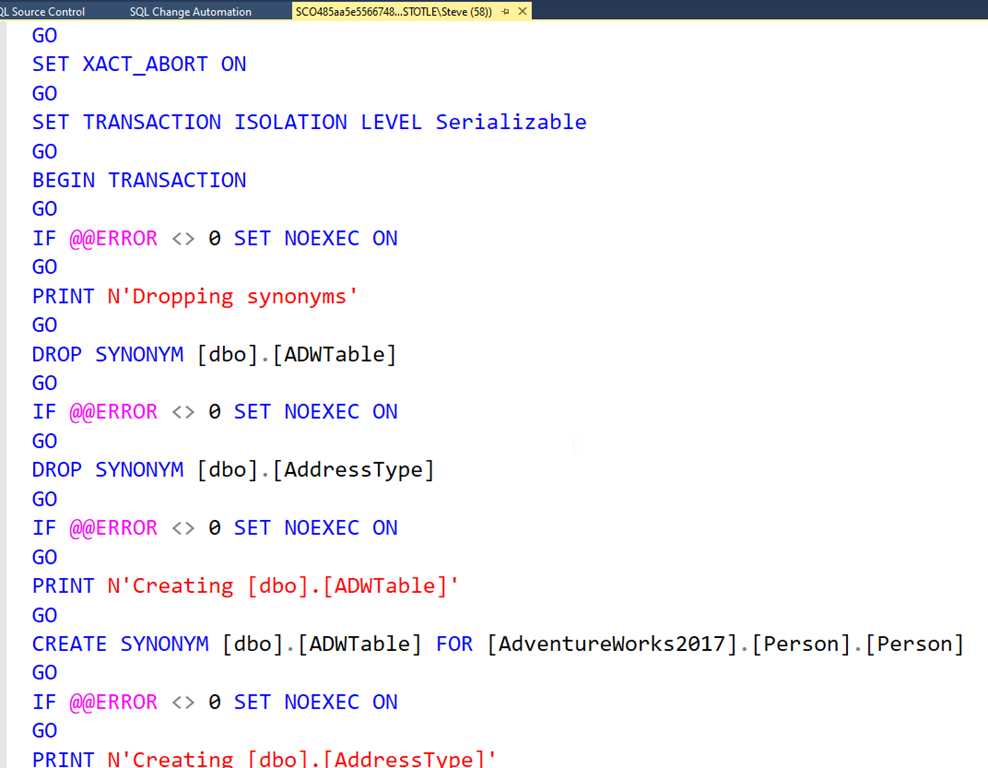
    I see my script here, which is good.
    2022-04-19 16_53_29-SCO485aa5e5566748149e0e8259930b6af0.sql - (local)_SQL2017.Compare2 (ARISTOTLE_St

    I can search and replace now, looking to change the database name. Hard to see in the image below, but I’m searching for this:

    FOR [AdventureWorks2017].

    and replacing it with:

    FOR [sandbox].
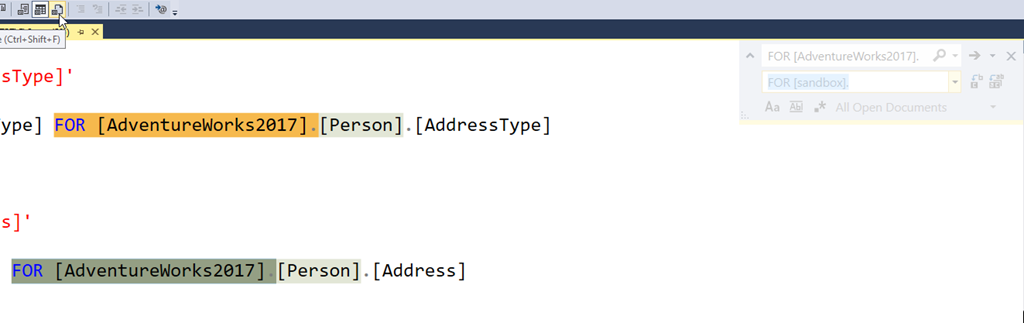
    2022-04-19 16_54_56-SCO485aa5e5566748149e0e8259930b6af0.sql - (local)_SQL2017.Compare2 (ARISTOTLE_St

    This will set the synonyms to the new target in the dev environment. In this case, I’m changing from AdventureWorks2017 to Sandbox.

    The last thing to do if this script is to set up a new database is to remove the synonym drop statements. We can’t alter synonyms, so we need to drop them. That will be an error in this script if the synonyms don’t exist. Since this runs as a transaction, the entire thing will fail.

    This shows a simple way to help create a script that can be used to refresh a dev environment with the proper schema settings when synonyms or other three part naming is in use.
  • Ensuring SQL Compare Checks Synonyms

    I was running a PoC for a customer and they noticed that synonyms were being missed when they changed the database being used. It was surprising to me, but it turns out the solution is simple.

    This post explains how to fix this.

    This is part of a series I have on SQL Compare from Redgate Software. It’s an amazing piece of software that you should try if you haven’t. Download an eval today.

    The Scenario

    Imagine that I have a synonym in my database. In the development environment, I have this pointed to one object, but in production, it will be pointed to a different object. The name of the object is likely the same, but the server (instance) name or the database name might be changed. I see this all the time where I might have these databases in my dev environment:

    • Sales_Feature
    • Finance_Feature

    In Sales_Feature, I have a synonym pointed to Finance_Feature, which works most of the time.

    When I get to production, I have “Sales” and “Finance” databases. I need the synonym pointed to Finance, even though I might take code from these dev databases and commit to version control. There’s certainly a development challenge here in this scenario, but let’s ignore this. Let’s just assume we want to determine that we’ve actually made a change here.

    In my scenario, I’m going to look at Dev and Prod, though on the same instance. I’ll create a synonym in one database that points to a different database. Here’s a quick set of test code:

    USE [SimpleTalk_1_Dev]
    GO
    CREATE SYNONYM dbo.MyTable
    FOR Compare1.dbo.MyTable
    GO
    

    Now, I’ll create a similar synonym in another database, but pointing to a different location. Think dev and QA here.

    USE [SimpleTalk_5_Prod]
    GO
    CREATE SYNONYM dbo.MyTable
    FOR Compare2.dbo.MyTable
    GO
    

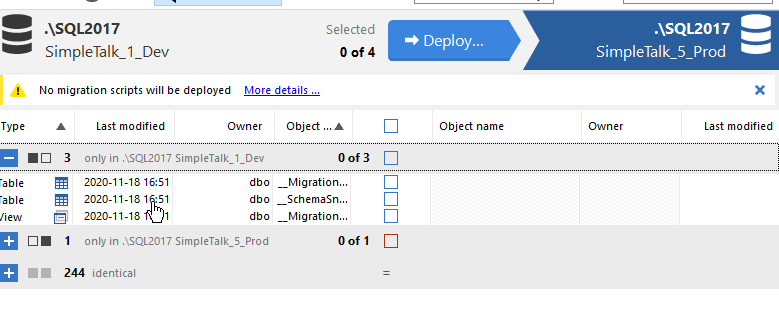
    If I run SQL Compare, the differences are shown here:

    2022-03-30 16_01_33-SQL Compare - New project_

    There is no difference. Clearly the synonyms are different, but why don’t I see them?

    The Solution

    It turns out that SQL Compare assumes you might have these pointed to different instances or databases when moving to production from development. It assumes you only care if there is some other difference.

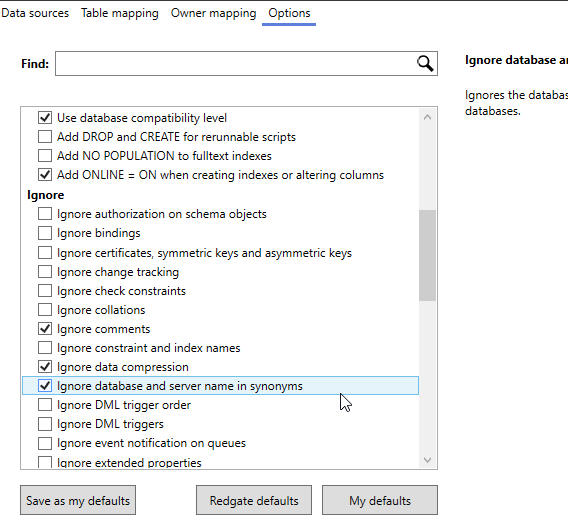
    If I edit the project options, I can see this. When I click the “Edit project” and go to the Options tab, I can scroll down. I’ll see the “Ignore database and server name in synonyms” option checked by default.

    2022-03-30 16_03_33-New project_

    If I uncheck this and then run the compare again, I see this:

    2022-03-30 16_04_34-SQL Compare - New project_

    Now I see a difference in the two databases. This also works if you have two different instances and the same database names, which is a more common occurrence.

    This same option applies in all our products that use the SQL Compare engine, so SQL Change Automation, SQL Source Control, Flyway Desktop, and the various automation components, all of which are in the Redgate Deploy. If you find your synonyms aren’t being deployed, make sure you have this option unchecked.

    If you don’t have any tools to help manage database development and deployment in a DevOps way, download a trial.

  • Ignoring System Generated Key Names in SQL Compare

    Recently I ran into a customer that was having issues deploying code from their development system to their production system. The issue was that they often found that the deployment script wanted to drop and recreate their keys. This wasn’t something they wanted, and kept feeling like they needed to edit their deployment script to remove these lines.

    This post shows how to avoid having the SQL Compare script generate these changes and ignore the constraint issue.

    This is part of a series I have on SQL Compare from Redgate Software. It’s an amazing piece of software that you should try if you haven’t. Download an eval today.

    The Scenario

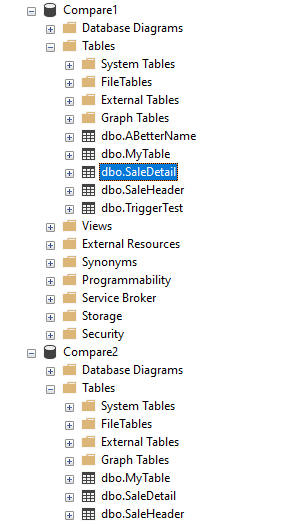
    Imagine you have tables in two databases, dev and prod. In this case, I have a SaleHeader and SaleDetail in both the Compare1 and Compare2 databases.

    2021-08-03 15_17_18-SQLQuery2.sql - ARISTOTLE_SQL2017.Compare1 (ARISTOTLE_Steve (61))_ - Microsoft S

    The code for these tables looks like this:

    CREATE TABLE SaleHeader
    ( SaleID INT NOT NULL PRIMARY KEY
    , SaleDate DATE
    , SaleAmount NUMERIC(10,2)
    )
    GO
    CREATE TABLE SaleDetail
    ( SaleDetailID INT NOT NULL PRIMARY KEY
    , SaleID int
    , LineItem smallint
    , ProductID INT
    , Quantity INT
    , UnitPrice NUMERIC(10,2)
    )
    GO

    Making Changes

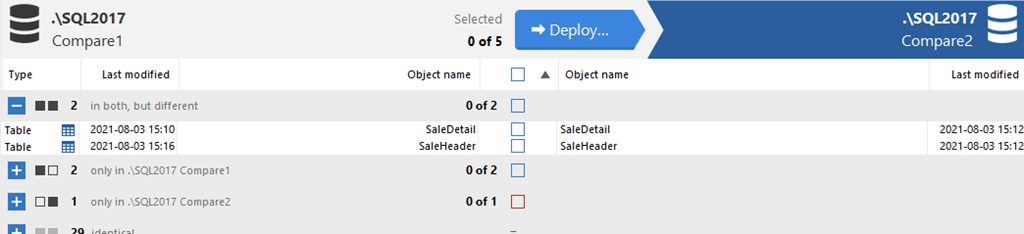
    When the customer makes a change, such as adding a column to the SaleHeader table, they run SQL Compare. This results in something like this:

    2021-08-03 15_19_51-SQL Compare - E__Documents_SQL Compare_SharedProjects_(local)_SQL2017.SimpleTalk

    I see both tables here as different, even though I only added a column to the SaleHeader table. You might think there is a FK or something else, but there isn’t. I only ran this code:

    ALTER TABLE dbo.SaleHeader ADD SalesPersonID INT

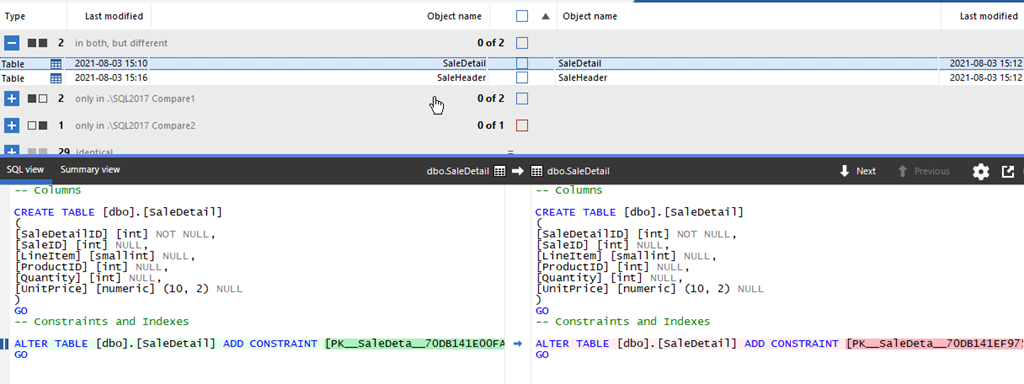
    Why do I see both tables? Let’s click on SaleHeader. I now see the details of the changes. In addition to my column, there is a difference with the constraint. That’s the Primary Key for this table.

    2021-08-03 15_21_24-SQL Compare - E__Documents_SQL Compare_SharedProjects_(local)_SQL2017.SimpleTalk

    If I look at the SaleDetail table, I see the only difference is the constraint.

    2021-08-03 15_21_32-SQL Compare - E__Documents_SQL Compare_SharedProjects_(local)_SQL2017.SimpleTalk

    What has happened is Microsoft generated a system-generated name for the Primary Key because I didn’t specify one. I can specify one, and should, but if I don’t, Microsoft handles this.

    Since these are different objects, with different names, SQL Compare flags this. If I try to deploy my new column, this is the script generated. Note, I’ve only showed the change part, not all the setup.

    PRINT N'Dropping constraints from [dbo].[SaleHeader]'
    GO
    ALTER TABLE [dbo].[SaleHeader] DROP CONSTRAINT [PK__SaleHead__1EE3C41F8D88FA16]
    GO
    IF @@ERROR <> 0 SET NOEXEC ON
    GO
    PRINT N'Altering [dbo].[SaleHeader]'
    GO
    IF @@ERROR <> 0 SET NOEXEC ON
    GO
    ALTER TABLE [dbo].[SaleHeader] ADD
    [SalesPersonID] [int] NULL
    GO
    IF @@ERROR <> 0 SET NOEXEC ON
    GO
    PRINT N'Creating primary key [PK__SaleHead__1EE3C41FDBE16A10] on [dbo].[SaleHeader]'
    GO
    ALTER TABLE [dbo].[SaleHeader] ADD CONSTRAINT [PK__SaleHead__1EE3C41FDBE16A10] PRIMARY KEY CLUSTERED  ([SaleID])
    GO

    This code shows that
    the constraint is dropped, the column added, and then the constraint rebuilt. Again, with the same system-generated name. That means every script I generate will do this when this table is changed.

    The customer was editing this script and removing the ALTER TABLE DROP CONSTRAINT and the ALTER TABLE ADD CONSTRAINT lines (and comments). A pain, and a place where a human can make a mistake.

    Let’s fix this.

    Change the Options

    If I click “Edit Project”, I have a way to flip a switch and prevent this from happening.

    2021-08-03 15_34_16-SQL Compare - E__Documents_SQL Compare_SharedProjects_(local)_SQL2017.SimpleTalk

    After clicking the button, I see the Data Sources tab, where I picked my databases, but in the upper right, I can click the Options item.

    2021-08-03 15_34_24-(local)_SQL2017.SimpleTalk_1_Dev v localhost.SimpleTalk_1_Dev.scp

    This gives me a lot of checkboxes. If I scroll down, I’ll find an “Ignore” section. In here there is an Ignore constraint and index names. I need to check this.

    2021-08-03 15_35_01-(local)_SQL2017.SimpleTalk_1_Dev v localhost.SimpleTalk_1_Dev.scp

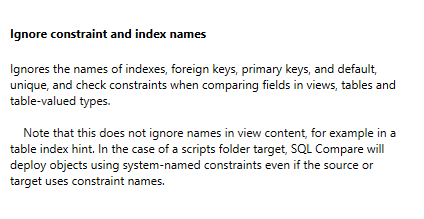
    The help on the right side tells me that I can ignore the system generated names. This doesn’t quite work smoothly for scripts folders, as you can read.

    2021-08-03 15_35_08-(local)_SQL2017.SimpleTalk_1_Dev v localhost.SimpleTalk_1_Dev.scp_

    Once I click the checkbox and re-compare the databases, the view is similar, though the SaleDetail table doesn’t appear in the list of different objects.

    2021-08-03 15_35_23-SQL Compare - E__Documents_SQL Compare_SharedProjects_(local)_SQL2017.SimpleTalk

    If I generate the script, however, it looks cleaner. No constraint changes.

    2021-08-03 15_35_32-Deployment

    This is what the client wants.

    Summary

    Ultimately, you don’t want to have system generated named constraints. Too easy to make mistakes, or someone even manually checking items might think there is a problem. One thing that I recommend is that you slowly rename these constraints to a standard that fits your environment.

    SQL Compare has lots of options, and this is just one to make this fit your environment. If you have items that you need customized between certain databases, look through the list of options for something that helps you. Or keep following these tips on the blog.

    For this option, if you need to add this in the command line, then use the /icn option.

    SQL Compare is amazing and if you need to check what might be changing and happening between your databases, give it a try today.

  • Getting the Script from the SQL Compare Command Line

    In the last few posts, I’ve written about using the SQL Compare command line for a specific object and shown how to get a report. This post will look at getting the actual script.

    This is part of a series I have on SQL Compare from Redgate Software. It’s an amazing piece of software that you should try if you haven’t. Download an eval today.

    When we run the command line or generate the report, we see what’s changed, and even the details of the chances, but how will that get deployed? The actual script is often important to a DBA to ensure that these changes won’t cause problems in a live environment.

    To get the script, there is a /scriptfile parameter (or /sf) that will output the file. You add this in similar way as you do the report file, including the path. The important thing here is to ensure that you have write access to the path.

    I have added a few differences in my databases, and you can see them in my complete report:

    2021-06-11 12_35_45-cmd

    If I want to see what will be run for all these changes, I can add the /sf and get the script. In this case, I’ll add this to the end of the CLI call:

    /sf:C:\Users\Steve\Documents\changes.sql

    This produces a script that looks like this:

    2021-06-11 12_40_29-changes.sql - boardofdirectors - Visual Studio Code

    It’s a normal “SQL Compare” script, with comments at the top as well as the various transaction items.

    This is good, because I can see there is a table drop in here. I actually renamed a table, so this is a problem. I might want to then decide how to handle this, or not to deploy this change.

    Note: Using SQL Source Control or SQL Change Automation allows this to be handled in other ways.

    I can also combine this with a single table inclusion to check one item. For example, I can run this:

    sqlcompare /server1:Aristotle\SQL2017 /server2:Aristotle\SQL2017 /database1:compare1 /database2:compare2 /include:table:mytable /sf:C:\Users\Steve\Documents\mytable1.sql

    When I do that, I see my script has a table rebuild in it, which is something else I might be concerned about.

    2021-06-11 12_45_19-mytable1.sql - boardofdirectors - Visual Studio Code

    With the other posts on the SQL Compare CLI, we can now choose what to compare, get a report, and see the actual scripts being run. This should allow us to choose the way that we want to deploy changes with SQL Compare from the command line.

    I don’t know that these are the best way to deploy to production, but when you need to sync something quickly, get a report and script, and then decide if this works for you.

    There are lots of options and ways to use SQL Compare, and I’d urge you to explore a bit as you look to improve your database deployments. If you don’t have it yet, download an eval and give it a try.