Tag: SQL Compare

  • Ignoring Comments in SQL Compare

    Recently I had a client that wanted to know how they could use SQL Compare to catch actual changes in their code, but not have comments show up as changes. This is fairly easy to do, and this post looks at how this works.

    Setting up a Scenario

    Let’s say I have two databases that are empty. I’ll name them Compare1 and Compare2. I’ll run this code in Compare1:

    CREATE TABLE MyTable
    (   MyKey INT NOT NULL IDENTITY(1, 1) CONSTRAINT MyTablePk PRIMARY KEY
       , MyVal VARCHAR(100));
    GO

    CREATE PROCEDURE GetMyTable @MyKey INT = NULL
    AS
    IF @MyKey IS NOT NULL
         SELECT
               @MyKey AS MyKey, mt.MyVal
         FROM  dbo.MyTable AS mt
         WHERE mt.MyKey = @MyKey;
    ELSE
         SELECT mt.MyKey, mt.MyVal
         FROM dbo.MyTable AS mt;
    SELECT 1 AS One;
    RETURN;
    GO

    I’ll run the same code in Compare2 and then run SQL Compare 14 against these two databases. As expected, I find no differences.
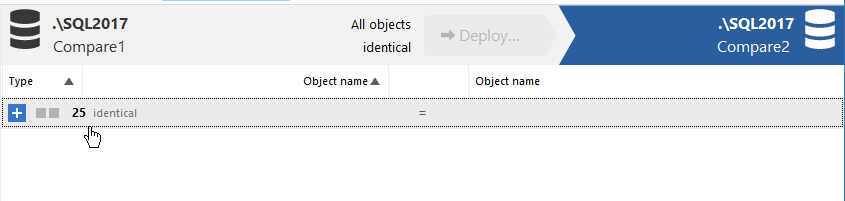
    2020-11-30 14_59_33-

    I used the default options here, just picking the databases and running the comparison. Let’s now change some code. In Compare2, I’ll adjust the procedure code to look like this:

    CREATE OR ALTER PROCEDURE GetMyTable @MyKey INT = NULL
    AS
    /*
    Check for a parameter not passed in. If it is missing, then
    get all data.
    */
    IF @MyKey IS NOT NULL
         SELECT
               @MyKey AS MyKey, mt.MyVal
         FROM  dbo.MyTable AS mt
         WHERE mt.MyKey = @MyKey;
    ELSE
         SELECT mt.MyKey, mt.MyVal
         FROM dbo.MyTable AS mt;
    SELECT 1 AS One;
    RETURN;
    GO

    I can refresh my project, and now I see there is a difference. This procedure is flagged as having 4 different lines, as you see in the image below.

    2020-11-30 15_01_59-SQL Compare - E__Documents_SQL Compare_SharedProjects_(local)_SQL2017.SimpleTalk

    However, the procedure isn’t different. I’ve just added comments to one of the procs. You might view this as different, in terms of how you run software development, but to the SQL Server engine, these procs are the same. How can I avoid flagging this as a difference and causing a deployment of this code?

    Changing Project Options

    Redgate has thought of this. In the SQL Compare toolbar, there is an “Edit Project” button.

    2020-11-30 15_06_34-SQL Compare - E__Documents_SQL Compare_SharedProjects_(local)_SQL2017.SimpleTalk

    If I click this, I get the dialog that normally starts SQL Compare, with my project and the databases selected. Notice that there are actually four choices at the top of this dialog, with the rightmost one being “Options”.

    2020-11-30 15_06_40-(local)_SQL2017.SimpleTalk_1_Dev v localhost.SimpleTalk_1_Dev.scp_

    If I click this, there are lots of options. I’ve scrolled down a bit, to the Ignore section. In here, you can see my mouse on the “Ignore comments” option.
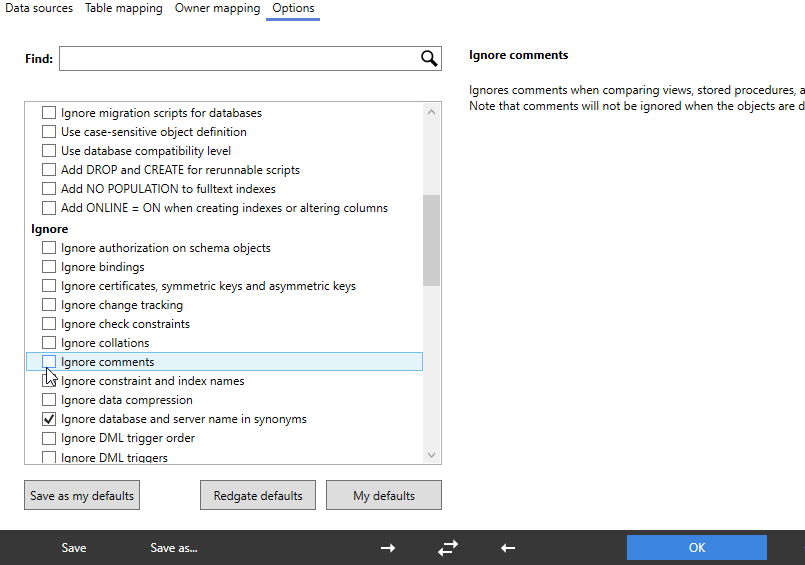
    2020-11-30 15_08_06-(local)_SQL2017.SimpleTalk_1_Dev v localhost.SimpleTalk_1_Dev.scp_

    I’ll click that, click Compare Now, which then refreshes my project. Now I all objects shown as identical. However, if I expand the stored procedure object, I can still see the difference. The difference is just ignored by SQL Compare.
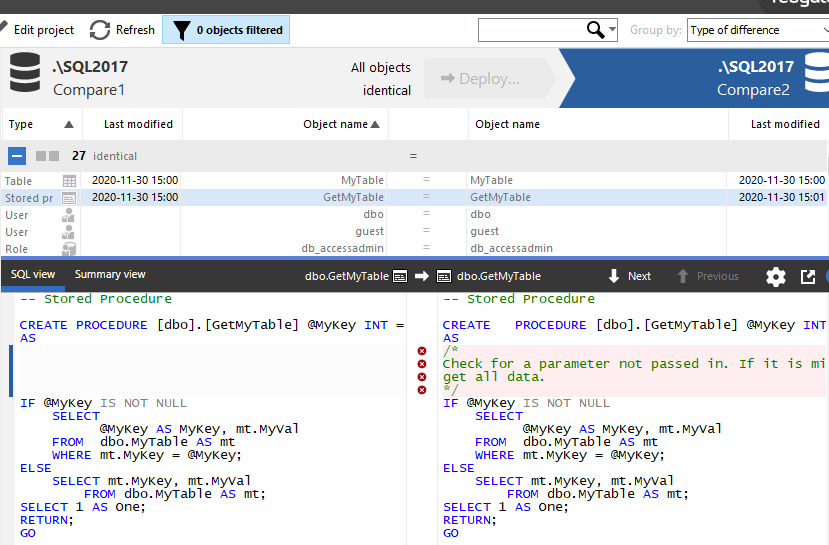
    2020-11-30 15_09_36-SQL Compare - E__Documents_SQL Compare_SharedProjects_(local)_SQL2017.SimpleTalk

    This lets me track the differences, see them, but not have the project flag them for deployment. If I’m using any of the Redgate automation tools, the command line option for this is IgnoreComments, or icm. You can pass this into any of the tools to prevent comments from causing a deployment by themselves.

    This also works with inline comments. I’ll alter the procedure in Compare1 with this code:


    CREATE OR ALTER PROCEDURE GetMyTable @MyKey INT = NULL
    AS
    IF @MyKey IS NOT NULL
         SELECT
               @MyKey AS MyKey, mt.MyVal
         FROM  dbo.MyTable AS mt
         WHERE mt.MyKey = @MyKey;  -- parameter value filter
    ELSE
         SELECT mt.MyKey, mt.MyVal
         FROM dbo.MyTable AS mt;
    SELECT 1 AS One;   -- second result set.
    RETURN;
    GO

    The refreshed project sees the differences, but this is still seen as an identical object for the purposes of deployment.

    2020-11-30 15_17_15-SQL Compare - E__Documents_SQL Compare_SharedProjects_(local)_SQL2017.SimpleTalk

    If you are refactoring code, perhaps by just adding comments or clarifying something, you often may not want a deployment triggered just from changing the notes you leave for other developers. SQL Compare can help here, as can all the Redgate tools.

    I would recommend this option always be set, unless you have a good reason to allow comments to trigger a deployment.

    Give SQL Compare a try today if you’ve never used it, and if you have it, enable this in your projects.
  • Adding ApplicationIntent=readonly to SQL Data Compare

    Recently someone asked a good question about SQL Data Compare. How can they add applicationintent to the connection?

    If you are using Data Compare, and you are reading from production systems, load is a concern. With Availability Groups (AG), we can point SQL Data Compare to the secondary replicas and limit the load on the writable primary. How can we do that? Well, it’s actually easy.

    We have a doc page for encrypted connections, and we can use the same type of action to work with AGs.

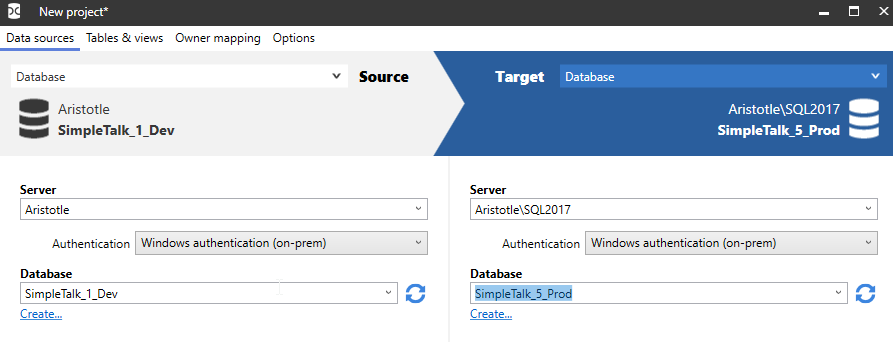
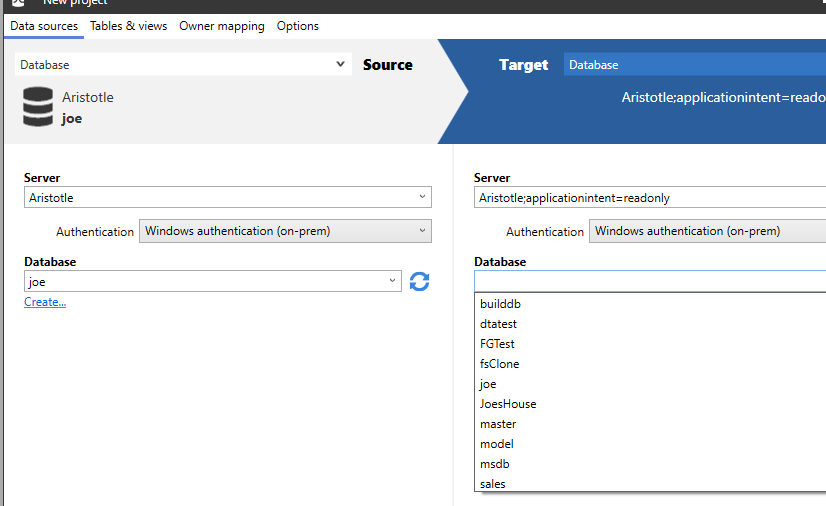
    In a new project, I typically see something like this:

    2020-09-04 12_04_43-New project_

    What I can do is edit the server connection on the right. Just click in there, and then add this:

    Aristotle\SQL2017;applicationintent=readonly

    This will add the option in the connection string.

    2020-09-04 11_51_37-New project_

    If I open the project file, I will see the XML, where I can also edit these connections if desired.

    2020-09-04 12_09_42-E__Documents_SQL Data Compare_SharedProjects_(local)_SQL2017.SimpleTalk_1_Dev v

    I can do this for any of the options I need for connection strings.

  • Exchanging Schemas with SQL Compare Snapshots

    Recently I was working with a customer and they asked if they could somehow package up their schema without the data and send this to a colleague. Absolutely, and that’s one reason we have SQL Compare snapshots.

    Here’s a quick example of this working, where I’ll move a database from my desktop to a laptop. Separate SQL Compare machines and licenses.

    First, I start with a database on my local instance. This is a copy of the ContosoRetailDW that I got from Microsoft. It’s set up, and I want to get the schema to another machine without doing a backup.

    2020-07-28 11_29_28-SQLQuery2.sql - ARISTOTLE_SQL2017.master (ARISTOTLE_Steve (59)) - Microsoft SQL

    I could script this into one big file with SSMS/SMO, but I’d lose some of the flexibility I have with SQL Compare, where I could filter things, set options, etc.

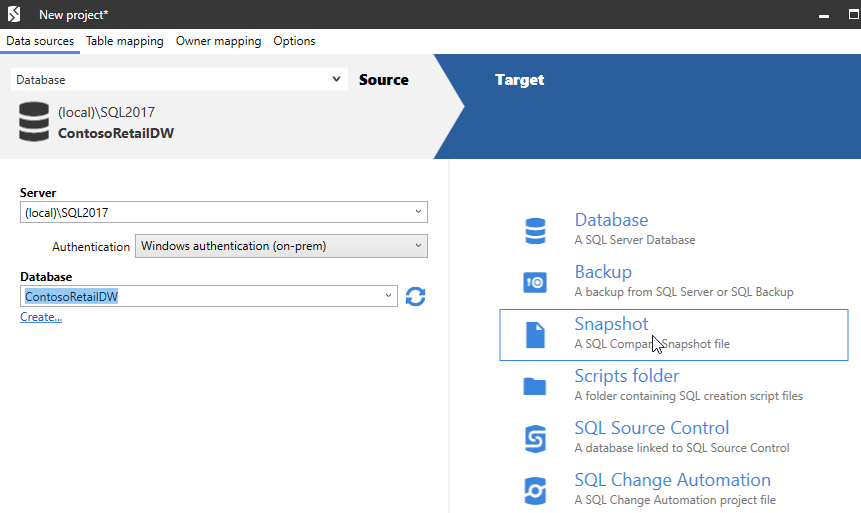
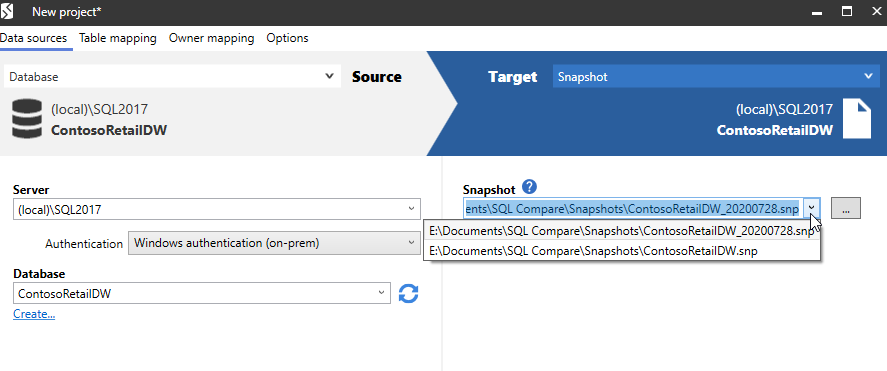
    Let’s start SQL Compare. When this opens, I have the basic dialog asking for source and target. I’ll set the source to my database. For the target, I have many options, the third of which is Snapshot (in SQL Compare 14).

    2020-07-28 11_56_04-New project_

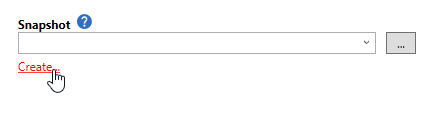
    When I click this, I see a simple dialog. This is because SQL Compare is looking for me to pick a snapshot to compare my database to. I don’t want to make a comparison. What I want to do is create a snapshot, so I’ll click Create.

    2020-07-28 11_56_20-New project_

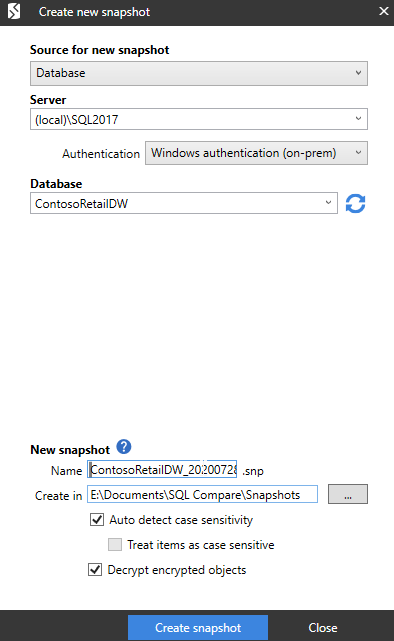
    This gives me a different dialog. Here I connect to a server and database and Compare will create a snapshot. I pick a few options for where to store this and whether to decrypt things and use case sensitivity.

    2020-07-28 11_56_42-Create new snapshot

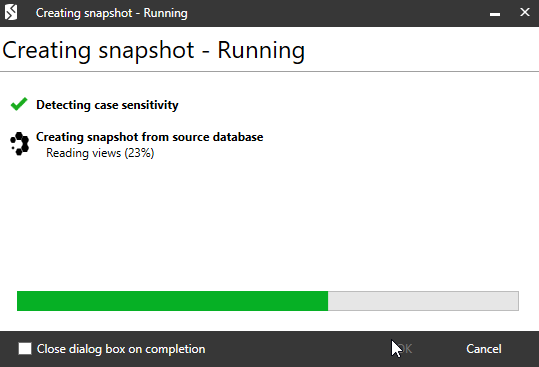
    This runs and Compare lets me know what’s happening at each stage.

    2020-07-28 11_56_49-Creating snapshot - Running

    When this is done, I’m back to the project dialog. Here I can select my snapshot from those in my local folder. Since I’m not going to do anything here, I’ll cancel out of this and close SQL Compare. Then I’ll transfer the file to a laptop.

    2020-07-28 12_04_17-New project_

    Restoring the Snapshot

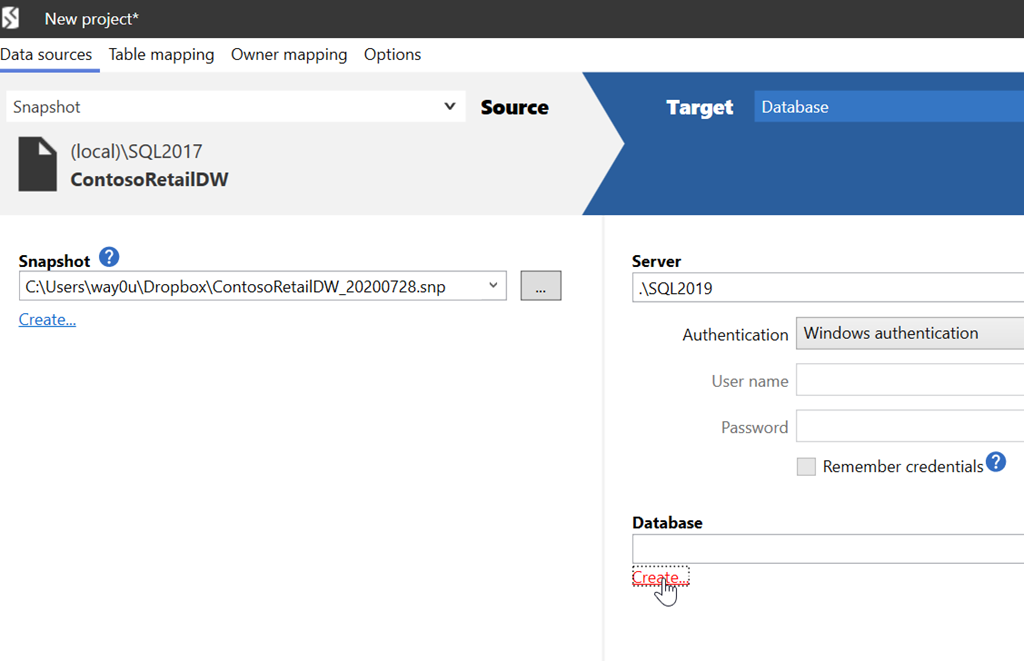
    I can email myself this file and save it on another machine. I’ll do that in the same SQL Compare\Snapshots folder. Now I can open SQL Compare on this machine. When I do, I’ll select the snapshot as my source.

    2020-08-20 08_22_41-New project_

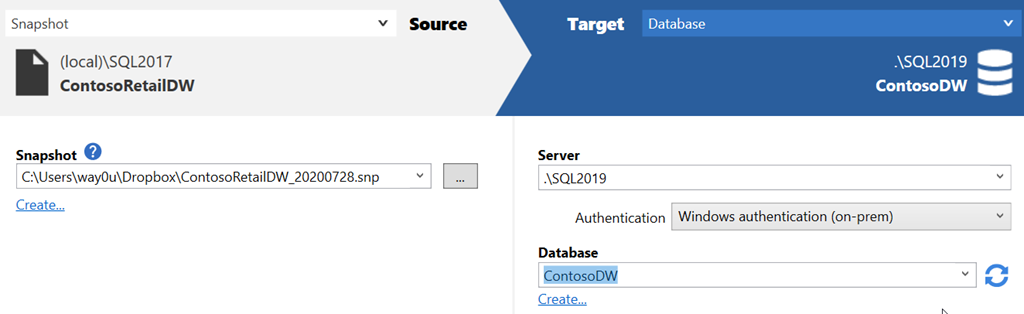
    The target is a database, but in this case, it’s a new one. I’ll create one from the SQL Compare dialog.

    2020-08-20 08_22_55-Create new database

    Once this is created, I can run the comparison.

    2020-08-20 10_01_20-New project_

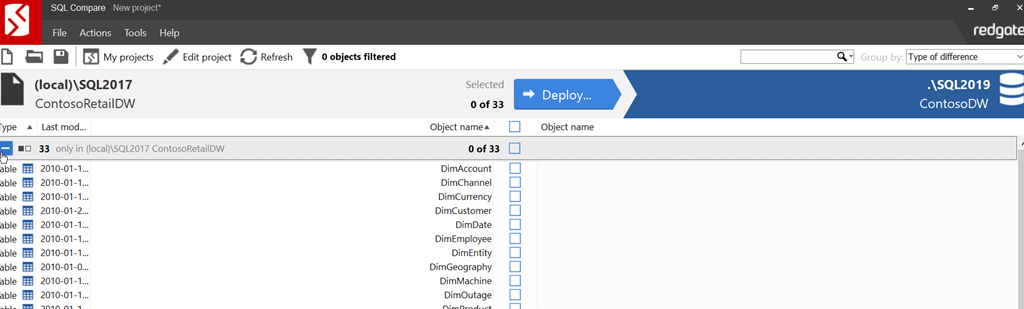
    When this completes, I have the system objects as identical, but I can see there are a number of use objects that don’t exist.

    2020-08-20 10_01_55-SQL Compare - New project_

    I can click Deploy and walk through that process. There are a number of confirmations to approve, but I am not showing those. At the end, a new comparison shows things are matching.

    2020-08-20 10_03_07-SQL Compare - New project_

    Note this doesn’t move data, just schema objects. This is primarily for development purposes, though if I needed data, I’d just use SQL Server backup and restore. Or SQL Data Compare if I needed limited data from tables.

    SQL Compare is one of the most popular products from Redgate. If you’ve never used it, give it a try today with an eval. If you have the SQL Toolbelt, make sure you are using Compare to check and move schema changes around in an ad hoc manner.

  • Launching SQL Compare with Context

    Years ago Redgate Software started some work to link our tools together. I remember early efforts, about which I had dubious thoughts as to the value. I hadn’t looked at how the work had progressed until a little earlier this year, when I started examining in more detail some features I had missed.

    One of these is in SQL Source Control, as it relates to SQL Compare. I often don’t have SQL Compare running, but I will find places where I want to look at the quick differences between one database and another, or between the database I’m working on and source control. While I can easily launch SQL Compare, or find a project with that is set up, it’s slightly annoying to have to find a file or create a new project and load a context.

    Much easier to use SQL Source Control.

    The Product Menu

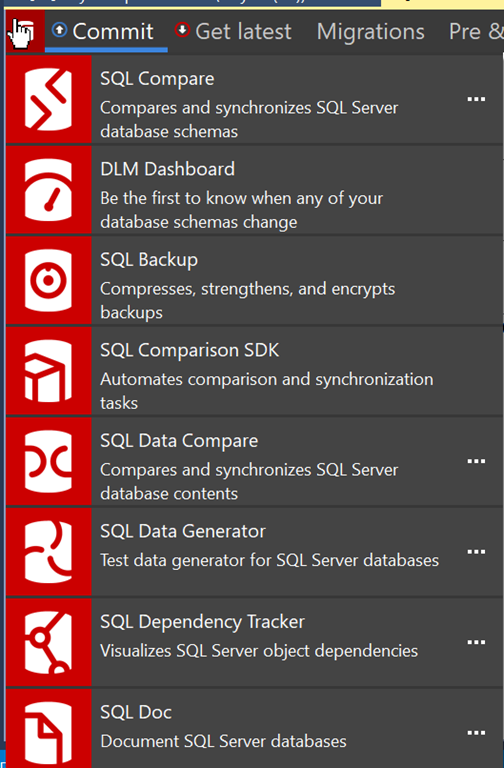
    In SQL Source Control, there is a Redgate icon in the upper left corner. When I’m working in SSMS, I can quickly switch over to the SQL Source Control (SOC) tab and click the icon.

    2019-09-04 17_50_14-SQL Source Control - Microsoft SQL Server Management Studio

    This will open a long menu, with a list of my Redgate tools. SQL Compare is at the top, and all other tools listed below.

    2019-09-04 17_50_21-

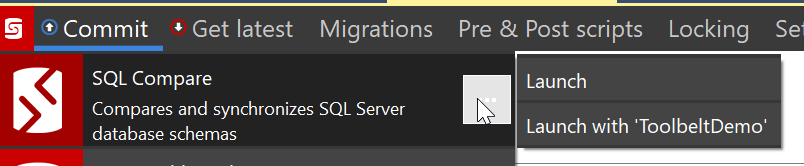
    If I click the ellipsis in the SQL Compare pane, I’ll get a couple of options.

    2019-09-04 17_50_32-SQL Source Control - Microsoft SQL Server Management Studio

    If you don’t see these options, then the database you’re working on isn’t linked to a VCS. That’s a separate problem.

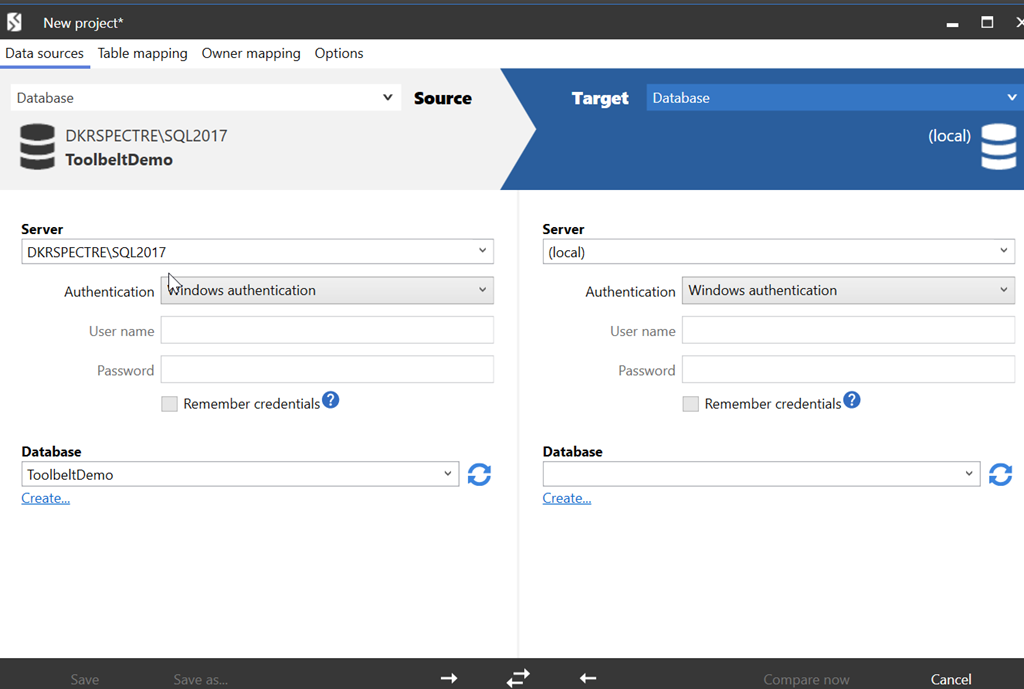
    This feature, however, is designed to fit into our DevOps solution, bringing the tools together for those people that are working inside of the Redgate process. In this process, I can quickly launch many of the tools with context. When I click the “Launch with ‘ToolbeltDemo’, I see this when Compare opens.

    2019-09-04 17_54_03-New project_

    My current database is listed on the left. I can then pick a database on the right, or a backup, project, etc., and run the comparison.

    A minor time saver, but a nice touch that eases my mental focus. If I continue to work, or check something while I wait for SQL Compare to launch, I know when I come back that half the work is done.

    You can launch other products as well, in a similar manner, making your workflow move along a little smoother.