Tag: SQL Compare

  • Filtering Objects with DLM Dashboard

    I’ve been looking at some of the features of DLM Dashboard as I go through work building database development pipelines. In this post I wanted to cover one of the lesser used features, filtering objects.

    Note: DLM Dashboard is a free tool from Redgate Software. Use it to monitor the schema of your development, test, and production databases and get notified when changes are made.

    Why would you filter objects if you’re auditing changes? Well, this isn’t really an audit per se. It’s more a tracking mechanism that provides auditing, but sometimes you don’t want to audit everything.

    For example, in my database pipeline, I have these databases:
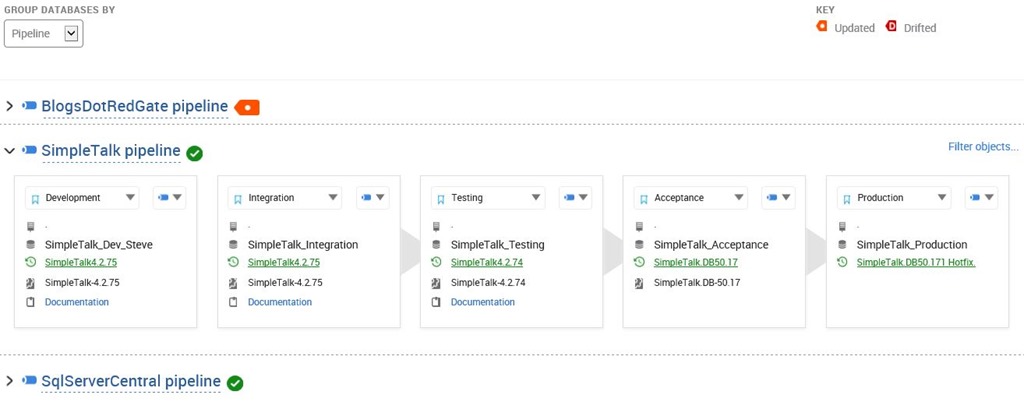
    2016-08-23 12_04_29-SalesDemo-2015-12-01-1745-export-i-fgod4b6h - VMware Workstation

    As much as I want to track down the changes to code, there are things I don’t want to deal with. For example, I don’t care about users. I (properly) use roles to manage security, and the users in each environment aren’t going to be deployed from one database to the other. More importantly, we don’t need to track them. So let’s stop.

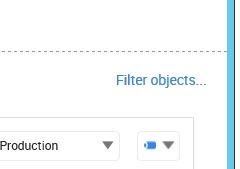
    If I go to the right side of my pipeline, I can see a “Filter objects…” link.
    2016-08-23 12_04_49-SalesDemo-2015-12-01-1745-export-i-fgod4b6h - VMware Workstation

    When I click that, I get this popup on the left, where I can upload a filter file. The filter file is the same format that SQL Compare uses, and indeed, the easiest way to create one is with SQL Compare. I’ll do that.

    2016-08-23 12_05_09-SalesDemo-2015-12-01-1745-export-i-fgod4b6h - VMware Workstation

    I’ll run SQL Compare and then grab two random databases. It doesn’t really matter since I don’t care about the comparison. Here I’m comparing a database to itself.
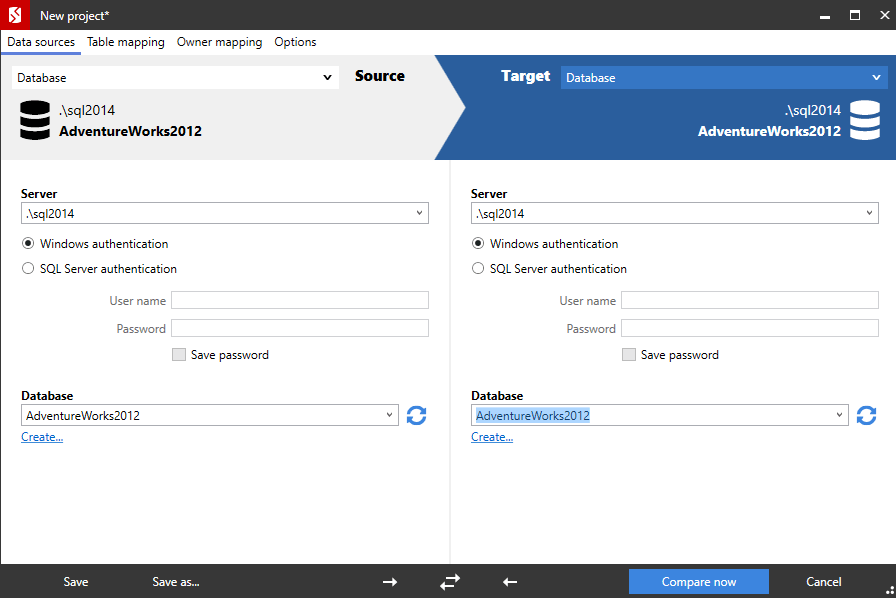
    2016-09-05 08_24_52-New project_

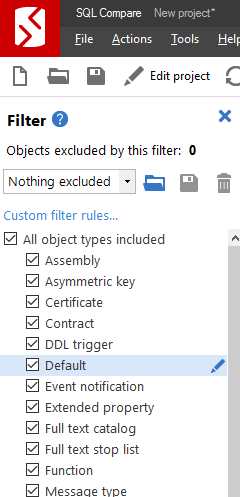
    When the comparison finishes, I can go to the left side and set filters.
    2016-09-05 08_25_26-SQL Compare - New project_

    There are a lot of choices here, but I’ll simply remove the checkbox on “Users”.

    2016-09-05 08_25_43-SQL Compare - New project_

    Once I do that, I can save the filter file. There’s a save icon near the top of the filter dialog.

    2016-09-05 08_26_00-SQL Compare - New project_

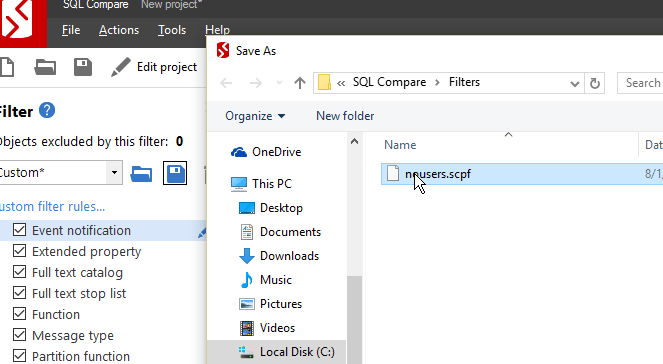
    Clicking this gives me a dialog to enter a file name.
    2016-09-05 08_26_15-Save As

    Now I can just close SQL Compare. By default, these filter files are in %My Documents%\SQL Compare. Once I’ve saved that file, I can see it in the Windows Explorer.

    2016-09-05 08_26_38-C__Users_way0u_Documents_SQL Compare_Filters

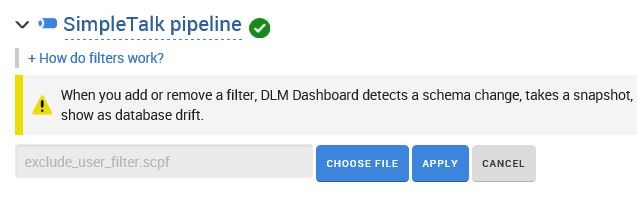
    Now let’s go back to DLM Dashboard. I can browse to my filter file and load it. Once I do that, the filter is applied, and my main page notes that I’ve got a filter applied on that pipeline.
    2016-08-23 12_10_49-SalesDemo-2015-12-01-1745-export-i-fgod4b6h - VMware Workstation

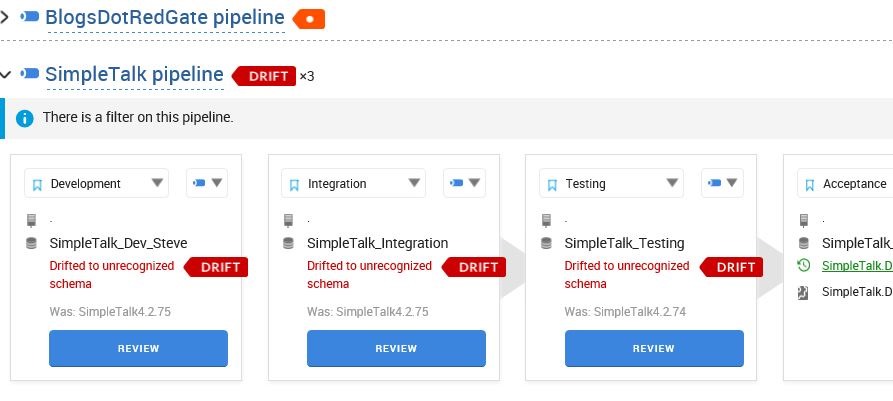
    There is a warning here, that notes the change of a filter is actually a drift detection change. This means the schema is not recognized. The same things happens if you remove a filter.
    2016-08-23 12_13_51-SalesDemo-2015-12-01-1745-export-i-fgod4b6h - VMware Workstation

    If I look at the details, you’ll see the filter has been applied.

    2016-08-23 12_14_07-SalesDemo-2015-12-01-1745-export-i-fgod4b6h - VMware Workstation

    Note: This filter is only applicable to those database in this pipeline.

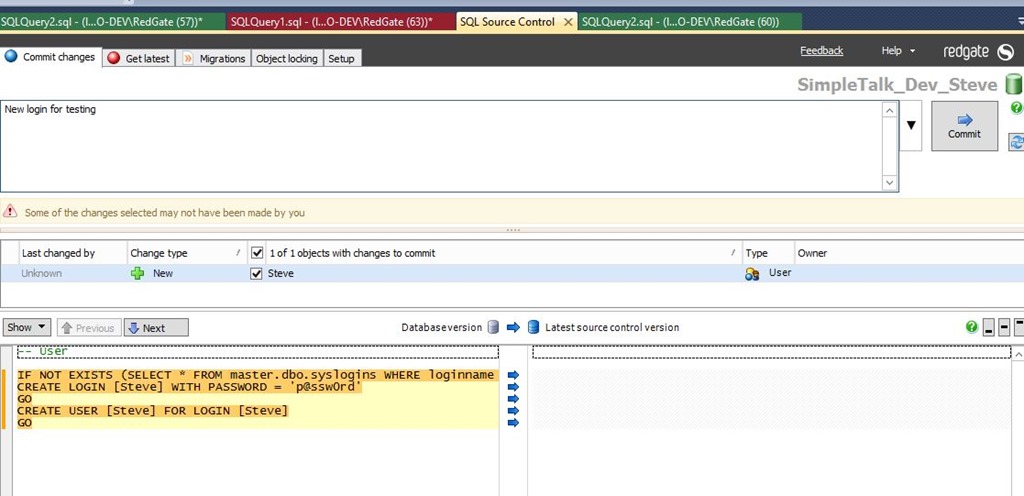
    Now, let’s test this. Users are ignored in this pipeline, so if I add a new user to the database, it shouldn’t affect the system. Let’s do that.

    2016-08-23 12_13_06-SalesDemo-2015-12-01-1745-export-i-fgod4b6h - VMware Workstation

    SQL Source Control detects this (though I could filter it here as well).
    2016-08-23 12_13_30-SalesDemo-2015-12-01-1745-export-i-fgod4b6h - VMware Workstation

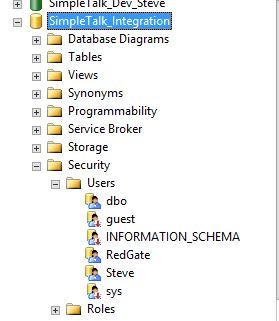
    After I commit the change, it flows through the CI process and gets deployed to the Integration database. I can see the login here:
    2016-08-23 12_16_47-SalesDemo-2015-12-01-1745-export-i-fgod4b6h - VMware Workstation

    However, I don’t see drift.

    2016-08-23 12_16_56-SalesDemo-2015-12-01-1745-export-i-fgod4b6h - VMware Workstation

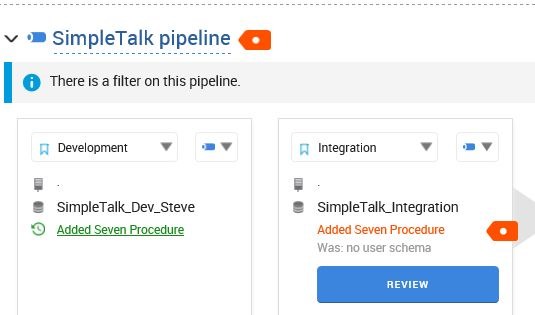
    You’ll have to trust that I named the drifted schema this, but what if I include a few changes? I’ll add a new procedure and commit it to my VCS. The CI process runs and this is deployed to integration. Now I can see a change in Integration.
    2016-08-23 12_20_08-SalesDemo-2015-12-01-1745-export-i-fgod4b6h - VMware Workstation

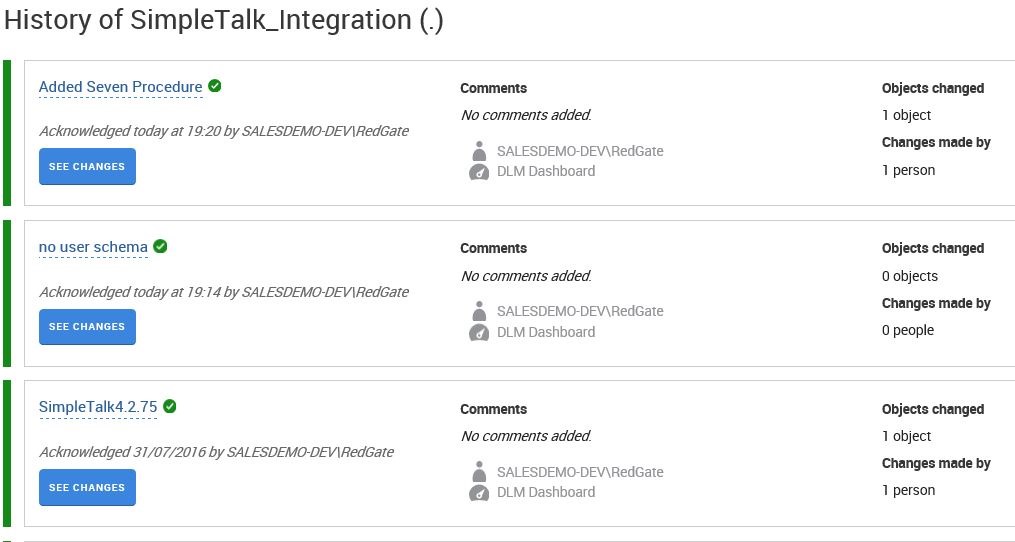
    This is the same schema I named in Development (I know, I should use numbering). It’s marked as a change from the CI process, and I need to acknowledge that.

    The details of the change:

    2016-08-23 12_20_18-SalesDemo-2015-12-01-1745-export-i-fgod4b6h - VMware Workstation

    The history, after I’ve Acknowledged the changes
    2016-08-23 12_20_48-SalesDemo-2015-12-01-1745-export-i-fgod4b6h - VMware Workstation

    Filtering Helps

    When you’ve got environment specific items, or things that you want to exclude from tracking, filtering works. These might be schemas controlled by other groups or a third party. This might be security information. This could be anything.

    By using a filter, you can reduce the noise. By deploying these filters throughout your DLM process, in SQL Source Control, in DLM Automation, in DLM Dashboard, you can limit the extra information that isn’t necessary for you to view.

    Getting Started

    You can start using DLM Dashboard for free today. Download a copy, at no charge, and monitor up to 50 databases from a single installation. Or install multiple instances to watch more databases.

    I think you’ll find DLM Dashboard is a handy tool for tracking those development efforts you want to be sure are deployed completely to downstream environments, while ignoring those that aren’t important.


  • Deploying Row Level Security with SQL Compare

    SQL Compare is a core product from Redgate and I’ve got a series on some of the interesting things I’ve found. Download a trial today if you haven’t tried it.

    Row Level Security (RLS) is a great new feature in SQL Server 2016. It’s been in Azure SQL Databases for some time, but we now have it on premise. It’s easy to setup and use, and worth taking a look at if you have multi-tenant scenarios, or need more granular security in your organization.

    Developing this feature means some extra testing, and certainly then ensuring that the code you send to production is the same as that which you tested and verified in your dev and QA environments. I wrote a short piece over at the Redgate blog that shows  how SQL Compare helps here, moving the changes from one environment to the next.

    I really like this feature. It seems simple, and it is, but it’s a powerful, central way to actually implement the security features you want.

  • Deploying Dynamic Data Masking Changes

    SQL Compare is a core product from Redgate and I’ve got a series on some of the interesting things I’ve found. Download a trial today if you haven’t tried it.

    I wrote a short piece over on the Redgate blog that covers how SQL Compare can catch and build a script to move Dynamic Data Masking (DDM) code from one database to another.

    As the surface area of SQL Server programming changes, moving these items from one instance or database to another becomes important. I know that Microsoft doesn’t always make this easy or smooth, so we need tools to help.

    DDM changes are fairly simple, but I can see these being implemented in lots of code, as they’re an easy way to mask an obscure some data in an app without code changes, but we need to be sure these changes get deployed from development to production.

    Or production to development, if you’re the kind of person that works that way Winking smile. Don’t worry, SQL Compare can help there, too.
  • SQL Compare 12 Beta

    SQL Compare is a core product from Redgate and I’ve got a series on some of the interesting things I’ve found. Download a trial today if you haven’t tried it.

    The Beta is out. I’ve been waiting for this, and was glad to see Carly’s post on the product. I’ve been involved in looking at some early designs and functionality, and have been waiting for the product to get to the point I could play with it more.

    Be sure you grab the beta if you like Compare, give it a try, and send us feedback. We really try to be responsive as a company, and certainly want Compare and Data Compare to be the best products out there.

    New Look and Feel

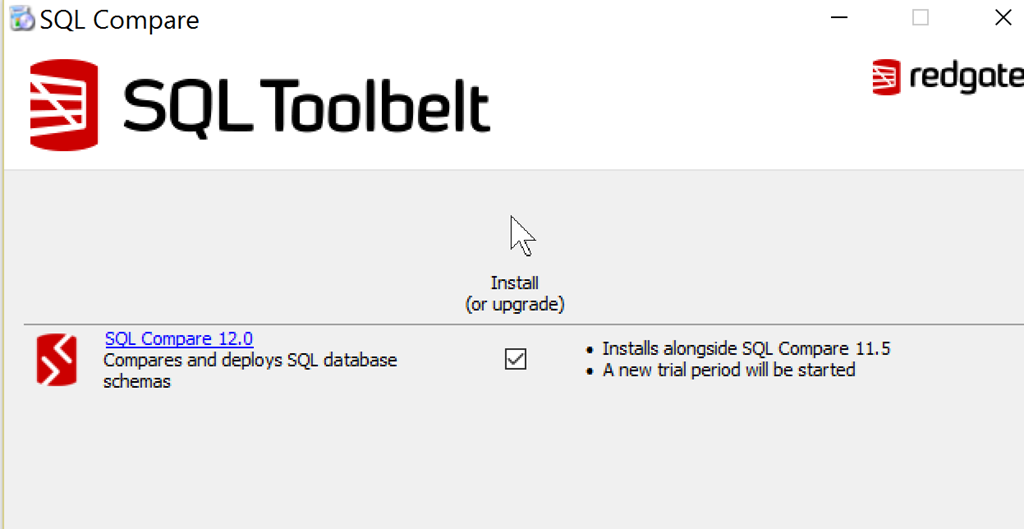
    Redgate has been looking to get a new look and simpler designs as a company. You can see that with the SQL Compare installer.

    2016-06-03 16_49_37-SQL Compare

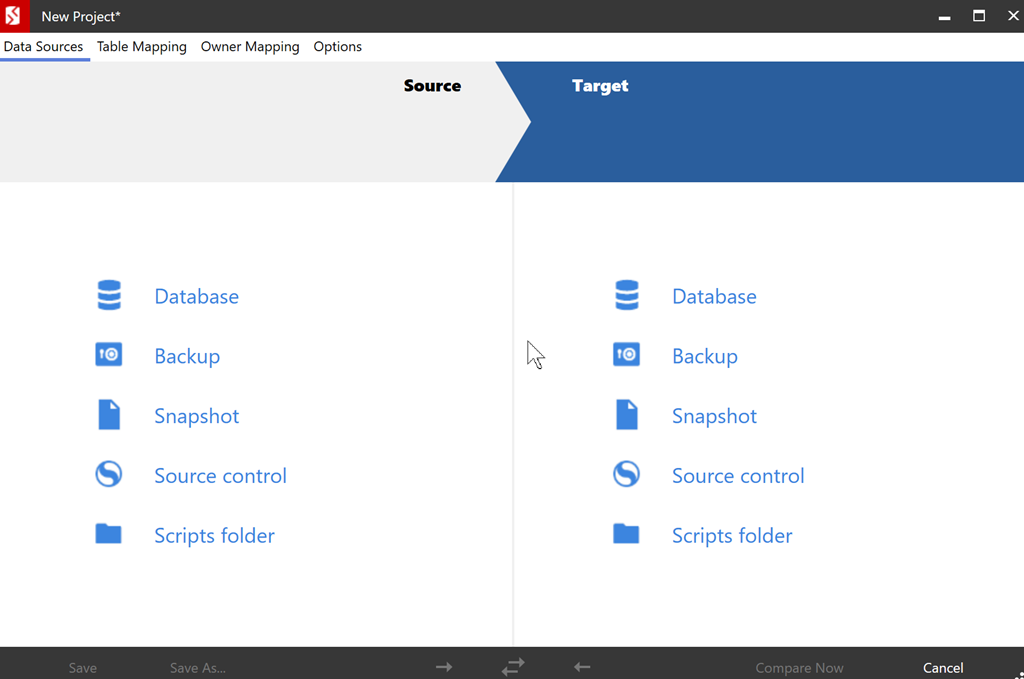
    The icons have changed, but that’s not all. When you run SQL Compare, you notice this right away.

    2016-06-03 17_41_23-New Project_

    Once you select the items to compare, you see a familiar connection dialog.

    2016-06-03 17_41_57-New Project_

    If I compare, I see various results. In this case, I’ve got two demo databases in two different stages. Each has objects the other doesn’t, and I can get a cleaner (IMHO) view of the objects.

    2016-06-03 17_45_27-SQL Compare - C__Users_way0u_Documents_SQL Compare_SharedProjects_(local)_SQL201

    There are plenty of SQL Server 2016 enhancements, a few bug fixes, and lots of look and feel changes. There’s still some work to do, but we’re confident this version is ready to show. Let us know how the product works for you and what you’d like to see changed.