Tag: SQL Data Compare

  • Using SQL Compare with Read-only Access

    Recently a customer asked if SQL Compare and SQL Data Compare can be used with a read-only database as a source. It’s a good questions as I’ve seen some tools that create temp tables or do some other work in a source database, which might cause problems. Certainly someone running SQL Compare against production would want to ensure it works as a read-only application.

    This post will look at SQL Compare with a read-write database but a user account with read-only access. My previous post looked at a read-only database.

    This is part of a series of posts on SQL Compare.

    Setup

    I’ve got a couple of databases that I use for Compare demos. In this case, compare5_prod and compare1. The compare5_prod is set to read write, which is normal.

    2024-10_0110

    I created a new login, which will default to the Compare5_prod database.

    2024-10_0107

    This login maps to a user, which has read only rights in the database.

    2024-10_0109

    In my compare setup, I’ll use this login to connect to the database.

    2024-10_0111

    As you can see below, Compare works fine, even reading the various system metadata tables:

    2024-10_0113

    This works because SQL Compare is not writing anything to the database. We read metadata and then process that in-memory on the client before returning the results.

    You can see this also works in SQL Data Compare. Here’s the connection:

    2024-10_0115

    And here are the results

    2024-10_0114

    Summary

    This was a very simple example, but I find that clients always would prefer to see examples already completed and proof that something works when they are evaluating software. Hopefully this helps answer this question.

    SQL Compare is an amazing tool that millions of users have enjoyed for 25 years. If you’ve never tried it, give it an eval today and see what you think.

  • Using SQL Compare in Read-Only Databases

    Recently a customer asked if SQL Compare and SQL Data Compare can be used with a read-only database as a source. It’s a good questions as I’ve seen some tools that create temp tables or do some other work in a source database, which might cause problems. Certainly someone running SQL Compare against production would want to ensure it works as a read-only application.

    This post will look at SQL Compare with a database set to read-only. I’ll do a second post on a login that only has read authorization.

    This is part of a series of posts on SQL Compare.

    Setup

    I’ve got a couple of databases that I use for Compare demos. In this case, compare5_prod and compare1. The compare5_prod is set to read only, as you see below.

    2024-10_0103

    My connection is as a sysadmin, but that doesn’t override a read-only database. As you can see below, Compare works fine:

    2024-10_0105

    This is because SQL Compare is not writing anything to the database. We read metadata and then process that in-memory on the client before returning the results.

    You can see this also works in SQL Data Compare.

    2024-10_0106

    Summary

    This was a very simple example, but I find that clients always would prefer to see examples already completed and proof that something works when they are evaluating software. Hopefully this helps answer this question.

    SQL Compare is an amazing tool that millions of users have enjoyed for 25 years. If you’ve never tried it, give it an eval today and see what you think.

  • Exporting SQL Data Compare Results to Excel

    I had someone ask recently about getting SQL Data Compare results in Excel. It’s easy to do and this post looks at the process.

    Exporting a Comparison

    I won’t go into the details of making a comparison. I have another post that looks at this with joins, but the tool is fairly intuitive (ingeniously simple) to use.

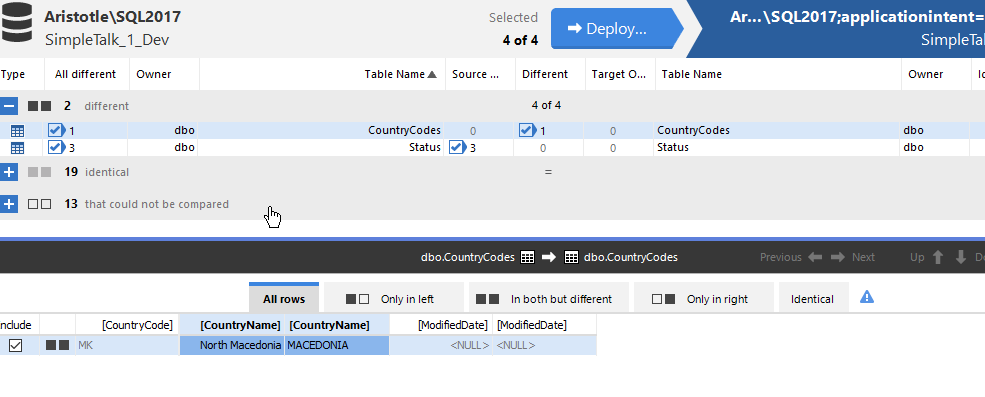
    Once you have a comparison, you should see something like this image. Here I have two tables that are different (I selected all tables). The first, dbo.CountryCodes, has a difference in a row, different values in the name.

    2023-04-14 13_47_56-SQL Data Compare - E__Documents_SQL Data Compare_SharedProjects_(local)_SQL2017.

    The second, dbo.Status, has some rows in the source (left) that are not in the target.

    2023-04-14 13_48_02-SQL Data Compare - E__Documents_SQL Data Compare_SharedProjects_(local)_SQL2017.

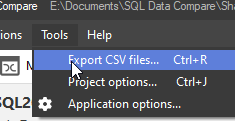
    To export these results, I use the Tools menu. There is an option you can see below:

    2023-04-14 13_48_08-

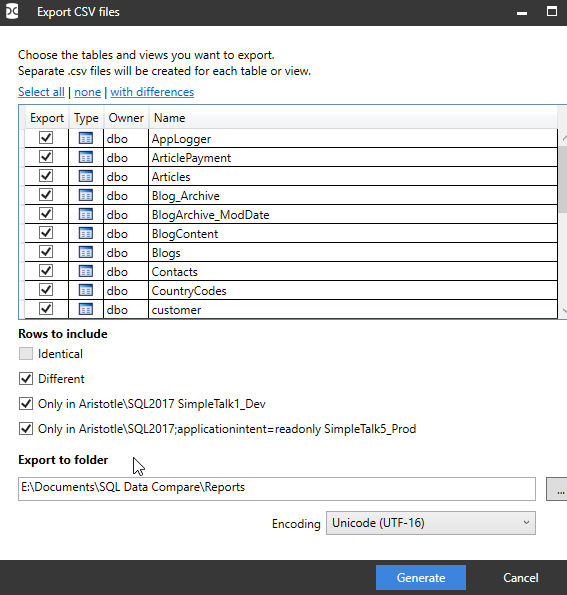
    Once I pick this, I get a dialog with options. I can pick certain tables, or all. The defaults are all tables, and only show differences. Note the identical button is not selected.

    2023-04-14 13_48_17-Export CSV files

    If I open the folder in the dialog above (after clicking Generate), I see my files. There are separate files for each table and one with a summary.

    2023-04-14 13_48_24-Reports

    If I double click the dbo.CountryCodes.csv file, Excel opens, but not the way I like it. I see this:

    2023-04-14 13_58_46-dbo.CountryCodes.csv - Excel

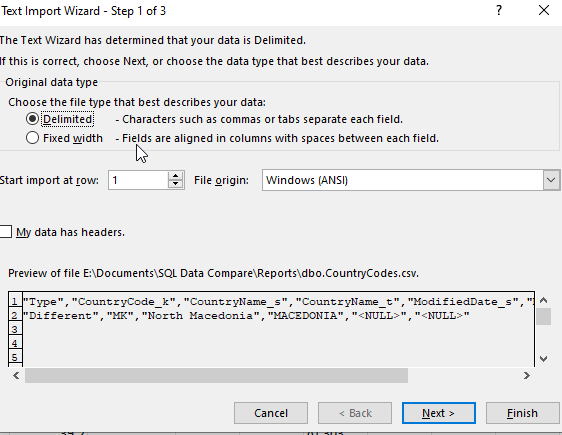
    However, if I File | Open the file, I get the wizard for delimited files.

    2023-04-14 13_59_00-Expenses 2023.xlsx - Excel

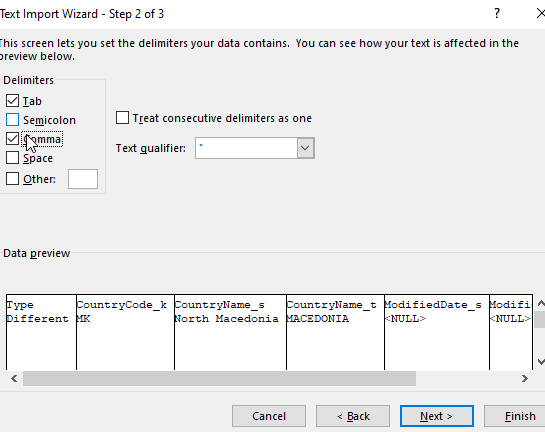
    When I go to the second page and click “comma” as the delimiter, I see a better preview.

    2023-04-14 13_59_05-Text Import Wizard - Step 2 of 3

    I can finish this and I see my data. In this case, the first column lets me know this is changed data that has the same row with the same PK in both databases.

    2023-04-14 13_59_22-dbo.CountryCodes.csv - Excel

    Similarly, I get open the Status table file and see this. Here the first column lets me know this data is only in the first database, the source or left database, that I set in my SQL Data Compare project.

    2023-04-14 13_59_50-dbo.Status.csv - Excel

    The summary also needs the same open process and this shows me all tables, with lots of zeros. However, for my two tables, you can see there is 1 row noted in the Different column for CountryCodes and 3 rows only in the source (SimpleTalk_1_Dev) database.

    2023-04-14 14_00_35-Results Summary.csv - Excel

    I can then save these in Excel format if I like and send them around to colleagues.

    Summary

    You’ve seen how you can review SQL Data Compare results in Excel. I don’t know if your Excel will open the CSV with values in separate columns, or if you need to perform a File | Open as I did.

    This is useful for sending to a business user that might need to make decisions about what data needs to be synched where. The hardest part here is explaining the _s and _t names for source and target.

    SQL Data Compare is very handy for single GB data sets to compare. I wouldn’t recommend this for > 10GB, but under that, with good hardware, you should have success comparing tables or views.

    If you’ve never tried it, download an evaluation today.

  • Using SQL Data Compare from the Command Line with a Project

    SQL Data Compare (SDC) is a great way to sync data among tables. It’s a software utility analogous to SQL Compare, but working with data rather than schema. I had a customer ask recently about setting up a SDC project and then calling that from the command line rather than using the GUI and clicking.

    This post looks at how you can call a project from the command line. The project has a WHERE clause in it, so it uses the settings from the project.

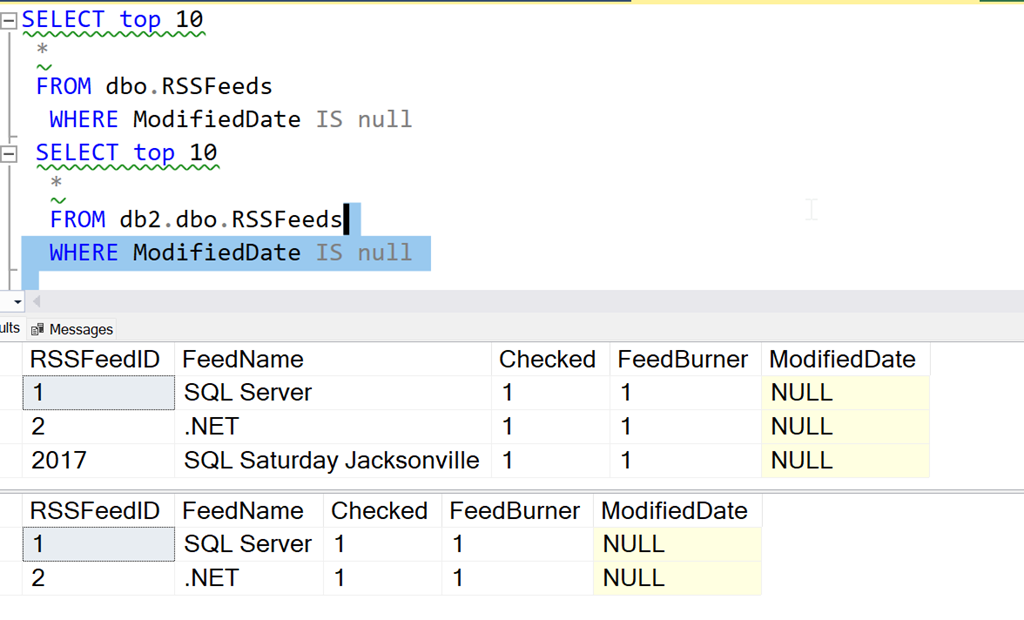
    We have the data shown here, from two different databases. There is 1 row in the first table that is not in the second table (in the second database).

    2023-01-11 10_12_23-SQLQuery3.sql - localhost.db1 (WAY0UTWESTHP_way0u (59))_ - Microsoft SQL Server

    I’ll build a SQL Data Compare project. In this project, I point to these two databases and the tables.

    2023-01-11 10_12_34-SQL Data Compare - C__Users_way0u_OneDrive_Documents_SQL Data Compare_SharedProj

    If I edit the project, I can choose the tables and views tab. Here I see my tables, and I select the dbo.RSSFeeds table.

    2023-01-11 10_24_46-DLM_Demo_RSS.sdc

    When I select the row with dbo.RSSFeeds, I can then click the “Where clause” option and get a dialog where I can filter data. Here I can enter the where clause I used in the first query above. I also have the”use the same WHERE Clause” box checked.

    2023-01-11 10_12_50-DLM_Demo_RSS.sdc_

    Now I can save that project. I’ll then execute this from the command line. Note that I don’t have the SQL Data Compare install in my path, so I qualify both of these files, the executable and the project file. The call for me is:

    "C:\Program Files (x86)\Red Gate\SQL Data Compare 14"\sqldatacompare /project:"C:\Users\way0u\OneDrive\Documents\SQL Data Compare\SharedProjects"\DLM_Demo_RSS.sdc

    You can see this being run below:

    2023-01-11 10_13_13-cmdI can see there is a single row in the DB! that needs to move to DB2, which is the result I saw in the first queries above and in the SQL Data Compare gui.

    If I add the /synchronize option to this call, SQL Data Compare will deploy the changes. Once I do that, I can query the two tables and see the data is the same. At least the data matching the WHERE clause.

    2023-01-11 10_13_41-SQLQuery3.sql - localhost.db1 (WAY0UTWESTHP_way0u (59))_ - Microsoft SQL Server

    Some of this is documented, but not worked through in an example, so I wrote this post to help myself and anyone else looking to work with SQL Data Compare from the command line. This is a great way to sync data easily between systems, if you have a repeatable set of data that you need to move.

    SQL Data Compare is a very handy tool for checking and moving data between tables that needs to be synched. All sorts of lookup or reference data can be managed with SQL Data Compare. If you haven’t tried it, grab an evaluation and give it a try.

    Disclosure: I work as an advocate for Redgate Software.