

I had someone ask recently about getting SQL Data Compare results in Excel. It’s easy to do and this post looks at the process.
Exporting a Comparison
I won’t go into the details of making a comparison. I have another post that looks at this with joins, but the tool is fairly intuitive (ingeniously simple) to use.
Once you have a comparison, you should see something like this image. Here I have two tables that are different (I selected all tables). The first, dbo.CountryCodes, has a difference in a row, different values in the name.
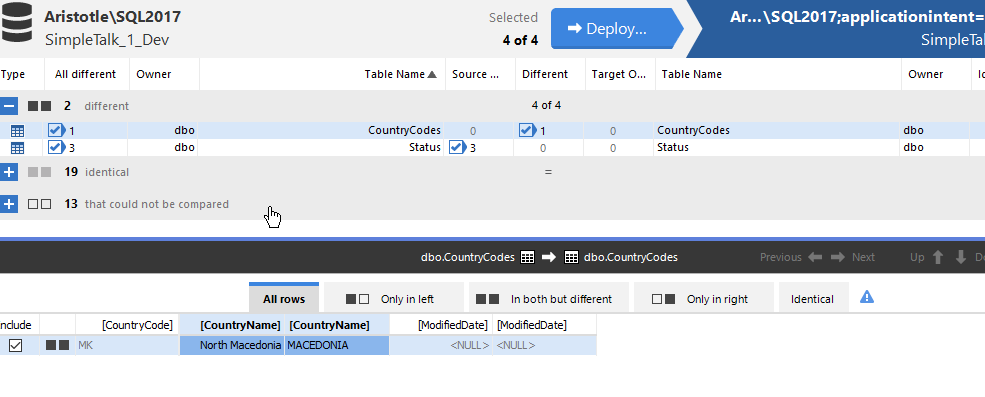
The second, dbo.Status, has some rows in the source (left) that are not in the target.

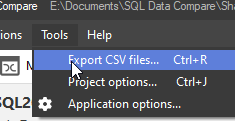
To export these results, I use the Tools menu. There is an option you can see below:
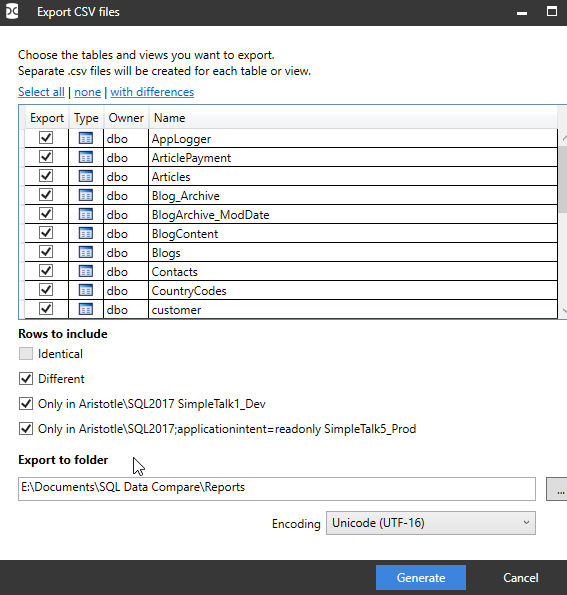
Once I pick this, I get a dialog with options. I can pick certain tables, or all. The defaults are all tables, and only show differences. Note the identical button is not selected.
If I open the folder in the dialog above (after clicking Generate), I see my files. There are separate files for each table and one with a summary.

If I double click the dbo.CountryCodes.csv file, Excel opens, but not the way I like it. I see this:

However, if I File | Open the file, I get the wizard for delimited files.
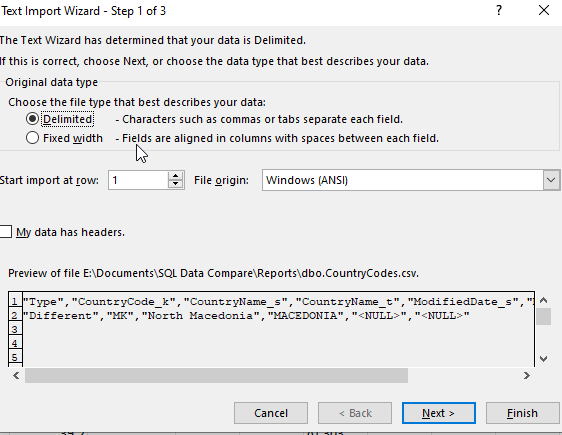
When I go to the second page and click “comma” as the delimiter, I see a better preview.
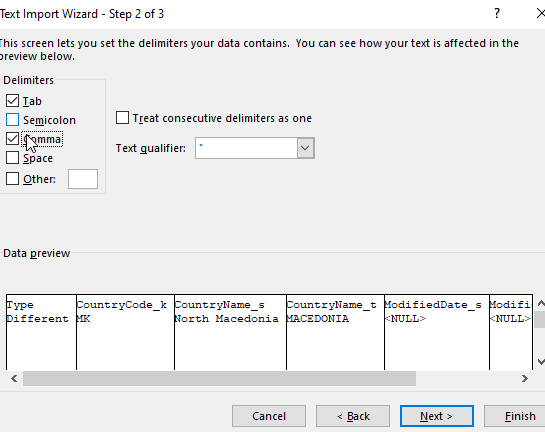
I can finish this and I see my data. In this case, the first column lets me know this is changed data that has the same row with the same PK in both databases.

Similarly, I get open the Status table file and see this. Here the first column lets me know this data is only in the first database, the source or left database, that I set in my SQL Data Compare project.

The summary also needs the same open process and this shows me all tables, with lots of zeros. However, for my two tables, you can see there is 1 row noted in the Different column for CountryCodes and 3 rows only in the source (SimpleTalk_1_Dev) database.

I can then save these in Excel format if I like and send them around to colleagues.
Summary
You’ve seen how you can review SQL Data Compare results in Excel. I don’t know if your Excel will open the CSV with values in separate columns, or if you need to perform a File | Open as I did.
This is useful for sending to a business user that might need to make decisions about what data needs to be synched where. The hardest part here is explaining the _s and _t names for source and target.
SQL Data Compare is very handy for single GB data sets to compare. I wouldn’t recommend this for > 10GB, but under that, with good hardware, you should have success comparing tables or views.
If you’ve never tried it, download an evaluation today.


