Tag: sql server

  • Where’s My Backup? SQL Server Backup Issues

    You can cause yourself problems if you don’t know where your backups are stored, and how they are being made. It also helps to understand the defaults of how your backups are created in files.

    Here’s a short story to illustrate an issue you might encounter as a beginner if you are not clear about the backup process.

    Let’s say you’re a junior DBA, and you create a database.

    CREATE DATABASE BackupRestoreTest
    go
    CREATE TABLE MyTable( mychar CHAR(1), mytest VARCHAR(200))
    go

    You know that backups are important, so you setup a basic command like the first one below, schedule it in SQL Agent, and you have backups being performed. In between the backups, work is being done. Probably more than one INSERT, but this is just to show something is happening in the database.

    -- schedule backup
    BACKUP DATABASE BackupRestoreTest
      TO DISK = 'MyBackup.bak'
    GO
    
    -- do work
    insert dbo.mytable SELECT 'a', 'b'
    GO
    
    -- backup database
    BACKUP DATABASE BackupRestoreTest 
      TO DISK = 'MyBackup.bak'
    GO
    

    This continues on, day after day. Work gets done, you run your nightly backups.

    -- do work
    insert dbo.mytable SELECT 'c', 'd'
    GO
    
    -- nightly backup
    BACKUP DATABASE BackupRestoreTest 
      TO DISK = 'MyBackup.bak'
    GO
    
    -- do work
    insert dbo.mytable SELECT 'e', 'f'
    -- mistake is made
    DELETE dbo.mytable
    -- more work
    insert dbo.mytable SELECT 'g', 'h'
    GO
    
    -- nightly backup
    BACKUP DATABASE BackupRestoreTest 
      TO DISK = 'MyBackup.bak'
    GO

    Then one day, someone runs this and calls you:

    -- mistake noticed
    SELECT MyChar FROM dbo.mytable
    GO

    Only the row with “g” is returned from this. The user asks about all the other data. Where are the rows with “a”, “c”, and “e”?

    You decide to restore.

    -- restore, use good habits. NORECOVERY always.
    USE master
    GO
    RESTORE DATABASE BackupRestoreTest 
      FROM DISK = 'MyBackup.bak'
      WITH NORECOVERY
      , REPLACE
    GO
    
    -- bring online
    RESTORE DATABASE BackupRestoreTest
      WITH recovery
    go
    

    You check the data and you get this:

    -- check data
    USE BackupRestoreTest
    GO
    SELECT MyChar FROM dbo.mytable
    GO

    The results?

    MyChar

    ———–


    Nothing. No data. Why not? If you look, you’re last insert (row “g”) occurs after the delete and before the backup. Why isn’t it in the restore?

    The answer comes from a few sources. If we read the BACKUP page in Books Online (BOL), we find that if we don’t include the INIT option for a disk file, the backup is appended to the current file. The phrase in BOL is:

    “If the physical device exists and the INIT option is not specified in the BACKUP statement, the backup is appended to the device. ”

    If we look at the INIT argument, we see that the default is NOINIT

    “NOINTI – Indicates that the backup set is appended to the specified media set, preserving existing backup sets. If a media password is defined for the media set, the password must be supplied. NOINIT is the default.”

    This means that we’ve essentially done this:
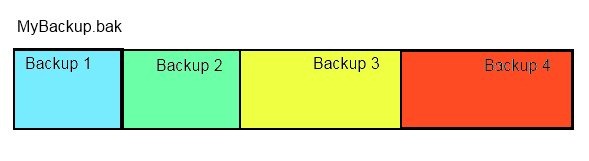
    backup3

    Our one file, MyBackup.bak, contains 4 full backup files. This file is larger than it needs to be, and also it poses a risk. If I lose this file, I don’t lose one backup, but I lose 4.

    Can I check this? Sure. Run this:

    RESTORE HEADERONLY FROM DISK = 'MyBackup.bak'
    

    I get these results:

    backup4

    You can see there are four files, with a “position” that differs.

    Now, on the restore, why didn’t I get one row back in my table? The insert for row “g” occurred before the last full backup (backup 4), so why wasn’t it restored?

    If we read the RESTORE Arguments page in BOL, we find out that for the FILE arguement

    “When not specified, the default is 1, except for RESTORE HEADERONLY in which case all backup sets in the media set are processed. For more information, see "Specifying a Backup Set," later in this topic.”

    The backup that was restored was our first backup, made before we did any work (inserted any rows).

    What do we do? Well, we have a few choices. The last (fourth) backup would only get us the one row. If we restore the third backup, we lose the data in rows “e” and “g”. That’s usually what we want to do, so let’s restore that backup:

    -- restore file 3
    USE master
    GO
    RESTORE DATABASE BackupRestoreTest 
      FROM DISK = 'MyBackup.bak'
      WITH NORECOVERY
      , FILE = 3
      , REPLACE
    GO
    -- bring online
    RESTORE DATABASE BackupRestoreTest 
      WITH recovery
    go
    -- test data
    USE BackupRestoreTest
    go
    SELECT TOP 10 
       mychar, mytest
     FROM mytable

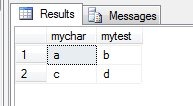
    That gives me two rows back. I’ve lost some work, but I potentially have recovered more in many situations.
    backup5

    Ideally I could recover more if I had transaction log backups, but that’s another blog.

    The main thing to be aware of here is to use the INIT command, write your backups to separate files, preferably with the timestamp in the file name. If you’re not sure how to do it, a maintenance plan can do it, or there’s a great script on SQLServerCentral that can help.

    Lastly, the default recovery models mean you need log backups. Make sure you know how to manage your transaction logs.
  • Creating Your Own Certificates

    Did you know that you don’t need to go to Digicert or Thawte, or any other company to get a certificate to use in SQL Server? You can create your own certificate.

    Why you would want to do this is a longer discussion, but suffice it to say that if your environment allows for self-signed certificates, you have a couple options for creating these in SQL Server and Windows. I’ll show you how easy this can be using these two methods:

    • makecert
    • CREATE CERTIFICATE

    Please be careful if you plan on creating your own certificates. The value of a certificate and asymmetric keys comes in the hierarchy of trust for these certificates and if you do not have a strong hierarchy, you could potentially be making your security worse, rather than better.

    Makecert

    The Windows Software Development Kit (SDK) contains a number of utiltiies, one of which is makecert. It’s a command line tool that creates certificates for you, and It’s easy to use.

    I downloaded the SDK, extracted it, and then fired up a command prompt, running this:

    makecert -sv "c:\EncryptionPrimer\MyHRCert.pvk" -pe -a sha1 -b "01/01/2012" -e "12/31/2012" -len 2048 -r -n CN="HR Protection Certificate" c:\EncryptionPrimer\MyHRCert.cer

    This code creates a private key file (MyHRCert.pvk) and a public key certificate (MyHRCert.cer)

    You can click the link and read the parameters, but it’s really that simple. When you create this certificate, you can use the FROM FILE options for CREATE CERTIFICATE to load this certificate into your SQL Server.

    CREATE CERTIFICATE

    I guess technically you are using the CREATE CERTIFICATE in either case here, but this section looks at the actual creation of the certificate by SQL Server.

    CREATE CERTIFICATE is standard DDL, like so many other commands in SQL Server. The parameters are similar to those for makecert. Here’s a statement that matches up with the one above.

    create certificate MySalaryCert
       ENCRYPTION BY PASSWORD = N'R3allyToughP@ssword4You'
       WITH SUBJECT = 'HR Protection Certificate',        
       START_DATE = '20120101',
       EXPIRY_DATE = '20121231';

    Note that you don’t need to specify the algorithm or other parameters. SQL Server handles that for your. You also don’t need to specify the two files here. The database engine stores these keys inside the database. You should make a backup of them, and you can use the BACKUP CERTIFICATE command to do this.

  • Feedback and Big Data

    Data Feedback loop
    The Data Feedback Loop

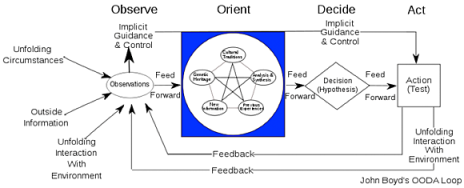
    How do we improve the way we do things? We measure them, observe, make a change based on our observation, measure again, and then repeat, looking to make our process, product, or idea better over time. We design our software this way as well, especially in any of the rapid and agile development methodologies. We get feedback as we make changes, adapating our efforts to improve the end product.

    We should be doing this with data as well, especially as we start to drown in waves and waves of data that grow over time. This piece from Alistair Croll talks about the ways in which we can adapt feedback to our data process. The various parts of the feedback loop, from collection to storage to analysis are all challenges we face as we start to encounter Big Data.

    The challenges that companies will face as they try to find competitive advantages in all their data create huge opportunities for those of us working as data professionals. Whether we learn how to better manage the storage of data, we study techniques for pattern recognition or machine learning from large data sets, or we find ways to present complex data to humans for deeper analysis, this is a good time to work with databases.

    We have seen SQL Server evolve and grow, and become incredibly complex. It’s expanded into spreadsheets (PowerPivot), high speed data collection (StreamInsight), and even other platforms (Hadoop). It’s too much for any one person to master, but the complexity and breadth of the platforms gives you the chance to pick an area that interests you. You can learn a bit about the whole feedback loop for data, specialize in the area that speaks to you, and hopefully have a challenging, interesting, and successful career.

    Steve Jones


    The Voice of the DBA Podcasts

    We are experiencing issues with our podcast hosting provider. We are working to resolve the problems and get the podcasts back as soon as we can.

  • A Quick Export with SQL Packager

    Disclosure: I work for Red Gate Software

    Someone asked me the other day if I’d ever used SQL Packager to export a table to send to another person. I hadn’t, and in fact hadn’t even ever run the tool, but this individual said it worked great.

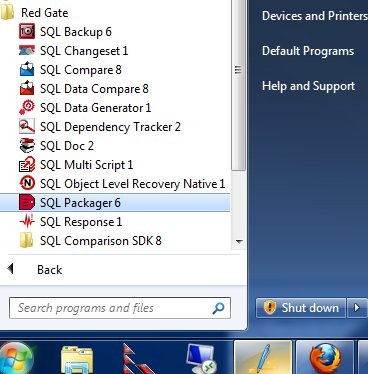
    Since Red Gate tools are designed to be simple and intuitive, I thought I should give it a try and see what happens. I went through the Start Menu and found SQL Packager in my toolbelt installation:

    packager0

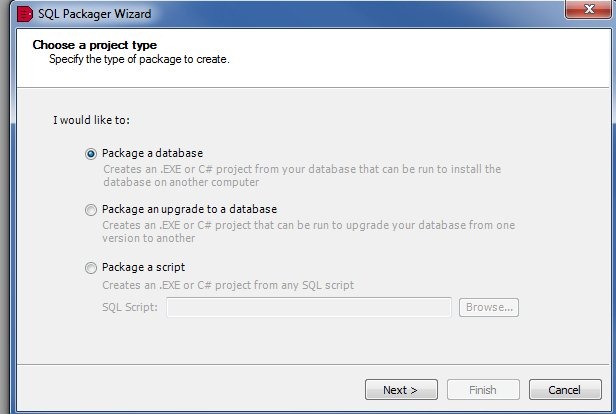
    I documented this as I went, shooting this images as I went through the process for the first time. As soon as Packager started, it began the packing wizard.

    packager1

    SQL Packager is designed to help you bundle up a database, or part of a database, as a part of an installation in your application. It can produce an .exe, a C# project, or a set of scripts that you can include as a distributable item in your application installation (or upgrade). The information can be compressed, so you reduce the requirements for your customers.

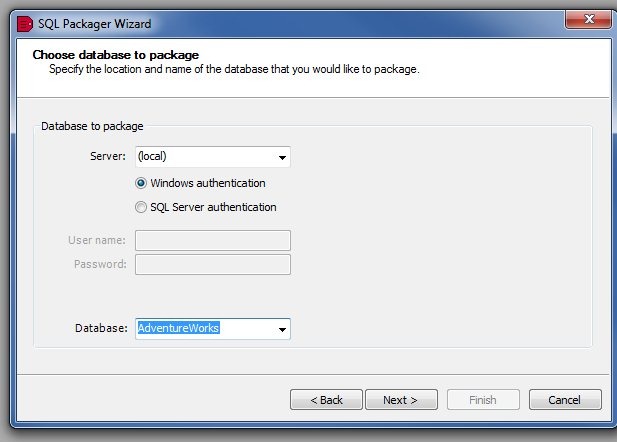
    In my case, I decided to just package up a table. I first signed into my local instance, and chose the AdventureWorks database.

    packager2

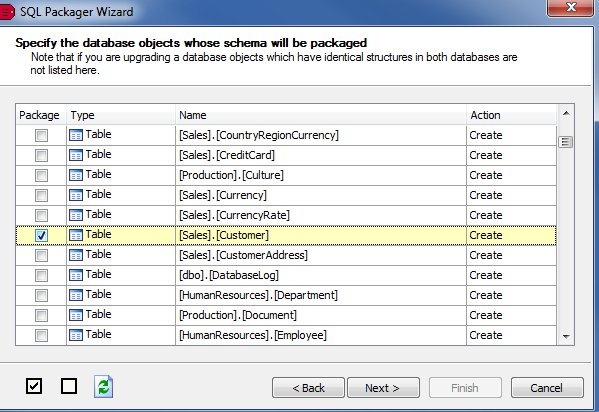
    Next, I chose just one table, the Customers table. The Red Gate tools tend to follow a similar, intuitive design, and try to do the most common things for most customers. In this case, the entire database was selected (this is a database packaging tool), so I deselected all, and then chose the Customer table.

    packager3

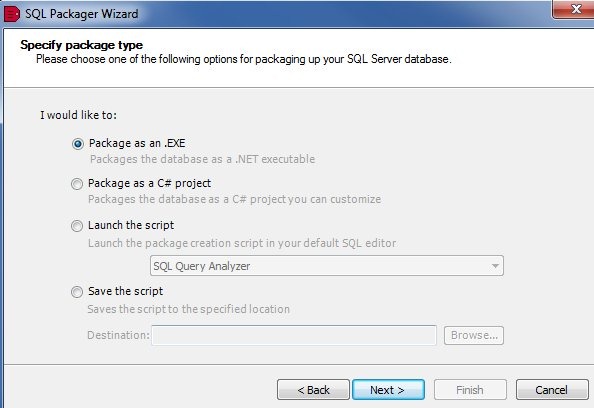
    Once I choose the table and click next, and confirm the selection, the packaging begins. I get some options as to how I might choose to build my package.

    packager6

    The options are shown, and in this case I choose to save the script. Once I clicked next, I had a change to see the final script. First there was the schema tab:

    packager4

    On this tab, all the DDL for my table is there, including a couple dependent tables, and some functions needed for defaults or computer columns. Keys and indexes were included.

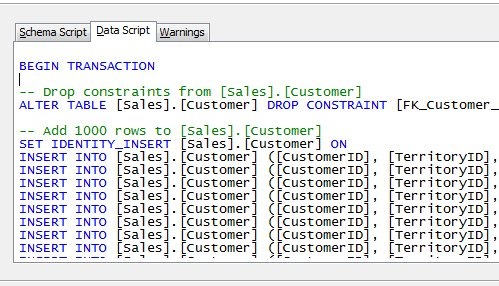
    On the data tab, I had the DML for the actual data.

    packager5

    The comment says “Add 1000 rows”, which seems like a default. However I went back and checked in SSMS, and sure enough, my table had 1000 rows.

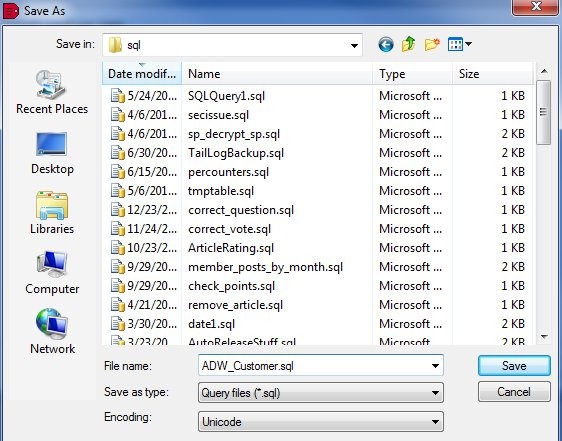
    I clicked next, and had the chance to specify a save location.

    packager7

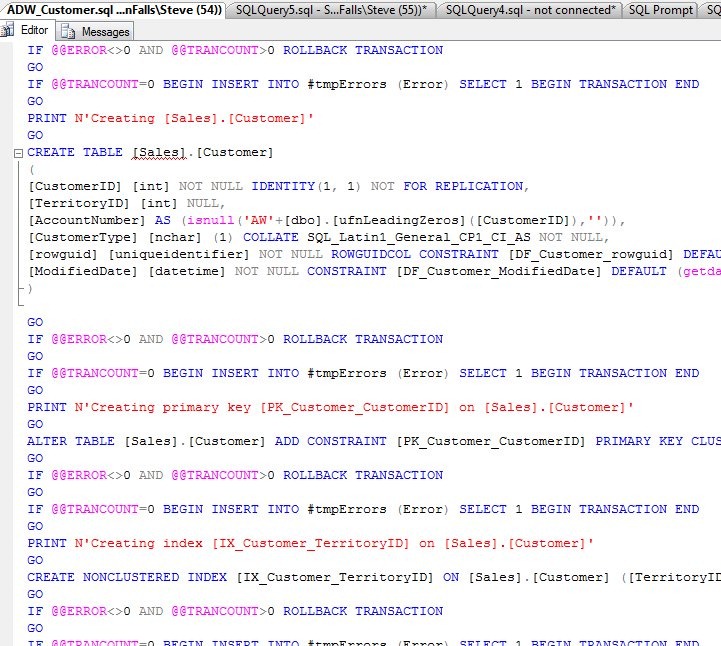
    After saving, I opened the script in SSMS, just to check. Sure enough, the DDL was at the top:

    packager8

    and the data at the bottom:

    packager9

    Simple, and easy.

    If you are looking for a way to move certain sections of your database for a deployment, like all the lookup tables, give SQL Packager a try.

    If you need to send some stuff to a client or friend, it might be a simple way as well to export the DDL and DML into one package.