Tag: sql server

  • Old, but stable

    SQL Server 2000 was a great platform

    I had another poll planned for today, but then I saw Paul Randal’s blog on SQL Server 2000 and it inspired me. I spent many years working on SQL Server 2000 systems, and I liked the platform. It very very stable, reliable, and effective for the companies in which I worked. This was pre-cool SQL Server logo, pre-SSRS, pre-64-bit hardware. SQL Server 2000 was the release that I spent the most time working on to that point in my career.

    Today we have an easy poll, and I’d love to get your answer, and I’m sure Paul would as well, so feel free to put your answer here and on his blog:

    Are you still running SQL Server 2000 in production and why?

    It’s 2012, we have now had 4 releases of SQL Server since SQL Server 2000, but I know there are still plenty of SQL Server 2000 instances out there. It’s not being actively supported or patched, but many companies still continue to use it. Why?

    The reasons often come down to money. I know a few friends that have SQL Server 2000 instances running some proprietary software and their companies do not want to spend the money on an upgrade. With a stable database platform that doesn’t have issues, would you? Is it worth upgrading to the latest version of the platform when what you have works?

    I think you upgrade when you see an advantage to doing so. If that means you want readable secondaries that provide HA, DR, and reporting, then you are probably planning on a SQL Server 2012 upgrade now. If you have to run a key card system that checks people in and out of a building, SQL Server 6.5 probably works fine.

    Let us know today if you still run SQL Server 2000, and how it’s working for you.

    Steve Jones


    The Voice of the DBA Podcasts

    We publish three versions of the podcast each day for you to enjoy.

  • Scaling Out

    Scaling Out
    One way to scale out

    When I first heard about Service Broker coming in SQL Server 2005, I knew it would be slow to gain traction, and many people would not see the power of guaranteed messaging. However I thought over the next 3-4 years it would catch on as we companies looked to scale out their databases to multiple physical servers.

    That hasn’t really happened, and it seems Service Broker has not been widely adopted by many database developers. It surprises me since it seems like a fantastic way to move data between servers. I’m not sure if too many data professionals think a message means a substantial delay in the movement of data, or if they don’t trust the architecture, but there don’t seem to be many people using this feature in SQL Server.

    They should, however, and I saw a great writeup on scaling out SQL Server with Service Broker. It talks about ways in which you might think about improving your application’s performance, especially at larger scales, but implementing Service Broker as a part of your architecture. It has advantages over replication, and it makes sense to me that this could be an extremely flexible way to handle your peak loads.

    However it isn’t the solution to all problems. It has a steep learning curve, the tools have not advanced very far, and the documentation and descriptions can be confusing and incomplete. I had hoped that things would improve over time, but this feature seems to have been largely ignored. However Service Broker and messaging are great technologies, and I’d encourage you to spend some time learning about it, and look for places in your environment that it might solve scale problems.

    Steve Jones


    The Voice of the DBA Podcasts

    We publish three versions of the podcast each day for you to enjoy.

  • Enabling Filestream in SQL Server 2012

    Filestream is a cool feature, albeit one that’s cumbersome to use in SQL Server 2008 and R2. However the FileTable feature in SQL Server 2012 builds on Filestream and you must enable this feature for FileTable to work.

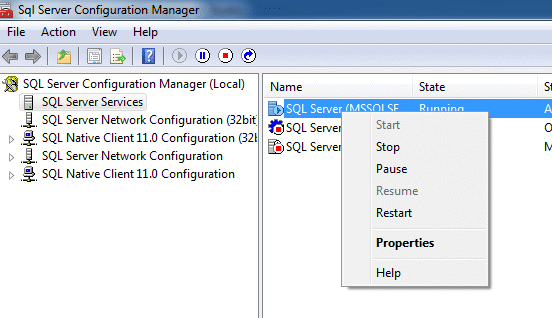
    There is a good document in BOL about this. It basically has you doing a few different things. The first step is to enable the filestream access from outside SQL Server using the SQL Server Configuration Manager. When you start the manager, right click the database service and select properties.

    fs_1

    The database engine has to allow for the access to the file system, so this allows that integration. Typically a Windows administrator is required to dot his.

    Once that is complete, you will see the account properties for the service. What we want to do is change to the FILESTREAM tab, shown on the bottom row to the right.

    fs_2

    On this tab, we can enable Filestream only for SQL Server, for I/O access as well, and specify a share. For Filetable we need to enable both levels of access and create a share name. I chose “SQLFS” for my share name.

    fs_3

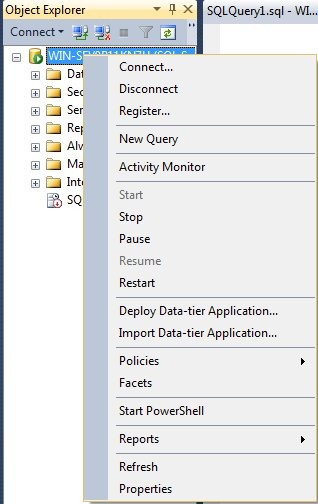
    Once this is done, you need to switch to Management Studio and then right clicking the instance and selecting properties.

    fs_4

    This will bring up a series of selections. If you choose the “Advanced” item on the left, you will get a list of properties for the instance. Near the top, there is the FILESTREAM section. Below I have dropped down the choices. By default, this is disabled, and for FILESTREAM you can select either of the other options, but FileTable needs the full access.

    fs_5

    Once this is done, you need to restart the instance to enable the Filestream for the SQL Server. This doesn’t set up FILESTREAM in any of your databases; this merely enables it for the instance. You need to still create the FILESTREAM filegroups in any database that will use FILESTREAM data.

  • Restoring a Certificate

    I have written about creating a certificate and backing up a certificate, and the next step is the restoration of a certificate into a server instance. This post covers the basics of restoring a certificate.

    There is no RESTORE CERTIFICATE command because the CREATE CERTIFICATE command accomplishes the same thing. It is expected that many people will get a certificate from another company that is a trusted provider, and in that case, they would create their SQL Server internal certificates from the files provided by the vendor.

    However you get your certificate, it will come as two separate files. A .cer file, which is the public key for the certificate, and the .pvk file, for the private key of the certificate. These are the same files that are were created by the makecert.exe utility. They are also the files that were created by the backup in the last post.

    To restore the certificate, you perform the same procedure as the CREATE CERTIFICATE. For my exported certificate, I’ll execute:

    create certificate MySalaryCert
     from file = N'c:\EncryptionPrimer\MySalaryCert.cer'
     with private key
      ( file = N'c:\EncryptionPrimer\MySalaryCert.pvk'
      , decryption by password = N'AReallyStr0ngK#y4You'
       );


    This will load both the public and private sides of the encryption key into SQL Server and you can view them with this DDL:

    select
      name
    , certificate_id
    , pvt_key_encryption_type_desc
    , subject
    , expiry_date
    , start_date
    , thumbprint
    , pvt_key_last_backup_date
     from sys.certificates


    This will show you the results. There are other fields here, but these are the ones I look at to check that this is the proper key. Note that on CREATE, the last backup date is NULL, even if you created this from a file.

    cert2

    cert3

    Note that there are other uses for certificates in Windows. You can install them for IPSec, for SQL Server SSL communications, and more. If you use certificates for any purpose, be sure you can back them up, restore them, and properly manage passwords.