Tag: sql server

  • Not having TDE in all editions is stupid

    A must read for those looking to protect their data

    The whole point of encrypting data at rest is to protect the database if physical files or backups are lost. In the Books Online (BOL) page for Transparent Data Encryption (TDE), it notes that “…, in a scenario where the physical media (such as drives or backup tapes) are stolen, a malicious party can just restore or attach the database and browse the data. One solution is to encrypt the sensitive data in the database and protect the keys that are used to encrypt the data with a certificate. This prevents anyone without the keys from using the data…”

    That’s what TDE is designed for, but the machines that are most likely to be stolen, laptops that contain Express Edition instances, can’t implement TDE. Why not? It’s an “Enterprise only feature”. Why? I assume this is a sales technique to force those companies required to implement data at rest protection will pay more for their instances, but in reality this results in less security for lots of SQL Server applications.

    Recently a healthcare organization was in the midst of performing an encryption rollout to laptops and an unencrypted desktop was stolen with sensitive data on it. I know that TDE wouldn’t prevent this, but how many machines lose data that is unencrypted? How many applications built with Visual Studio store data, potentially sensitive data, on a local Express instance? I know that people can encrypt their entire disk (and they should), but what about their backups? What about copying a file to another machine? There are no built in protections, when there easily could be.

    I can understand partitioning, Resource Governor, and a few other items being Enterprise only, but a security feature? That strikes me as a poor decision all around.

    Steve Jones


    The Voice of the DBA Podcasts

  • Autogrow guidelines

    I always enable autogrow on my databases. However, it’s there for emergencies, not as a space management tool. I monitor disk space, and I grow my files manually as space runs low. I want to control the growth, but in the event of a runaway process or some unexpected event, I want autogrow enabled to hopefully prevent a database crash.

    What level of autogrow do you enable? That was a question I saw recently and it made me stop and think a bit. I asked the question on Twitter, but got very few responses and no real guidance from others.

    In my mind, you want to enable a specific level of autogrow that will be likely to handle something unexpected in a single, or maybe a couple growths.

    The two options for autogrowth are:

    • percentage
    • fixed size growth

    In general I think a fixed size growth is the setting to choose. This offers more control and as your database size grows, it’s unlikely you want to grow at a percentage. A 10% growth of a 100MB database is 10MB, almost a rounding error on many of today’s drives.

    However a 10% growth on a 2TB database is 200GB, which could easily exceed the free space on the drives that make up a file,which is where you set the autogrow specifications:

    autogrow1

    As the file size increases, the disk space goes down, but the percentage growth goes up as well, exacerbating the problem.

    So what are the guidelines?

    I think that you have to look at the data growth and each database and what is possible for data growth in that database. Some some database that does ETL work I think it’s more likely you could have an unexpected large or duplicate import in a process that would cause larger growth.

    However the question I was asked talked about setting a guideline for hundreds of databases, where in the short term it’s impractical to review every database. For those, I offer up these guidelines, though I’m happy to have someone give better guidance.

    MDF Size File Autogrowth
    < 1GB 100MB
    1GB < mdf size < 50GB 2GB
    50GB < mdf size < 200GB 5GB
    200GB < mdf < 1TB 10GB
    > 1TB 50GB


    These are guesses on my part, based on some experience, but the largest database I ever managed was a 600GB one, so I’m guessing on the TB scale.

    I’d welcome your comments and experience in this area.

  • Power Tools at Work

    This editorial was originally published on Jan 17, 2007. It is being republished as Steve is on vacation. 

    Now this could be fun. Just imagine your boss comes to your cube with an electric drill, a sledgehammer, and a circular saw. Oh, and don’t forget the safety glasses. You’ve got work to do.

    That’s what is happening in some IT shops as old data drives need to be destroyed with no hope of the data being recovered. I saw this article on data demolition and thought that might actually be a fun afternoon at work. Destroy some old data drives, ending their usefulness like the fax machine in “Office Space” 🙂

    Data security is becoming a bigger issue all the time in the corporate world. And as more companies store more and more data on disk, the issues with disposal must be dealt with by more and more IT groups.

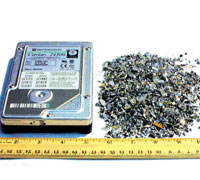
    I guess you could hire a firm and get this before and after picture:

    Now this might be fun.


    but I’d think that defeats the purpose somehow. It’s the physical access outside your company that can be the problem. Going to a vendor specializing in destruction could be a problem since it gives criminals a single source (or a smaller source) or vendors they can bribe to get critical data. Better off letting different people in your company destroy the data at random intervals. That way no one can predict where and when the data will be destroyed.

    Plus it would be fun 🙂

  • Helpful Advice?

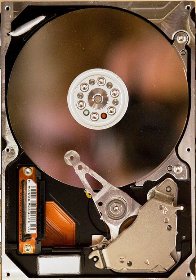
    hard drive
    Flicking power on and off is not recommended for these devices.

    This editorial was originally published on Feb 5, 2007 and is being re-run as Steve is on vacation.

    I have to be honest with you. It wasn’t me. This advice on DRwasn’t given to anyone by me. This post is from a blog entry last year before Tech Ed. I made a note of it, but it wasn’t until recently I got around to actually writing about it.

    I’m kind of surprised to see some of this advice being given to people. Some of these I don’t think are too bad, but would you do any of these on your production database?

    1. “Just run REPAIR_ALLOW_DATA_LOSS and you’ll be fine…”
    2. Just rebuild your transaction log using these steps…”
    3. “Just restore your database and carry on…”
    4. “Run CHECKALLOC, then CHECKDB, then CHECKTABLE on all your tables, then…”
    5. “Just flick the power switch on and off a few times on one of the drives…”

    Actually I’ve done #4 and #3 is something I’ve had to do before as well. I can appreciate the caution in the article about not finding the root cause, but I’ve had more problems than I’d like to think about where we couldn’t find a root cause in a reasonable time and decided to move on. And we never had the issue again. In the interests of getting the business going, there was a time where I explained everything, guesstimated the data loss, and we decided to just restore, lose the data, and have people re-enter it as quickly as possible.

    As for the other items, I don’t think I’d run REPAIR_ALLOW_DATA_LOSS without someone from CSS on the phone. And I don’t think I’ve ever even heard about anyone “rebuilding” a transaction log. That sounds like one of those urban myths where someone heard that someone said that they had a way to rebuild a log.<

    Flicking the power on your drives? I’m not sure what I’d even say to someone who suggested it.